Intake and triage
Intake is where a project's details and documents are collected. Triage is where your team reviews a submitted intake, then approves it into design or pushes it back to the client.
How a project arrives
A project can start in four ways.
- Your staff create it. See Start a project yourself.
- A client creates it. A client admin or office user fills in the same wizard from their side. See Submit a new project in the client guide.
- A field inspector submits it from the Inspector portal. See Complete an intake in the field inspector guide.
- A lead is converted. See Convert a lead to a project.
Whichever way it starts, the path is the same.
- The project sits on the Intake tab as Project Intake Initiated until its intake is submitted.
- On submission, Structra checks that the required documents are attached.
- The project moves to the Triage tab as Ready for Triage Review.
- Someone on your team assesses it. Approving sends it to Design. Pushing back returns it to the client.
Nothing reaches design until a person has approved it in triage.
Start a project yourself
Organization Admins, Engineers and Designers can all create a project.
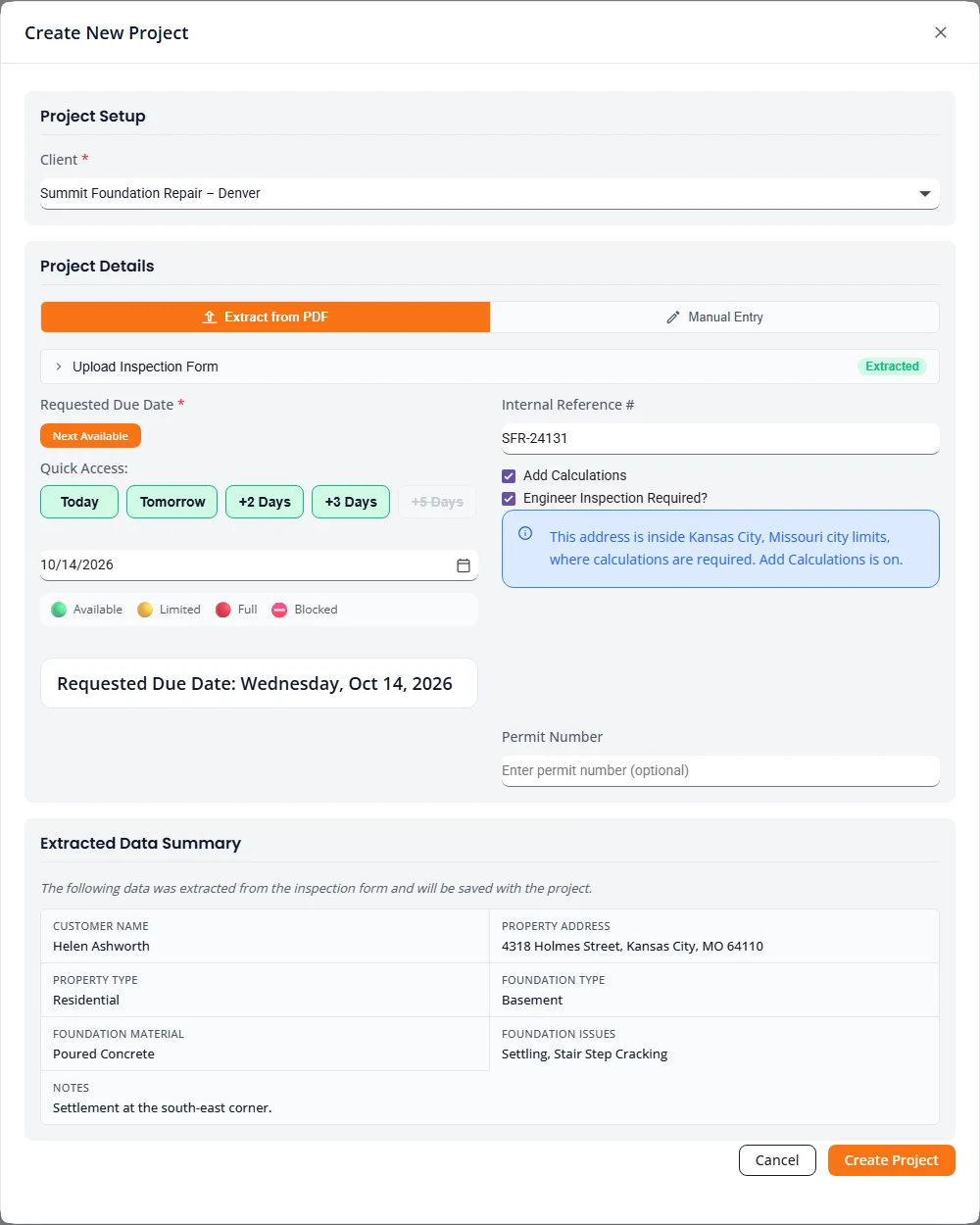
- On Projects, press New Project. Create New Project opens.
- Choose the Client. If that client has more than one project type, choose the Project Type too.
- Under Project Details, pick how you will enter the job:
- Extract from PDF: under Upload Inspection Form, choose the client’s inspection form. Structra reads it, marks it Extracted, and lists what it found under Extracted Data Summary. That information is saved with the project. Structra also checks the address it read. See The calculations address check.
- Manual Entry: nothing to upload. You type the details in the wizard that follows.
- Set the Requested Due Date. See Due dates and capacity.
- Type the client’s reference for the job in Internal Reference #.
- Tick Engineer Inspection Required? if the finished work needs an engineer’s inspection. A Permit Number box appears. Tick Add Calculations if the job needs calculations.
- Press Create Project. The project gets its job number and the intake wizard opens.
Fill in the intake wizard
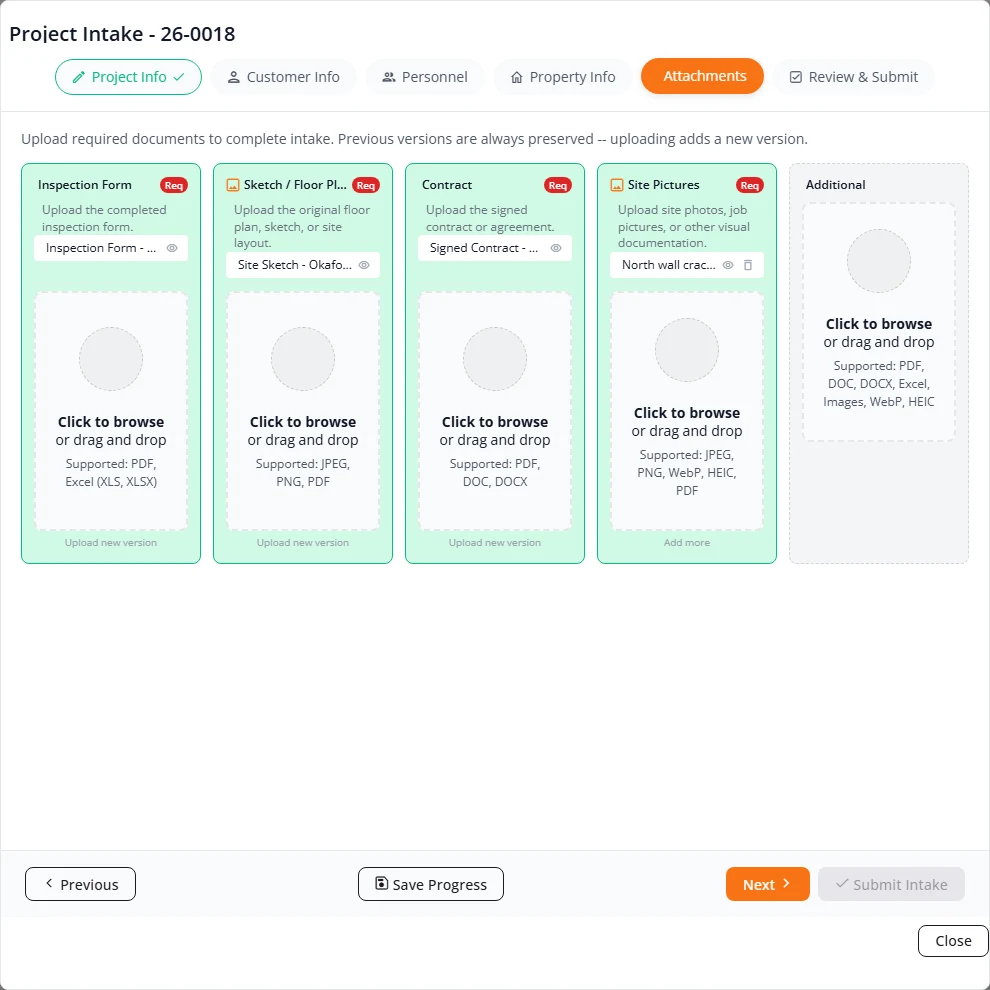
The wizard is titled Project Intake with the job number. It has six steps, shown as buttons across the top. Move with Next and Previous, or select a step directly.
| Step | What goes in it |
|---|---|
| Project Info | Internal Reference #, Requested Due Date, and the two requirements: Calculations Needed and Engineer Inspection Required. |
| Customer Info | Customer Name and Property Address. |
| Personnel | Project Manager (CFI), the client’s person on the job, and an optional Foreman. Choose + Add New CFI or + Add New Foreman in the list if the person is not there yet. |
| Property Info | Property Type, Number of Stories, Foundation Material(s), Foundation Type(s), wall and soil heights, Foundation Issue(s), and the Scope of Work. Tick each scope item, then choose its brand and type its Quantity. |
| Attachments | Inspection Form, Sketch / Floor Plan, Contract and Site Pictures, each marked Req, plus Additional for anything else. |
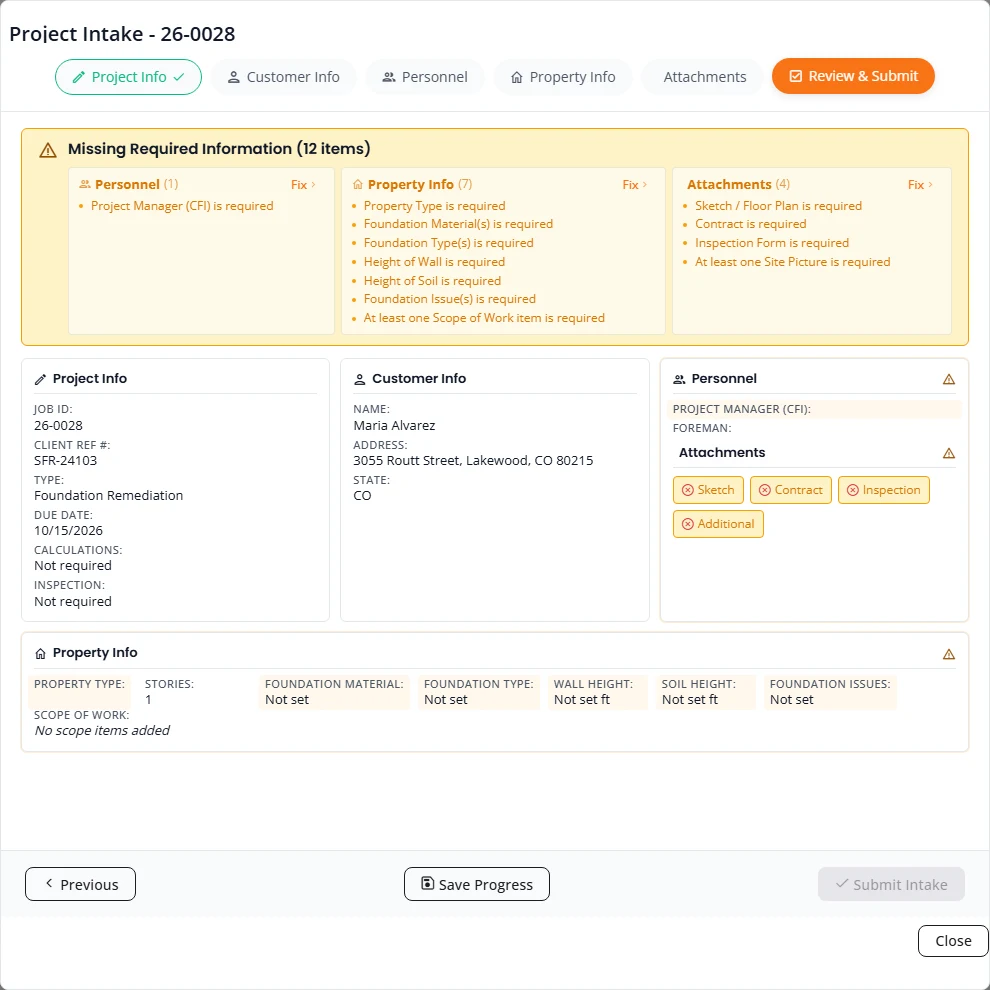
| Review & Submit | A summary of everything entered, and a list of anything still missing. |
- It saves as you go. Saved shows at the top right after each change. Save Progress saves the step you are on straight away.
- Leaving a step saves it first. Next, selecting another step and Close all save what you typed before they move on. If a save fails, the wizard stays on the step and shows the error.
- Pick the address from the list. Start typing in Property Address and select one of the suggestions. That fills in the state, which is required.
- Files are never replaced. Uploading to a slot that already has a file adds a new version and keeps the old one.
Add a person from the Personnel step
+ Add New CFI and + Add New Foreman open a short form. Fill in First Name, Last Name and Role, add an Email and Phone Number if you have them, and press Create User. The person is added to the client and chosen on the project.
- The Role list holds only the roles you may add.
- An Organization Admin sees every client role.
- An Engineer or a Designer sees CFI, Sales, Foreman and Inspector. Other client roles are added by an Organization Admin.
- A foreman needs an email address, because inspection reminders are sent by email.
Submit
On Review & Submit, a yellow box headed Missing Required Information lists what is left, grouped by step. Press Fix beside a group to jump to that step. When nothing is missing the box turns green and reads Ready to Submit. Press Submit Intake.
A separate warning, Calculations are required at this address, can show above that box. It does not stop you submitting. See The calculations address check.
The same wizard is described step by step for clients in Submit a new project. For a project type that is quoted by scope and fee instead of foundation details, the fourth step is Scope & Fee. See The Ad Hoc project type.
The calculations address check
Some cities require engineering calculations with a permit application. Structra looks up the property address, works out which city’s limits it sits inside, and tells you when that city requires calculations. One city is set up: Kansas City, Missouri.
| Where | What you see for an address inside the limits |
|---|---|
| Create New Project, Extract from PDF | Once the inspection form is read, Add Calculations and Engineer Inspection Required? are ticked for you. A note under them reads “This address is inside Kansas City, Missouri city limits, where calculations are required. Add Calculations is on.” Untick Add Calculations and the note turns into a warning that ends “but Add Calculations is off.” |
| Create New Project, Manual Entry | Nothing. There is no address on that screen to check. |
| Intake wizard, Review & Submit | With Calculations Needed off, a warning at the top headed Calculations are required at this address reads “This address is inside Kansas City, Missouri city limits, where calculations are required, but Calculations Needed is off.” Go to Project Info takes you to the step where you can tick it. |
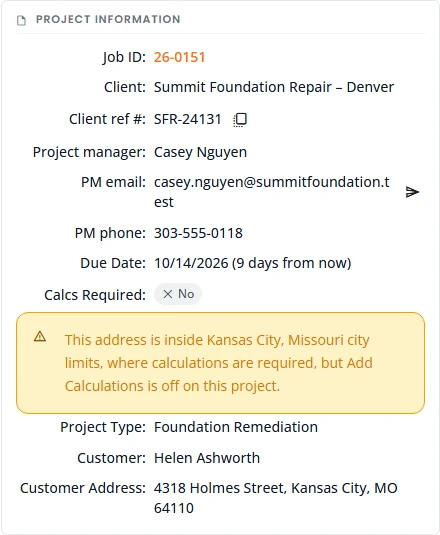
| Triage review | With calculations off, a warning under Calcs Required reads “This address is inside Kansas City, Missouri city limits, where calculations are required, but Add Calculations is off on this project.” |
- It advises. It never blocks. You can create, submit and approve the project with calculations off.
- It goes by the city boundary, not the mailing address. An address that reads “Kansas City, MO” but sits in a neighbouring city such as Platte Woods is not flagged. Kansas City, Kansas is not flagged.
- No note and no warning means the address is outside the limits, or Structra could not place it precisely. Decide for yourself in those cases.
- Only where calculations are offered. A project type without a calculations option, such as Ad Hoc, is not checked.
To turn calculations on later, open the wizard’s Project Info step and tick Calculations Needed.
Due dates and capacity
The due-date picker appears in Create New Project and on the wizard’s Project Info step. There are three ways to set the date.
- Next Available picks the first working day, starting tomorrow, that your organization can take work.
- Quick Access offers Today, Tomorrow, +2 Days, +3 Days and +5 Days. A button is struck through when that day cannot be chosen.
- The calendar lets you pick any open day. Days that cannot be chosen are greyed out.
The date you chose is repeated under the picker, for example “Requested Due Date: Wednesday, Oct 14, 2026”.
Why a date may not be available
| Reason | What you see |
|---|---|
| Weekend | Saturdays and Sundays are blocked, where your organization does not take due dates on weekends. |
| Holiday | A day your organization has marked as a holiday is blocked. |
| Too soon, for a client | A client’s earliest date is tomorrow, or the day after tomorrow once it is past noon. Your own staff can choose today. |
| Full | The day has reached your organization’s capacity. Your staff can still choose it as a rush job. A client cannot. |
Capacity and rush jobs
Where your organization has set its design capacity, the picker shows it. Each quick-access button carries the places left that day. The legend under the calendar reads Available, Limited, Full and Blocked. A day turns Limited once three quarters of its places are taken.
Choosing a full day shows “This date is at capacity.” and a tick box, Request Rush Job (priority scheduling). Ticking it marks the project as a rush job and states the rush upcharge. Next Available never picks a full day for you.
A client cannot choose a full day. If one is already selected, they see “This date is fully booked. Choose another date, or contact the engineering office if it is urgent.”
When a client submits
A client’s project needs nothing from you until it is submitted. Then it appears on the Triage tab as Ready for Triage Review, with the client, their project manager and the date they asked for.
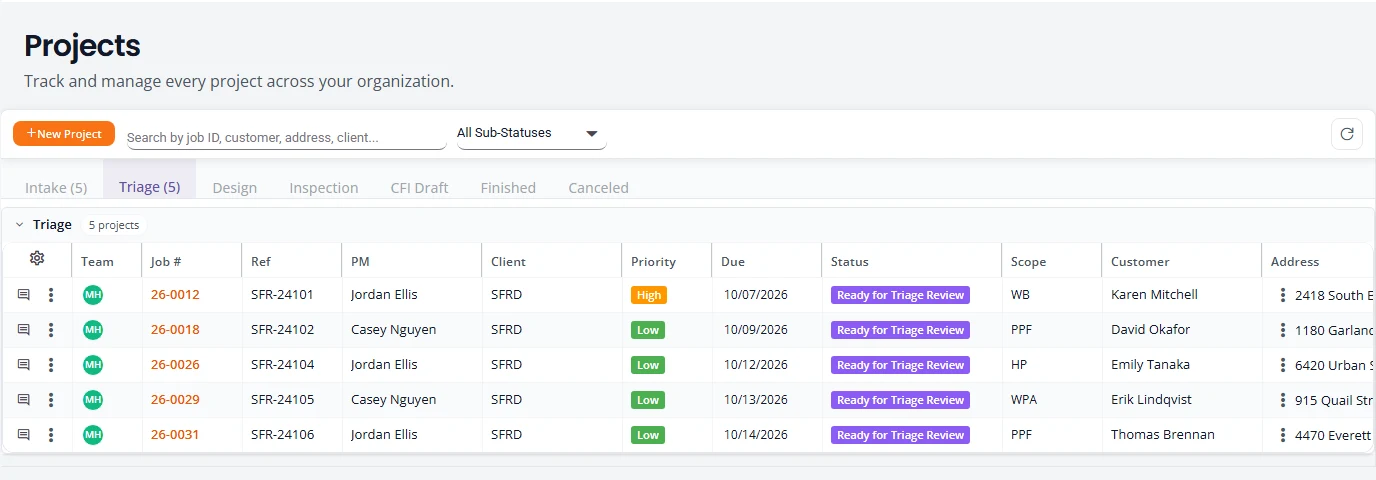
- While the client is still filling it in, the project is on your Intake tab as Project Intake Initiated. You can open it with Complete Project Intake and finish it for them.
- The triage review states how each project came in. A project entered through the wizard reads “Inspection form submitted via project intake wizard”. One sent by a field inspector reads “via CFI web form”, and its inspection form is the one generated from what the inspector entered.
Assess a project
- On Projects, open the Triage tab.
- Open the row menu (the three dots) and choose Assess Intake. The Triage review window opens. You can also open the project and press Assess Intake at the top of its page.
- Read what was submitted. The window has three columns.
- Decide: approve or push back. The buttons are at the bottom of the window. Scroll down if you cannot see them.
- To look at another project without deciding on this one, press Next job or Previous job. See Work through the queue.
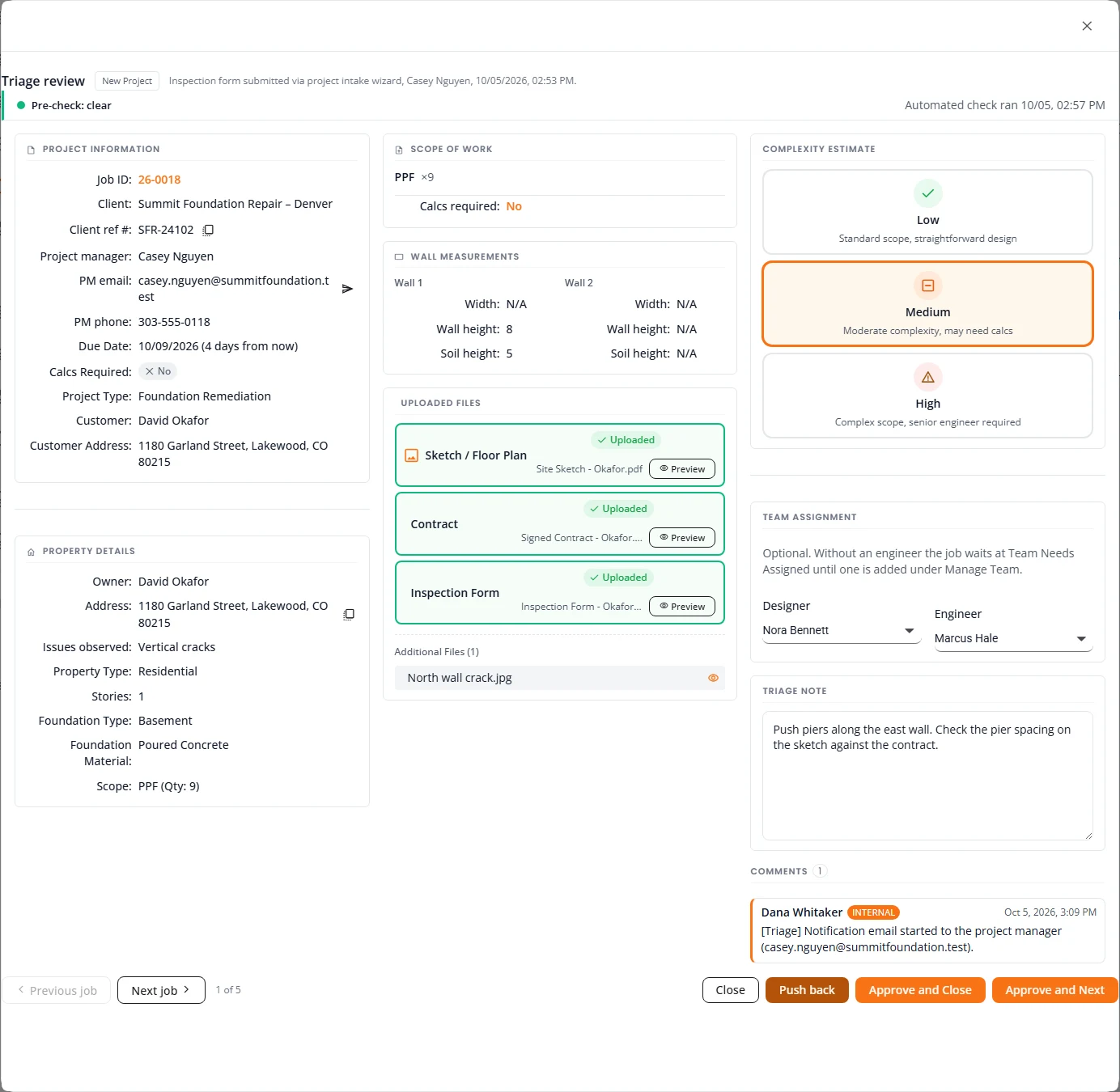
| Column | What it holds |
|---|---|
| Left | Project Information: job, client, client reference, project manager with email and phone, due date, whether calculations are required, and the customer. A warning shows under Calcs Required when the address check disagrees. Under it, Property Details. |
| Middle | Scope of Work with quantities, Wall Measurements, and Uploaded Files. Each required document reads Uploaded or Missing. Press Preview to read a PDF without leaving the window. |
| Right | Your decision: Complexity Estimate, Team Assignment and Triage Note. Under them, the project’s Comments so far, to read only. |
Small tools in the window
- The copy buttons beside the client reference and the address copy that value.
- The arrow beside PM email opens a new message in your own email program, addressed to the client’s project manager, with a subject that starts “[Notification]” and names the job. Structra adds an internal note to the project saying the email was started. Writing and sending the message is up to you.
- Comments marked Internal are your team’s own notes. To add a comment, close the window and use the project’s comments. See Comments.
AI pre-checks
After an intake is submitted, Structra can run two automatic checks on its documents and show the results at the top of the triage review. They run in the background and never hold the project up.
- The contract check reads the uploaded contract and inspection form and compares them with what was entered.
- The sketch check grades the sketch against a scorecard for the job’s scope of work.
Both are turned on or off for each client. The contract check is on unless you turn it off. The sketch check is off until you turn it on. See AI pre-checks for a client. Neither runs for a project type whose setup leaves the pre-check out, such as Ad Hoc.
The results are for your staff only. Clients and field inspectors never see them.
The contract check
The result is the coloured strip under the window’s title. The right end of the strip says when the check ran.

| Strip | Meaning |
|---|---|
| Pre-check: clear | Nothing was found. |
| Pre-check: advisories | Minor differences worth a look. |
| Pre-check: issues found | Differences that matter, such as a value in the contract that does not match the form. |
| Pre-check: not run | No check has been made. Review the documents yourself. |
| Pre-check: could not complete | The check was tried and failed. Review the documents yourself. |
When the strip reports issues or advisories:
- Select the strip to open the list. Each line names the field and shows the two values side by side.
- Press Resolve on a line, type why it is not a problem, and press Confirm to clear it.
- Press Copy to push-back reason to start a push-back with the list already written in.
The sketch check
The sketch check grades the latest file uploaded as the sketch against the scorecard for the job’s scope. Its row sits under the contract strip. Push-pier jobs are the only ones with a scorecard so far. How the scorecard is built is in AI sketch rubrics.

| Row | Meaning |
|---|---|
| Sketch: 97/100 · Pass | Every critical item scored its full points. The total is a separate measure of how good the sketch is. |
| Sketch: 93/100 · Fail | At least one critical item scored less than its full points. The row says how many, such as “2 * items below max”. |
| Sketch: 95/100 · Needs review | The check was unsure about a critical item. The row reads “a * item needs a reviewer”. Look at the sketch and decide. |
| Sketch check: scoring… | The check is running. The row updates by itself when it finishes. |
| Sketch check: not run yet | The check is on for this client but has not scored this project. Press Re-run to run it. |
| Sketch check: could not complete | The check was tried and failed, for example because there was no sketch or the file could not be read. Open the row to see why. Nothing was scored: it is not a zero. |
| Sketch check: not enabled | The sketch check is off for this client. |
| Sketch check: no rubric for this scope | There is no scorecard for this job’s scope. Only push-pier jobs are scored for now. |
Select the row to open it. It lists only the items that scored less than their full points, critical items first. A critical item is marked with an asterisk (*).

- Each item shows its number and name, the points it got out of its maximum, what the check saw on the sketch, and in italics what would fix it.
- An item the check was unsure about is marked needs review with how sure it was. It does not count as a fail.
- Agree and Disagree record whether you think the item was scored right. They do not change the score.
- If every item scored its full points, the row reads “Every item scored its max.”
When the sketch check runs again
- When the client fixes a push-back and submits again, the sketch is scored again only if a new sketch was uploaded. The same sketch keeps its score.
- When a newer sketch has been uploaded since the last score, the row says so, for example “Sketch v2 not scored yet”.
- Press Re-run to score the latest sketch now. “Sketch check queued. The result appears here when it finishes.” confirms it.
Approve
- Under Complexity Estimate, choose Low, Medium or High. This is the only thing you must set.
- Under Team Assignment, choose a Designer and an Engineer if you know who will take the job. The engineer is already filled in with the project’s engineer of record. Leave the designer blank to let the design team pick the job up. Do not leave the engineer blank unless you mean to: the window says “Without an engineer the job waits at Team Needs Assigned until one is added under Manage Team.”
- Under Triage Note, type anything the designer needs to know. It is optional.
- Press Approve and Close to approve and return to the list. Press Approve and Next to approve and go straight to the next project in the queue.
Then:
- The message “Project approved and assigned to team.” confirms it.
- The project moves to the Design tab. Structra prepares its design files, and the project then waits at In Drawing Queue. See Design.
- The triage note is saved on the project as an internal note that starts with “[Triage]”. Clients do not see it.
Approved with no engineer
The approval goes through with a warning: “Project approved, but no engineer was chosen. It waits at Team Needs Assigned until an engineer is added under Manage Team.” The project sits on the Design tab as Team Needs Assigned. Add the engineer and it moves on by itself. See Assign or change the team.
Work through the queue
When you open the triage review from the Triage tab, the window knows the whole list. You can assess one project after another without closing it.
- Next job and Previous job, at the bottom left, open the next or the previous project in the list. The project you leave is not changed. Anything you had chosen or typed for it is cleared.
- The count beside them, such as “2 of 6”, is your place in the list.
- Approve and Next approves the project on screen and opens the next one. The complexity, the designer and the triage note start empty for each project.
- On the last project, Next job and Approve and Next are greyed out. Use Approve and Close.
Push back
Push a project back when something is missing or wrong and only the client can fix it.
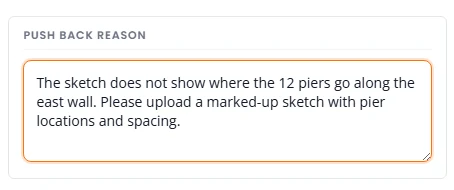
- Press Push back. Push Back Reason takes the place of the team assignment.
- Type what is missing and what you need. A reason is required.
- Press Push Back to Client. To change your mind first, press Back to Approve.
Then:
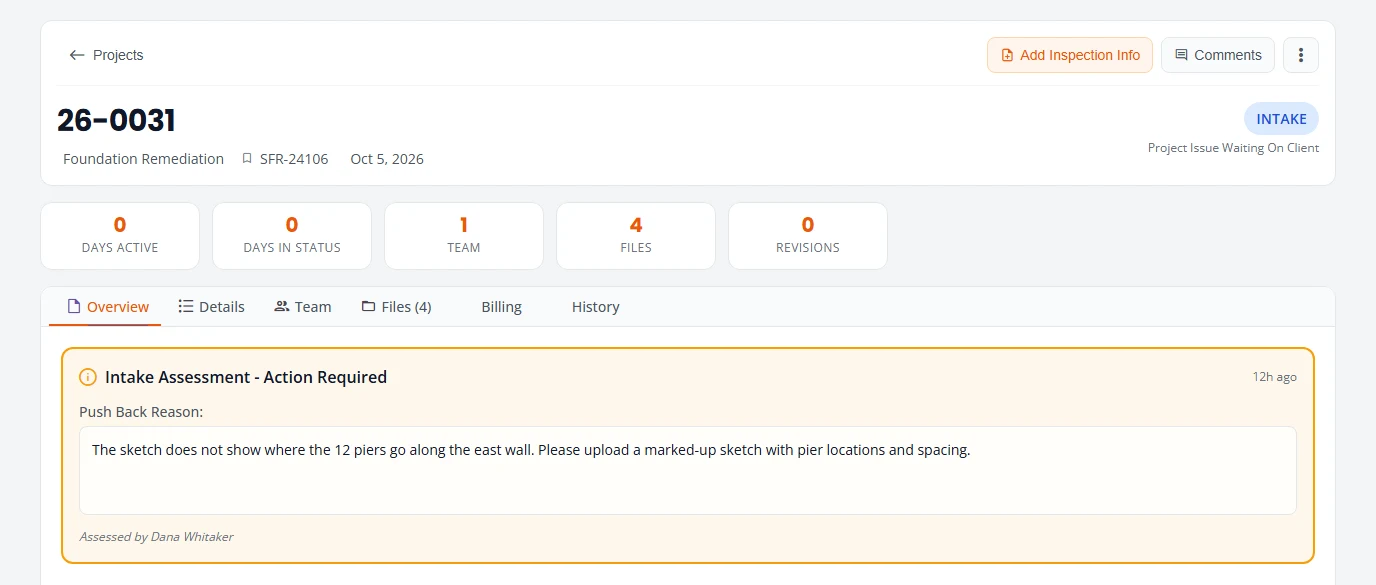
- The project returns to the Intake tab as Project Issue Waiting On Client.
- Structra emails the client’s admin and the project manager. The subject starts “Action Needed”. The email names the project, says who sent it back, gives your reason word for word and links to the project. Your Organization Admin gets a copy.
- Your own email program also opens a new message to the project manager, with a subject that starts “[Info needed]” and your reason as the text. Send it if you want to add a personal note. Structra’s email has already gone either way.
- The reason is shown at the top of the project’s Overview tab under Intake Assessment - Action Required, with how long ago it was sent back and who assessed it.
When the client has fixed the intake and submitted it again, the project comes back to the Triage tab. See After you submit in the client guide for their side of it.
Assign or change the team
Every new project starts with your organization’s default engineer of record on its team. Triage can add a designer. You can change the team at any point after that.
- On Projects, select the initials in the project’s Team column. Or open the project, open the menu at the top right (the three dots) and choose Manage Team. Project Team opens.
- Under Search to add a team member, choose a person. They join the list below.
- Set each person’s role. An Engineer can be EOR (engineer of record) or Reviewer. A Designer can be Designer or Reviewer.
- Tick Lead for the person leading the project. Only one person can be the lead.
- To take someone off, press the × at the end of their line and confirm with Remove.
- Press Save Changes.
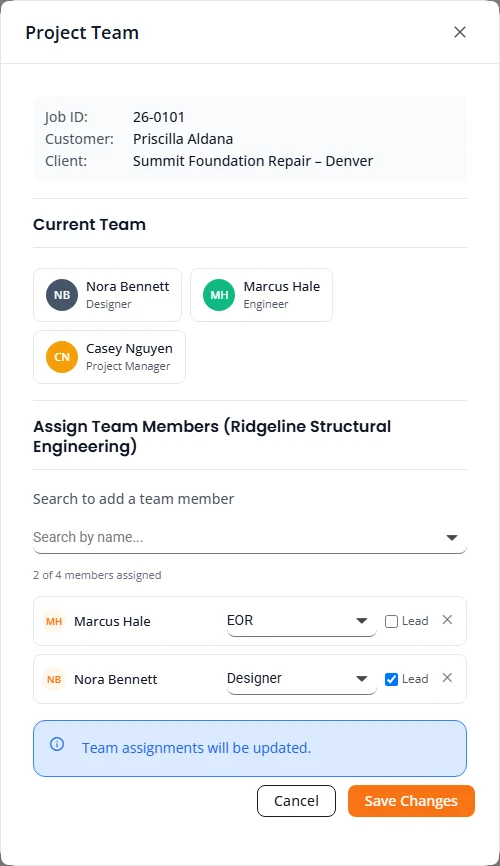
A project waiting at Team Needs Assigned has no engineer. Add one here and press Save Changes. The project leaves Team Needs Assigned and carries on without a status change from you.
What is not here yet
- Automatic approval. Every project is approved or pushed back by a person.
- Pre-checks while an intake is being filled in. A client’s settings have switches for the CFI wizard and the Client admin wizard. Those checks do not run yet. Only the triage checks do.
- Sketch scorecards beyond push piers. Other scopes show “Sketch check: no rubric for this scope”.
- Emails to the project manager sent by Structra from the triage window. The PM email button and the “[Info needed]” message both open in your own email program. Only the “Action Needed” push-back email is sent by Structra.
Stuck on something? Email support@structra.tech and tell us what you were trying to do.