Comments, files and deliverables
Each project has its own page with its conversation, its files and the record of what you delivered. This page covers talking to the client, keeping internal notes internal, and sending the right files.
The project page
On Projects, select a number in the Job # column, or choose View Details in the row menu. Press Projects at the top left of the page to go back to the list.
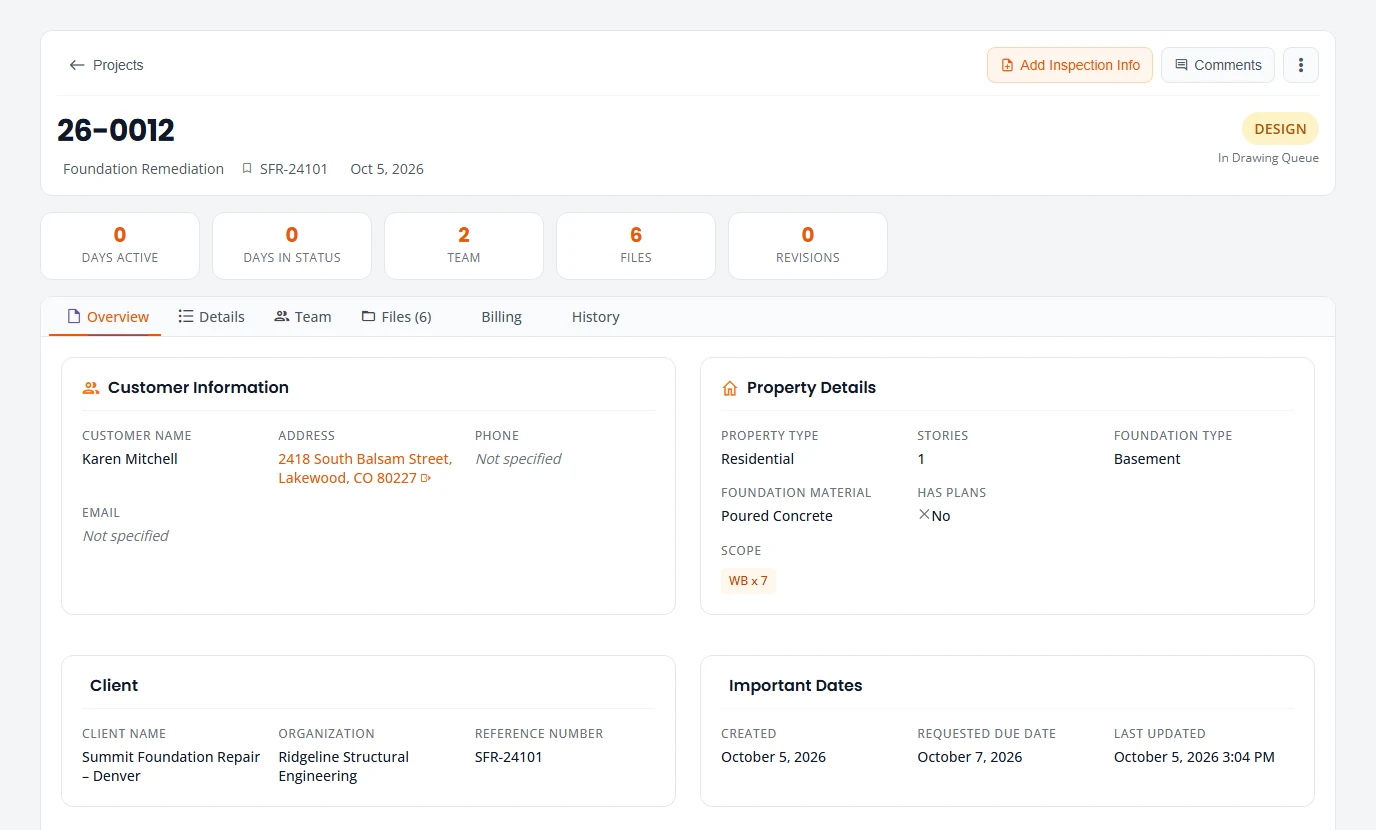
The header
- Status. The coloured label is the status, with the sub-status under it. Select the label to change it. See Change a status.
- Comments. Opens the project’s comments.
- The three dots. Opens a menu with Edit Project (or Complete Project Intake while the project is in Intake or Triage), Change Due Date, Manage Team, the inspection actions and Cancel Project. A canceled project has none of these. A project waiting on a cancellation decision has only Resolve Cancellation, for an Organization Admin.
- Extra buttons appear when the project is waiting on that step, such as Assess Intake while it is in triage.
The tabs
| Tab | What it holds |
|---|---|
| Overview | Customer Information, Property Details, Client, Important Dates and Recent Comments. A push-back reason shows at the top. |
| Details | Permit Information, Calculations, Extended Property Details, Foundation Issues and Project Scope with codes, quantities and brands. |
| Team | Your people on the project, with role, job title, email and phone. |
| Files | Deliverables and Project Files. The tab shows the file count. |
| Billing | What has been billed on the project and its invoices. See Billing and QuickBooks. |
| History | A Timeline of status changes, uploads and comments, newest first, each with how long ago it happened and who did it. Under it, the Revisions and Audit Information, which names who created the project. |
Comments
Comments are the conversation about one project. Your team and the client’s people who can open the project all read and write in the same place.
- Open the comments: select the speech bubble at the start of the project’s row on Projects, or press Comments on the project page. Project Comments opens.
- Type under Add a Comment.
- Press Add Comment. The comment joins the top of the list.
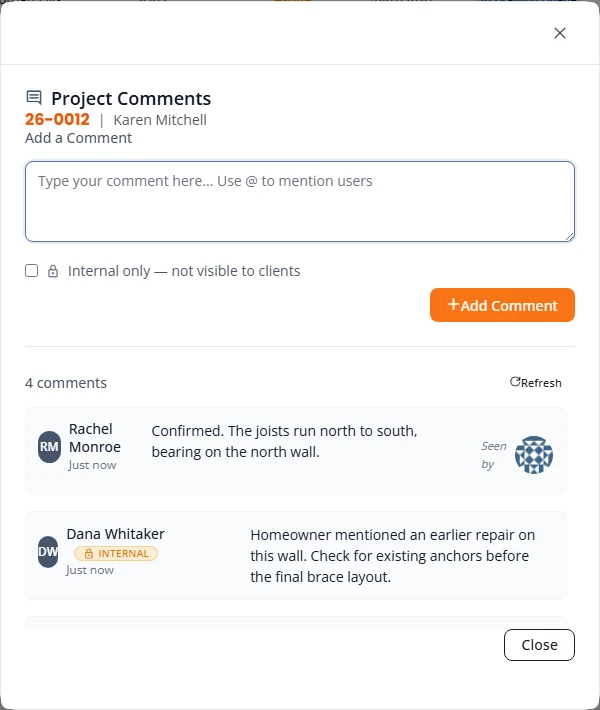
- Mention someone. Type @ and the start of a name. Pick the person from the Mention someone list, or pick Everyone. The name is added to your comment and shows highlighted once posted. See What a mention does.
- Seen by. Small pictures under a comment show who has opened it.
- Edit or delete. The pencil and the bin appear on your own comments. An edited comment is marked “(edited)”. Deleting cannot be undone.
- Unread. On the Projects list, the number on a row’s speech bubble is its comment count. It is red while there are comments you have not read. Opening the comments marks them read.
- Latest comments. The newest ones also show under Recent Comments on the project’s Overview tab.
What a mention does
The person you mention is told straight away, three ways.
- On screen. If they are signed in, a message appears with your name and the job number, for example “Dana Whitaker mentioned you in a comment on 26-0105”.
- In their notifications. The number on the notifications icon at the top right goes up by one, and the mention heads the list. Selecting it opens the project with Project Comments already open.
- By email. An email goes out at once, with a subject such as “Dana Whitaker mentioned you on 26-0105”. It quotes the comment and links to the project’s comments.
This works the same for your own staff and for the client’s people. A staff member who still has unread mentions also gets one email on weekdays, “You have 1 unread mention in Structra”, listing each one with a link to the comment.
Internal notes
An internal note is a comment only your organization can read. Use it for anything the client should not see: a judgement call, a pricing remark, a note to the designer.
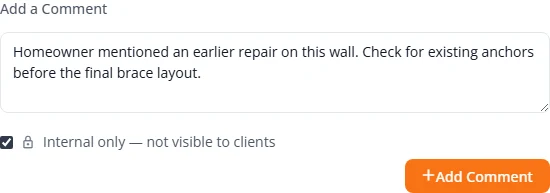
- In Project Comments, type the note.
- Tick Internal only — not visible to clients.
- Press Add Comment. The note is listed with a padlock and the word Internal.
Clients never see internal notes. The text of an internal note is left out of the client’s comments window, out of Recent Comments on the client’s project page, and out of the comment count on the client’s list.
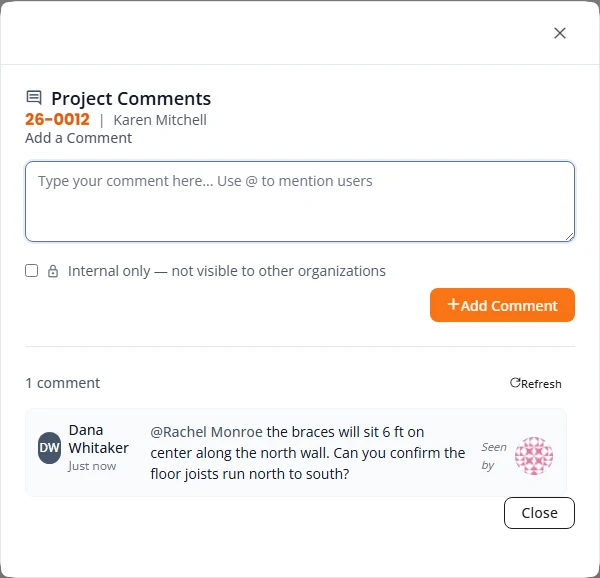
Mentioning a client does not share the note
- Once the internal box is ticked, the Mention someone list only offers people in your own organization.
- If you had already mentioned a client and then tick the box, that mention is taken off.
- Typing a client’s name after an @ by hand is just text. It does not show them the note and does not tell them about it.
Files
The Files tab of the project page has two parts. Deliverables, at the top, is covered below. Project Files lists every file on the project.
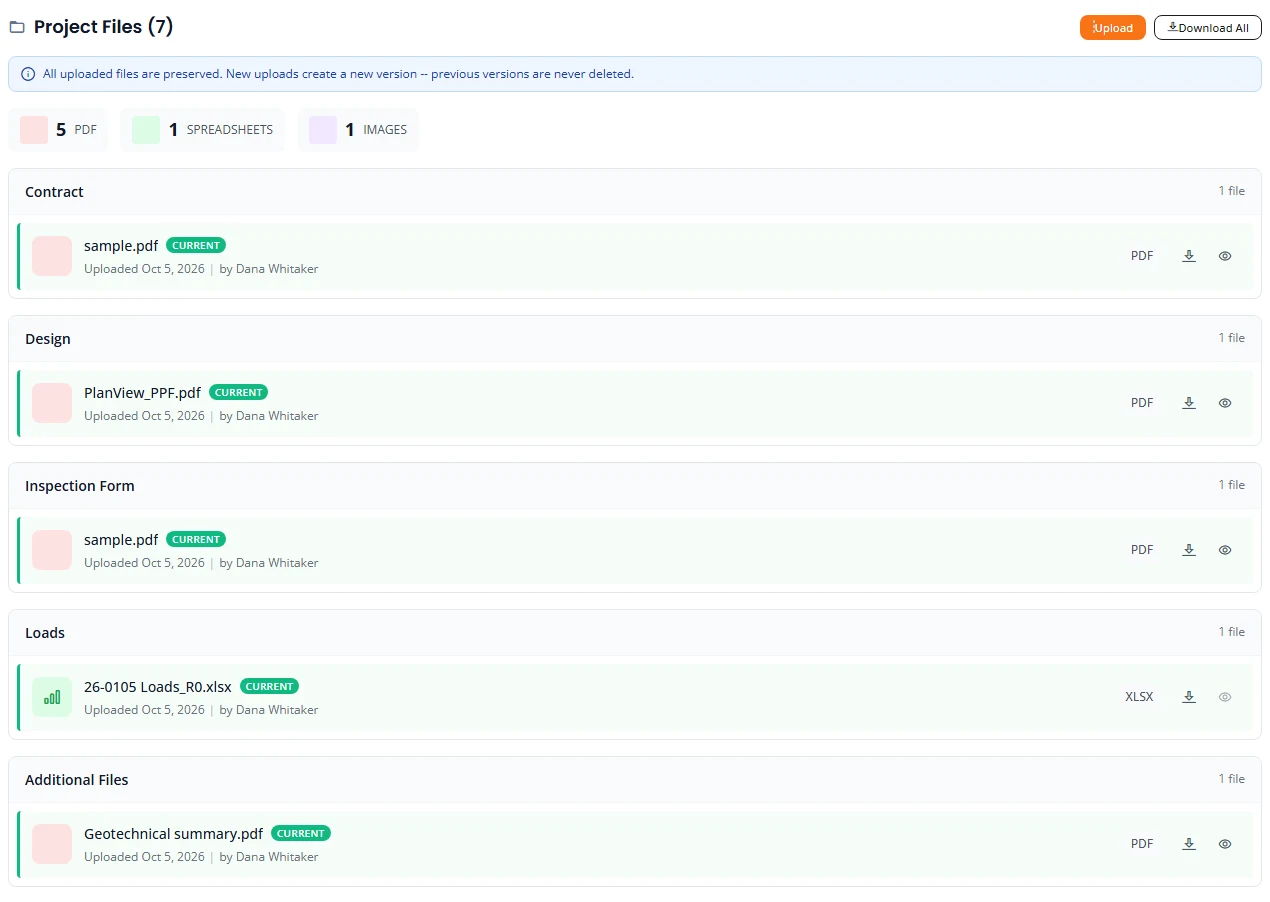
- Groups. Files are grouped by kind, such as Contract, Design, Inspection Form, Site Pictures and Sketch / Floor Plan.
- Versions. The newest file in a group is marked Current. Earlier ones are kept under a “previous versions” line you can open. Nothing is overwritten.
- Who and when. Under each file name is the day it was uploaded and the name of the person who uploaded it.
- Preview. The eye icon opens a PDF or a picture without leaving the page. Select a picture to zoom in.
- Download. The arrow beside a file downloads that file. Download All, at the top right, downloads every file in the list as one zip named after the job.
- All Files. A table at the bottom lists every file with its type, version, upload date and Uploaded By.
Where the files come from
- The Attachments step of the intake wizard. See Fill in the intake wizard.
- Files Structra creates as the project moves on, such as the design files set up after triage and the reports. See Design.
- Inspection uploads. See Inspections.
- The Upload button in Project Files, described next.
Upload a file
- In Project Files, press Upload. Upload files opens.
- Choose the Document type: Additional file, Sketch / floor plan, Contract, Site pictures or Plans.
- Read the line under the list: “The client can see and download this file as soon as it is uploaded.”
- Press Choose files and pick the file. Some types take one file at a time, and the button then reads Choose file.
- Press Upload. The file joins its group as the current version.
What the client sees
A client who opens the project has the same Project Files list, with Upload, Download All and the download arrows. The list is shorter for them.
- Always shown. The documents a client supplies: the contract, the inspection form, the sketch, site pictures, plans and additional files.
- Shown once delivered. Your own work, such as the design drawing and the loads spreadsheet. The client does not see these until you have sent them. See Send deliverables to the client.
The Upload files window states this itself, under the document type:
- “Client sees at once: Additional file, Sketch / floor plan, Contract, Site pictures, Plans.”
- “Stays internal until delivered: none of the types here. Reports, drawings, the loads workbook and deliverables are not uploaded from this dialog; the client sees those only once they are delivered.”
So do not upload a working file with Upload in Project Files. Keep it in the project folder, and pin it under Deliverables when it is ready to send.
Download documents
Download Documents gathers a project’s documents in one window. It appears in the row menu on Projects once the design has been approved, and stays through Inspection and Finished.
- On Projects, open the row menu (the three dots) and choose Download Documents.
- Under Project Documents, files are grouped by kind: Design Reports, Designs, Inspection Reports, Contracts, Sketches, Inspection Forms and others.
- Use the eye to preview a file and the arrow to download it. Or press Download All Files.
A client who opens the same window sees fewer kinds: the reports, the designs, the sketches and revision reports. Contracts, permits, invoices and inspection forms are left out of their list.
Deliverables
Deliverables are Structra’s record of exactly which files you handed to the client, for each revision of the project. You pin a file to say “this version is the one to deliver”. If the working file changes later, the pinned version stays what it was.
Organization Admins, Engineers and Designers can pin and send. The Revision list at the top chooses which revision you are working on. It starts on the current one, R0 for a project with no revisions.
Pin a file from the project folder
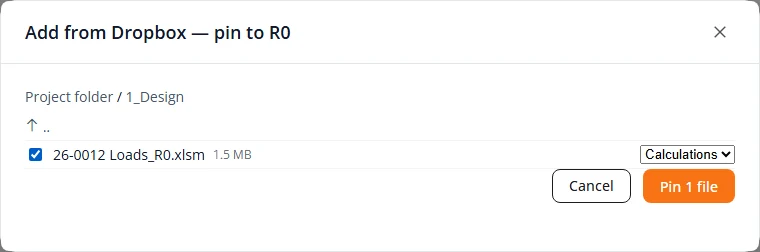
- On the project’s Files tab, press Add from Dropbox. A window opens on the project’s folder.
- Open folders by selecting them. Tick each file you want to deliver.
- For each ticked file, choose its kind: Report, Drawings, Calculations, Photos or Other. For a PDF you can also choose Sealed report.
- Press the Pin button. It counts what you ticked, for example Pin 1 file.
Upload a file from your computer
- If the file is the report the engineer has signed and sealed in Bluebeam, tick as sealed report first. Only a PDF can be the sealed report.
- Press Upload and choose the file.
The file is saved into the project’s folder and pinned to the revision in one step. The message names the folder it went to.
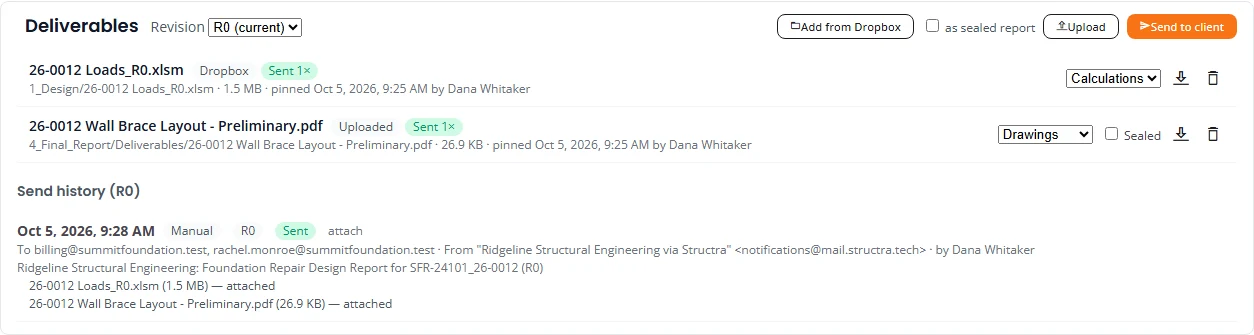
What each pinned file shows
- Where it came from: Dropbox, Uploaded or Generated.
- Its place in the project folder, its size, and when it was pinned and by whom.
- Its kind, which you can change in the list on the right.
- Sealed, a tick box on PDFs. One PDF per revision can be the sealed report.
- The arrow, which downloads the pinned version.
- The bin, which unpins the file. The file itself stays in the project folder, and anything already sent stays in the history.
Send deliverables to the client
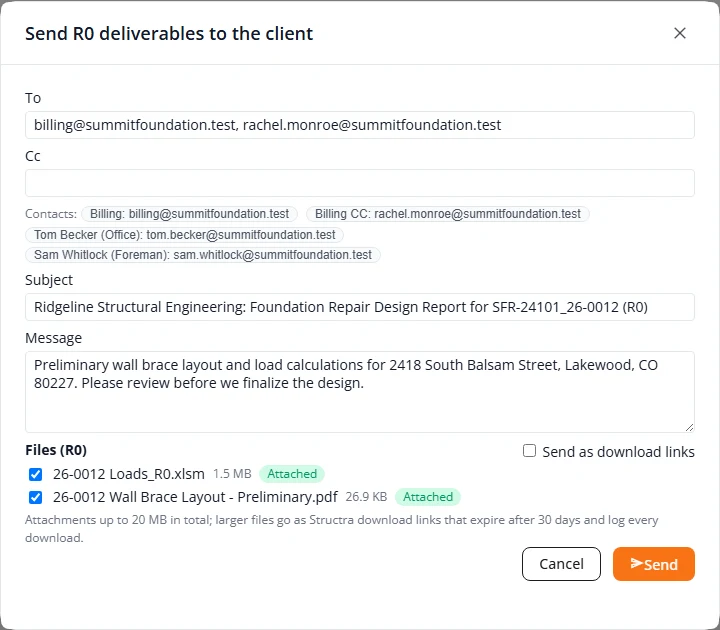
- On the Files tab, press Send to client. It is available once something is pinned to the revision.
- Check To and Cc. To starts with the client’s billing contacts. Select a name under Contacts to add that person.
- Edit the Subject and the Message.
- Under Files, untick anything you do not want in this send. Each file is labelled Attached or Link.
- Press Send.
Attached or link
Files go as attachments until the total reaches the limit stated at the bottom of the window. A file that does not fit goes as a download link instead. Links expire after the number of days the window states, and every download is recorded. Tick Send as download links to send every file as a link.
Send history
Every send is listed under Send history for its revision: the time, who sent it, who it went to, the subject, and each file with whether it was attached or linked. For links it also shows the expiry and the number of downloads. A send that the email service refused is listed as Failed with the reason. Revoke links withdraws the download links of a send.
What the client receives
The people in To and Cc get one email.
- It carries your organization’s name and branding.
- It contains your message, then a list of the files with their sizes.
- Attached files are on the email. Linked files are listed with their download links.
- A reply goes to the person who pressed Send.
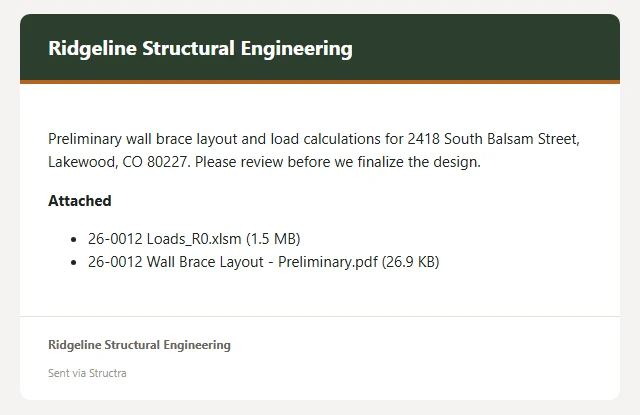
The files also appear in Structra for the client. On the project’s Files tab they see Delivered files: each file sent to them, with its revision, size, delivery time and a Download button. Files you have pinned but not sent are not shown to them. See Getting your report in the client guide.
What is not here yet
- Attachments on comments. A comment is text only. Put files on the project instead.
- Deleting a file. Files cannot be removed from a project. A new upload becomes the current version and the old one is kept.
Stuck on something? Email support@structra.tech and tell us what you were trying to do.