Inspections
After the design report goes out, a project that needs an engineer's inspection moves to the Inspection tab. The client tells you when the work is scheduled, your engineer verifies the installation, and Structra writes the inspection report and sends it.
Which projects are inspected
A project goes through inspection only if Engineer Inspection Required? was ticked when it was created. The project page shows the answer on the Details tab, under Permit Information, as Permit Required.
When you set a project to Design Finished, Structra sends the design report. A project with the box ticked then moves to the Inspection tab. Any other project becomes Project Finished. See Finish and send the report.
The inspection path
| Sub-status | What is happening | What moves it on |
|---|---|---|
| Inspection Not Ready | Structra is checking whether the inspection information is already filled in. | Structra, at once. |
| Waiting On Inspection Information | Something is missing. Structra emails the client’s admins that inspection details are needed. | The client, or your staff, submits the inspection information. |
| Inspection Verification Needed | The information is in. Structra emails your engineers and admins that a verification is waiting. | You press Accept & Proceed or Reject & Send Back. |
| Inspection Verification Rejected | The client has been emailed your reason and needs to correct the information. The reason also shows on the project. | The client, or your staff, presses Resubmit for Verification. |
| Inspection Verification Accepted, then the Inspection Report sub-statuses | Structra is writing the inspection report. | Structra. It takes a few seconds. |
| Finished Inspection Report | The report is written and waits for a final check. | You set the sub-status to Inspection Report Finished. |
| Inspection Report Finished | Structra sends the report to the client. | Structra. The project becomes Project Finished. |
Inspection information
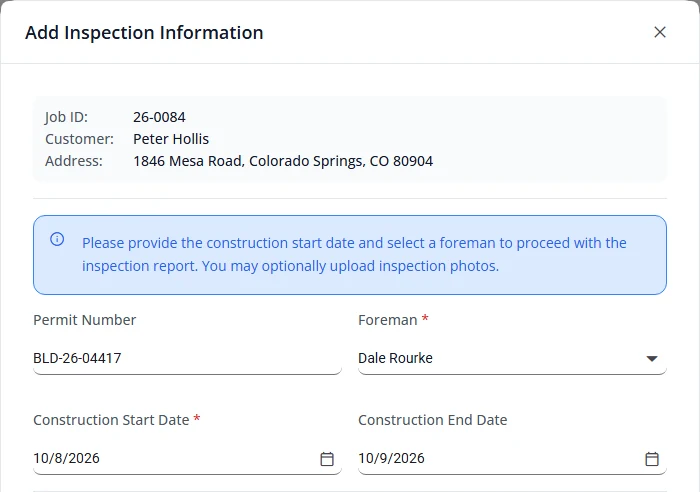
Inspection information is the permit number, the foreman, the construction dates and any photos of the finished installation. The client normally provides it. See Inspection details in the client guide. Your own staff can enter or correct it too.
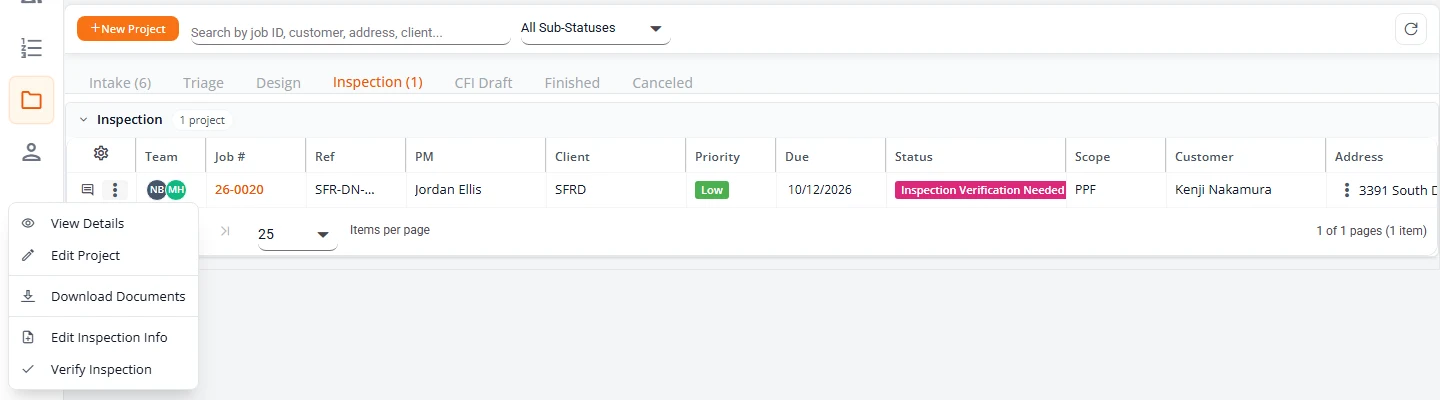
- Open the project and press Add Inspection Info at the top right. Or, on Projects, open the menu at the start of the project’s row (the three dots) and choose Add Inspection Info. On a project that is not waiting for the information, the menu item reads Edit Inspection Info.
- Type the Permit Number.
- Choose the Foreman. The list holds the client’s users with the Foreman role.
- Set the Construction Start Date and the Construction End Date.
- Under Inspection Photos, add photos of the finished installation if you have them. Photos are optional.
- Press Submit Inspection Info. The project moves to Inspection Verification Needed.
Change it later
Once a project has left Waiting On Inspection Information, the box is titled Edit Inspection Information and its button reads Save Changes. Saving does not change the project’s status. It adds a comment to the project, visible to the client, that names who changed the information and which fields.
Add a foreman
A foreman is one of the client’s people. If the right person is not in the list, add them from the same box.
- Open the Foreman list and choose + Add New Foreman.
- Fill in First Name, Last Name and Email. Phone Number and Job Title are optional. Role is already set to Foreman.
- Press Create User. The new foreman is added to the client’s users and chosen in Foreman for you.
Client users are managed on the client page. See Add a client’s people.
When inspection information locks
Inspection information can be changed at any status up to the end. It locks when the project becomes Project Finished. From then on, Add Inspection Info and Edit Inspection Info no longer appear, for your staff or for the client.
The same is true of a project that is cancelled, or that has a cancellation request waiting. See Cancel a project.
To change it after that, the project has to be reopened. See Reopen a project for a change order.
Upcoming Inspections
Upcoming Inspections is in the Organization Admin’s menu. It lists every project on the Inspection tab that has a construction date in the next 14 days, and any whose date has passed while the project is still in inspection.
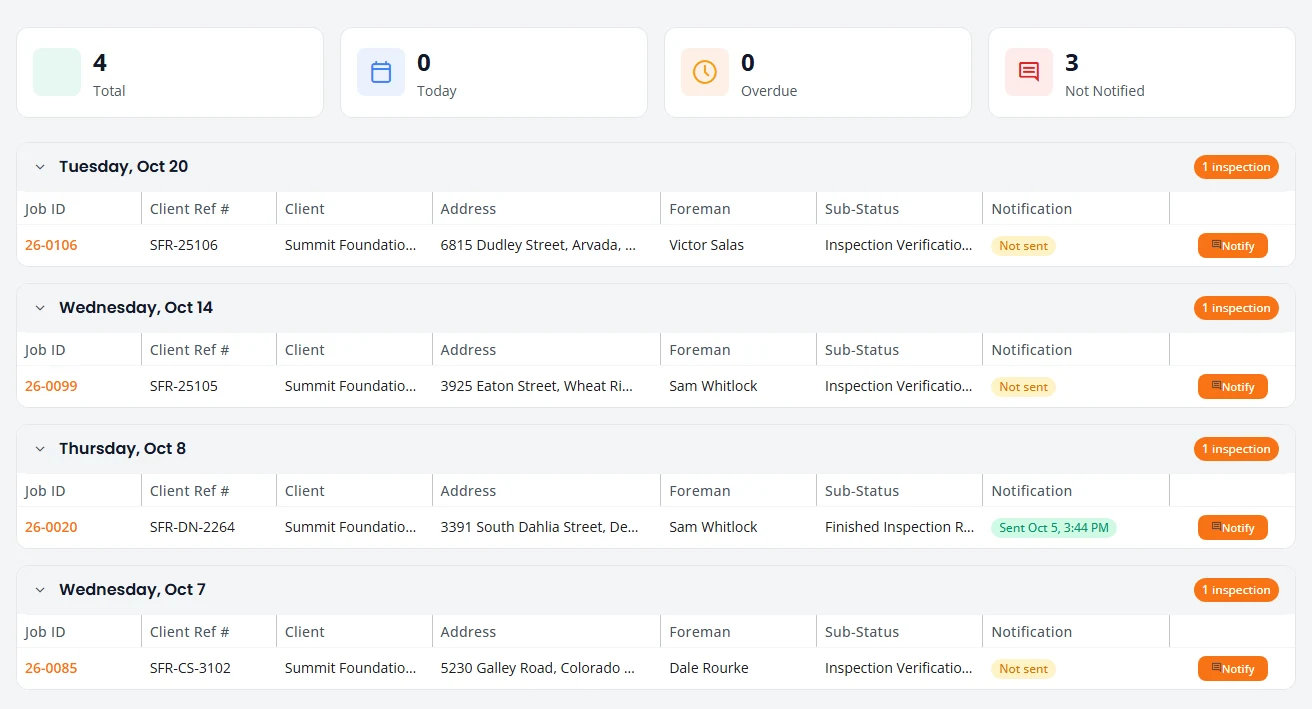
- Counters. Total, Today, Overdue and Not Notified.
- Groups. Projects are grouped by day, using the earlier of the two construction dates. A past day is marked Overdue and the current day Today.
- Open a project. Select its job number.
- Notification. The column shows No Foreman, Not sent, or Sent with the date and time.
- Sub-Status. The project’s sub-status, worded as it is everywhere else in Structra.
- Notify. Press Notify to email the project’s foreman a reminder. The email gives the job number, the client reference, the address and the two construction dates. Structra confirms with “Notification sent to” and the foreman’s name, and the row shows when it was sent.
- A foreman with no email address. Nothing is sent and the row stays Not sent. Structra names the foreman and says they have “no email address, so no notification was sent. Add an email address to the foreman and try again.”
Inspection Board
Inspection Board, also in the Organization Admin’s menu, shows one week at a time, Monday to Sunday. It lists the projects on the Inspection tab whose construction start or end date falls in that week.
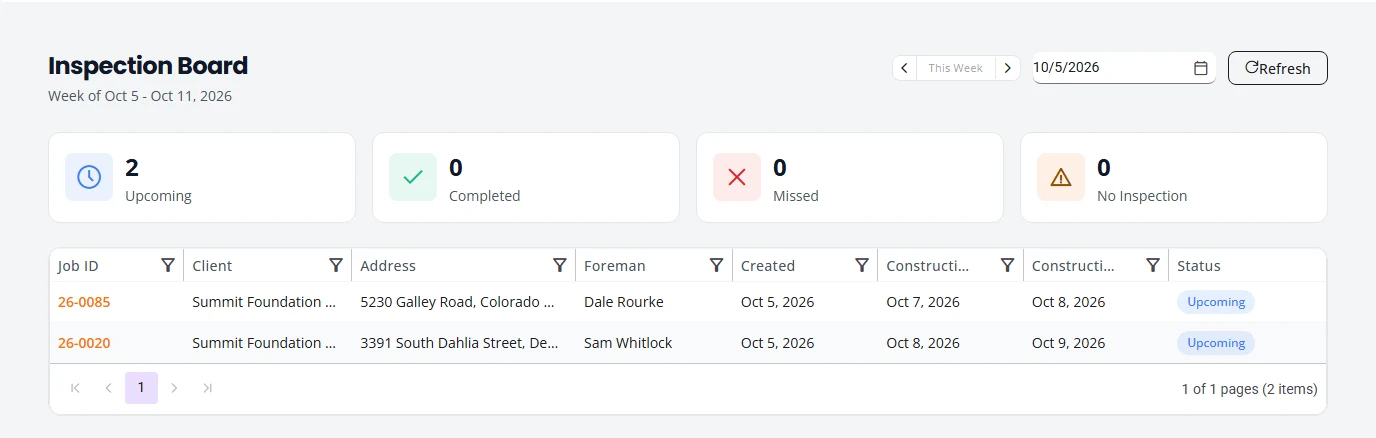
Use the arrows to change week, the date box to jump to a date, and This Week to come back. Each row’s Status is worked out for you.
| Status | Meaning |
|---|---|
| Completed | The inspection was accepted in the verification box. |
| Upcoming | The construction end date is today or later. |
| Missed | The construction end date has passed and the inspection has not been accepted. |
| No Inspection | The project has no construction end date. |
The Created column is the day the project was created. Construction Start and Construction End are the dates from the inspection information.
Verify an inspection
Verifying is the engineer’s check that the work was installed as designed. A project waiting for it shows Inspection Verification Needed.
- On Projects, open the Inspection tab, open the menu at the start of the project’s row and choose Verify Inspection. Or press Verify Inspection at the top of the project page, or Review Inspection on the project’s card in the Inspection Verification lane of the Task Dashboard. All three open the same box.
- Read Submitted Inspection Information and look through Inspection Photos. Select a photo to enlarge it. You can add photos here too.
- Under Verification Decision, press Accept or Reject.
- If you accept, choose the Verification Method: On-Site Inspection, Photo Documentation or Video Call Verification. Verification Notes are optional.
- If you reject, type the Rejection Reason. It is required. The client reads it in an email and on the project.
- Press Accept & Proceed or Reject & Send Back.
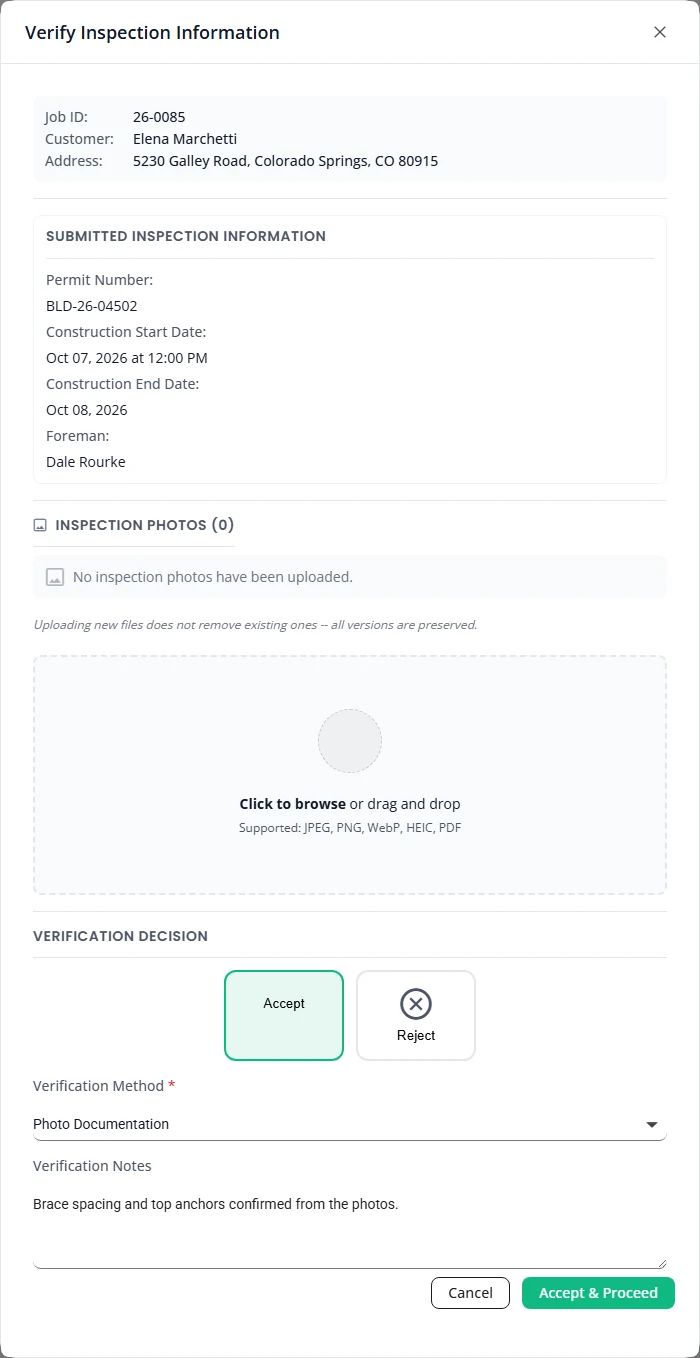
Accepting starts the inspection report. Rejecting sets Inspection Verification Rejected and emails your reason to the client’s admins, your engineers and your admins.
After a rejection
A rejected project shows a notice at the top of its page, “Inspection verification was rejected”, with your reason after Engineer’s notes:. The client sees the same notice. It has two buttons, Edit Inspection Info and Resubmit for Verification.
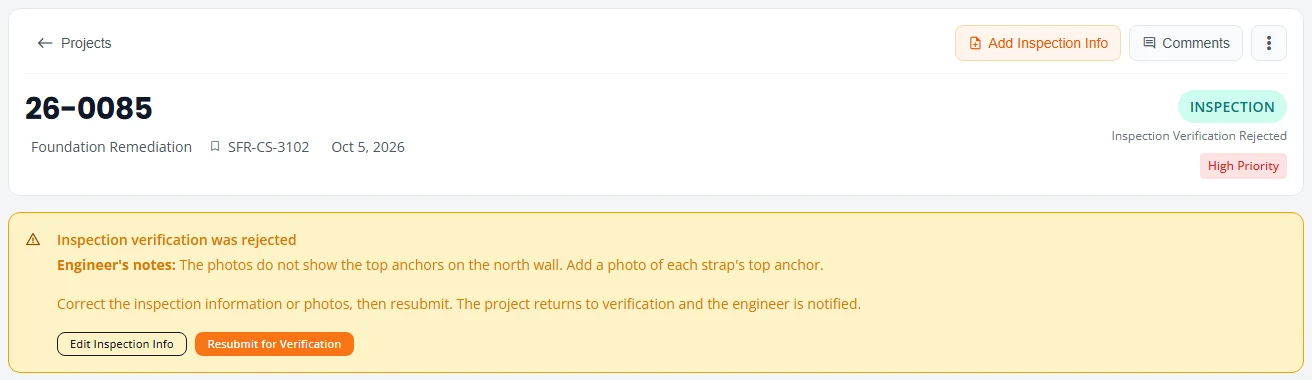
- The client presses Edit Inspection Info, corrects the information or adds photos, and presses Save Changes. The project stays at Inspection Verification Rejected.
- The client presses Resubmit for Verification. The project returns to Inspection Verification Needed, and Structra emails your engineers and admins that a verification is waiting.
- Verify the inspection again.
Your own staff see the notice too and can press either button, for example when the client sends the correction by phone. The client’s side is in Inspection details in the client guide.
The inspection report
When an inspection is accepted, Structra writes the inspection report as a PDF. It carries your logo, the client, the job number and client reference, the property address, the permit number, the construction start date, a paragraph for each scope on the project, and the engineer of record’s name, initials and signature image. It is listed on the project’s Files tab under InspectionReport.
As with the design report, any seal or digital signature is applied by the engineer in Bluebeam, not by Structra.
The project then waits at Finished Inspection Report, and Structra emails your team that the report is ready for final review.
- Open the project and read the report from the Files tab.
- Select the project’s status label, set Sub-Status to Inspection Report Finished and press Save Changes.
Structra then:
- Adds the inspection report line to the client’s open invoice.
- Emails the inspection report to the client’s admins as a PDF attachment. Your Organization Admins get the same email.
- Sets the project to Project Finished. See Finishing, revisions and cancellations.
If the report fails
A project that shows Inspection Report Failed has no report. Structra emails your staff the reason. Two causes are a missing construction start date and a scope with no inspection wording set up for your organization. Fix the cause, then set the Sub-Status to Ready For Inspection Report to run it again.
What is not here yet
- Structra does not book inspections or put them on a calendar. The dates are the ones typed into the inspection information.
- There is no button for Inspection Report Finished on the Task Dashboard. Set it in Quick Edit Project Status.
Stuck on something? Email support@structra.tech and tell us what you were trying to do.