Inspection details
Some projects end with an inspection report from the engineer. For those, the firm needs to know when construction is scheduled and who the foreman is. You enter that in Structra.
When a project needs inspection details
Only projects marked Engineer Inspection Required have an inspection stage. You set that when you create the project. To check an existing project, open it and look at Permit Information on the Details tab.
For those projects, this is what happens after the design report is delivered.
- The project moves to your Inspection tab.
- If the details are missing, its status is Waiting On Inspection Information and it is listed under Action Needed. Your Client Admins get an email called “Inspection Info Needed for” with the job number.
- If you already entered the details earlier, the project skips that wait and goes straight to the firm for checking.
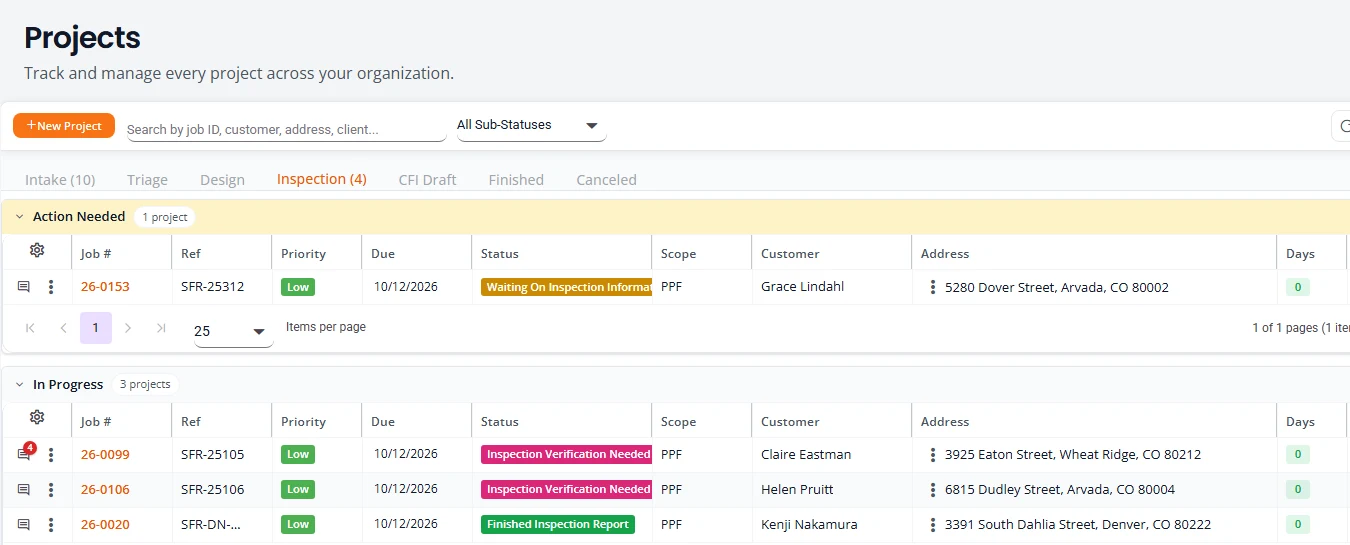
A project without Engineer Inspection Required goes from the delivered design straight to Finished.
Add the inspection details
- On Projects, open the three-dot menu on the row and choose Add Inspection Info. On the project’s own page, press Add Inspection Info at the top.
- Fill in the fields in the table below.
- To add photos, choose the files and then press the upload button that appears under them. For one file it reads Upload 1 file(s).
- Press Submit Inspection Info.
| Field | Required | What to enter |
|---|---|---|
| Permit Number | No | The building permit number, if there is one. |
| Foreman | Yes | The foreman running the job on site. |
| Construction Start Date | Yes | The day the work starts. |
| Construction End Date | No | The day the work ends. It cannot be before the start date. |
| Inspection Photos | No | Photos of the completed installation for the engineer to check. |
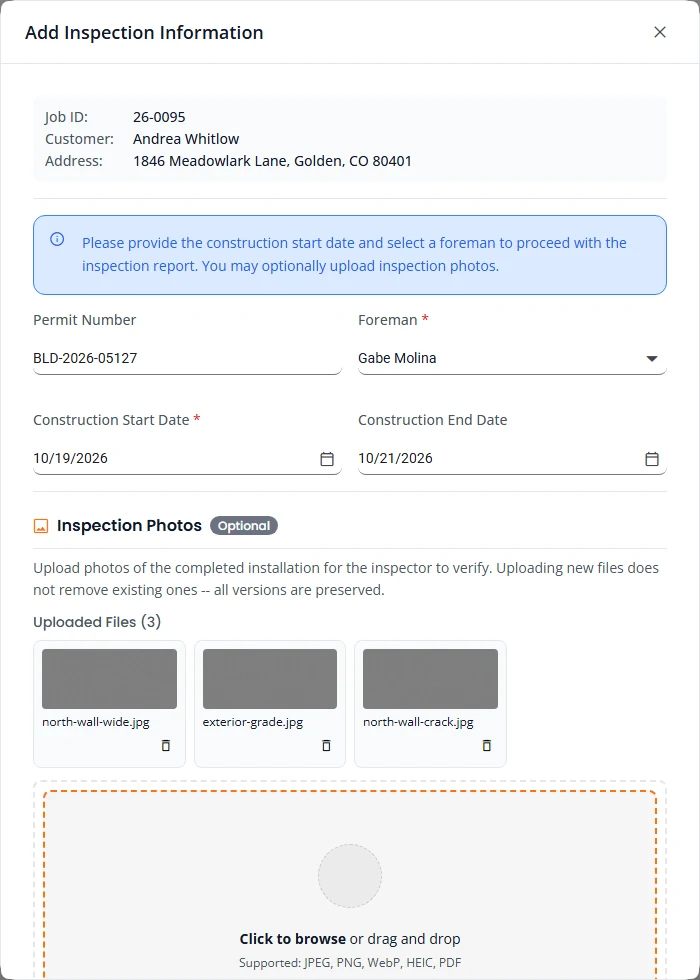
- The line at the bottom left tells you what is still missing, for example Required: construction start date, foreman. Submit Inspection Info stays greyed out until both are filled in.
- Save Draft keeps what you have typed without sending it. Use it if you know the permit number today and the dates later.
- Pictures you uploaded as Site Pictures at intake are already listed under Uploaded Files.
Add a foreman
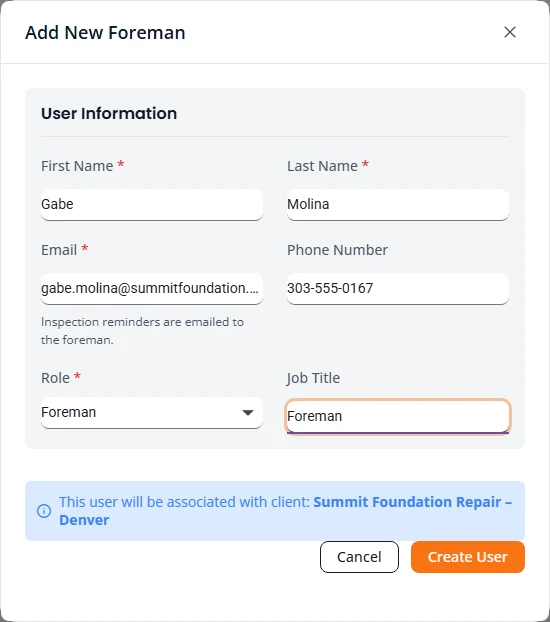
The Foreman list holds the people at your company who have the Foreman role. If the right person is not there, add them without leaving the box.
- Open the Foreman list and choose + Add New Foreman.
- Type the First Name, Last Name and Email. Phone Number and Job Title are optional. The Role is already set to Foreman.
- Press Create User. The new foreman is selected for you.
A Client Admin can also add or change people on My Company. See Your company and field inspectors.
After you submit them
- The status changes to Inspection Verification Needed. The engineering firm is told and checks what you sent.
- When the firm accepts, it prepares the inspection report. You will see Ready For Inspection Report and then Finished Inspection Report.
- When the report is done, your Client Admins get it by email as a PDF and the project moves to Finished. See Getting your report.
The dates you entered show on the project’s Overview tab under Important Dates and on its Details tab under Permit Information, as Construction Start Date and Construction End Date.
If the firm rejects them
If something does not add up, the firm rejects the inspection details. The status becomes Inspection Verification Rejected.
You are told in three places.
- By email. Your Client Admins get an email called “Inspection Verification Rejected for Project”. It carries the engineer’s notes.
- On Projects. The project is under Action Needed at the top of the Inspection tab.
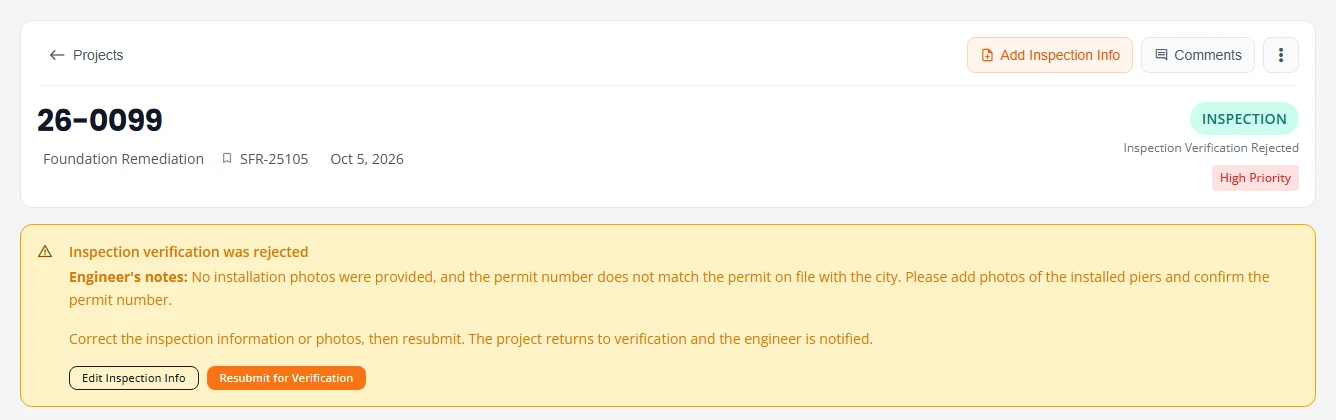
- On the project. A box titled Inspection verification was rejected shows the Engineer’s notes. The same notes are in the project’s comments.
Correct them and resubmit
- On Projects, open the Inspection tab and select the job number to open the project.
- Read the Engineer’s notes, then press Edit Inspection Info in the same box.
- Correct the details, add any photos the engineer asked for, and press Save Changes.
- Press Resubmit for Verification.
Structra answers Inspection resubmitted. The engineer has been asked to verify it again. The status goes back to Inspection Verification Needed and the engineer is emailed.
Edit the details, and when they lock
Use Edit Inspection Info in the row menu to change the permit number, foreman, dates or photos. Press Save Changes when you are done.
| Stage | Can you change the inspection details? |
|---|---|
| Intake, Triage, Design | Yes. Use this to enter them early. |
| Inspection | Yes, including after you have submitted them. |
| Finished | No. The action is no longer in the menu. |
| Canceled, or a cancellation request waiting | No. The action is not offered. |
Upcoming Inspections
Upcoming Inspections is in a Client Admin’s menu. It lists your company’s projects that have a construction start date in the next 14 days, grouped by day with the latest day first. An Office user does not have this page and uses the Inspection tab on Projects.
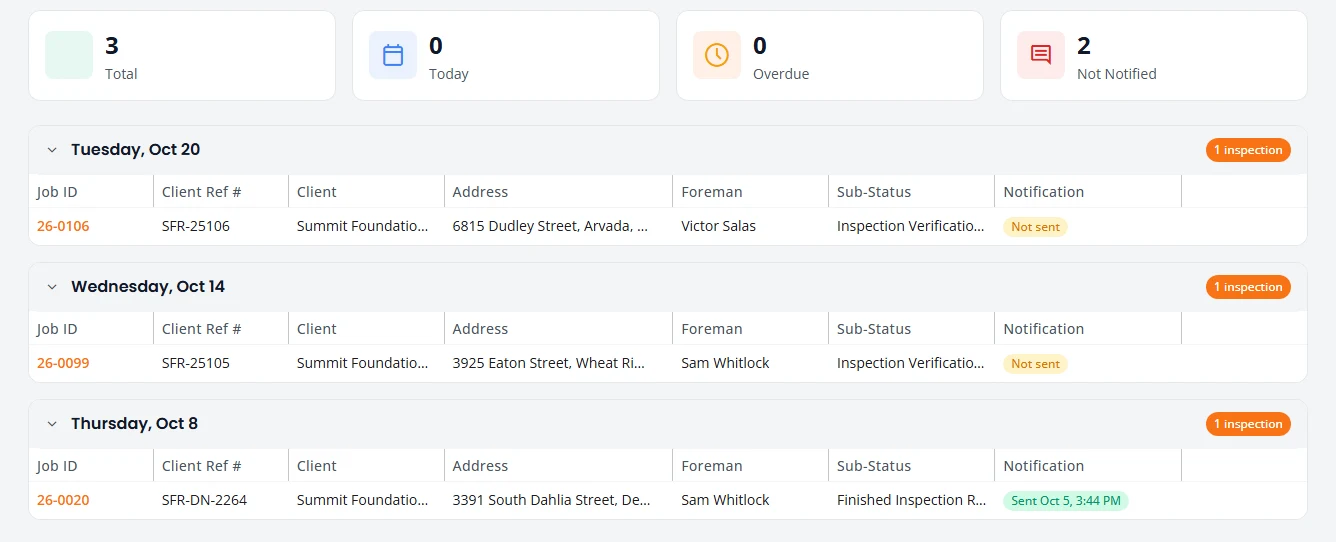
- The counters at the top show Total, Today, Overdue and Not Notified.
- Each row shows the Job ID, Client Ref #, Address, Foreman and Sub-Status. The sub-status is the same status name you see on Projects. Select the job ID to open the project.
- Notification shows whether the firm has sent the foreman the inspection reminder: Not sent, or Sent with the date and time.
- Press Refresh to reload the list.
Stuck on something? Email support@structra.tech and tell us what you were trying to do.