Your company and field inspectors
A Client Admin keeps the company's list of people up to date and approves field inspectors who register. Office users do not have these pages.
Who can use these pages
My Company, Field Inspectors and Pending Users are in a Client Admin’s menu only. An Office user does not see them, and My Company answers Access Denied if they try to open it.
If nobody at your company is a Client Admin, ask your engineering firm to make someone one.
My Company
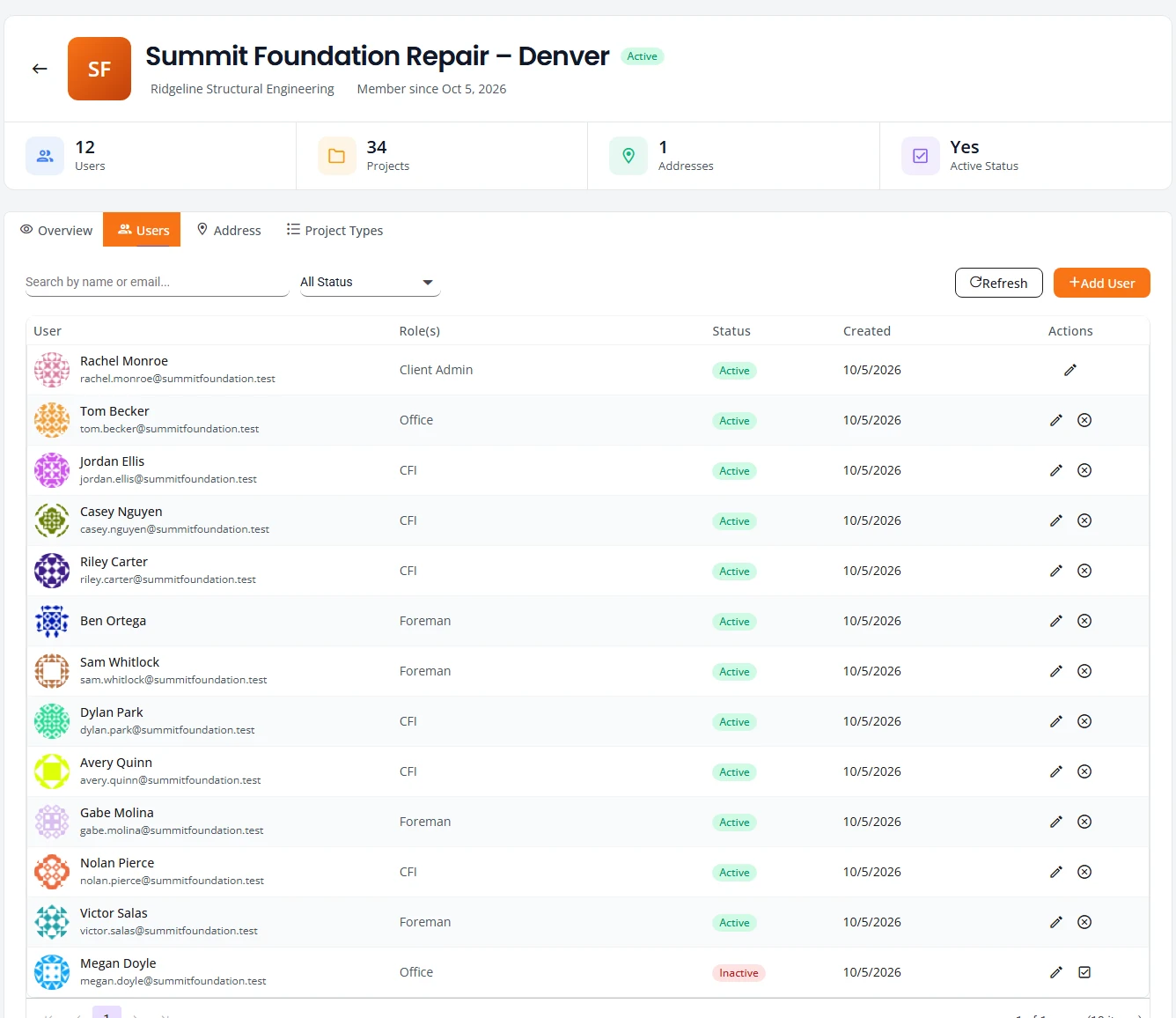
My Company is your company’s page as the engineering firm set it up. The header shows your company name, the engineering firm you work with, and counts of users, projects and addresses.
| Tab | What it shows |
|---|---|
| Overview | Your company details, the first few users, your address and your most recent projects. |
| Users | Everyone at your company, with their role and status. You add and edit people here. |
| Address | Your company’s addresses, such as the billing address. |
| Project Types | The kinds of project the firm has enabled for you. The firm sets these. |
Add or change a person
Add someone
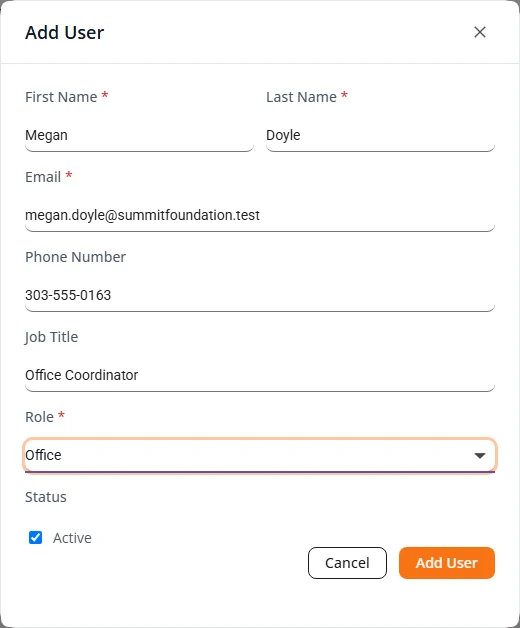
- Open My Company and go to the Users tab.
- Press Add User.
- Type the First Name, Last Name and Email. Phone Number and Job Title are optional.
- Choose a Role. See the table below.
- Press Add User.
The person gets an email called “Welcome to Structra!” with a Set Password link. The link works for 72 hours. After that they use Forgot your password? on the sign-in page.
Change someone
Select the pencil on the person’s row to open Edit User. Change the name, phone, job title or role and press Save Changes.
Take someone’s access away
- On the person’s row, select the circled cross. It is Deactivate.
- The Deactivate user box asks you to confirm and names the person. Press Deactivate, or Cancel to leave them as they are.
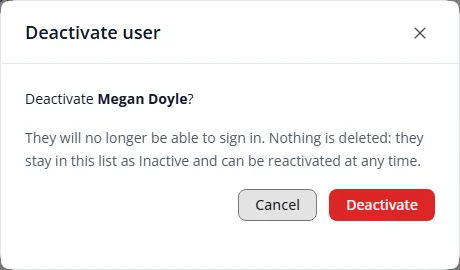
The person can no longer sign in. Nothing is deleted. They stay in the Users list with the status Inactive. Use the status list above the table to show All Status, Active or Inactive people.
Give access back
On an inactive person’s row, the circled cross is replaced by a ticked box. It is Reactivate. Select it and the person is Active again at once. Structra does not ask you to confirm.
Roles you can give
| Role | For | What they get |
|---|---|---|
| Client Admin | Whoever runs the account. | Everything in this guide, and the project emails. |
| Office | Office staff who submit and follow projects. | Dashboard, Task Dashboard and Projects. No people pages and no automatic project emails. |
| CFI | Field inspectors. | The inspector portal, with an emailed sign-in code. They can be chosen as a project’s Project Manager (CFI). |
| Foreman | The crew lead on site. | Can be chosen as the Foreman on a project’s inspection details. Inspection reminders are emailed to the foreman. |
The Role list also offers Sales, Inspector, regionalmanager and salesmanager. This guide does not cover them. Ask your engineering firm before you use one.
The Field Inspectors page
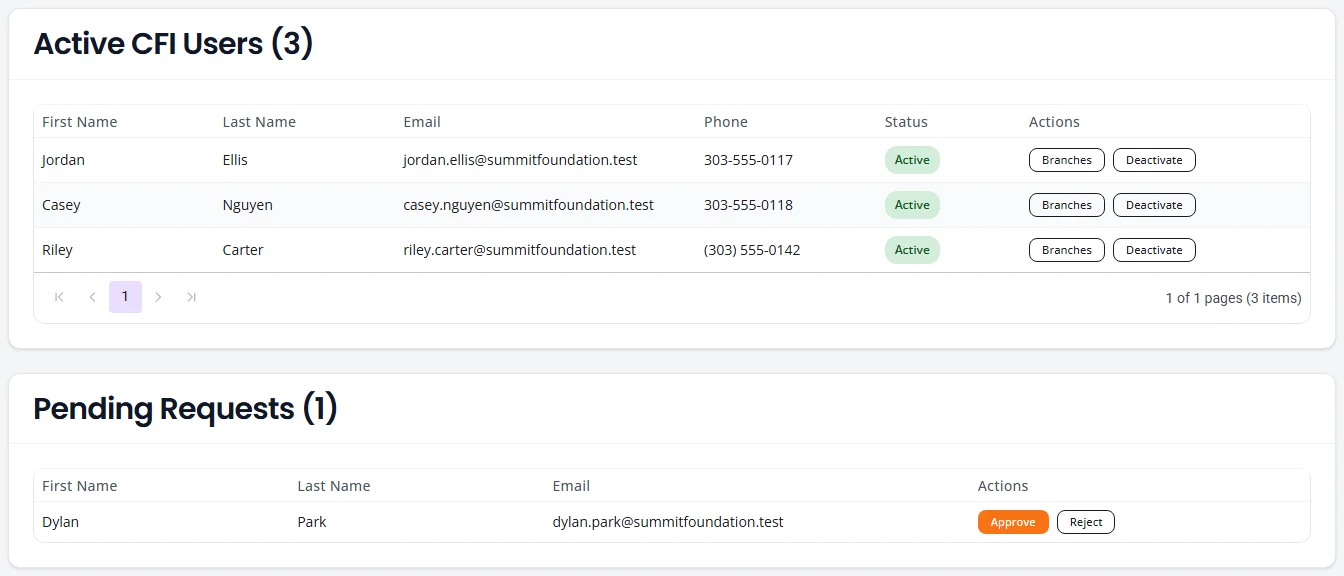
Field Inspectors has three parts.
- Invite a Field Inspector. Your Company code and a Registration URL. Press Copy code or Copy URL and send it to a new inspector. The link opens the registration form with your code already filled in.
- Active CFI Users. Your inspectors, with their email, phone and status, and two buttons: Branches and Deactivate.
- Pending Requests. Inspectors who have registered and are waiting for you.
Approve a field inspector
A new inspector registers themselves. What they do is in Sign in and your dashboard in the field inspector guide. Your part is to approve them.
- Send the inspector your registration link or company code from Field Inspectors.
- The inspector fills in Create an Account. They are told the account is waiting for your approval.
- You get an email called “New registration pending approval” with their name.
- Open Pending Users. Check the name, email and company, then press Approve.
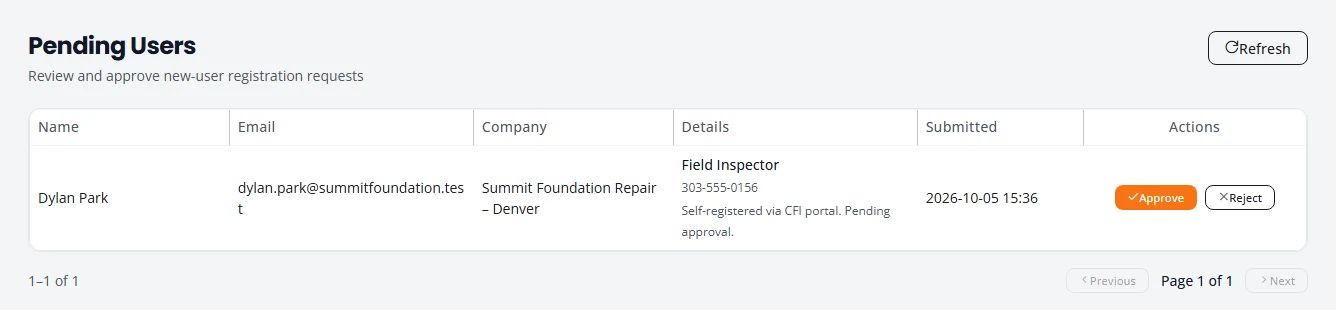
The inspector gets an email called “Your account has been approved” and can sign in to the inspector portal. They now appear under Active CFI Users and can be chosen as a project manager.
Press Reject if you do not know the person. Structra asks you to confirm. A rejected person cannot sign in and would have to register again.
Branches
If your company has more than one branch, each branch is its own company in Structra with its own projects and its own Client Admin. An inspector belongs to one or more branches.
- On Field Inspectors, press Branches on the inspector’s row.
- Current branches shows where the inspector works now.
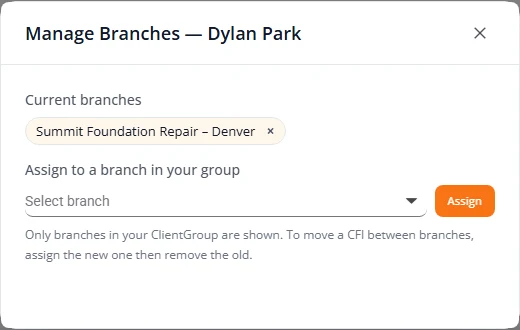
Assign to a branch in your group lists only the branches you manage. As the Client Admin of one branch, you manage that branch alone, so the list is empty once the inspector is already in it. To put an inspector in another branch as well, ask your engineering firm.
What is not here yet
- Moving an inspector between branches yourself. A Client Admin of a single branch cannot assign another branch.
- Changing your company’s project types. The engineering firm sets them.
Stuck on something? Email support@structra.tech and tell us what you were trying to do.