Sign in and your dashboard
Get an inspector account, sign in with a code sent to your email, and find your drafts and submitted projects.
Get access
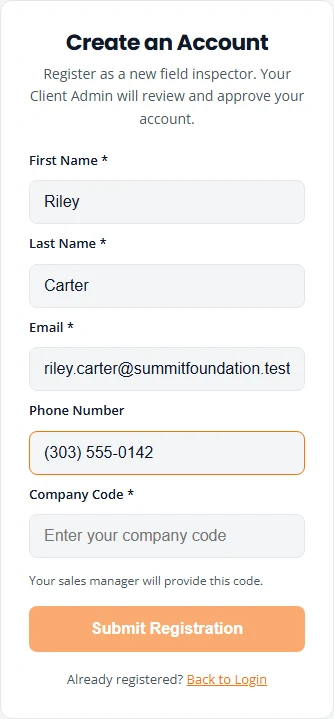
You need an inspector account tied to your company. If your office or the engineering firm has already set one up for you, skip to Sign in. Otherwise, register yourself. Your company’s Client Admin approves the request before you can sign in.
- Ask your office for your Company Code, or for the registration link. The link opens the form with the code already filled in.
- Open the inspector portal. Under the sign-in box, tap Create an account.
- Fill in First Name, Last Name and Email. Use the email you can read on your phone: every sign-in code is sent there. Phone Number is optional.
- Type the Company Code and tap Submit Registration.
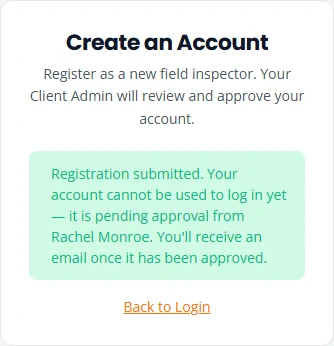
The page now says your registration was submitted and that the account cannot be used to log in yet. When your company has a single Client Admin, the message names that person.
Your Client Admin gets an email about the request and approves it. You then get an email with the subject “Your account has been approved”. Its Sign In button opens the inspector portal’s sign-in page, where you ask for a code. From then on, sign in at the inspector portal.
Client Admins: the company code, the registration link and the approval list are covered in Your team and field inspectors.
Sign in with an emailed code
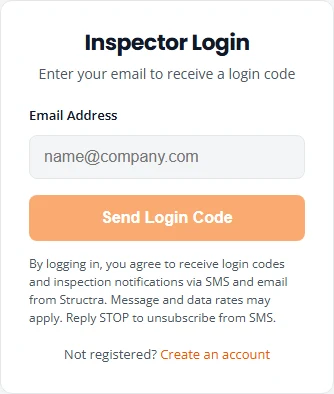
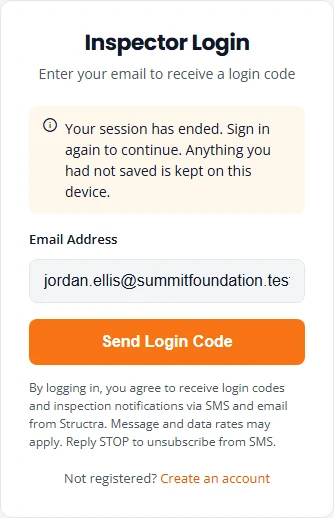
- Open the inspector portal. The box is titled Inspector Login.
- Type your email under Email Address and tap Send Login Code.
- Open the email with the subject “Your Structra Inspection Login Code”. It holds a 6-digit code.
- Type the code under 6-Digit Code and tap Verify & Sign In.
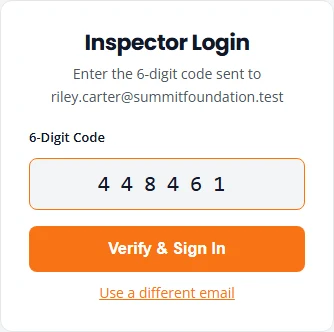
You land on your dashboard. On the same phone you stay signed in for about two months, unless you log out.
| If this happens | Do this |
|---|---|
| No email arrives | Check the address for typos and look in your spam folder. The portal shows the same message whether or not the address is registered, so a typo does not produce an error. |
| You need a new code | Tap Use a different email, then Send Login Code again. Wait a minute between requests. A new code replaces the old one. |
| Invalid or expired code. Please try again. | The code lasts 10 minutes and works once. Check you are using the newest email. After 10 wrong tries the code stops working and you need a new one. |
| Too many requests. Please wait a moment before trying again. | You asked for a second code within a minute. Wait, then ask again. |
Your dashboard
The dashboard is titled My Projects. It is the whole portal: there is no menu. Before your first project it is empty.
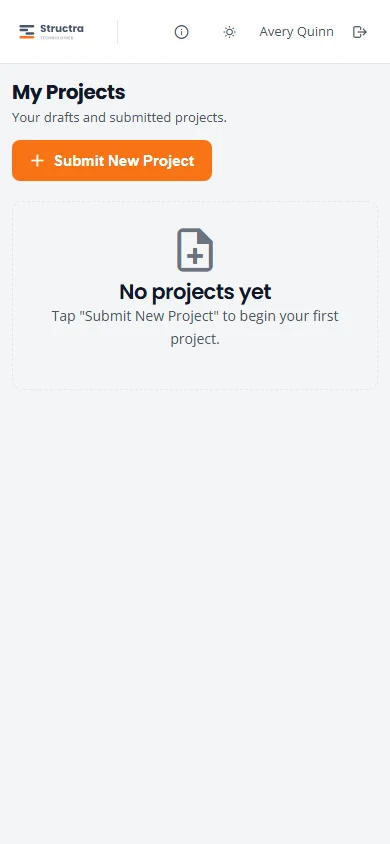
Once you have started work it shows two lists.
| List | What is in it |
|---|---|
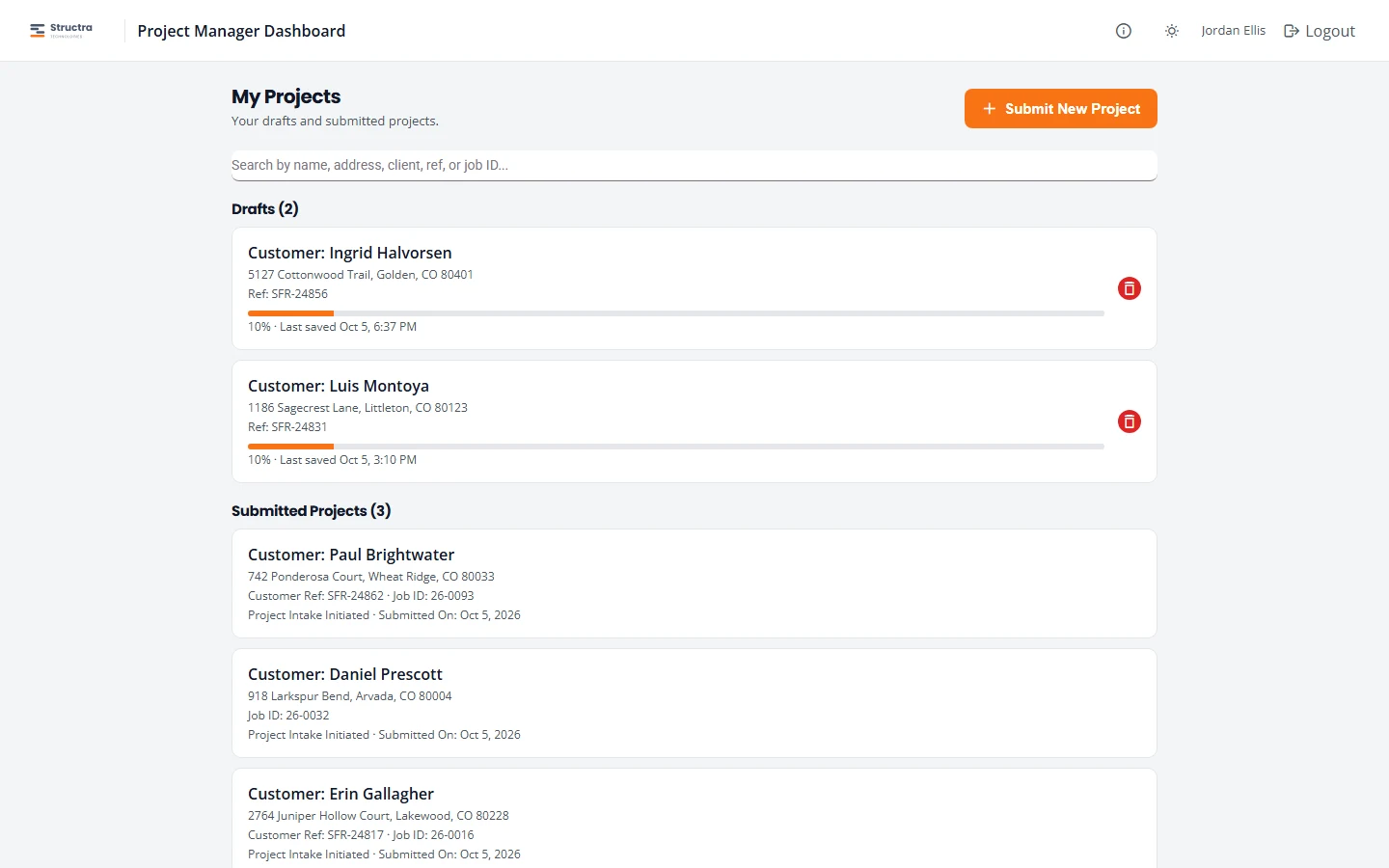
| Drafts | Forms you started and have not submitted. Each card shows the customer, the address, your reference if you entered one, and when it was last saved. Tap a card to carry on. The red bin deletes it. |
| Submitted Projects | Everything you have submitted. Each card shows the customer, the address, Customer Ref (your company’s reference), Job ID (the job number the engineering firm uses), the project’s current status, and the date you submitted it. |
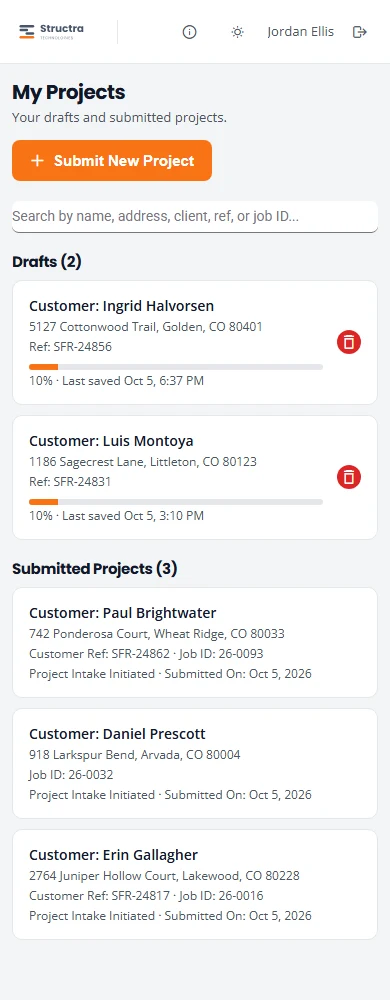
A project you have just submitted shows Project Intake Initiated. The status changes as your office and the engineering firm move the project along. The statuses are explained in Projects and statuses.
You only see your own drafts and your own submissions. Starting and filling in a project is covered in Complete an intake.
Find a project
The search box appears once you have at least one draft or project. Type part of a customer name, an address, a reference or a job ID. Both lists narrow as you type.
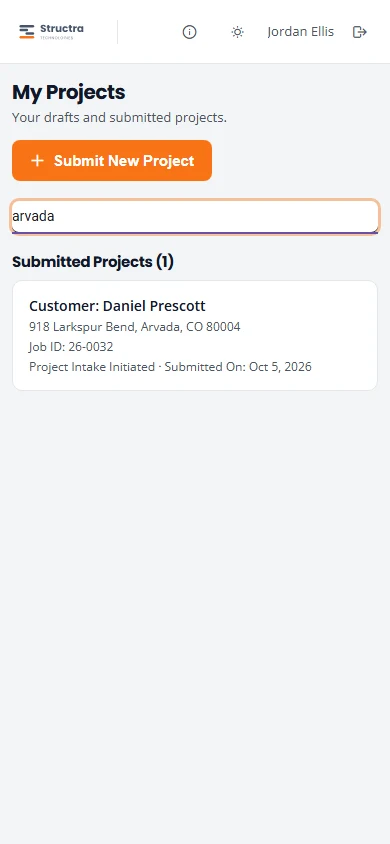
If nothing matches you see No matching projects found. Clear the box to get both lists back. There are no other filters.
Choose your branch
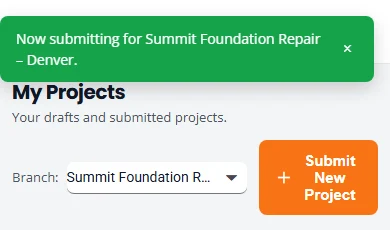
If you inspect for more than one branch of your company, a Branch: selector sits next to Submit New Project. If you work for one branch you never see it.
- Before you start a project, check the selector. After you sign in it starts on the first of your branches in alphabetical order.
- Tap it and pick the branch the job belongs to. A green message confirms the change, for example Now submitting for Summit Foundation Repair – Denver.
- Tap Submit New Project. The project is filed under the branch that was selected at that moment.
Open a submitted project
Tap a card under Submitted Projects to see where the project stands.
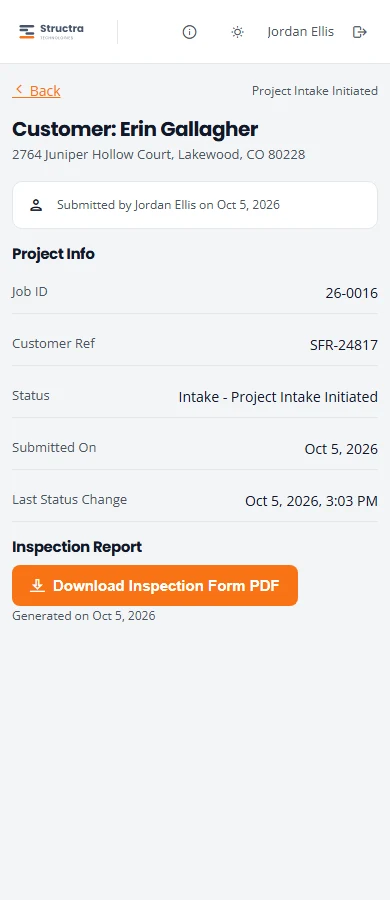
- Project Info lists Job ID, Customer Ref, Status, Submitted On and Last Status Change.
- Inspection Report has Download Inspection Form PDF: your answers laid out as a form, with the date it was generated.
- Back returns to the dashboard.
The page is read-only. What you can and cannot do after submitting is in After you submit.
Sign out
Tap the sign-out icon at the top right, next to your name. On a wider screen it is labelled Logout. You return to Inspector Login with your email filled in.
Sign out when you share a phone or tablet. Your drafts are stored with your account, so nothing is lost. The sun icon beside your name switches between the light and dark look.
Stuck on something? Email support@structra.tech and tell us what you were trying to do.