Drafts and weak signal
How your work is saved while you fill in the form, what you see when a save fails, how to pick a draft up again, what to do when the signal is poor, and what you can do once a project is submitted.
How a draft saves
A draft exists from the moment you tap Submit New Project, before you type anything. From then on the form saves by itself.
- When you change something, the top right of the form shows Saving.... About two seconds after you stop typing or ticking, the change is sent and the label turns to Saved.
- If the save does not get through, the label reads Not saved. See When a save fails.
- Tapping Dashboard saves anything outstanding before it leaves the form.
- Photos, the sketch and the contract are not part of that save. Each one uploads when you choose it.
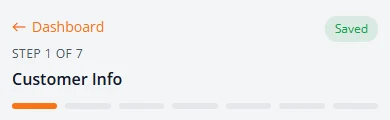
Drafts are stored with your account, not on your phone. You can close the browser, sign out, or pick up a different phone or a computer, and the draft is still in your list.
When a save fails
If a save cannot reach your account, usually because the signal dropped, the form tells you and keeps your work.
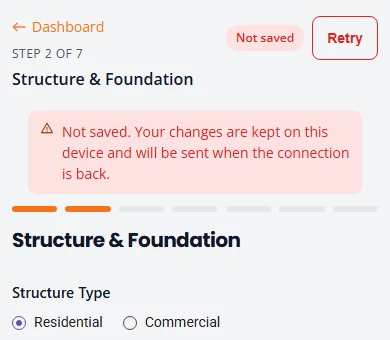
- The label at the top right changes to Not saved, with a Retry button beside it.
- A red message under the step name reads Not saved. Your changes are kept on this device and will be sent when the connection is back.
- You can keep filling in the form and moving between steps. Your answers stay on screen, and a copy is kept on the phone.
- The form keeps trying again by itself, and tries straight away when the phone reconnects. When it gets through, the label returns to Saved. You do not have to do anything.
- Retry tries again at once. Use it when you know the signal is back.
While the label reads Not saved, Dashboard does not leave the form. It shows Could not save your latest changes. They are kept on this device. Try again when you have signal.
Resume a draft
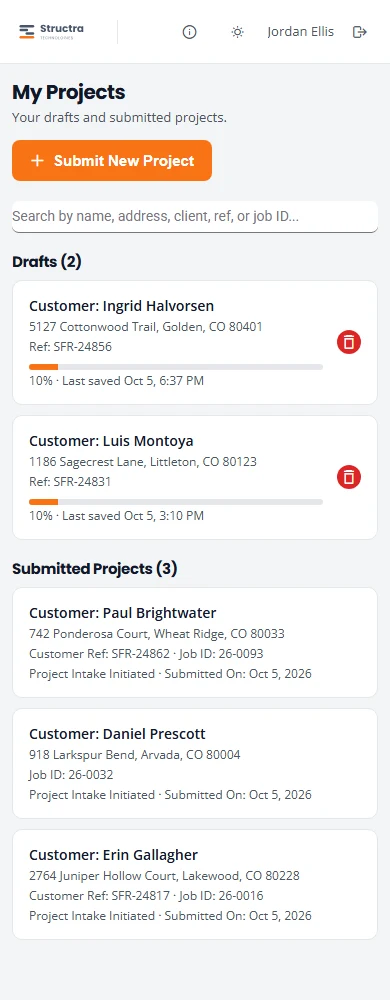
- On your dashboard, find the draft under Drafts. The card shows the customer, the address and when it was last saved.
- Tap the card.
- The form opens on Customer Info with your answers in place. Tap a segment of the bar under the step name to jump to where you stopped, or use Next.
Delete a draft
- On the draft’s card, tap the red bin.
- In the Delete draft box, check the customer name and tap Delete draft.
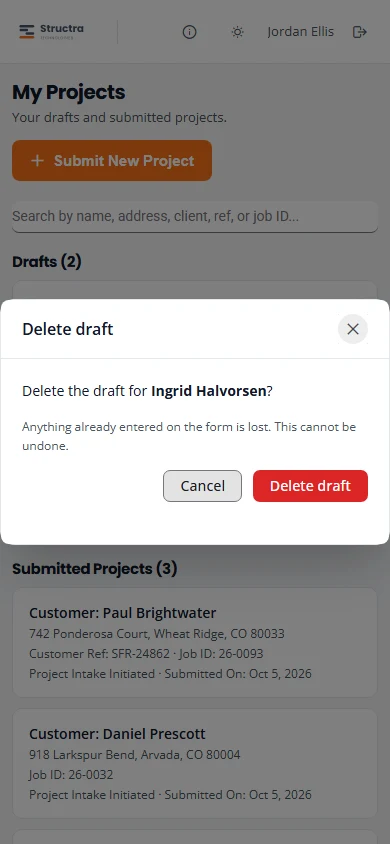
Everything entered on the form is lost and it cannot be undone. Only drafts can be deleted. A submitted project has no bin.
Old drafts are removed
A draft that has not been changed for 90 days is removed automatically. The clean-up runs once a week. Changing anything on the draft restarts the 90 days. Submitted projects are never removed this way.
Working with weak signal
The portal needs a connection to open, to start a project, to upload and to submit. Once a draft is open you can keep filling it in without signal. Here is what happens when the signal drops while the form is open.
| What you do | Without signal | When signal returns |
|---|---|---|
| Type, tick boxes, move between steps | It all works on screen. The label reads Not saved and your changes are kept on the phone. | The form saves by itself and the label returns to Saved. Tap Retry if you do not want to wait. |
| Tap Dashboard | With unsaved changes, you stay on the form and a message says the changes could not be saved. | Wait for Saved, then tap it again. |
| Pick an address from the list | The list does not appear. Type the full address yourself. | The list works again. |
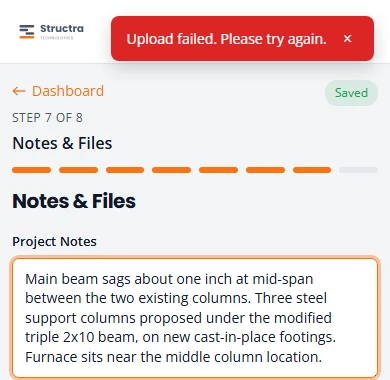
| Upload a photo, sketch or contract | Upload failed. Please try again. Nothing is stored, and the upload is not retried for you. | Choose the file again. |
| Tap Submit Inspection | Nothing is submitted. With unsaved changes the review step says Your latest changes could not be saved, so the inspection was not submitted. Check your connection and try again. Nothing you entered has been lost. Otherwise it says Submission failed. Please try again. | Wait for Saved, then tap it again. |
| Tap Submit New Project | No draft is created. You see Draft not available. | Tap Back to Dashboard and start again. |
| Refresh, close the tab, or open the portal | The page cannot load. The browser asks before it leaves a form with unsaved changes; those changes stay on the phone. | Open the draft again on the same phone. The unsaved changes are put back and saved. |
What to do on site
- Sign in and tap Submit New Project while you still have signal, for example at the truck. The sign-in code arrives by email, so you need a connection for that too.
- Fill in Customer Info and wait for Saved before you go inside.
- Where there is no signal, keep the form open and keep filling it in. The label reads Not saved; that is expected. Do not refresh the page and do not close the tab.
- Take photos with your phone’s camera as usual. Upload them from Notes & Files later.
- Back in signal, wait for the label to read Saved, or tap Retry.
- Upload the photos, the sketch and the contract, then submit.
After you submit
The project moves from Drafts to Submitted Projects and goes to your office. See Where your submission goes.
| You can | You cannot |
|---|---|
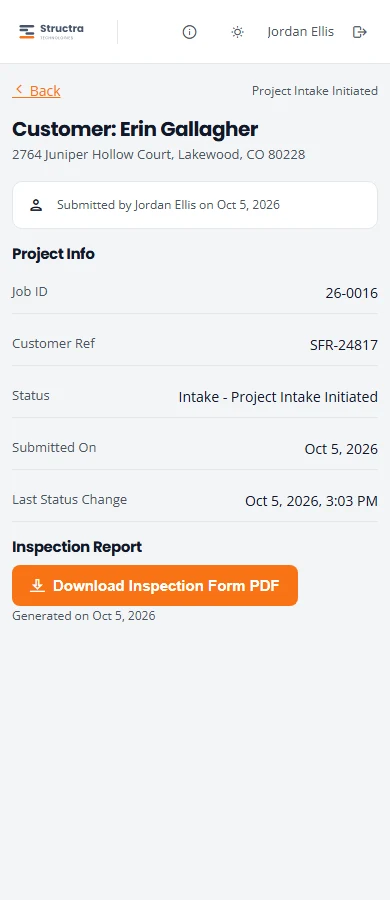
| See the project’s current status on its card and on its page. | Reopen or change the form. |
| Download the inspection form with Download Inspection Form PDF, as often as you like. | Add more photos or replace the sketch or contract. |
| Search for it by customer, address, reference or job ID. | Delete it, or submit it a second time. |
If something is wrong or missing
Tell your office. Once submitted, the project is handled there, and corrections go through them. See After you submit in the client admin guide.
Do not start a second project for the same job to fix a mistake. It creates a duplicate with a new job number.
The inspection form PDF
The PDF is generated when you submit. If the project’s details change later, the engineering firm can generate it again, and Download Inspection Form PDF then gives you the newer copy. The date under the button shows when it was generated. If the form is not ready, the page says Inspection Form PDF will be available after the project moves through Intake.
What is not here yet
- Full offline mode. An open form keeps your unsaved answers on the phone, but you need a connection to open the portal, start a project, upload files and submit. See Working with weak signal.
- Editing after submission. Corrections go through your office.
- Removing an uploaded photo. Once a photo is uploaded, you cannot take it off the project from the portal.
- Sign-in by text message. Codes for the inspector portal come by email only.
- Comments and messages. The portal has no way to message your office or the engineer about a project.
Stuck on something? Email support@structra.tech and tell us what you were trying to do.