After you submit
What the engineering firm does with a submitted project, how you find out when it needs something from you, and how to change or cancel a project that is already under way.
The firm reviews your intake
When you press Submit Intake, the project moves to your Triage tab with the status Ready for Triage Review. Someone at the engineering firm reads the intake, opens the documents and decides one of two things.
- Approve. The firm assigns a designer and an engineer. The project moves to your Design tab. You can see who was assigned on the project’s Team tab.
- Push back. Something is missing or unclear. The project returns to your Intake tab with the reason.
While the project waits in Triage you can still open it with Complete Project Intake, correct something and press Submit Intake again.
The firm’s side of this step is described in Intake and triage in the engineering guide.
Answer a push-back
You are told about a push-back in three places.
- By email. Your Client Admins and the project’s project manager get an email called “Action Needed: Project … Has Been Sent Back”. It names who sent it back and gives the reason.
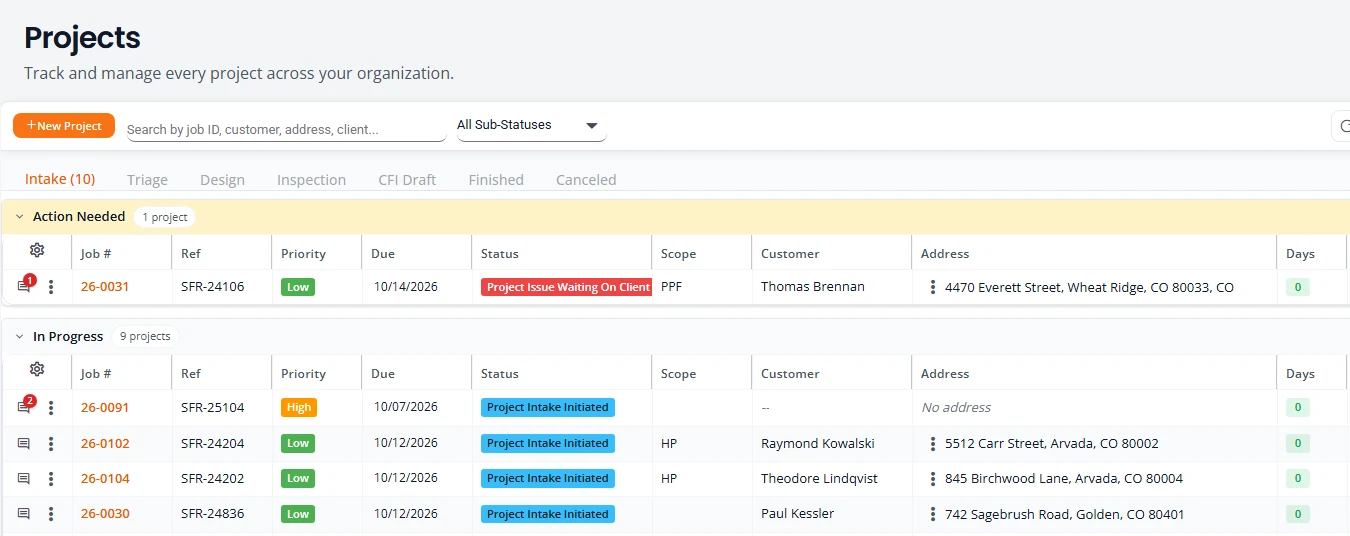
- On Projects. The project is at the top of the Intake tab under Action Needed, with the status Project Issue Waiting On Client.
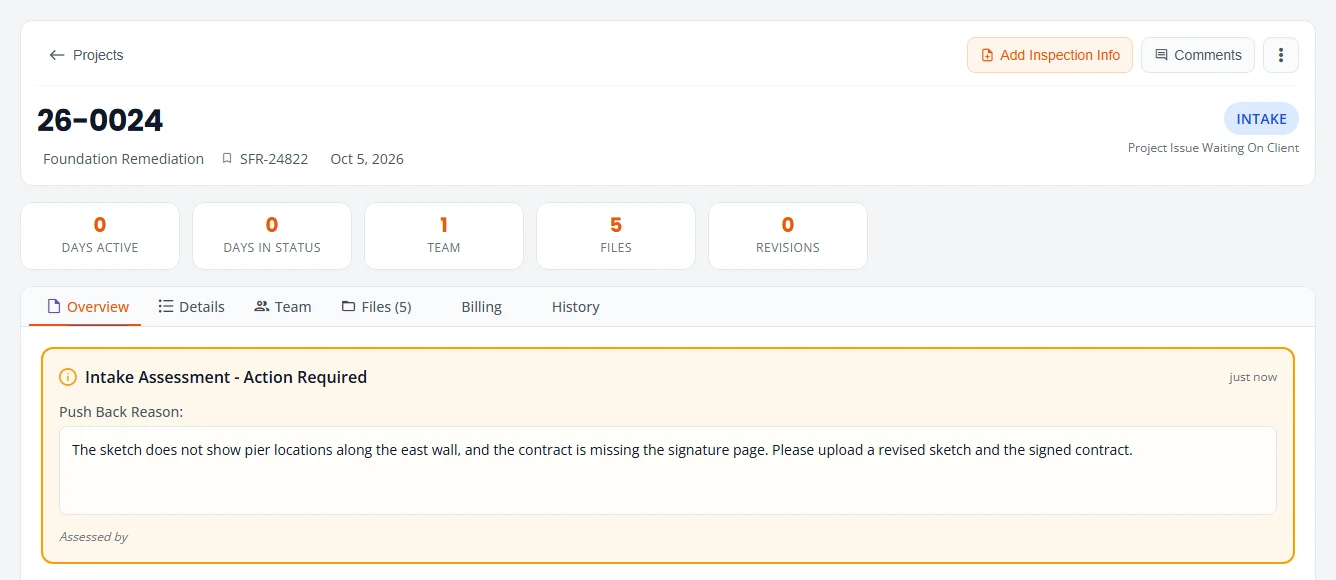
- On the project. The Overview tab opens with a box titled Intake Assessment - Action Required and the Push Back Reason. The same text is in the project’s comments, marked [Assessment Push Back].
Fix it and resubmit
- On Projects, open the three-dot menu on the row and choose Complete Project Intake.
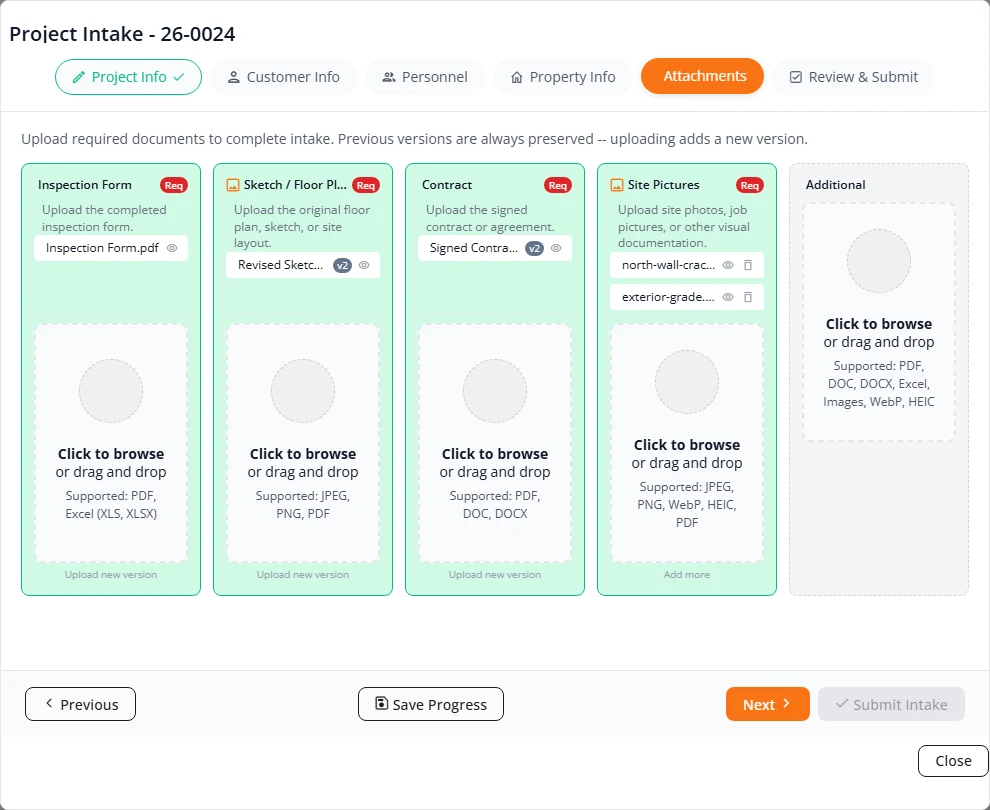
- Go to the step that needs fixing. To replace a document, open Attachments and upload the new file in the same slot. It becomes the current version and the old one is kept.
- Open Review & Submit and press Submit Intake.
The project goes back to Triage as Ready for Triage Review. The firm sees that it has been here before and reviews it again.
A design sent back to you
The firm can also stop during design and send the project back with a question. The status becomes Design Failed Send Back To Client and the project moves to Action Needed at the top of your Design tab. The same “Action Needed” email goes out, and its reason is the firm’s latest comment to you.
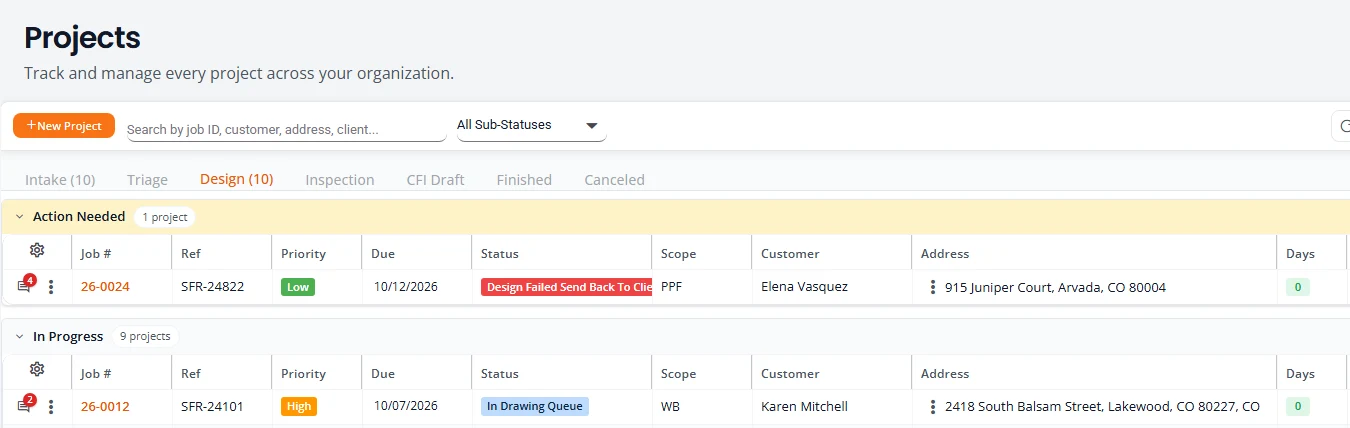
- Select the speech bubble on the row to read the firm’s comment.
- Answer in a comment.
- If the intake itself has to change, such as a different quantity or a new sketch, use Change Request.
The firm moves the project on once it has what it needs. Your answer alone does not change the status.
What each status means
The Status column shows where a project is. These are the statuses that matter to you, in the order a project meets them.
| Status | Tab | What it means for you |
|---|---|---|
| Project Intake Initiated | Intake | A draft. It has not been submitted. Finish it with Complete Project Intake. |
| Project Issue Waiting On Client | Intake | Pushed back. Read the reason, fix it and submit again. |
| Ready for Triage Review | Triage | Submitted. Waiting for the firm’s review. |
| Cancellation request pending triage review | Triage | You asked to cancel. Waiting for the firm’s decision. |
| In Drawing Queue, Drawing In Progress, Drawing Ready For Review | Design | Approved. The designer is preparing the drawing. Nothing is needed from you. |
| In Engineering Queue, Engineering In Progress, Engineering Ready For Review | Design | The engineer is reviewing the design. Nothing is needed from you. |
| Design Failed Send Back To Client | Design | The firm has a question. Read its comment and answer. |
| Design Approved, Ready For Seal, Ready For Digital Signature, Finish Design Report | Design | The design is approved and the report is being built, sealed and checked. |
| Waiting On Inspection Information | Inspection | The design report is delivered. Add the construction dates and the foreman. |
| Inspection Verification Needed | Inspection | You sent the inspection details. The firm is checking them. |
| Inspection Verification Rejected | Inspection | The firm did not accept the inspection details. Correct them and resubmit. |
| Ready For Inspection Report, Finished Inspection Report | Inspection | The inspection report is being prepared and checked. |
| Project Finished | Finished | Everything is delivered. |
| Project Canceled | Canceled | The firm approved your cancellation. Work has stopped. |
You may see other statuses in Design for a short time while Structra sets up files or builds the report. They are the firm’s own steps. The full list is in Projects and statuses in the engineering guide.
Talk to the firm with comments
Every project has one comment thread shared by your office and the engineering team. Use it for questions and answers about that project, so the conversation stays with the job.
- On Projects, select the speech bubble at the start of the row. On a project’s page, press Comments.
- Type under Add a Comment. To get a particular person’s attention, type @ and pick them from the list. The list holds people at your company and at the firm, and Everyone. A person you mention is told at once.
- Press Add Comment.
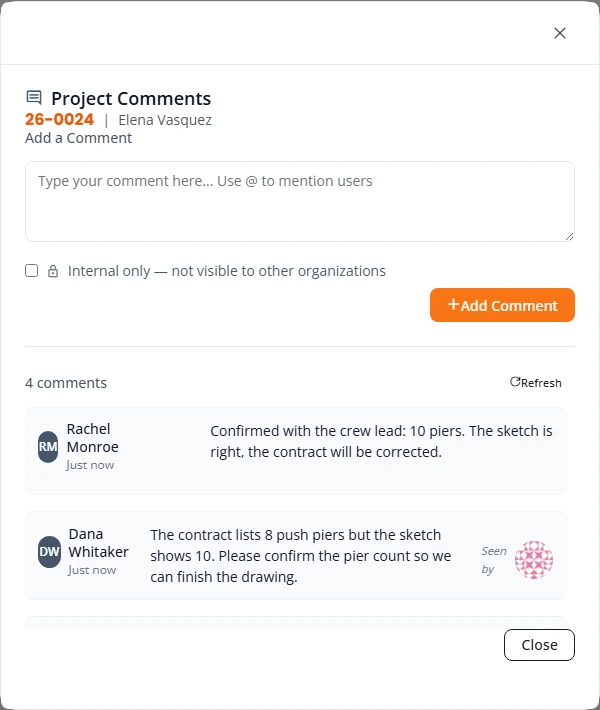
- The newest comment is at the top.
- A red number on a row’s speech bubble is the count of comments you have not read. Opening the comments clears it.
- Seen by beside a comment shows who has read it.
- Tick Internal only — not visible to other organizations to write a note that only your own company sees.
When someone mentions you
- You get an email straight away. Its subject is the person’s name, then “mentioned you on” and the job number. It quotes the comment and has an Open the comments link. Office users get this email too.
- The bell at the top right adds one to its red count without a page reload. Select the bell to open Notifications, which lists the 10 newest. Select the mention and the project opens with its comments showing.
Change a project after it is approved
Once a project has left Triage, you change it with a change request. It reopens the same wizard, in Change Request Mode, and asks for a change order form.
- On Projects, open the three-dot menu on the row and choose Change Request.
- Make the change on the step it belongs to. For example, on Property Info change a quantity or add a kind of work.
- On Attachments, upload the Change Order Form. It is required. If the layout changed, upload the new drawing in the Revised Sketch / Floor Plan slot.
- On Review & Submit, read the Change Summary, then press Submit Intake.
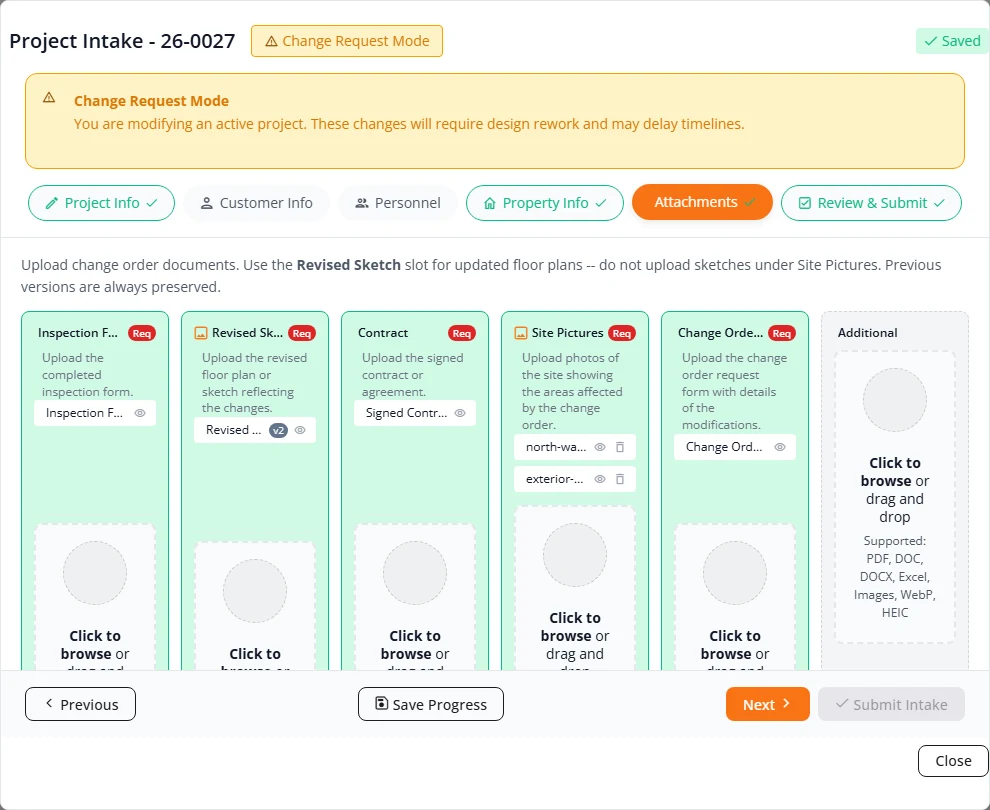
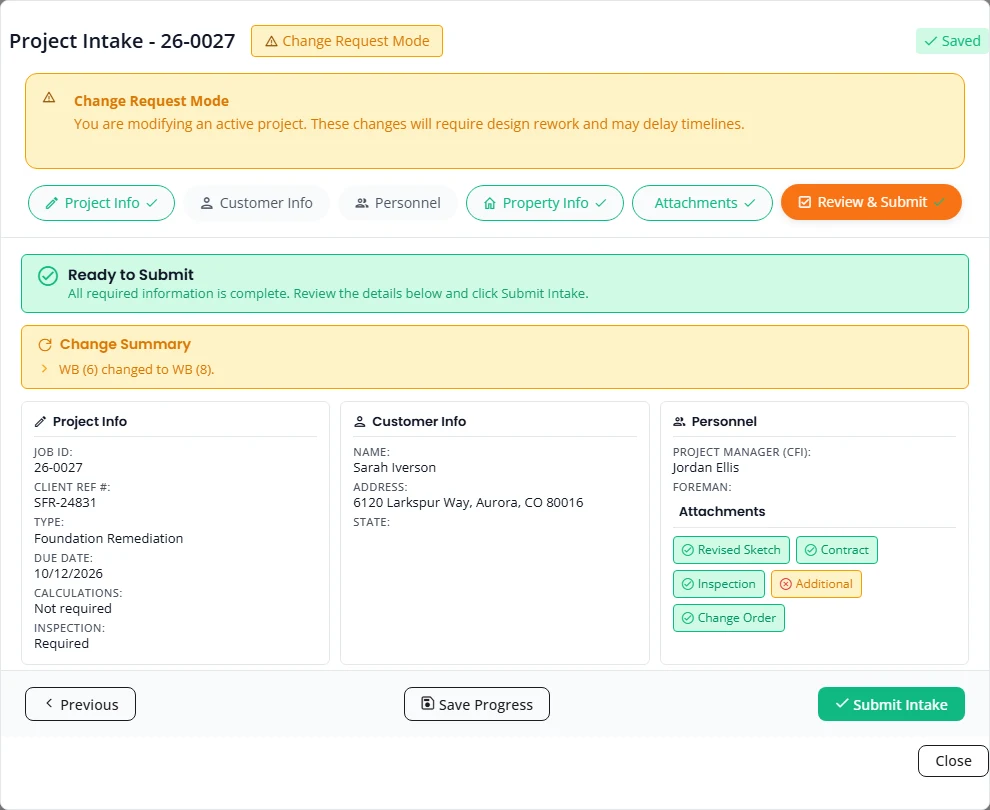
Structra records the change as a numbered revision and sends the project back to Triage as Ready for Triage Review. The firm reviews it again before design continues.
Ask to cancel a project
You can ask to cancel a project while it is in Intake or Design. You request it and the engineering firm decides, because work may already have been done.
- On Projects, open the three-dot menu on the row and choose Cancel Project.
- Type the Cancellation Reason. It is required.
- Press Request Cancellation.
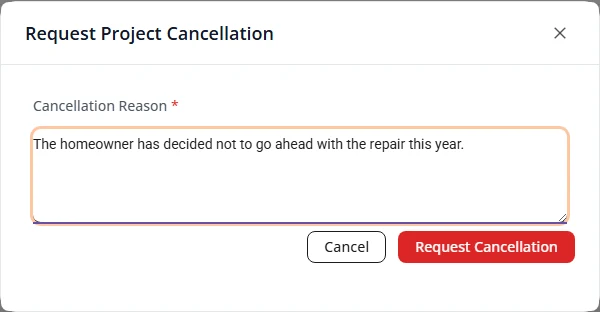
The project moves to your Triage tab with the status Cancellation request pending triage review. An admin at the firm then approves it, with or without billing for work already done, or denies it. The decision is emailed to the person who asked and to your Client Admins.
While the request is waiting
The project is on hold. Its row menu has View Details only. On the project’s own page you can read every tab and open Comments, and nothing else: no Complete Project Intake, Change Request, Edit Inspection Info or Cancel Project. If you asked by mistake, tell the firm in a comment so that it denies the request.
If the firm approves
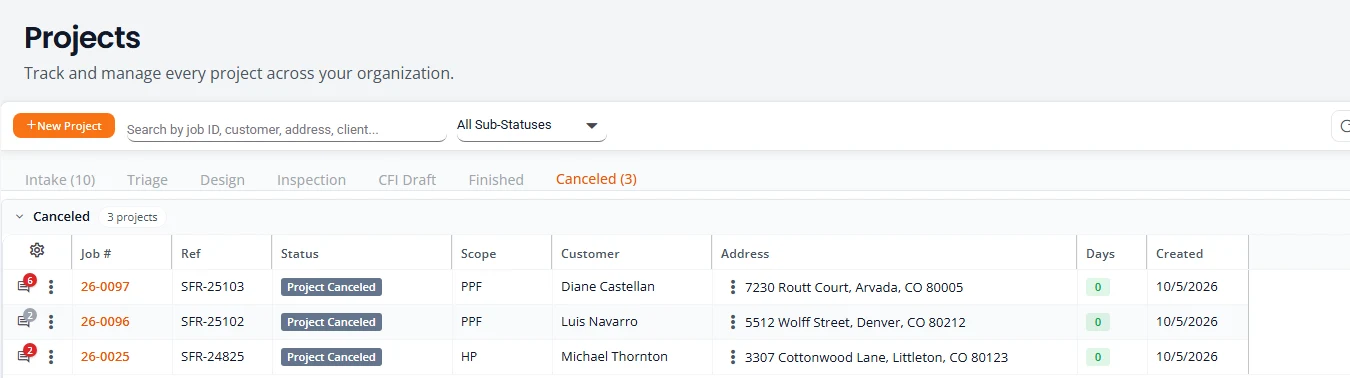
- The status becomes Project Canceled and the project moves to your Canceled tab.
- The email is called “Project … Has Been Cancelled”. It repeats your reason. If the firm is charging for work already done, it adds that work completed before the cancellation will be billed.
- The project’s comments record the decision as Cancellation approved (no billing) or Cancellation approved (with billing).
- You can still open the project from the Canceled tab and read its details, files, history and comments. A cancelled project cannot be changed: its row menu has View Details only, and its page offers no change request, inspection details or other action.
If the firm denies it
- The project goes back to the tab and status it had before you asked, for example Design and In Drawing Queue. Work continues.
- The email is called “Cancellation Request Denied for Project …”. It says the project remains active and gives its status.
- The project’s comments record Cancellation request denied. You can ask again with Cancel Project.
Emails you receive
Structra sends these emails about projects. They go to your company’s Client Admins. Office users do not receive them, except the answer to a cancellation they asked for themselves and a mention in a comment.
| Email subject | When | What to do |
|---|---|---|
| New CFI Submission: (customer) | A field inspector submitted an intake. | Finish the intake from your Intake tab. |
| Action Needed: Project … Has Been Sent Back | The firm pushed back an intake or sent a design back. The project’s project manager gets this one too. | Read the reason and respond. |
| (name) mentioned you on (job number) | Someone mentioned you in a comment. It goes to the person mentioned, whatever their role. | Read the comment and answer. See Talk to the firm with comments. |
| Project … Has Been Cancelled | The firm approved a cancellation request. The person who asked gets this one too, whatever their role. | Nothing. The project is on your Canceled tab. |
| Cancellation Request Denied for Project … | The firm denied a cancellation request. The person who asked gets this one too. | Nothing, or talk to the firm in a comment. Work continues. |
| Project … Design Report | The design is finished. The report is attached as a PDF. | Keep the report. It is also on the project. |
| Inspection Info Needed for (job number) | The project is waiting on inspection details. | Add them. See Inspection details. |
| Inspection Verification Rejected for Project: … | The firm did not accept the inspection details. The email carries the engineer’s notes. | Correct the details and resubmit. See If the firm rejects them. |
| Project … Inspection Report | The inspection report is finished. It is attached as a PDF. | Keep the report. |
| New registration pending approval - (name) | A field inspector registered with your company code. | Approve or reject. See Your company and field inspectors. |
The engineering firm can also email files to you directly from a project. Those emails come with the firm’s name in the subject, and a reply goes to the person who sent them.
Turn the project emails off or on
- Select your picture at the top right, then Settings.
- Open the Notifications tab.
- Under Project Updates, switch Project status changes (Email) off or on.
What is not here yet
- No status emails for Office users. The project emails go to Client Admins only, apart from the answer to a cancellation request and a mention. An Office user follows projects on Projects and Task Dashboard.
- Other switches on the Notifications tab. The tab lists more switches than the one above. This guide covers only the two named above.
Stuck on something? Email support@structra.tech and tell us what you were trying to do.