Projects and statuses
The Projects page lists every project your organization is working on, sorted into tabs by status. This page explains the list, the actions on each row, and what every status means.
The Projects page
Open Projects from the menu. The bar across the top holds New Project, the search box, the sub-status filter and a Refresh button. Under it are the status tabs. Each tab shows its projects in a table.
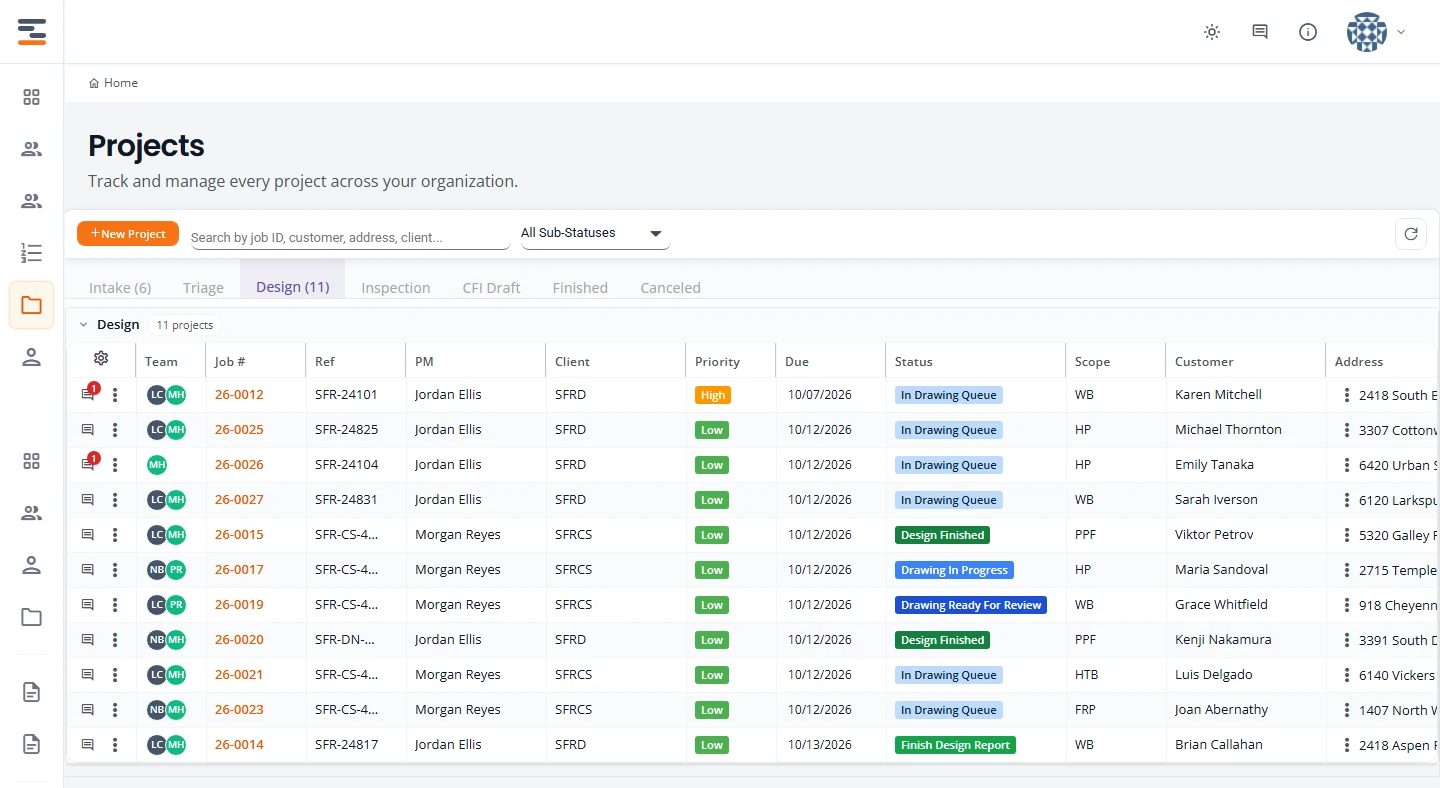
- Open a project. Select its number in the Job # column.
- Collapse a group. Select the grey heading above the table, the one with the project count.
- Sort by date. Select the Due or Created heading. The other headings do not sort.
- Reload a tab. Press Refresh. A tab keeps what it loaded for a short while, so refresh when you expect a project that is not showing.
Organization Admins, Engineers and Designers all see the same list. What differs by role is noted where it applies. See what each role can do.
Status tabs
Every project has a status and, inside it, a sub-status. The tabs are the statuses, in the order a project moves through them.
| Tab | What is in it |
|---|---|
| Intake | Projects still being entered, and projects pushed back to the client for more information. |
| Triage | Submitted projects waiting for your team to assess them, and requests to cancel a project. |
| Design | Approved projects, from design set-up through to the finished design report. |
| Inspection | Projects whose design is finished and whose inspection is being arranged, verified or reported. |
| CFI Draft | Intakes a field inspector has started in the Inspector portal. |
| Finished | Completed projects. |
| Canceled | Canceled projects. |
- The number in brackets on a tab appears once you have opened that tab.
- Within a tab, projects are ordered by priority, then by due date.
- Intake, Triage and Design show every project at once. The other tabs show 25 to a page. Change the page size under the table.
The full list of sub-statuses is in Statuses and sub-statuses below.
Search and filter
Search
- Type in the box that reads Search by job ID, customer, address, client.... The open tab narrows as you type.
- After two characters, a list of matching projects from every tab drops down. Each one shows its job number, status, customer, address and client, and which field matched.
- Select a project in that list. It is added to a new Search Results tab, where you can work it like any other row.
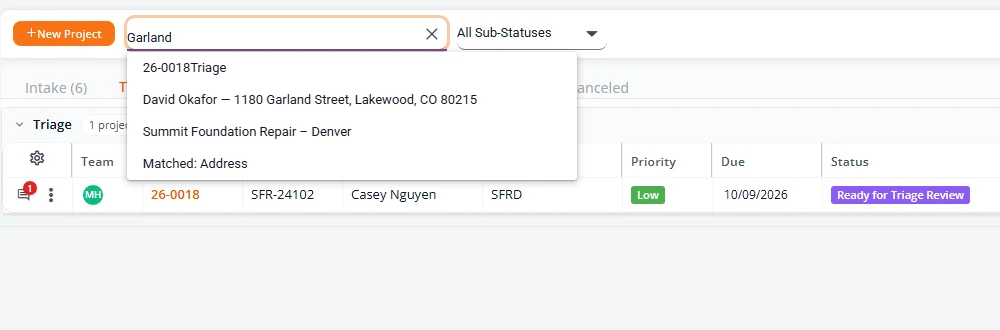
Typing narrows the open tab by job number, client reference, client name, customer name, address, designer, engineer and status. To see everything again, clear the box with the × at its right edge. Press Clear Results on the Search Results tab to close that tab.
Filter by sub-status
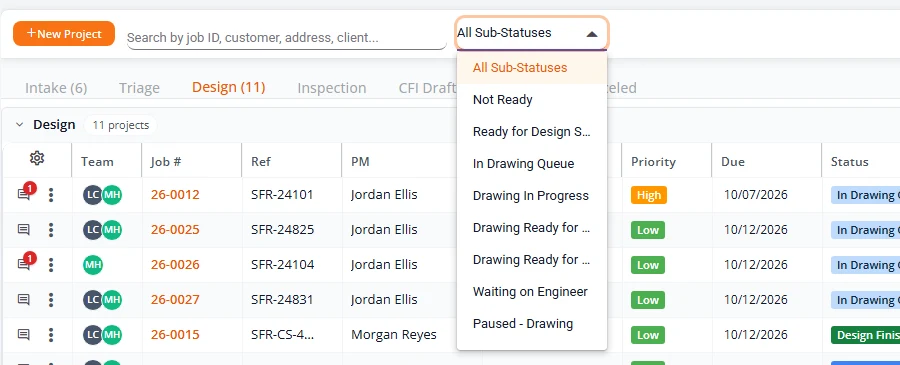
The All Sub-Statuses list beside the search box holds the sub-statuses of the tab you are on. Choose one to show only those projects. The filter goes back to All Sub-Statuses when you change tabs.
Columns
| Column | What it shows |
|---|---|
| Team | The initials of the designer and the engineer. Select them to open Project Team. |
| Job # | The project number. Select it to open the project. |
| Ref | The client’s own reference number for the job. |
| PM | The client’s project manager on the job. |
| Client | A short code made from the client’s name. |
| Priority | Worked out from the due date: the nearer the date, the higher the priority. Select it to change the due date. |
| Due | The requested due date. A warning mark shows when it has passed. Select it to change the date. |
| Status | The sub-status. Select it to change the status. |
| Scope | The codes of the scope items on the project. |
| Customer | The property owner. |
| Address | The property address. The three dots beside it offer Open in Google Maps, Open in Zillow, Copy Address and Copy All & Open Links. |
| Days | Full days since the project’s status last changed. It reads 0 for the first 24 hours. The number is green under 7 days, yellow from 7 and red from 14. |
| Created | The day the project was created. |
Hover over a value in Ref, PM or Customer and a copy button appears. The Finished and Canceled tabs leave out Priority and Due.
Work from a row
Two icons start every row.
- The speech bubble opens the project’s comments. A number on it is the count of comments. The number is red when some are unread. See Comments.
- The three dots open the row menu. It only lists what makes sense for the project’s status.
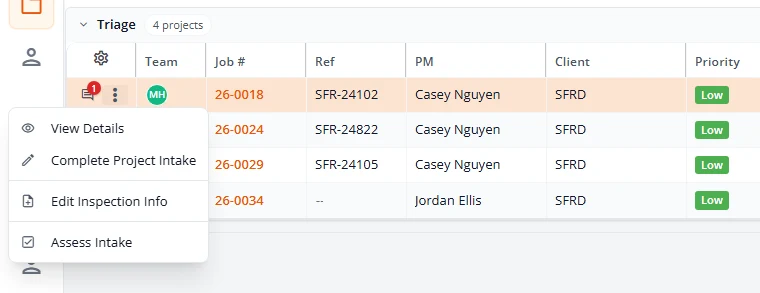
| Menu item | When you see it | What it does |
|---|---|---|
| View Details | Always. | Opens the project. See The project page. |
| Complete Project Intake | The project is in Intake, or in Triage waiting for its review. | Opens the intake wizard. See Fill in the intake wizard. |
| Edit Project | The project is in Design or later. | Asks whether this is a Modification / Correction or a Change Order, then opens the wizard. See Finishing, revisions and cancellations. |
| Download Documents | The design has been approved, or the project is in Inspection or Finished. | Lists the project’s documents to preview or download. See Download documents. |
| Add Inspection Info / Edit Inspection Info | Any project that is not Finished or Canceled and has no cancellation request waiting. It reads Add Inspection Info while the project is Waiting On Inspection Information. | Opens the inspection details. See Inspections. |
| Verify Inspection | The project is at Inspection Verification Needed. | Opens the verification. See Inspections. |
| Assess Intake | The project is at Ready for Triage Review. | Opens the triage review. See Assess a project. |
| Resolve Cancellation | You are an Organization Admin and a cancellation has been requested. | Approves or denies the request. See Finishing, revisions and cancellations. |
| Cancel Project | The project is in Intake or Design. | Starts a cancellation request. See Finishing, revisions and cancellations. |
Canceled projects and cancellation requests
Once a project is canceled, or a request to cancel it is waiting for a decision, the actions that change it are taken away.
- Canceled. The row menu holds only View Details.
- Cancellation request waiting. The row menu holds View Details, and Resolve Cancellation for an Organization Admin. There is no Complete Project Intake, Edit Project, inspection action or Cancel Project.
- On both, selecting the Team, Priority or Due value does nothing.
If the request is denied, the project goes back to the status it had before. See Finishing, revisions and cancellations.
Change a status
Most status changes happen for you as the work moves on: submitting an intake, approving it in triage, finishing a report. When you need to move a project by hand, use the quick edit.
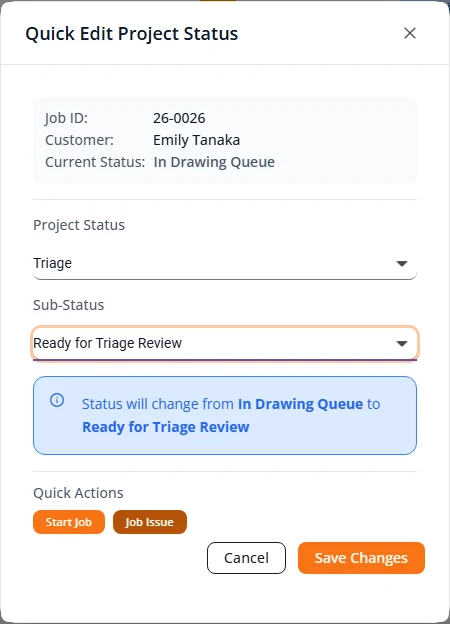
- Select the coloured label in the Status column. Quick Edit Project Status opens.
- Choose the Project Status, then the Sub-Status.
- Read the blue box. It states the change, for example “Status will change from In Drawing Queue to Ready for Triage Review”.
- Press Save Changes.
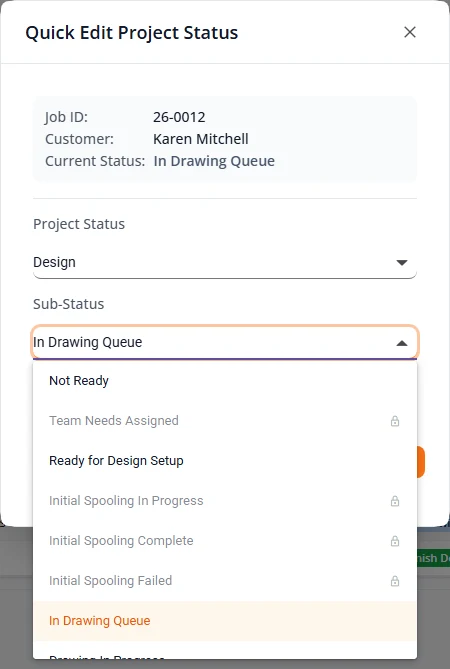
Sub-statuses with a lock
A sub-status with a padlock beside it is set by Structra while it does a piece of work, such as preparing the design files. You cannot choose it.
Quick Actions
For a project in design, Quick Actions at the bottom of the box offers the usual next step as one button, such as Start Job, Pause Job, Job Issue, Ready for Review or Design Approved. An Organization Admin sees them on any project. A Designer or an Engineer sees them on projects where they hold that place on the team, and Start Job also shows when the place is empty. See Design for how they are used.
After you save
If the new status belongs to another tab, the row stays where you are working and gains a Moved to label naming the new tab. It leaves when you switch tabs, search again or press Refresh.

Change a due date
- Select the project’s Priority or Due value. Change Due Date opens.
- Press one of the Quick Select buttons (Tomorrow, 3 Days, 1 Week, 2 Weeks, 1 Month, 6 Weeks), or pick a day under Or Select a Date.
- Check the blue box, which shows the old date, the new date and the difference in days.
- Press Update Due Date.
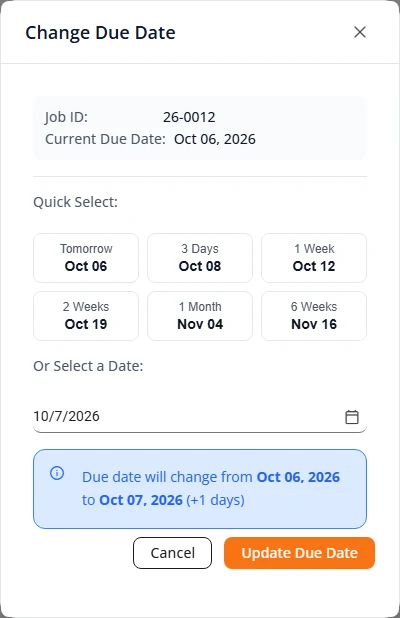
A quick-select button that would land on a weekend moves to the Monday after. The priority on the row follows the new date.
Statuses and sub-statuses
These are the labels as they appear on a row, grouped by tab. “Automatic” means Structra sets it and moves the project on by itself.
Intake
| Sub-status | What it means | Who acts next |
|---|---|---|
| Project Intake Initiated | The project exists but its intake wizard has not been submitted. | Whoever started it: your staff or the client. |
| Project Intake Submitted | The wizard was submitted. | Automatic. It lasts a moment. |
| Project Intake Ready For Validation | Structra is checking that the required documents are there. | Automatic. |
| Project Intake Complete | The check passed. The project is on its way to Triage. | Automatic. |
| Project Intake Failed | The check found required documents missing. | Whoever submitted it adds the documents and submits again. |
| Project Issue Waiting On Client | Your team pushed the project back in triage and asked for more information. | The client. |
Triage
| Sub-status | What it means | Who acts next |
|---|---|---|
| Ready for Triage Review | The intake is complete and waiting to be assessed. | Your team. See Intake and triage. |
| Cancellation request pending triage review | Someone asked to cancel the project. | An Organization Admin. See Finishing, revisions and cancellations. |
Design
Design walks through these in order.
| Sub-status | What it means | Who acts next |
|---|---|---|
| Not Ready | The project is in Design but set-up has not been started. | Your team. |
| Team Needs Assigned | The project was approved in triage with no engineer. It moves on by itself once an engineer is added. | Whoever assigns the team. See Assign or change the team. |
| Ready for Design Setup | Triage approved the project. Design set-up starts from here. | Automatic. |
| Initial Spooling In Progress, Initial Spooling Complete | Structra is preparing the design files for the project. | Automatic. |
| Initial Spooling Failed | Preparing the design files did not finish. | Your team. |
| In Drawing Queue | Waiting for a designer to start. | The designer. |
| Drawing In Progress | The designer is drawing. | The designer. |
| Paused - Drawing | The designer paused the job. | The designer. |
| Waiting on Engineer | The designer is blocked and has flagged the job for the engineer. | The engineer. |
| Drawing Ready For Review | The drawing is done and waiting to be reviewed. | Your team. |
| Drawing Ready For Revision | The drawing needs changes. | The designer. |
| In Engineering Queue | Waiting for an engineer to start. | The engineer. |
| Engineering In Progress | The engineer is reviewing the design. | The engineer. |
| Engineering Ready For Review, Engineering Ready For Revision | The engineering review is waiting on a further check, or the engineer asked for revisions. | Your team. |
| Design Failed Send Back To Client | The design cannot go ahead with what the client supplied. The client is told by email. | The client. |
| Design Approved | The engineer approved the design. | Your team, to build the report. |
| Build Docs And Staple | Starts assembling the report from its parts. | Automatic. |
| Build Docs In Progress, Build Docs Complete | Structra is assembling the report. | Automatic. |
| Build Docs Failed | Assembling the report did not finish. | Your team. |
| Ready For Seal, Ready For Digital Signature, Finish Design Report | The report is built. The engineer signs and seals it in Bluebeam, then gives it a final review. | The engineer. |
| Design Finished | The design report is complete. | Automatic. The inspection stage follows where the project has one. |
Inspection
Inspections covers this stage.
| Sub-status | What it means | Who acts next |
|---|---|---|
| Inspection Not Ready | The design is finished and the inspection stage is starting. | Automatic. |
| Waiting On Inspection Information | The inspection details have not been entered. | The client, or your team on their behalf. |
| Inspection Verification Needed | The inspection details are in and need checking. | Your team. |
| Inspection Verification Accepted | The details were accepted. The inspection report follows. | Automatic. |
| Inspection Verification Rejected | The details were not accepted. | See Inspections. |
| Ready For Inspection Report | Starts the inspection report. | Automatic. |
| Inspection Report In Progress, Inspection Report Complete | Structra is building the inspection report. | Automatic. |
| Inspection Report Failed | Building the inspection report did not finish. | Your team. |
| Finished Inspection Report, Inspection Report Finished | The inspection report is done and the project is being closed. | See Inspections. |
CFI Draft, Finished and Canceled
| Sub-status | Tab | What it means |
|---|---|---|
| CFI Draft Created | CFI Draft | A field inspector has started an intake and not yet submitted it. See the field inspector guide. |
| CFI Draft Submitted | CFI Draft | The field inspector submitted it. It moves on to Intake by itself. |
| Project Finished | Finished | The project is complete. |
| Project Canceled | Canceled | The project was canceled. Every approved cancellation ends here. |
| Cancellation Approved - No Billing | Canceled | A cancellation request was approved with nothing to bill. It lasts a moment, then the project becomes Project Canceled. |
| Cancellation Approved - With Billing | Canceled | A cancellation request was approved with a charge. Structra adds the charge to the client’s open invoice, then the project becomes Project Canceled. |
On a phone
On a narrow screen the table becomes a list of cards. Each card shows the job number, the sub-status, the customer, the client, the reference and the due date.
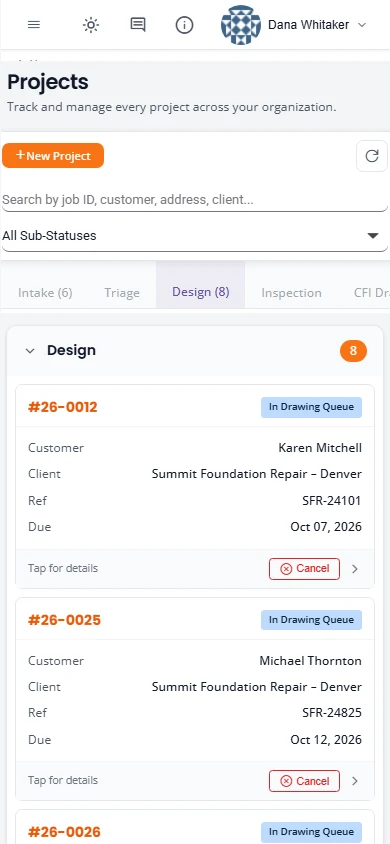
- Tap a card to open the project.
- Tap the sub-status label to open Quick Edit Project Status.
- Cancel shows on projects in Intake or Design. Organization Admins also see Resolve on a project with a cancellation request.
The cards have no row menu, team initials or comment icon. Open the project to reach comments, the team and the other actions.
What is not here yet
- Deleting a project. A project cannot be deleted from the list. Cancel it instead. See Finishing, revisions and cancellations.
- Choosing columns. You cannot hide, add or reorder columns.
- Exporting the list. There is no export of the Projects list to a spreadsheet.
- Changing several projects at once. Status, due date and team are changed one project at a time.
Stuck on something? Email support@structra.tech and tell us what you were trying to do.