Getting started
Sign in, learn where things are, and see what an Organization Admin, an Engineer and a Designer can each reach.
Sign in
Your Organization Admin creates your account. You get an email called “Welcome to Structra!” with a link to set your password.
- Open the Structra sign-in page.
- Type your Email and Password.
- Press Sign in.
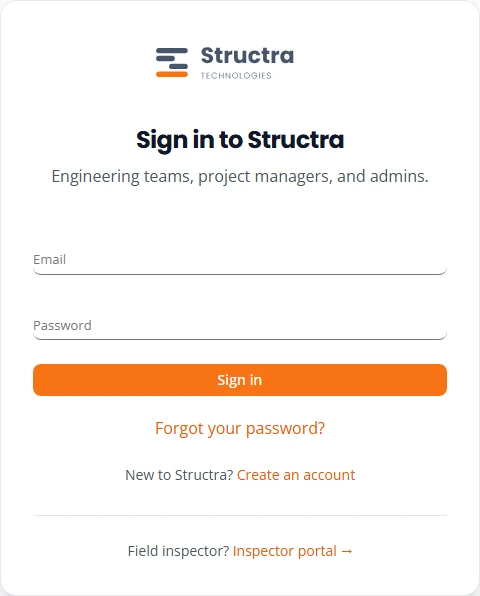
If the email or the password is wrong, the box says “Invalid email or password.” Check both and try again, or reset your password.
Forgotten or changed passwords
If you forgot your password
- On the sign-in page, select Forgot your password?
- Type your Email address and press Send reset instructions.
- You see Check your email. Open the email and follow the link.
- Under Set a new password, fill in New password and Confirm new password, then press Reset password.
- Press Go to sign in and sign in with the new password.
If the email does not arrive, check your spam folder, then press Resend email.
Change your password while signed in
- Select your picture at the top right, then Change Password.
- Fill in Current Password, New Password and Confirm New Password.
- Press Update Password.
A new password needs at least 8 characters, with an uppercase letter, a lowercase letter and a number.
The menu
The menu runs down the left side. It starts as a narrow strip of icons. Select the arrow at the bottom of the strip to pin it open with names, or press Ctrl+B. The same arrow collapses it again.
The menu shows only what your role can use.
| Menu item | Organization Admin | Engineer | Designer |
|---|---|---|---|
| Dashboard | Yes | Yes | Yes |
| My Organization | Yes | Yes, to view | No |
| Client Contacts | Yes | Yes | No |
| Task Dashboard | Yes | Yes | Yes |
| Projects | Yes | Yes | Yes |
| Leads | Yes | Yes | Yes |
| Upcoming Inspections | Yes | No | No |
| Inspection Board | Yes | No | No |
| Field Inspectors | Yes | No | No |
| Pending Users | Yes | No | No |
| Client Groups | Yes | No | No |
| Agreement Templates | Yes | No | No |
| Subscription | Yes | Yes, to view | Yes, to view |
| Analytics | Yes | No | No |
| Billing | Yes | No | No |
| QuickBooks | Yes | No | No |
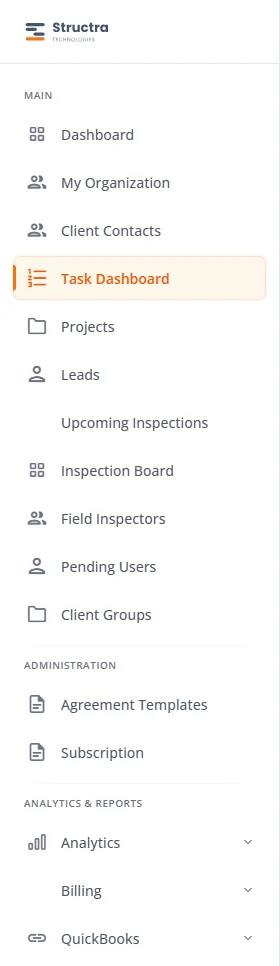
Where to read about each part:
- Projects: Projects and statuses.
- Leads and Agreement Templates: Leads and engagement letters.
- Upcoming Inspections and Inspection Board: Inspections.
- My Organization, Client Contacts, Field Inspectors, Pending Users and Client Groups: Clients, branches and users.
- Billing and QuickBooks: Billing and QuickBooks.
- Analytics: Analytics.
- Subscription and everything under your picture: Settings.
Task Dashboard at a glance
Task Dashboard lists the projects that need you. It is the page to start your day on.
- The tiles across the top count Urgent, Overdue, Due Today and Total Tasks. An Organization Admin also sees Cancellations.
- Projects are grouped by where they stand, such as Triage, In Drawing Queue, Drawing Review and Issues / Waiting on Client. Select a group heading to fold it.
- Each card shows the job number, client, customer, status and due date. View Details opens the project. Some cards have a second button for the next step, such as Start Drawing, Open Checklist or View Feedback.
- An Organization Admin can change View As to see the queue as Designer, Engineer, Admin or All Active.
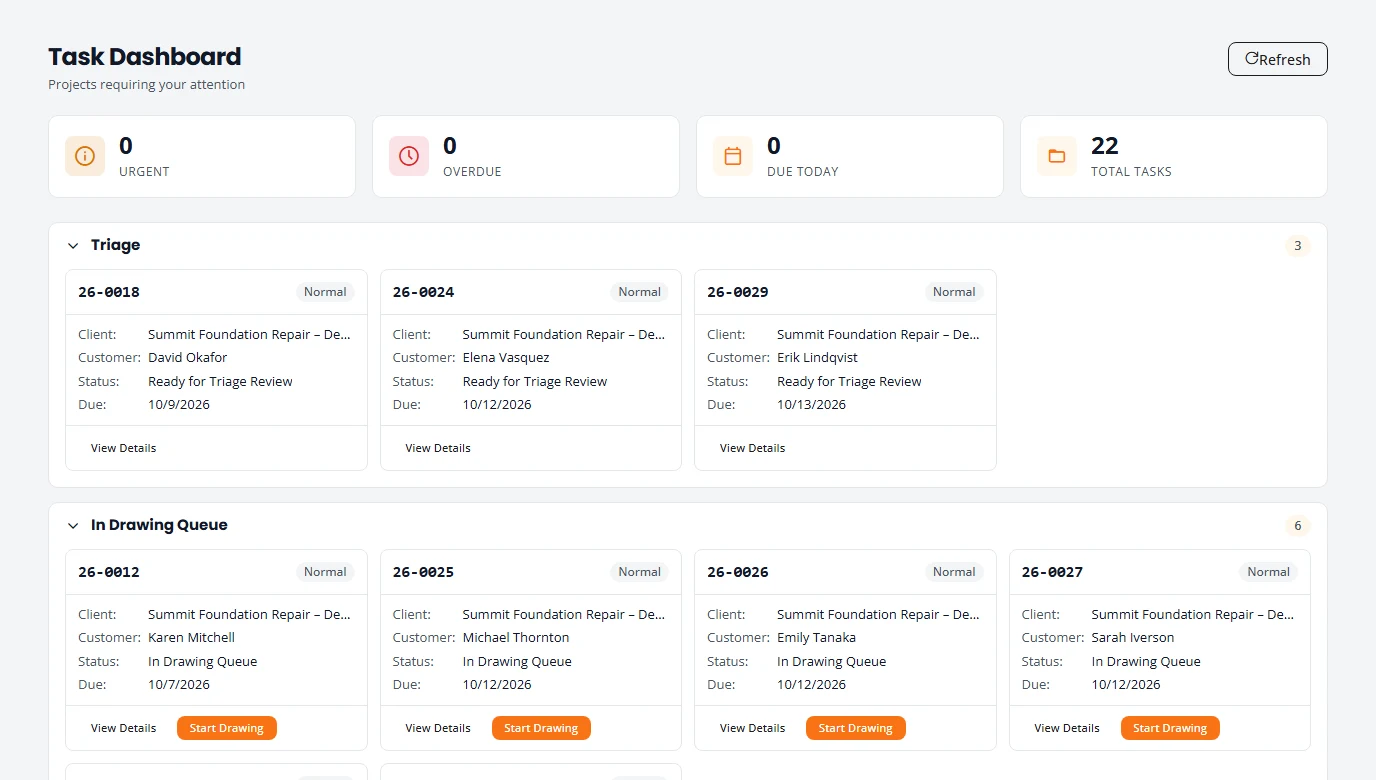
What the buttons do is covered in Intake and triage and Design.
The top bar
Four controls sit at the top right of every page.
- Theme. The sun or moon switches between light and dark mode.
- Notifications. The speech-bubble icon opens the Notifications list. A red number on the icon counts the ones you have not read. See Notifications below.
- Help. The circled “i” opens this guide in a new tab.
- Your picture. Opens a menu with your name, email and role, then Profile, Change Password, Settings and Log Out.
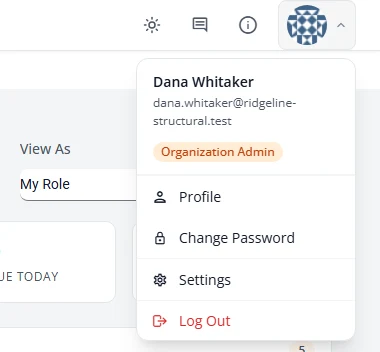
The trail under the top bar, such as Home › Leads, shows where you are. Select a step to go back to it.
Notifications
Structra tells you when something on a project needs you: someone mentioned you in a comment, someone commented on one of your projects, or a project reached a step that is yours, such as an inspection to verify.
- A new notification shows as a message on screen while you are signed in, and the number on the icon goes up.
- The list shows the 10 newest, each with how long ago it arrived. The line at the bottom says how many there are in all, for example “Showing the 10 newest of 48”.
- Select a notification to open its project. A mention opens the project with its comments already open. See What a mention does.
- Mark all as read is at the top of the list.
Structra also sends email. Choose which emails you get in Settings.
Your profile
- Select your picture at the top right, then Profile.
- Press Edit Profile.
- Change First Name, Last Name, Phone Number, Job Title or Bio.
- Press Save Changes.
To change your picture, select it on the profile page. The Profile Photo window opens.
What each role can do
Staff of an engineering firm have one of three roles. Your Organization Admin sets it when adding you, and can change it later.
| Task | Organization Admin | Engineer | Designer |
|---|---|---|---|
| Work projects and the Task Dashboard | Yes | Yes | Yes |
| See leads and add a lead | Yes | Yes | Yes |
| Edit engagement letter templates and the headquarters address | Yes | No | No |
| Open the organization page | Yes | View only | No |
| Add or edit clients, cover letters and prices | Yes | No | No |
| Add staff and client users | Yes | No | No |
| Look up client contact details | Yes | Yes | No |
| Manage field inspectors, pending users and client groups | Yes | No | No |
| Billing, QuickBooks and Analytics | Yes | No | No |
| Email and Branding settings | Yes | No | No |
| Subscription | View and change | View only | View only |
| Keep engineer credentials and a signature | For any engineer | Their own | Not applicable |
Who can triage, draw, review and seal a project is covered in Intake and triage and Design.
What is not here yet
- Dashboard is a welcome page. Use Task Dashboard and Projects for your work.
- On your profile, Two-Factor Authentication shows Not Enabled and cannot be turned on, View Sessions does not open anything, and Location cannot be edited.
Stuck on something? Email support@structra.tech and tell us what you were trying to do.