Finishing, revisions and cancellations
A project ends in one of two places: Finished, when its last report has gone to the client, or Canceled. A finished project can be reopened for a change order, which produces a numbered revision of the report.
How a project finishes
Nobody sets a project to finished by hand. It follows from the last report being sent.
- No inspection. Setting Design Finished sends the design report, and the project becomes Project Finished. See Finish and send the report.
- With an inspection. Setting Inspection Report Finished sends the inspection report, and the project becomes Project Finished. See The inspection report.
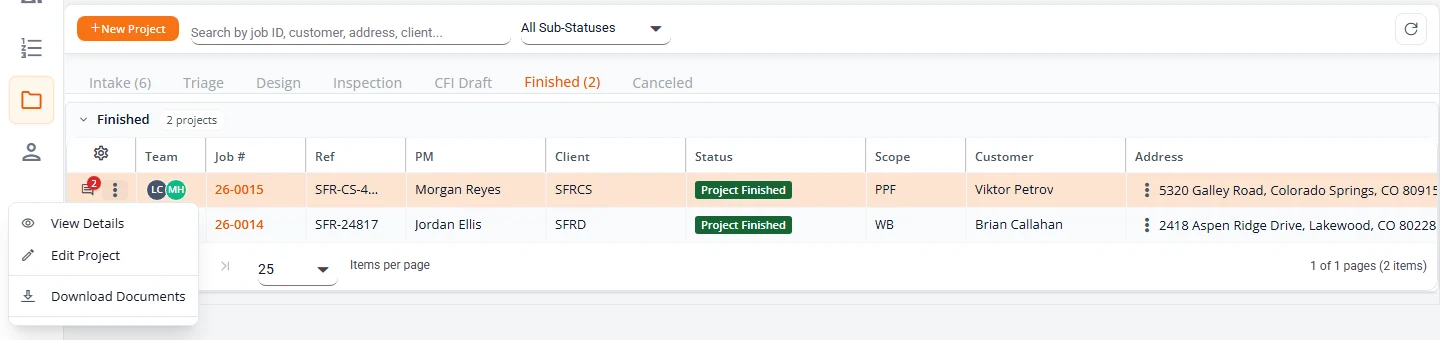
Finished projects are on the Finished tab of Projects.
What the client gets
- The design report by email. When the design is finished, the client’s admins get an email with the report attached as a PDF. Your Organization Admins get the same email.
- The inspection report by email, the same way, when the inspection report is finished.
- The files in Structra. The client can open the project and download its documents at any time. See Getting your report in the client guide.
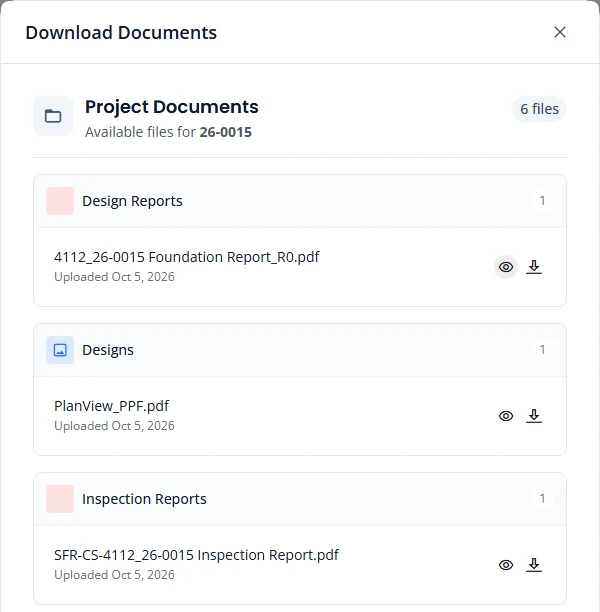
You see the same files with Download Documents in the project’s row menu. Each file has an eye icon to view it and an arrow to download it. Download All Files is at the bottom.
Sending other files, and the record of what was sent, are covered in Deliverables.
What reaches the invoice
Finishing the design adds the design line to the client’s open invoice, and a calculations line if the project has calculations. Finishing the inspection report adds the inspection report line. See How billing works.
What changes once it is finished
- Inspection information locks. See When inspection information locks.
- Cancel Project is no longer offered.
- The project leaves the Task Dashboard.
- Comments, files and Download Documents keep working.
Correct a project without a revision
An Organization Admin can fix a mistake in a project’s details without issuing a revision.
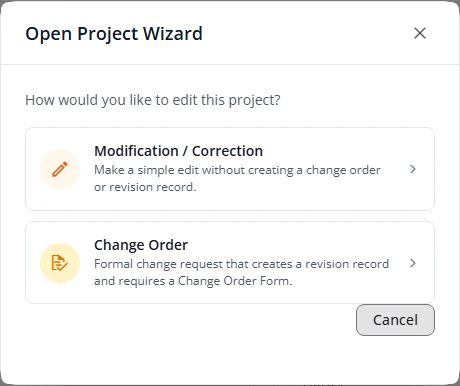
- Open the project, open the menu at the top right (the three dots) and choose Edit Project. Open Project Wizard asks how you want to edit.
- Choose Modification / Correction. The intake wizard opens with the project’s details.
- Make the correction, go to Review & Submit and press Submit Intake.
Reopen a project for a change order
Use a change order when the work itself has changed after the report went out: piers added or removed, a different quantity, a revised sketch. It reopens the project and produces a new revision of the report.
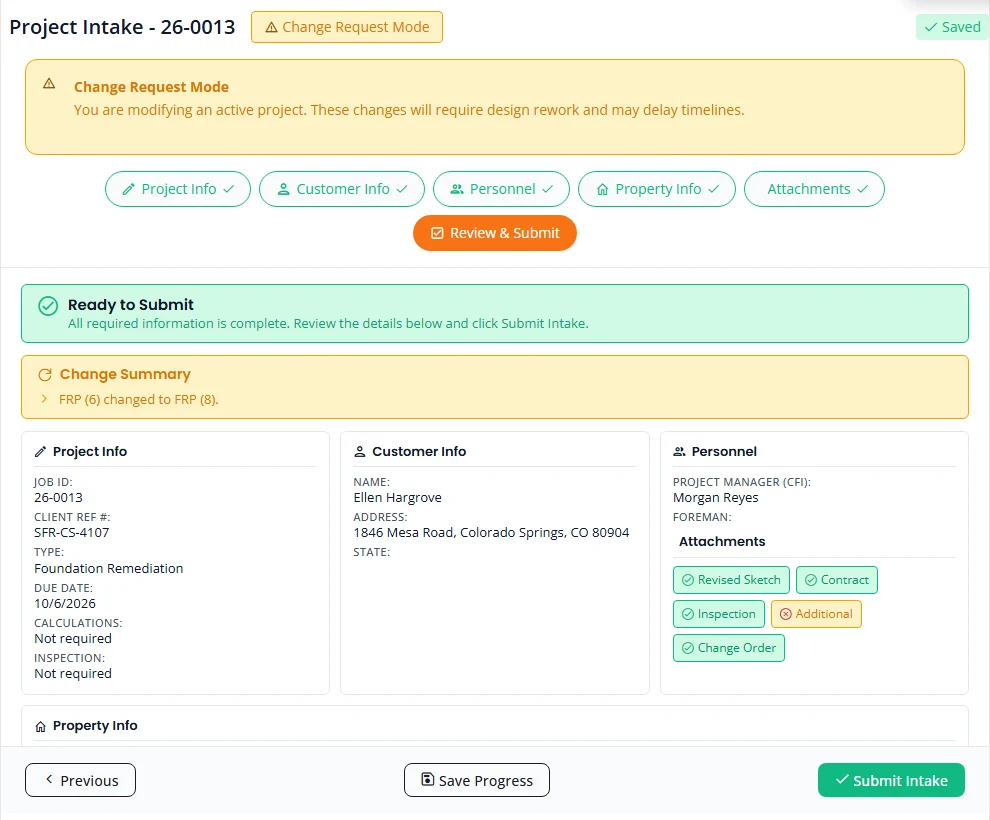
- Open the project, open the menu at the top right and choose Edit Project, then Change Order. The wizard opens with a Change Request Mode banner.
- Change what has changed. Scopes and quantities are on Property Info.
- On Attachments, upload the Change Order Form. It is required. Put an updated drawing in Revised Sketch / Floor Plan. Earlier versions of every file are kept.
- On Review & Submit, read the Change Summary. It lists what Structra will record as the reason for the revision.
- Press Submit Intake. Structra confirms with “Change Order Revision 1 created successfully.”
The project then goes round again:
- It returns to the Triage tab as Ready for Triage Review. Assess and approve it. See Assess a project.
- Design setup runs again and the project moves through design as before. See Design.
- Setting Design Finished sends the revised report to the client.
What a revision produces
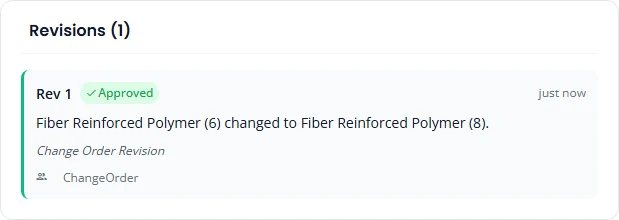
- A revision record. The project’s History tab lists it under Revisions with its number and the change summary. The Revisions count at the top of the project page goes up by one.
- A revision letter. Structra writes a letter that lists the changes, signed by the engineer of record, and adds it to the report parts.
- A new loads spreadsheet. Design setup creates a fresh copy for the revision. The earlier one is kept beside it.
- A new report. The rebuilt report’s file name ends in the revision number: R1 for the first change order. The R0 report stays in the project’s files.
Cancel a project
Cancel Project is in the project’s row menu on Projects and in the menu at the top right of the project page. It is offered while a project is in Intake or Design.
What it does depends on who chooses it. An Organization Admin cancels the project. Anyone else sends a request for an Organization Admin to approve or deny.
When an Organization Admin cancels
- Choose Cancel Project. The box shows Project Progress: the current status, whether the project is past intake and past Drawing In Progress, and a link to its plan view if it has one.
- Under Cancellation Type, choose Cancel without billing or Cancel with billing. With billing, fill in Billable Amount ($) and Billable Hours.
- Type the Cancellation Reason. It is required.
- Press Confirm Cancellation.
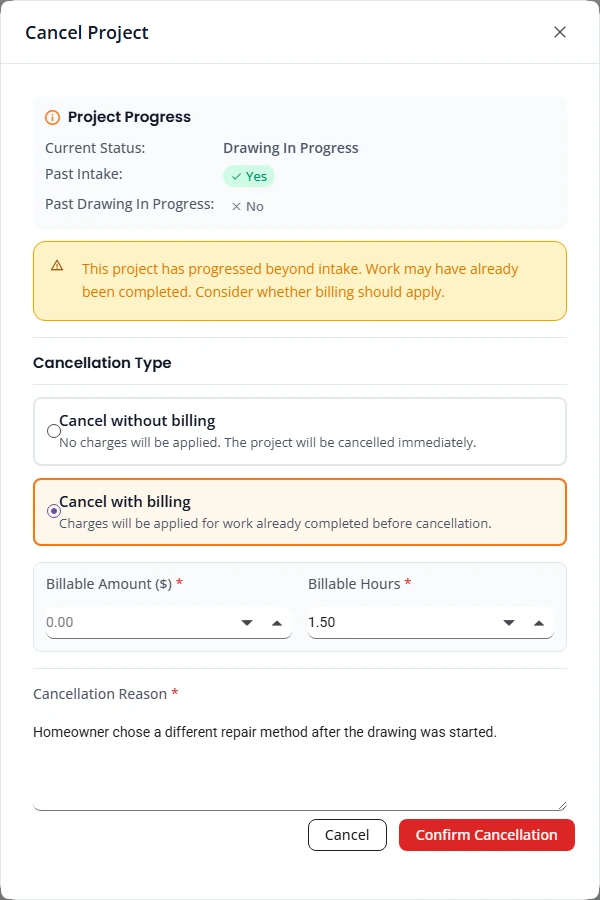
The project is cancelled as soon as you confirm. It moves to the Canceled tab as Project Canceled, and comments on the project record the reason and whether it was billed. The emails and the invoice line are the same as for an approved request. See Resolve a cancellation request.
When anyone else asks
For a client user, an engineer or a designer, Cancel Project opens Request Project Cancellation. It asks for a Cancellation Reason and has a Request Cancellation button. Your own staff also see Project Progress. The client’s side is in Ask to cancel a project in the client guide.
The project moves to the Triage tab as Cancellation request pending triage review. A comment with the reason is added to it, and Structra emails your Organization Admins that a request is waiting.
While a request is waiting
The project is on hold. Its menus no longer offer Edit Project, Change Request, Complete Project Intake, Change Due Date, Manage Team, Add Inspection Info, Edit Inspection Info or Cancel Project. That applies to your staff and to the client.
- Everyone can still open the project with View Details, read its tabs and use Comments.
- An Organization Admin also has Resolve Cancellation.
If the request is denied, the project goes back to where it was and its actions return.
Resolve a cancellation request
Only an Organization Admin can resolve a request. Engineers, designers and client users do not see the action.
Find the requests
- On Projects, open the Triage tab. Requests show Cancellation request pending triage review.
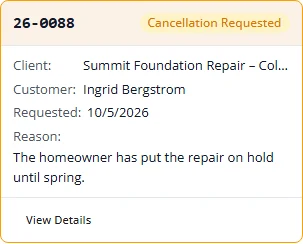
- On Task Dashboard, the Cancellations counter shows how many are waiting. To see their cards, set View As to Admin or All Active. They are in the Triage lane, marked Cancellation Requested, with the reason.
Resolve one
- Open the project’s row menu, or the menu at the top right of the project page, and choose Resolve Cancellation.
- Read Cancellation Request: when it was asked for and why. Project Progress shows how far the work had gone.
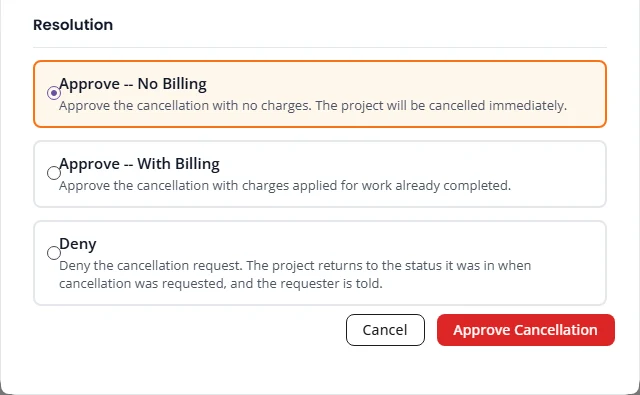
- Under Resolution, choose Approve -- No Billing, Approve -- With Billing or Deny. With billing, fill in Billable Amount ($) and Billable Hours.
- Press the button at the bottom. It reads Approve Cancellation, Approve with Billing or Deny Request, to match your choice.
| Resolution | What happens |
|---|---|
| Approve -- No Billing | The project moves to the Canceled tab as Project Canceled. A comment records the approval. |
| Approve -- With Billing | The project moves to the Canceled tab as Project Canceled. A line for the amount and hours you entered is added to the client’s open invoice. On the project’s Billing tab, the amount shows under Feature Usage and the invoice under Invoices. Check the line on the invoice before it is sent. |
| Deny | The request is closed and the project goes back to the status and sub-status it had before the request, for example Design and Drawing In Progress. A comment records the denial. |
Who is told
- When a project is cancelled. Structra emails the client’s admins that the project has been cancelled, with the reason. If it was billed, the email says that work completed before the cancellation will be billed. It does not give the amount. Your Organization Admins get an email that does give the amount and the hours.
- When a request is denied. Structra emails the person who asked, and your Organization Admins, that the request was denied and which status the project is back in.
Cancellation statuses
| Sub-status | Tab | Meaning |
|---|---|---|
| Cancellation request pending triage review | Triage | A client user, engineer or designer asked to cancel. An Organization Admin has to resolve it. |
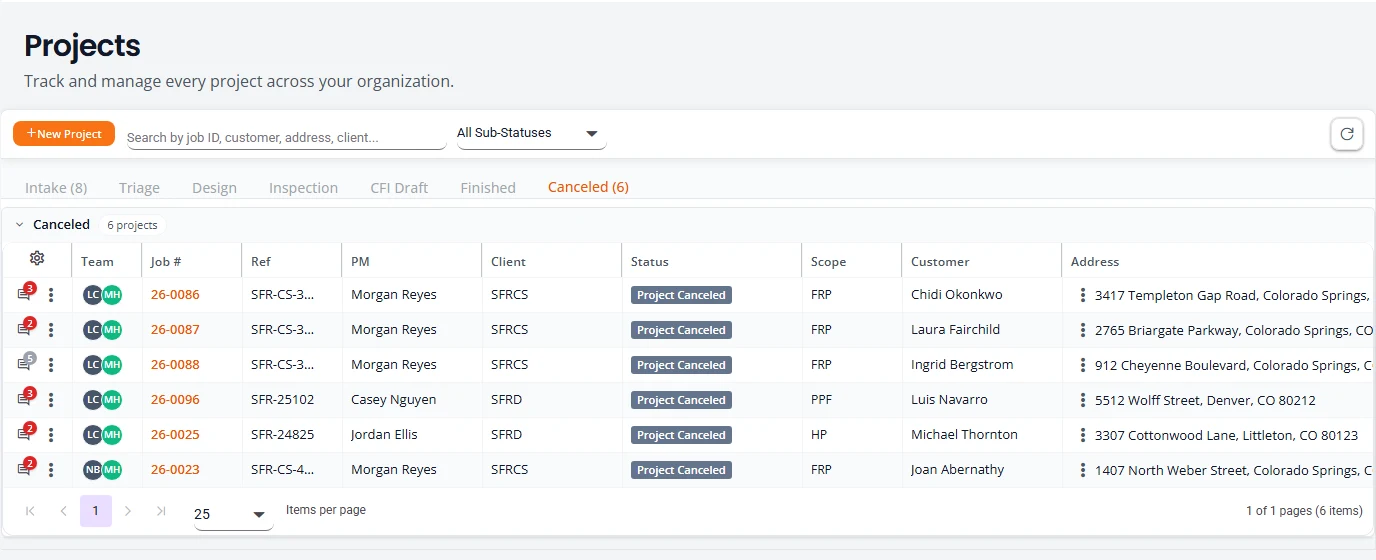
| Project Canceled | Canceled | Cancelled, with or without billing. The project’s History tab shows which: the entry before it reads Cancellation Approved - No Billing or Cancellation Approved - With Billing. |
A cancelled project is closed to changes. View Details is the only choice in its row menu, for your staff and for the client. Nobody can edit it, raise a change request, complete its intake, add or edit inspection information, change its due date, change its team or cancel it again. The project page still opens, with its tabs and Comments.
The full status list is in Projects and statuses.
What is not here yet
- A project in Inspection cannot be cancelled from its menu.
- A cancelled project has no menu action to reopen it, and no change order can be raised on it.
- A change order is not added to the invoice for you.
- Previous revisions are not kept in separate folders. A revised report is filed beside the earlier one, with the revision number in its name.
Stuck on something? Email support@structra.tech and tell us what you were trying to do.