Design capacity
Design capacity is how many projects your engineers can have due on each day. Set it once per engineer, mark time off and holidays as they come up, and the due-date picker on every new project follows it.
Open the capacity calendar
Open Design Capacity in the menu, or open Settings and select the Design Capacity tab. Both lead to the same page.
| Who | What they can do |
|---|---|
| Organization Admin | See the calendar and change everything on it. |
| Engineers and Designers | See the calendar, the engineer defaults and the holidays. Nothing can be changed. |
| Client users and field inspectors | Nothing. The page reads “Design capacity is for engineering staff”. |
The page has three parts: the calendar at the top, Engineer defaults below it on the left, and Holidays on the right.
How capacity is counted
- Each engineer has a daily figure. It is the number of projects that engineer can take due on one of their workdays. On a day that is not one of their workdays, their figure is 0.
- A day’s capacity is the total of every engineer’s figure for that day, after time off and reduced days are taken into account.
- Booked counts your projects whose requested due date is that day and which are still in intake, triage or design. Projects already at inspection, finished or canceled are not counted.
- A day is full when booked reaches capacity.
Read the calendar
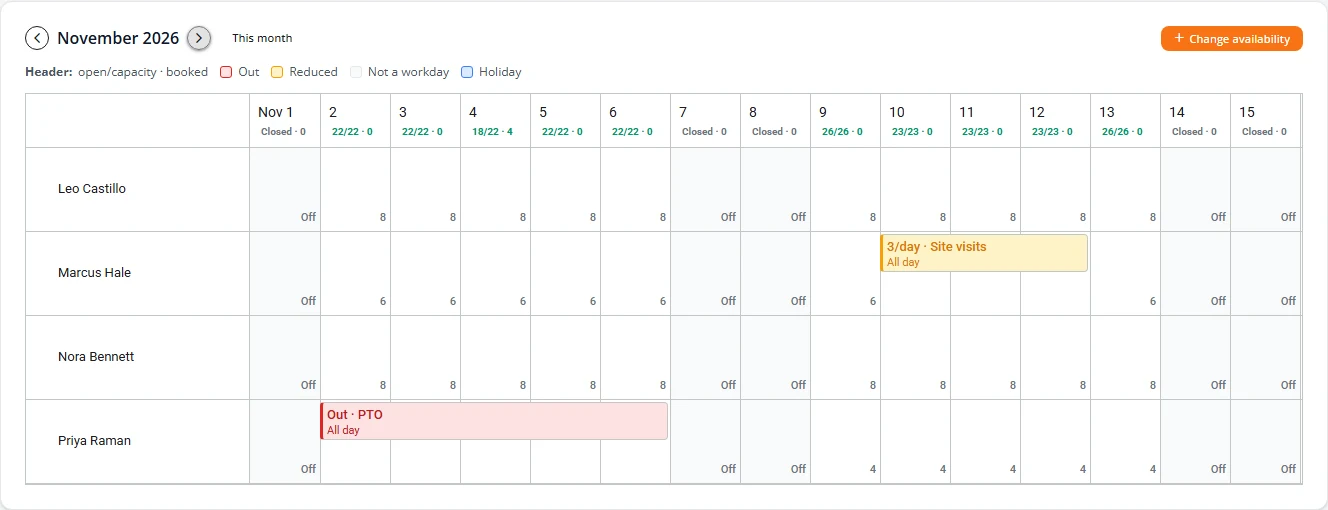
The calendar shows one month, one row per engineer. Use the arrows beside the month to move, and This month to come back.
The day header
Each day’s header reads open/capacity · booked. “18/22 · 4” means a capacity of 22, 4 booked and 18 still open. Hover over a header for the same figures in words.
| Header | Meaning |
|---|---|
| Green | Open. |
| Amber | Three quarters or more of the day is booked. |
| Red | Full. |
| Holiday (blue) | One of your holidays. No due date can land on it. |
| Closed (grey) | A weekend, where your organization does not take due dates on weekends. |
| —/— (grey) | No capacity is set up, so the day is not limited. |
The engineer rows
- Each cell shows the engineer’s figure for that day, or Off when it is not one of their workdays.
- A red bar is time off: Out, with the reason if one was given.
- An amber bar is a reduced day, such as “3/day · Site visits”.
- An Organization Admin can select an empty cell to change that engineer’s day, or select a bar to change or remove it. See Time off and reduced days.
Set each engineer's default
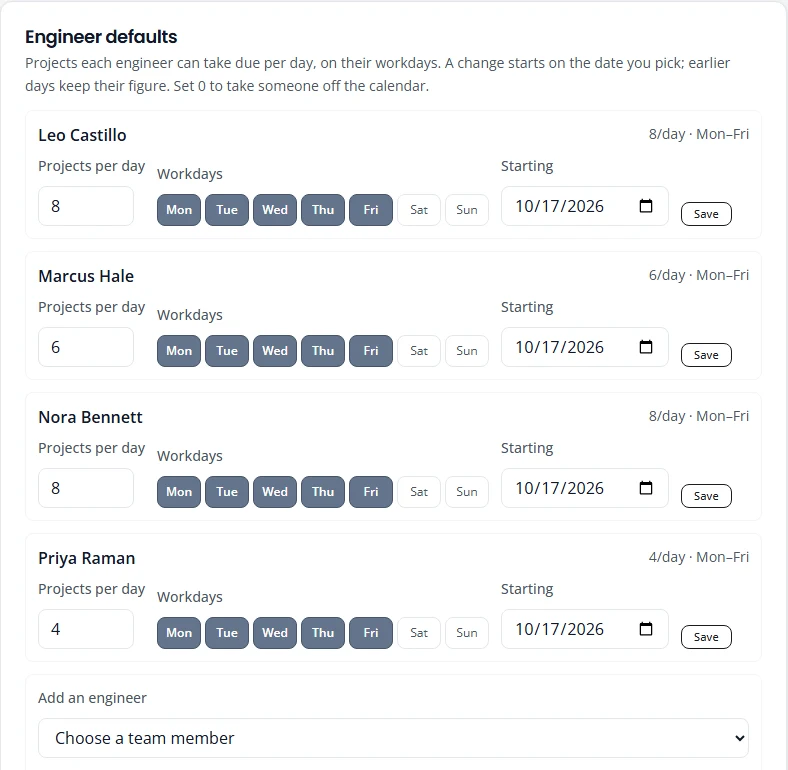
Engineer defaults lists everyone on the calendar, with their figure and workdays, such as “6/day · Mon–Fri”.
Change a default
- In the engineer’s row, type the new Projects per day, from 0 to 50.
- Under Workdays, select the days they work. Dark buttons are workdays.
- Set Starting to the first day the change applies. It can be today or later, not earlier.
- Press Save. “Default capacity saved.” confirms it.
Days before the starting date keep the old figure. A change set for a later date shows under the engineer’s name as “From” that date, until it starts.
Add someone to the calendar
- Under Add an engineer, choose the person from the list. Everyone on your staff who is not on the calendar yet is there.
- The form starts at 4 a day, Monday to Friday, from today. Change it if you need to.
- Press Save.
Take someone off the calendar
Set their Projects per day to 0 and save. Once that change has started, their row leaves the calendar and their entry under Engineer defaults is marked Off the calendar. Use this when someone leaves or stops taking design work. Their earlier days keep their figure.
Time off and reduced days
Use Change availability when an engineer is out, or can take fewer projects than usual, on particular days.
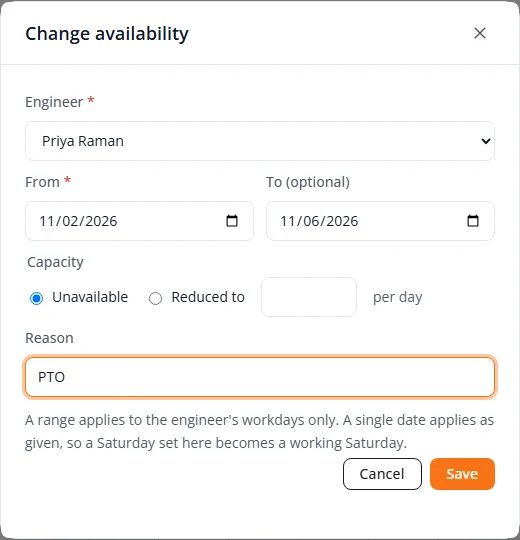
- Press Change availability above the calendar. Or select the engineer’s cell on the first day.
- Choose the Engineer.
- Set From. For more than one day, set To (optional) as well.
- Under Capacity, choose Unavailable, or Reduced to and type how many a day.
- Type a Reason if you want one on the calendar, such as PTO or training.
- Press Save. “Availability saved for 5 days.” says how many days it covered.
- A range covers workdays only. A week off from Monday to the next Monday does not touch the weekend in between.
- A single date applies as given. Set a Saturday on its own, reduced to 3, and the engineer has a working Saturday with a capacity of 3.
- To undo it, select the bar on the calendar and press Back to default.
- A range can cover up to 366 days. A reduced day can be from 1 to 50. A reason can be up to 200 characters.
Holidays
A holiday is an office closure. No due date can land on one, for clients or for your staff.
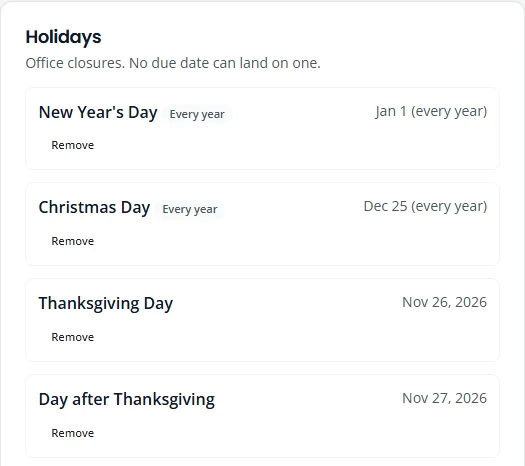
- Under Holidays, set the Date and type the Name.
- Tick Every year for a holiday on the same date each year, such as Christmas Day.
- Press Add holiday.
- An Every year holiday falls on the same month and day every year. It does not move to a Friday or Monday when the date lands on a weekend. Add that day separately if your office closes on it.
- A holiday that moves, such as Thanksgiving, is added once for each year.
- Adding a holiday on a date that already has one renames the existing holiday.
- Press Remove to delete a holiday. You are asked to confirm.
How due dates follow the calendar
The due-date picker in Create New Project and in the intake wizard reads this calendar. Its legend reads Available, Limited, Full and Blocked. See Due dates and capacity for the picker itself.
| The day is | Your staff | Client users |
|---|---|---|
| Open | Can choose it. | Can choose it, if it is not too soon. |
| Full | Can choose it as a rush job. The picker shows “This date is at capacity.” and the tick box Request Rush Job (priority scheduling). | Cannot choose it. If it is already selected, the picker reads “This date is fully booked. Choose another date, or contact the engineering office if it is urgent.” |
| No capacity (everyone out) | Cannot choose it. | Cannot choose it. |
| A holiday | Cannot choose it. | Cannot choose it. |
| A weekend | Cannot be chosen, where your organization does not take due dates on weekends. | |
- Next Available looks up to 90 days ahead, from tomorrow, for the first day that is neither full nor blocked.
- The check is made again when the project is saved, and again when a due date is changed. A date that filled up in the meantime is refused with the reason.
- A change on this page shows in the picker the next time it loads. Projects that already have a due date keep it.
What is not here yet
- Weekend rule and time zone. Whether your organization takes due dates on weekends, and the time zone used for the clients’ midday cut-off, are set by Structra support. Email support@structra.tech to change them.
- Capacity per engineer assignment. Booked counts every open project due that day, not the projects assigned to each engineer.
- Forecasts. For how full the coming days look, use the Capacity report.
Stuck on something? Email support@structra.tech and tell us what you were trying to do.