Analytics
Seven reports sit under Analytics in the menu. This page says what question each one answers, what its filters do, and how to read it. Analytics is for Organization Admins.
Which report answers which question
| Report | The question it answers |
|---|---|
| KPIs | How are we doing overall: turnaround, on-time delivery, quality and workload? |
| Production | Where is work slowing down today, in design, inspection or report generation? |
| Branch Scorecard | Which client branches get their jobs on time? |
| Client Funnel | Where does the time go on a job, and is it on our side or the client’s? |
| Capacity | Can we take this job, and when? |
| Intake Aging | What is stuck, and for how long? |
| QA Dashboard | How do our checklists score, and which items get missed? |
Open Analytics in the menu to see the list. Engineers and Designers do not have these pages.
Filters every report shares
The controls sit at the top right of each report.
- Client. Starts on All Clients. Choose one client, or one branch, to narrow the report to it.
- Period. On reports that look back, choose Last 7 Days, Last 30 Days, Last 90 Days, Last Year, This Month, Last Month or This Quarter.
- Refresh. Reloads the numbers. Reports do not update on their own while you watch.
Your firm’s name under the title confirms whose data you are looking at.
KPIs
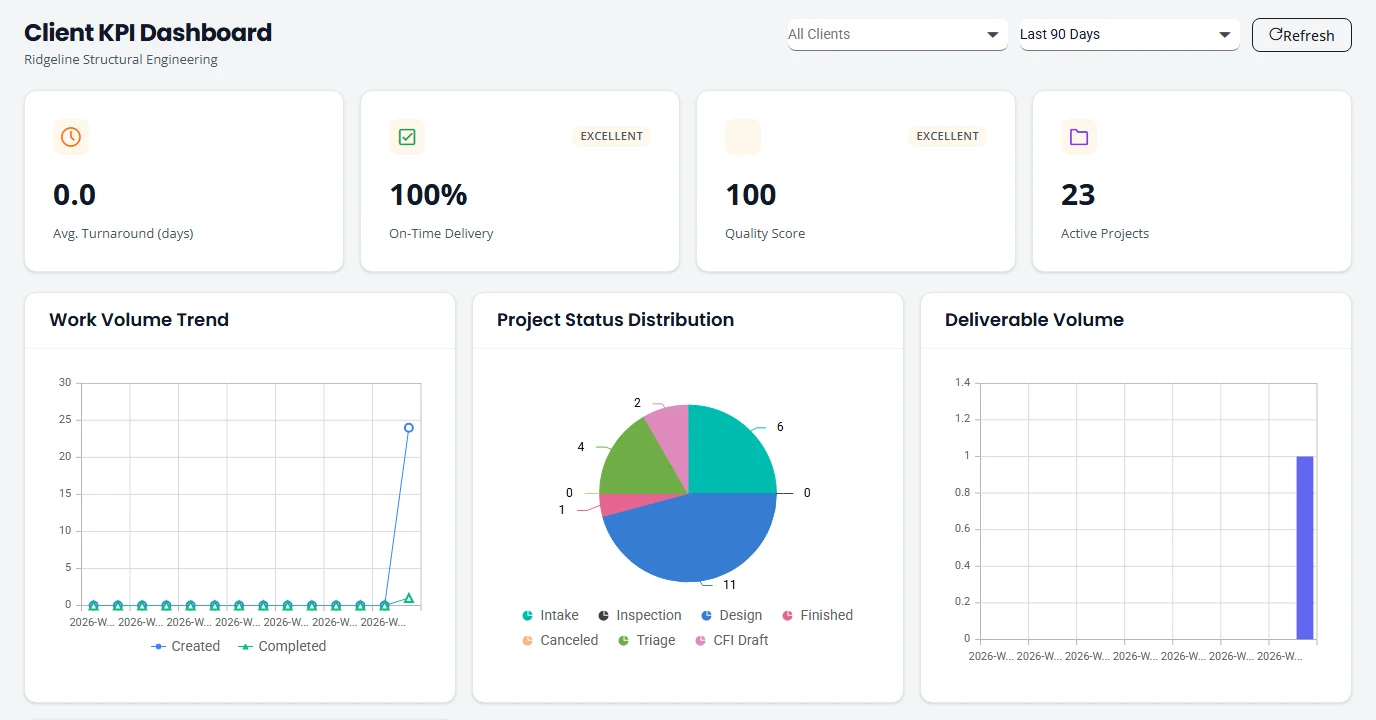
The page is headed Client KPI Dashboard. It is the one to open first, and the one to filter to a single client before a review meeting with them.
| Tile | How to read it |
|---|---|
| Avg. Turnaround (days) | The average number of days from intake to finished, for projects finished in the period. |
| On-Time Delivery | The share of projects finished in the period that were finished on or before their due date. |
| Quality Score | A score from 0 to 100. It is higher when more finished projects needed no revision and no rework. |
| Active Projects | Projects that are active now. |
- Work Volume Trend plots projects Created and Completed each week. When created stays above completed, a backlog is building.
- Project Status Distribution shows how many projects are in each status now.
- Deliverable Volume counts deliverables by week.
- Turnaround Time Statistics breaks turnaround into the Median, Fastest, Slowest and the 25th to 95th percentiles. Read the median rather than the average when a few slow jobs skew the picture.
- Project Backlog lists open projects with their due date, Days and a Category.
Production
The Production Dashboard is about the present. It has no period filter, only the client filter.
- Design span tiles. Average time for each measured stretch of design work, in business hours, with the median and the number of jobs measured. Business hours leave out nights and weekends.
- Spooler Health covers spooling (see the glossary): Attempts, Attempts / Project, Failure Rate and Projects with a Failure, a monthly trend, and the projects that were re-spooled most often. A high attempt count is not always a fault. The page explains how to tell people re-running a job from a job that keeps failing.
- Inspection Tracker lists projects in inspection: what each is Waiting On, its Age (days) and since when.
- Current Bottlenecks flags statuses where projects are piling up or stalled, with a Severity, the Sub-Status, how many Projects, the Avg Wait (h) and a Recommended Action.
- Revision Rate by Source shows, for each client, how many projects were revised and the average revisions per project. The page describes it as a process indicator, not a scorecard of individuals.
Statuses and sub-statuses are explained in Projects and statuses.
Branch Scorecard
On-time delivery for each client branch, over the period you choose.
- The tiles total all branches: Jobs completed (all branches), On time, the average variance in business days, and Change-order corrections.
- On-time by branch lists each branch with Jobs, On time, On-time rate, Avg variance, Change orders and Missing due date.
- Variance is negative when work was ahead of its due date and positive when it was behind.
- A job with no due date on record counts as not on time. Missing due date shows how many.
Due-date basis
The third filter chooses which due date a job is scored against: Due date: current, or Due date: original (audited). Use the original basis to see performance against what was first promised. If no job in the period has an original due date on record, the page warns you that the two views are identical.
Change-order corrections
When a change order sends a job back, its due date is treated as its completion date, so it scores as exactly on time. The second card lists those jobs with their Uncorrected and Corrected variance, so you can see what the rule changed.
Client Funnel
The Client Funnel splits the time a job took between your firm and the client. It covers jobs that finished design in the period.
- Where the time goes. One bar per client: the average calendar days per job from intake to finished design, split into time waiting on the client, time that was yours, and a remainder that cannot be placed. The three add up to the total.
- How long each stage takes. Median working days, Monday to Friday, for each stage.
- Drawing time. Elapsed is the time from drawing started to sent for review, including any pause. Hands-on is the same window with paused time removed.
- Typical stall. The median stall on the client’s side and on yours.
- Who the work went through. The client’s field submitters and your own staff, over the same jobs, ordered by volume.
Capacity
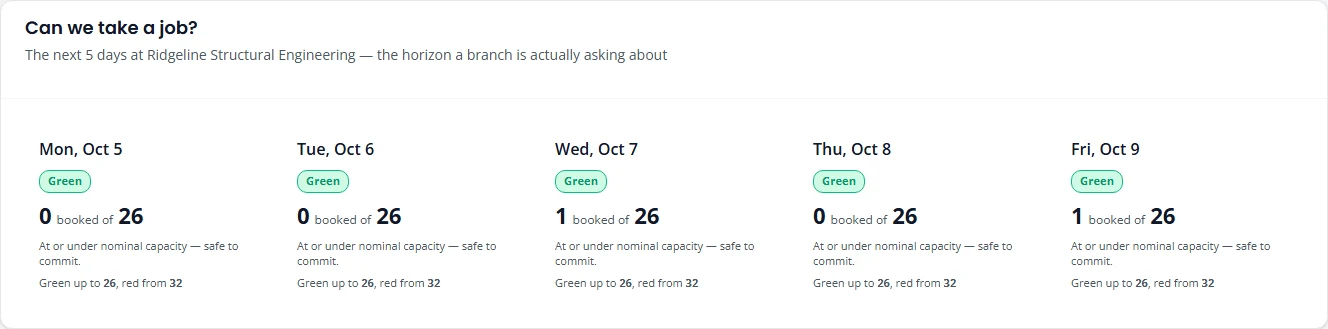
Capacity looks forward. Use it when a client asks whether you can take a job for a given date.
| Band | What the page says |
|---|---|
| Green | At or under nominal capacity. Safe to commit. |
| Amber | Over nominal but within the burst ceiling. Possible, but hard. |
| Red | Over the burst ceiling. Do not commit without moving something. |
| Not configured | No engineer capacity is on record, so the date cannot be answered. |
- Booked counts one for each open job whose requested due date falls on that date. It is what is promised, not what has been done.
- The filter chooses how far ahead the table goes: Next 7 days, Next 14 days or Next 30 days.
- Committed load by date gives the same figures as a table, with Spare and Utilisation. Weekends are marked.
- Configured capacity per engineer lists each person’s Max jobs / day and the date it took effect. The team figures at the top are built from these.
- Observed throughput per person looks back at work done in the last 90 days.
Intake Aging
A list of open jobs, oldest first, with what is missing from each. Use it to chase jobs that are stuck.
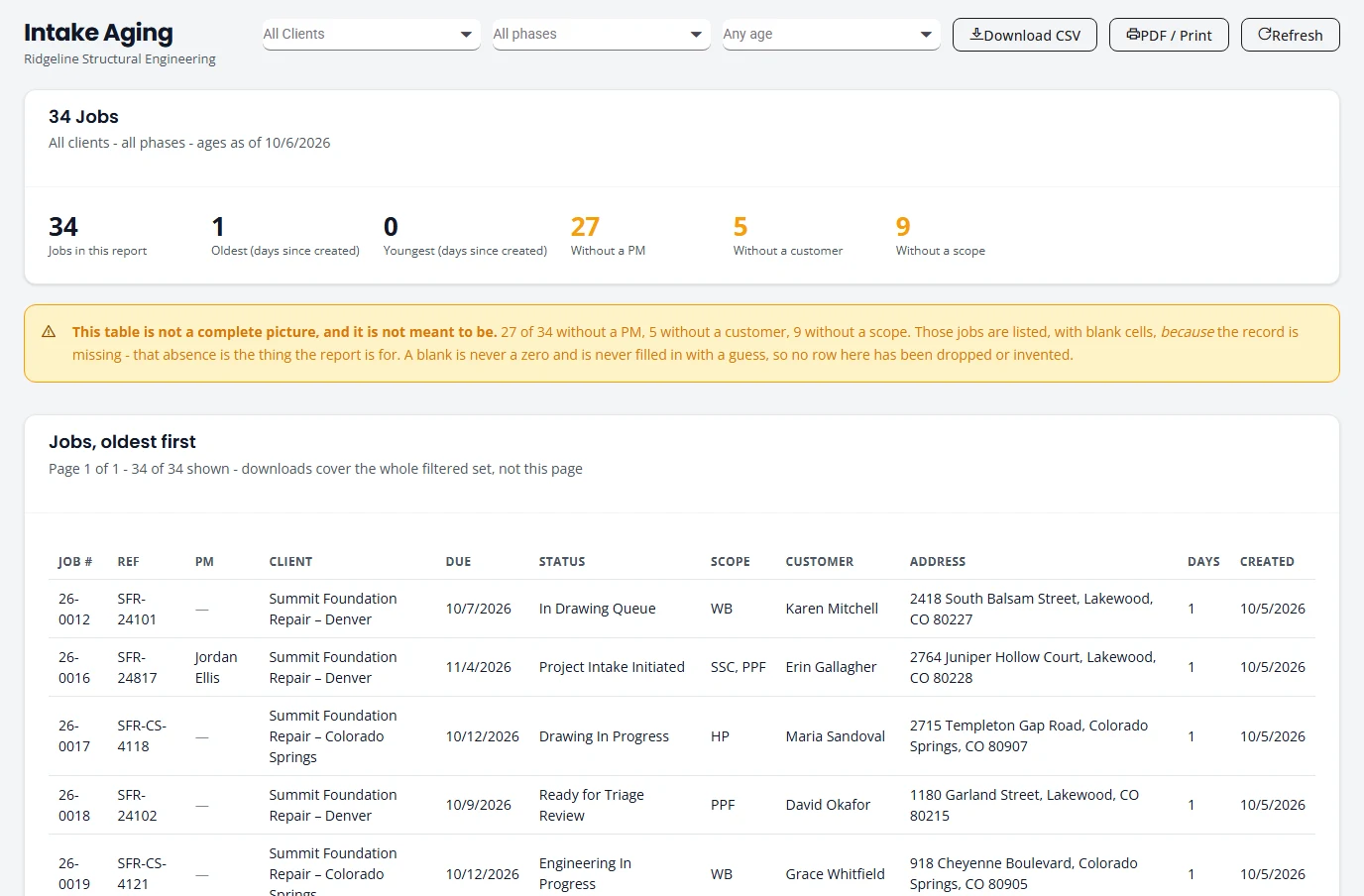
- Filters. Client, phase (All phases, or one of Intake, CFI Draft, Triage, Design, Inspection, Finished and Canceled) and age (Any age, or 7, 14, 30, 60 or 90 days and older).
- Tiles. Jobs in this report, the Oldest and Youngest in days since created, and how many are Without a PM, Without a customer or Without a scope.
- Status. The job’s sub-status, named as it is on the Projects page. See Statuses and sub-statuses.
- Days. Calendar days since the job was created. It is not days until the due date.
- Blank cells. A dash means the record is missing, never zero. A job with no project manager or no scope is listed with the gap showing, because the gap is what you need to see.
- Take it with you. Download CSV and PDF / Print cover the whole filtered list, not only the page on screen.
QA Dashboard
The QA Dashboard shows checklist quality by engineer. It fills in once checklists have been completed and scored. Until then it says No QA data.
- The Leaderboard has a row for each engineer: Checklists, First Pass, Item Accuracy, Revision Efficiency and an Overall QA Score.
- Open a row to see that person’s missed items: the Checklist item, its Category, and how often it was Rejected out of the times it was Reviewed.
Checklists are covered in Design.
Reading the numbers with care
- Small numbers swing. One late job out of two reads as 50%. Look at the count beside every rate.
- Know what is counted. KPIs, Branch Scorecard and Client Funnel count finished work. Production, Capacity and Intake Aging show work that is open now.
- Read the notes on the page. Several reports explain their own limits beside the figures. They are there because the number is easy to misread without them.
- A dash is not a zero. It means there is nothing on record.
If a figure does not match what you expect, email support@structra.tech with the report, the filters you chose and the job number.
Stuck on something? Email support@structra.tech and tell us what you were trying to do.