Design
Approving a project in triage sends it to Design. Structra sets up the drawing set, your designer and engineer work and check it from the Task Dashboard, and Structra then builds the report and sends it to the client.
The design path
A foundation remediation project moves through these sub-statuses on the Design tab of Projects. Some steps are yours. Structra does the others.
| Sub-status | What is happening | What moves it on |
|---|---|---|
| Ready for Design Setup, then Initial Spooling In Progress | Structra is setting up the drawing set. | Structra. It takes well under a minute. |
| In Drawing Queue | Waiting for a designer. | The designer presses Start Drawing. |
| Drawing In Progress | The designer is drawing and working the drawing checklist. | The designer presses Submit for Review. |
| Drawing Ready For Review | Waiting for a reviewer. | The reviewer presses Approve or Request Changes. |
| In Engineering Queue | The drawing is approved and waiting for an engineer. | The engineer presses Start Engineering. |
| Engineering In Progress, then Engineering Ready For Review | The engineer works the engineering checklist, then a second person reviews it. | Submit for Review, then Approve. |
| Design Approved, then the Build Docs sub-statuses | Structra is assembling the report. | Structra. |
| Ready For Seal, then Ready For Digital Signature | The report is built and filed. It waits for the engineer. | Structra files the report. The engineer signs and seals it in Bluebeam, then presses Finish Design. |
| Finish Design Report | Final check of the report. | You set the sub-status to Design Finished. |
| Design Finished | Structra sends the report to the client. | Structra. The project goes on to Inspection or to Finished. |
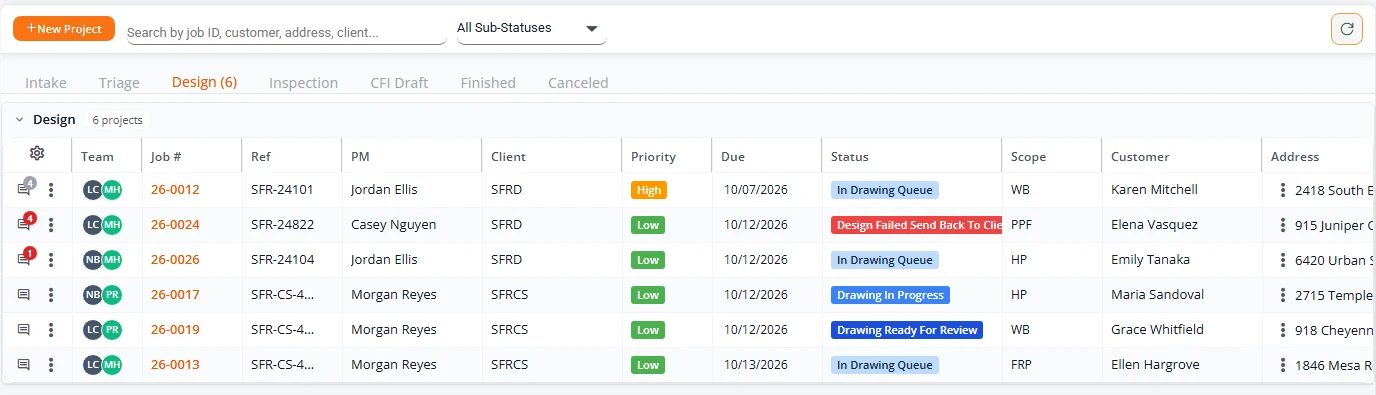
The full list of statuses, and how to change one by hand, is in Projects and statuses.
Design setup
Design setup is the step your team may know as spooling. Structra assembles the starting document set for the project from your firm’s template files, so nobody builds it by hand. It starts by itself when a project is approved in triage.
During setup, Structra:
- Copies the report parts into the project’s folder: the title page, the cover letter, and the sheets set up for each scope and brand on the project, such as the plan view, specification and install instruction sheets.
- Puts the engineer of record’s name on the title page.
- Creates the project’s loads spreadsheet from your template. It appears on the project’s Files tab under Loads.
- Lists the plan view sheet on the Files tab under Design.
- Moves the project to In Drawing Queue and creates its drawing and engineering checklists.
The scopes and brands come from the intake. Which template files belong to each scope and brand is part of your organization’s setup. See Project types and their setup.
If setup fails
A project that shows Initial Spooling Failed did not get its document set. One cause is a template file that is missing from your organization’s template folder. Once the cause is fixed, run setup again:
- On Projects, open the Design tab and select the project’s coloured label in the Status column. Quick Edit Project Status opens.
- Set Sub-Status to Ready for Design Setup.
- Press Save Changes. Setup runs again and the project moves to In Drawing Queue.
Work from the Task Dashboard
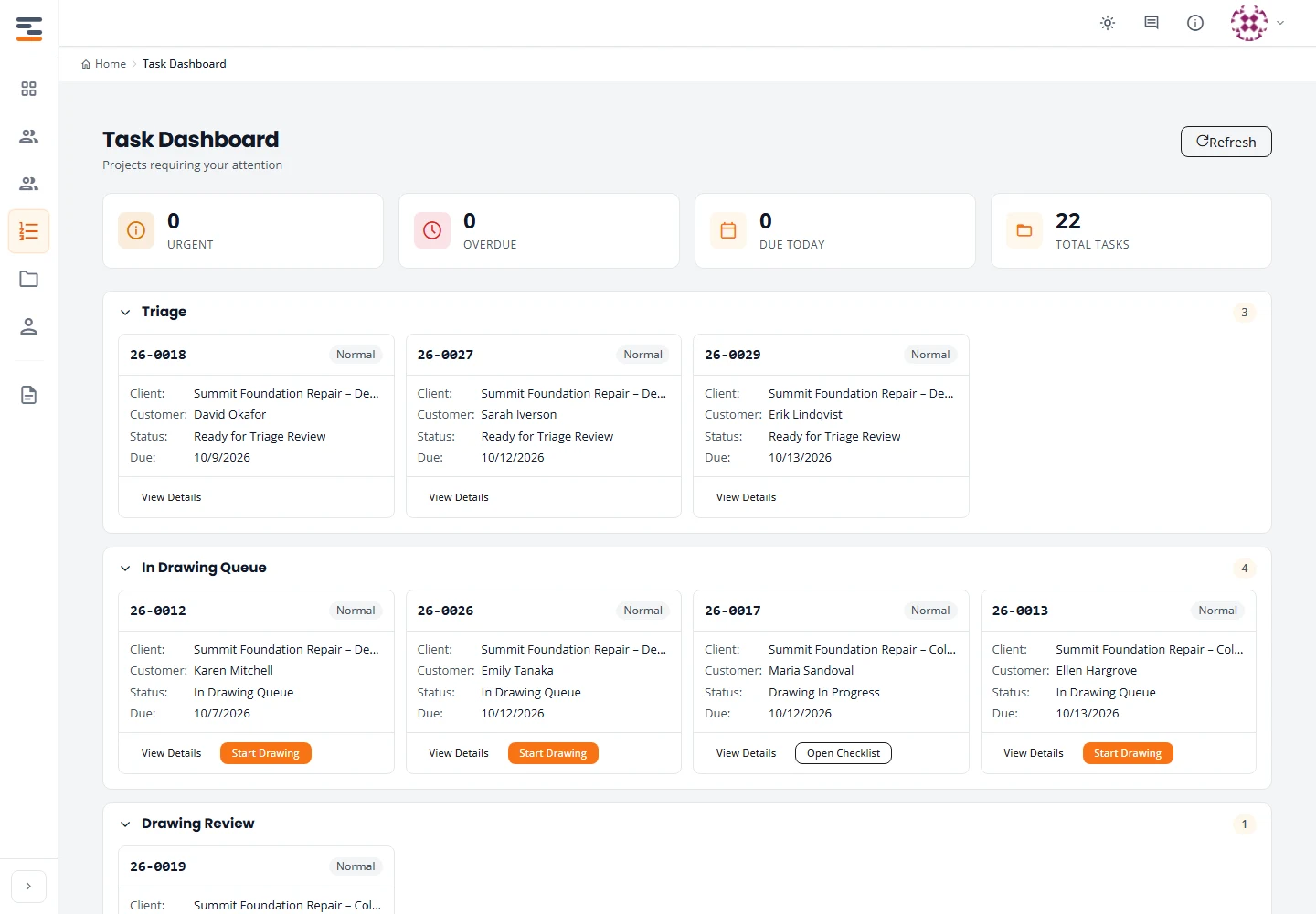
Task Dashboard in the menu is where design work is done. Projects are grouped into lanes in the order the work flows. Each card shows the job number, client, customer, status and due date, and the button for the next step.
| Lane | Sub-statuses in it | Button on the card |
|---|---|---|
| In Drawing Queue | In Drawing Queue, Drawing In Progress | Start Drawing, then Open Checklist |
| Drawing Review | Drawing Ready For Review, Drawing Ready For Revision | Review Drawing, or View Feedback and Revise & Resubmit |
| In Engineering Queue | In Engineering Queue, Engineering In Progress | Start Engineering, then Open Checklist |
| Engineering Review | Engineering Ready For Review, Engineering Ready For Revision | Review Engineering, or View Feedback and Revise & Resubmit |
| Build Docs | Design Approved and the Build Docs sub-statuses | None. Structra is working. |
| Ready for Seal | Ready For Seal, Ready For Digital Signature | Finish Design |
| Finish Design | Finish Design Report | View Details only |
| Issues / Waiting on Client | Design Failed Send Back To Client, and projects waiting on the client | View Details only |
For the counters at the top and the View As filter, see Task Dashboard at a glance.
Draw
This is the designer’s part.
- On Task Dashboard, find the project in the In Drawing Queue lane and press Start Drawing. The project becomes Drawing In Progress.
- Do the drawing in your own drafting tools, working from the files in the project’s folder. Press View Details on the card to open the project and its Files tab.
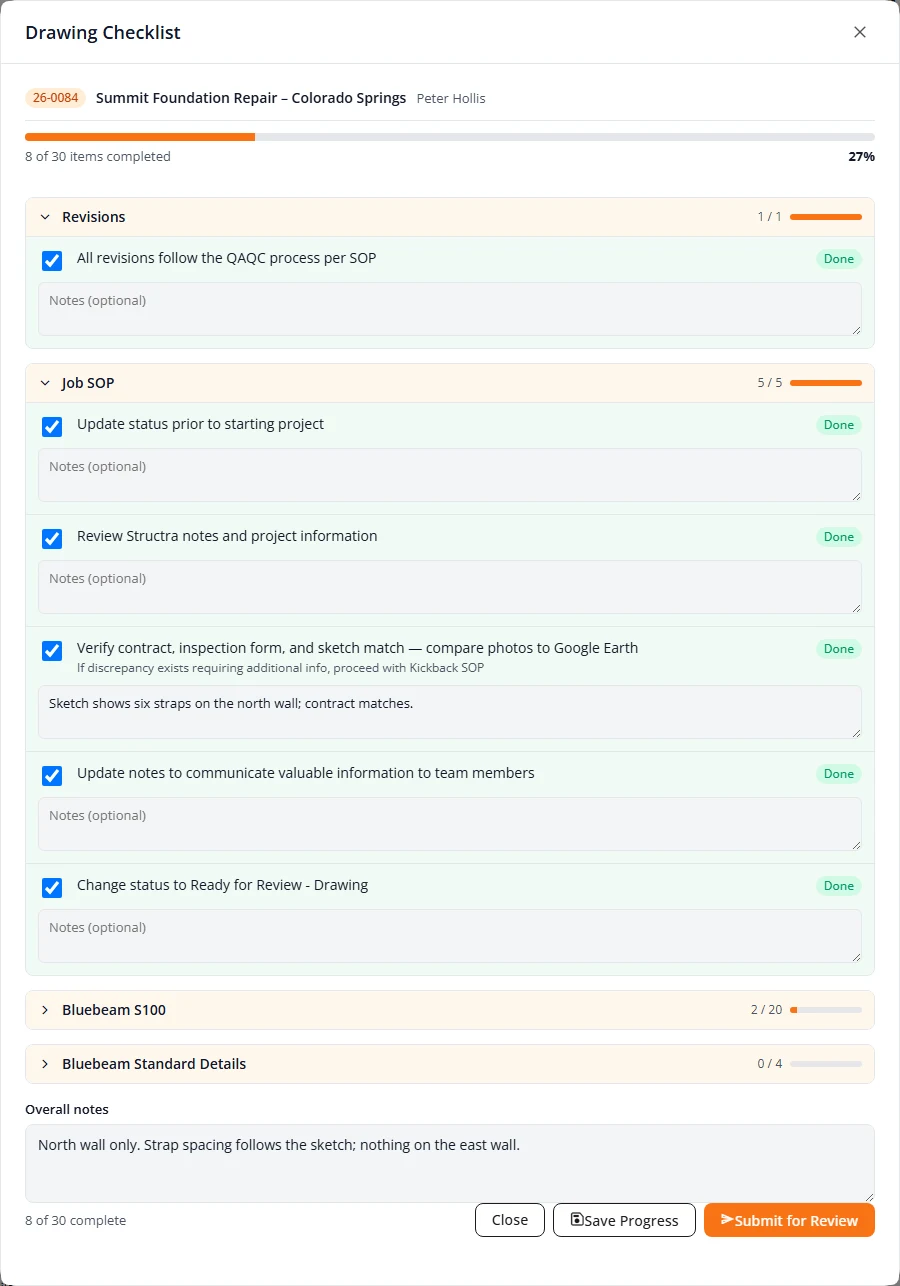
- Back on the card, press Open Checklist. The Drawing Checklist opens with your firm’s checklist for this type of project, in sections.
- Tick each item as you finish it. A ticked item shows Done. Type anything the reviewer should know in the item’s Notes (optional) box.
- At the bottom, Overall notes takes a note about the drawing as a whole. It is optional.
- Press Save Progress to keep your ticks and notes and come back later.
- When every item is ticked, press Submit for Review. The project becomes Drawing Ready For Review.
Pause a drawing or flag a problem
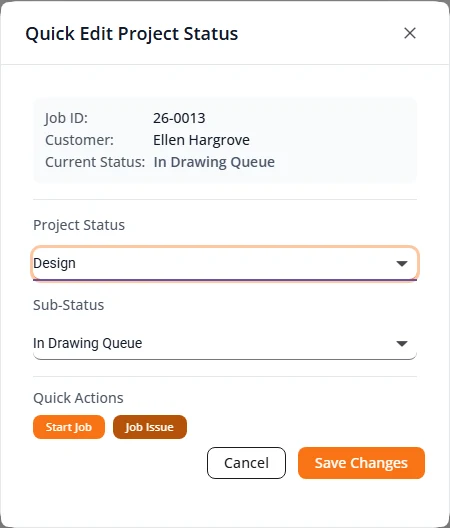
The designer assigned to a project, and an Organization Admin, get Quick Actions buttons in Quick Edit Project Status. Open it by selecting the project’s status label, on Projects or at the top right of the project page.
| Quick action | When it shows | What it does |
|---|---|---|
| Start Job | In Drawing Queue | Starts the drawing. If the project has no designer yet, it also puts you on the project as its designer. |
| Pause Job | Drawing In Progress | Sets Paused - Drawing. Nothing else happens. |
| Job Issue | In Drawing Queue, Drawing In Progress | Sets Waiting on Engineer and emails the project’s engineer that the drawing is waiting on them. |
| Resume Drawing | Paused - Drawing, Waiting on Engineer | Sets Drawing In Progress again. |
When you press Job Issue, say what the problem is in the project’s comments, so the engineer knows what to look at. See Comments.
Review a drawing
A drawing that has been submitted sits in the Drawing Review lane until someone checks it against the same checklist.
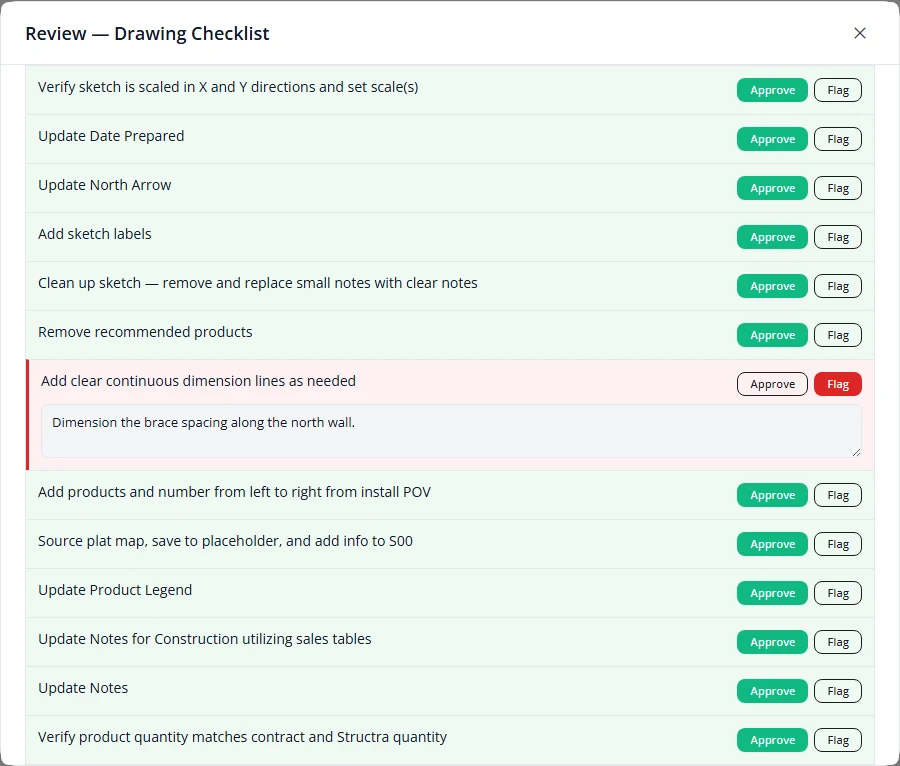
- On the project’s card, press Review Drawing. Review — Drawing Checklist opens. Notes the designer typed show under each item as Worker notes.
- Press Approve all, then press Flag on each item that needs work. Or press Approve or Flag on each item in turn.
- For each flagged item, type what needs to change. The designer sees this.
- If you want to add a summary, type it under Overall review comments.
- Press Approve to pass the drawing. The project moves to In Engineering Queue. Or press Request Changes to send it back. The project becomes Drawing Ready For Revision.
Revise after a review
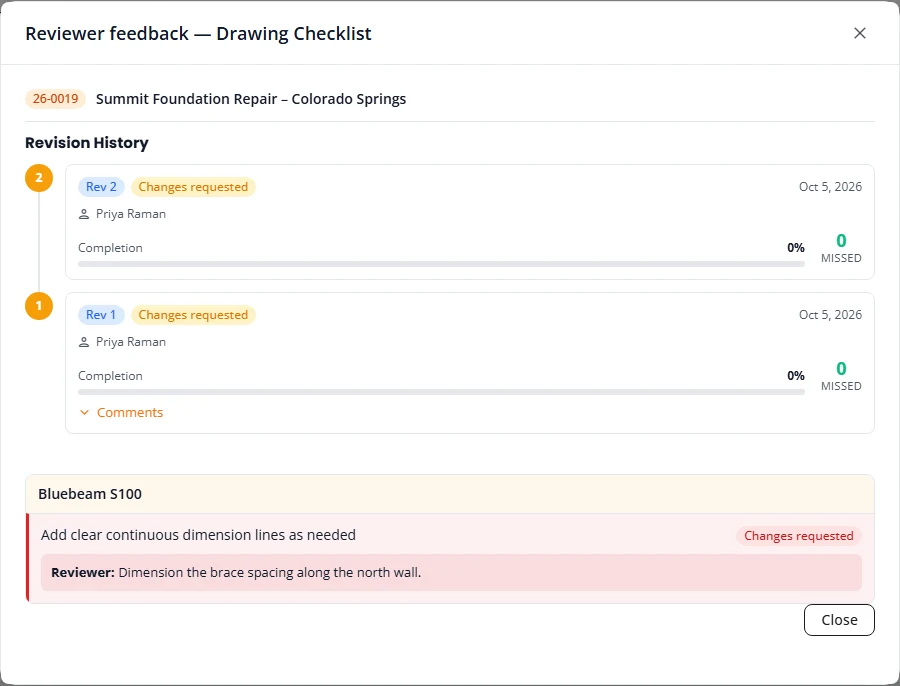
When a reviewer requests changes, the project stays in the Drawing Review lane as Drawing Ready For Revision. Its card has two buttons, View Feedback and Revise & Resubmit.
- On the card, press View Feedback. Reviewer feedback lists each review under Revision History, and below it the flagged items with the reviewer’s comments.
- Fix the drawing.
- Press Revise & Resubmit. The Drawing Checklist opens. The reviewer’s comment shows on each flagged item, after Reviewer:.
- Press Submit for Review. The project becomes Drawing Ready For Review again.
The project page shows the same thing. While a project is Drawing Ready For Revision, a notice at the top of its page reads “The reviewer requested changes to the drawing”, lists each flagged item with the reviewer’s comment, and has its own Revise & Resubmit button. Only your staff see it. The client does not.
Engineer the design
The engineer’s part follows the same pattern as the drawing.
- In the In Engineering Queue lane, press Start Engineering. The project becomes Engineering In Progress.
- Do the engineering. Then press Open Checklist and work through the Engineering Checklist.
- Press Submit for Review. The project becomes Engineering Ready For Review and moves to the Engineering Review lane.
- A reviewer presses Review Engineering and judges each item, exactly as for a drawing.
- Approve sets Design Approved, and Structra starts building the report. Request Changes sets Engineering Ready For Revision. The engineer then follows Revise after a review.
The checklists are your firm’s own. A project type with no checklist set up shows No Checklist Available when you press Open Checklist.
Calculations
Whether a project needs calculations is set at intake, with the Add Calculations box. The project page shows it on the Details tab under Calculations.
- Calculations required. Design setup includes the calculation sheets set up for the project’s scopes, and they go into the report. When the design is finished, a calculations line is added to the client’s open invoice along with the design line.
- Calculations not required. The calculation sheets are left out of the document set and the report.
Either way, design setup creates the project’s loads spreadsheet. A revision gets its own copy, so the earlier one is kept. See Reopen a project for a change order.
Build the report
Once the engineering review is approved, Structra builds the report with no further input. The project passes through Build Docs And Staple, Build Docs In Progress, Build Docs Complete and Ready For Seal, and stops at Ready For Digital Signature. It usually takes less than a minute.
In that time, Structra:
- Writes the cover letter from your cover letter template, with the engineer of record’s name and signature image.
- Puts the engineer of record’s name on the title page again, in case the engineer changed.
- Joins the report parts, in order, into one PDF.
- Files the finished report with the project and lists it on the Files tab under DesignReport. The file name carries the job number and the revision: R0 for the first issue.
The report is now ready for the engineer. See Sign and seal the report.
If the build fails
A project that shows Build Docs Failed has no report. Two causes are a project folder with no report parts in it, and a signature image on the engineer’s profile that cannot be read. Fix the cause, then set the Sub-Status to Build Docs And Staple in Quick Edit Project Status. The build runs again.
Engineer of record
The engineer of record (EOR) is the engineer whose name and credentials go on a project’s documents. Structra uses them on the title page, the cover letter, the loads spreadsheet and the inspection report.
Structra picks the engineer of record for a project in this order:
- The team member whose role is EOR in Project Team.
- If nobody has that role, the engineer assigned to the project.
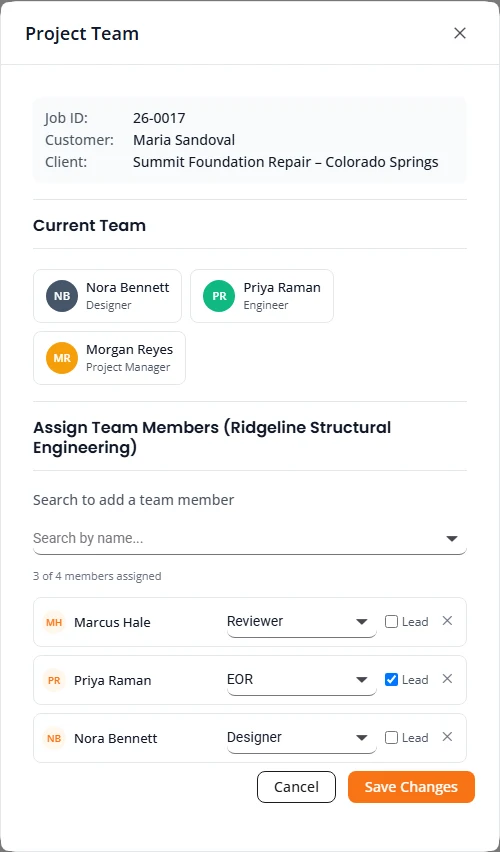
- To change it, open Manage Team on the project and give the role EOR to the right engineer. A project has one. The steps are in Assign or change the team.
- The name, credential suffix, license details, initials and signature image come from that engineer’s profile. See Engineer credentials and signature.
Sign and seal the report
Engineers sign and seal in Bluebeam. Structra builds the report and files it; the engineer of record seals and signs that file; Structra delivers it.
- Wait for the project to reach Ready For Digital Signature. The built report is then in the project’s folder in Dropbox, under 4_Final_Report, in 2_Signed_And_Sealed.
- Open that PDF in Bluebeam. Apply your seal and your digital signature.
- Save it back to the same folder under the same file name, replacing the unsealed copy.
- Carry on with Finish and send the report.
On an Ad Hoc project the engineer supplies the report. Seal and sign it in Bluebeam first, then upload it under Deliverables with as sealed report ticked. See Deliverables.
Finish and send the report
- On Task Dashboard, open the Ready for Seal lane. The project shows Ready For Digital Signature.
- Press View Details and open the report from the Files tab. Check that it is the signed and sealed copy.
- Back on the card, press Finish Design. The project becomes Finish Design Report, and Structra emails your team that the report is ready for final review.
- When the report is ready to go, select the project’s status label, set Sub-Status to Design Finished and press Save Changes.
Setting Design Finished is what sends the report. Structra then does the following, in this order.
- Emails the report to the client’s admins as a PDF attachment. Your Organization Admins get the same email.
- Adds the design line to the client’s open invoice, and a calculations line if the project has calculations. See How billing works.
- Moves the project on. If Engineer Inspection Required? was ticked at intake, it goes to the Inspection tab. See Inspections. If not, it becomes Project Finished. See Finishing, revisions and cancellations.
Send a design back to the client
If a project cannot be designed with what the client sent, a designer, engineer or admin can send it back from design.
- Write a comment on the project that tells the client what you need. It must not be an internal note.
- Select the project’s status label and set Sub-Status to Design Failed Send Back To Client. Press Save Changes.
Structra emails the client’s admins, the project’s field inspector and your Organization Admins. The email names you and gives your most recent client-visible comment on the project as the reason. The project moves to the Issues / Waiting on Client lane. When the client has answered, set the sub-status back to where the work stopped.
What is not here yet
- Structra does not draw. The plan view and any calculations are done in your own tools and saved to the project’s folder.
- There is no button for Design Finished on the Task Dashboard. Set it in Quick Edit Project Status.
- The quick actions Ready for Review and Design Approved in Quick Edit Project Status move a project on without its checklist. Use the checklist buttons on the Task Dashboard if your firm relies on the review record.
Stuck on something? Email support@structra.tech and tell us what you were trying to do.