Clients, branches and users
Set up the companies that send you work, their branch offices and their people, and set a price for a client that differs from your standard one. Most of this is for the Organization Admin.
Clients, branches and groups
- A client is a company that sends you projects, such as a foundation repair contractor.
- A company with several offices is set up as one client per branch, for example one for Denver and one for Colorado Springs. Each branch has its own users, projects, brands and billing email.
- A client group ties the branches of one company together.
- A field inspector (CFI) is a member of a client’s field staff who starts intakes on site.
The My Organization page
My Organization in the menu opens your firm’s page. Organization Admins manage it. Engineers can open it to look things up. The numbers at the top count your users, clients and projects.
| Tab | What it is for |
|---|---|
| Overview | Counts, your organization details and your busiest clients. |
| Users | Your own staff. See Add your own staff. |
| Clients | Every client, with how many projects each has. |
| Projects | Your projects in one list. Day to day, use Projects in the menu instead. See Projects and statuses. |
| Project Types | The kinds of project you offer, their setup and their prices. See Client pricing and Settings. |
| Cover Letters | The cover letter on your reports. See Settings. |
| Settings | Your organization’s name. See Settings. |
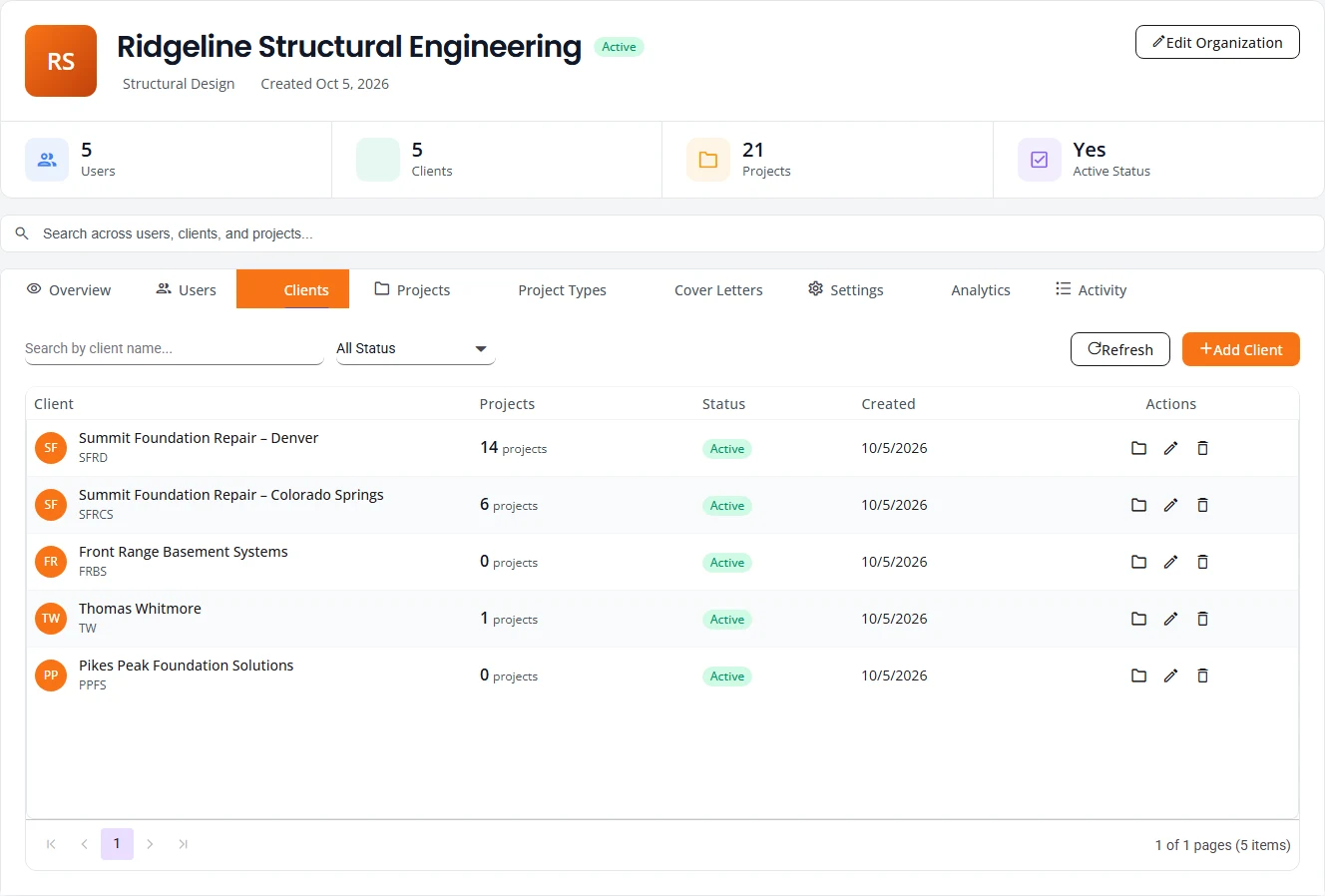
Add a client
- Open My Organization and select the Clients tab.
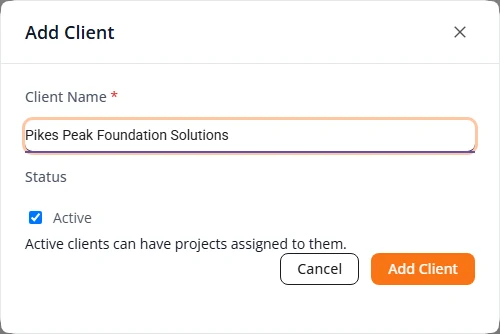
- Press Add Client.
- Type the Client Name. For a branch, put the branch in the name, such as “Summit Foundation Repair – Denver”.
- Leave Status on Active and press Add Client.
Structra makes a short code from the name and shows it under the name in the list. The three icons at the end of a row are View projects, Edit client and Delete client.
The client page
On the Clients tab, double-click a client’s row to open its page.
| Tab | What it is for |
|---|---|
| Overview | The client’s details, its users, its addresses and its recent projects. |
| Users | The client’s people. See Add a client’s people. |
| Address | The client’s addresses. Press Add Address, choose the Address Type, and mark one as the Primary Address. |
| Project Types | The project types this client can use. This tab is for reference. |
| Brands | The product brands this client installs. Press Manage Brands, tick the brands, and press Save Changes. |
| Billing | Where this client’s invoices are emailed. See Billing and QuickBooks. |
Edit Client at the top right changes the name, the status, the Project Creation switch and the AI pre-checks.
Let a client create projects, or not
Each client has a Project Creation switch. It decides whether that client’s own users see the New Project button on their Projects page.
- Open the client page and press Edit Client.
- Set Project Creation to Enabled or turn it off.
- Press Update Client.
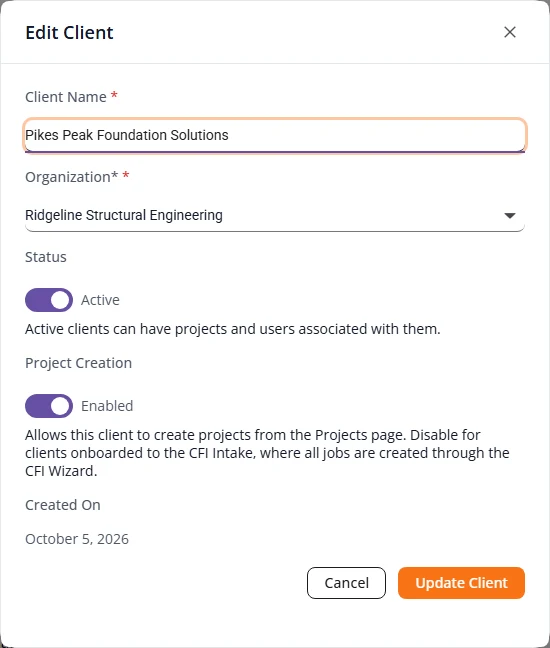
AI pre-checks for a client
Each client has its own switches for the automatic checks that run before triage. The results show in the triage review, to your staff only. See AI pre-checks.
- Open the client page and press Edit Client.
- Under AI pre-checks, use the switches in the Triage column. Contract compares the contract and inspection form with the intake. Sketch grades the sketch against its scorecard.
- Press Update Client.
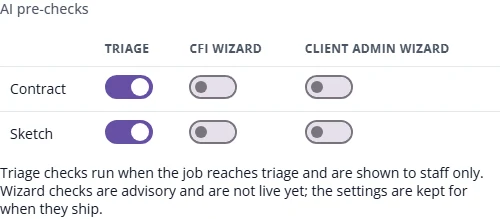
- A new client starts with the contract check on and the sketch check off.
- A change applies to projects submitted after it. To score a project that is already in triage, press Re-run on its sketch row.
- The CFI wizard and Client admin wizard columns are kept for checks that do not run yet. Turning them on changes nothing for now.
Add a client's people
- Open the client page and select the Users tab.
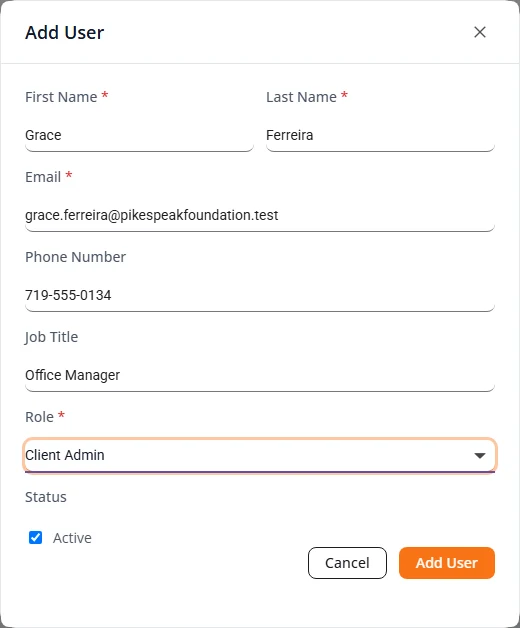
- Press Add User.
- Fill in First Name, Last Name and Email. Phone Number and Job Title help your team reach the right person.
- Choose a Role and press Add User.
The person gets an email called “Welcome to Structra!” with a link to set a password.
| Role | Who it is for |
|---|---|
| Client Admin | Runs the client’s account: submits and follows projects, and manages the client’s own users and field inspectors. See the client admin guide. |
| Office | Office staff who work with projects but do not manage users. |
| CFI | A field inspector. Signs in to the inspector portal with a code sent by email. See the field inspector guide. |
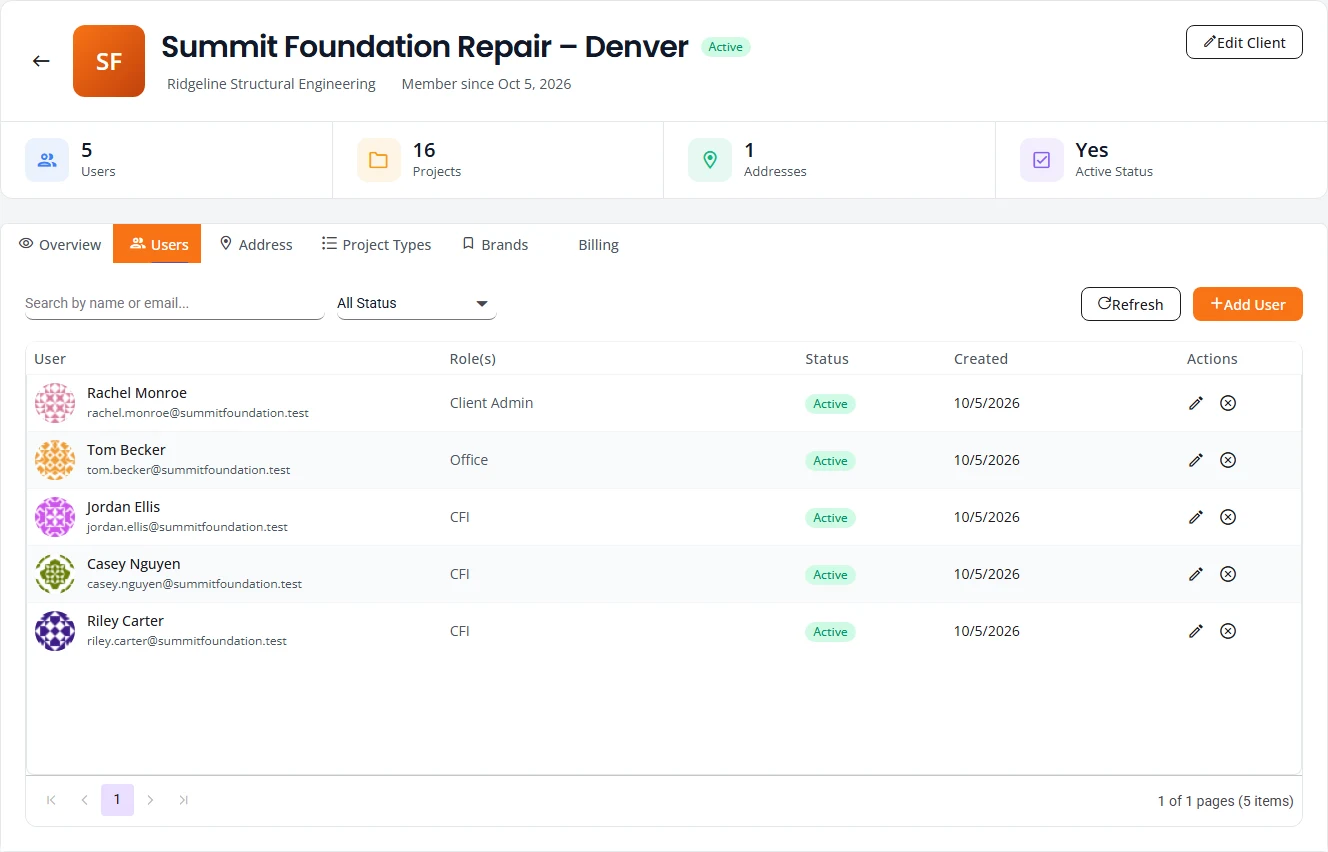
The pencil at the end of a row is Edit user. The circled cross is Deactivate.
Deactivate or reactivate a user
- Select the circled cross on the user’s row. Deactivate user asks you to confirm.
- Press Deactivate. The user can no longer sign in. Nothing is deleted. They stay in the list with the status Inactive.
- To undo it, select the icon that has taken the cross’s place on that row, Reactivate. The user is Active again straight away.
The All Status filter above the list can show only Inactive users.
Group branches together
A client group marks several clients as branches of one company. Field inspectors can then be given access to more than one branch in the group.
- Open Client Groups in the menu.
- Under Create a group, type the company name and press Create group.
- Press Manage on the new group.
- Under Add a client to this group, choose a client and press Add. Repeat for each branch.
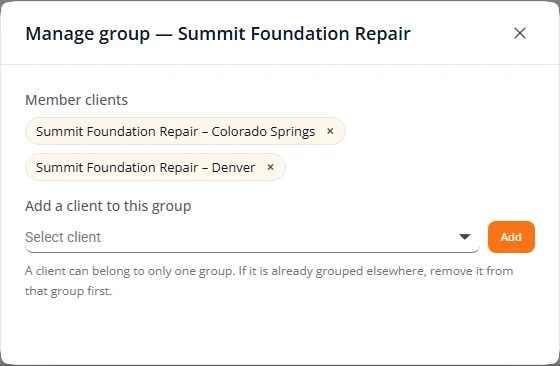
The cross beside a member removes it from the group. Rename and Delete are on the group’s row.
Field inspectors
Field Inspectors in the menu lists a client’s field inspectors and the people asking to become one.
- Open Field Inspectors and choose a client under Select Client. Nothing is listed until you do.
- To invite inspectors, use the Invite a Field Inspector card. Press Copy URL and send the registration link to the client, or press Copy code and send the company code.
- When an inspector registers, they appear under Pending Requests. Press Approve or Reject.
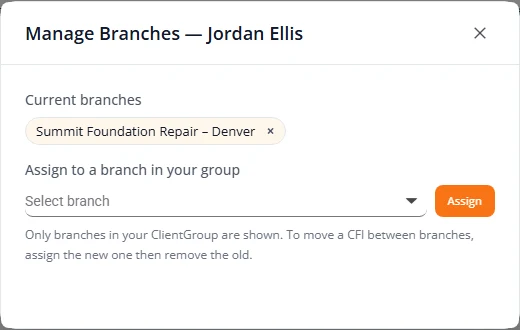
Give an inspector another branch
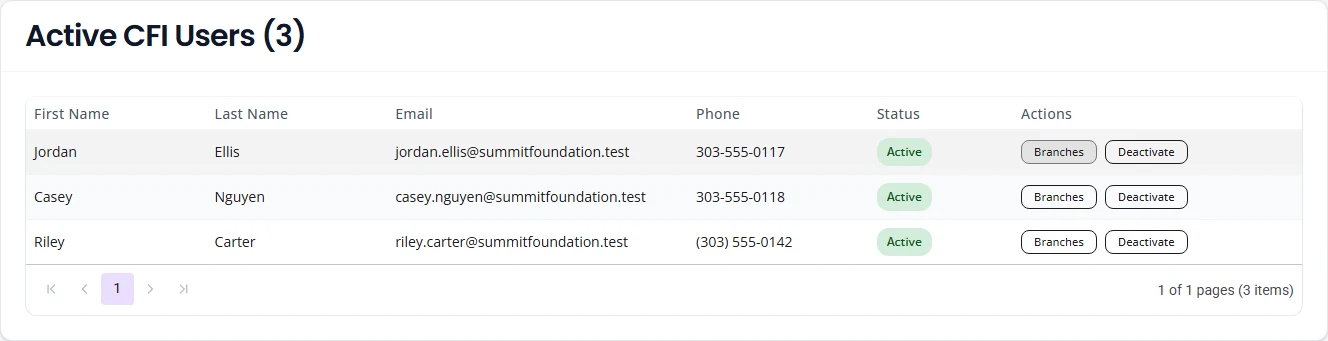
- Under Active CFI Users, press Branches on the inspector’s row.
- Under Assign to a branch in your group, choose a branch and press Assign.
- To take a branch away, select the cross on it under Current branches.
Pending Users
Pending Users in the menu lists new-user registration requests waiting for a decision. Each row shows the name, email, company and when it was submitted. Press Approve or Reject. Rejecting asks you to confirm first.
When nothing is waiting, the page says No pending registrations.
Client Contacts
Client Contacts is a directory of every client user across your clients: name, role, client, email, phone and job title. Use the role filter to find a field inspector quickly. Organization Admins and Engineers can open it. It is for looking people up. To change someone, go to their client page.
Add your own staff
Only an Organization Admin should add staff.
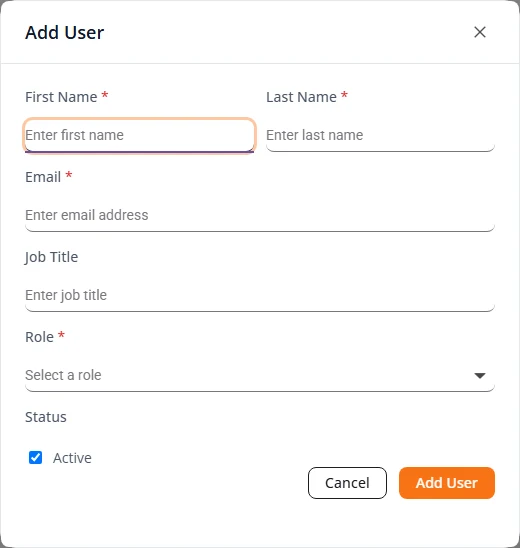
- Open My Organization and select the Users tab.
- Press Add User.
- Fill in First Name, Last Name, Email and Job Title.
- Choose the Role: Organization Admin, Engineer or Designer.
- Press Add User.
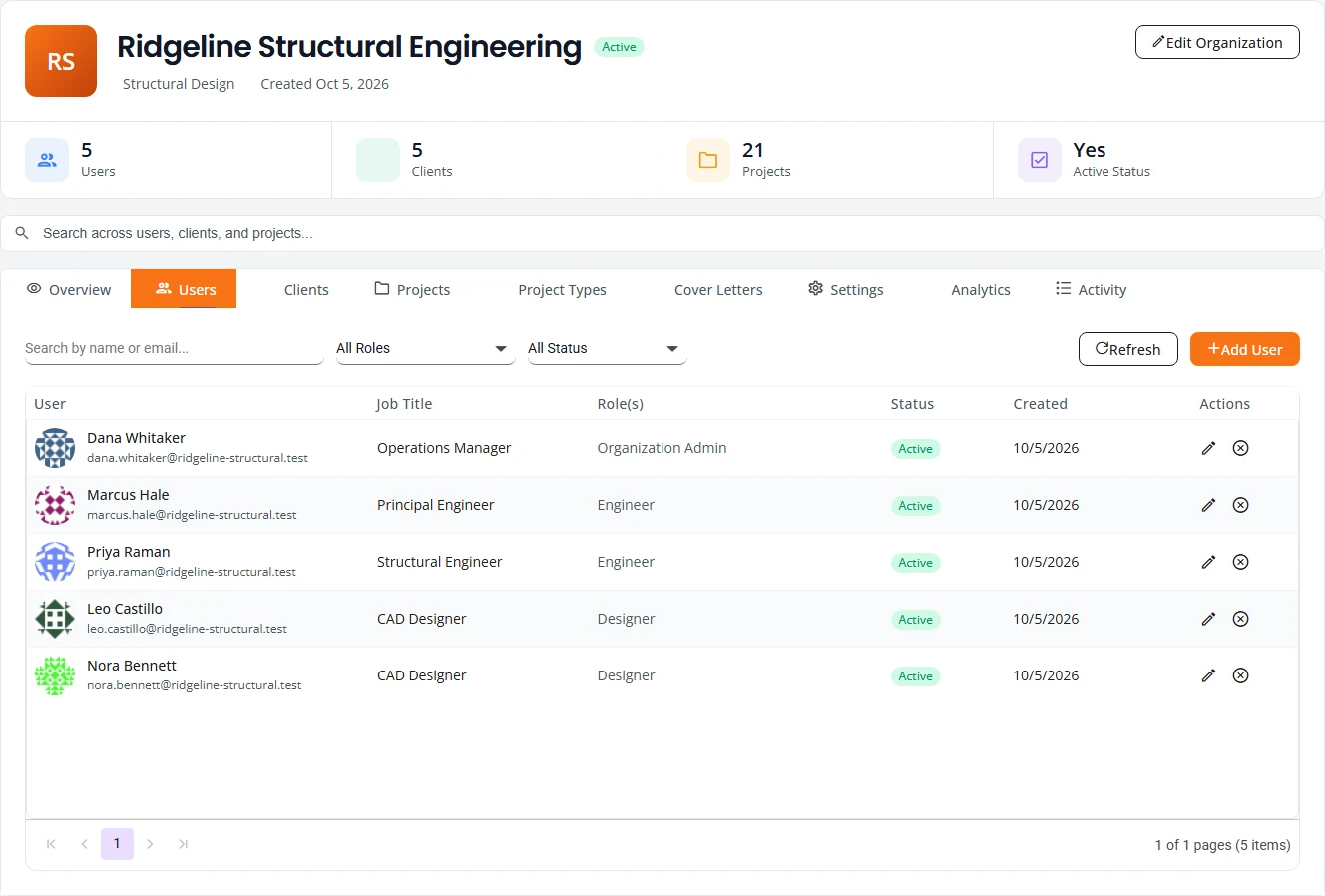
The pencil on a row is Edit user, where you can change the role. For an Engineer it also shows the Engineer Credentials card. See Settings. The circled cross is Deactivate. It asks you to confirm, and a deactivated person can be brought back with Reactivate, the same way as for a client’s people. Your own row has no Deactivate button.
What each role can do is in Getting started.
Client pricing
Each project type is billed as a set of features, such as the design, the calculations and the inspection report. Every feature has a default price. You can override it for your whole organization, and again for one client.
The price that goes on an invoice is the first of these that is set:
- The client override.
- Your organization override.
- The default price.
Set a price for one client
- Open My Organization and select the Project Types tab.
- Press View Details on the project type.
- Scroll to Client Pricing and select the arrow at the end of the client’s row.
- In the Client override column, select the pencil beside the feature, type the price, and save it.
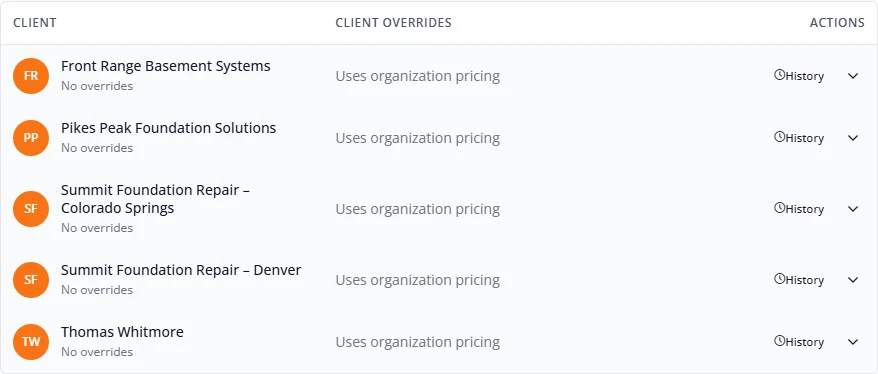
- Remove an override. Press Clear beside it. The client goes back to your organization’s price.
- Change your organization’s price. Use the pencil in the Org Override column of Features & Pricing, higher up in the same window.
- See who changed what. Press History. It lists each change with the old price, the new price, the date and the person.
What is not here yet
- The Analytics and Activity tabs on My Organization are placeholders. Use Analytics in the menu for reports.
- On the client page, the Project Types tab only lists what is enabled. To change which project types a client can use, email support@structra.tech.
- There is no Clients item in the menu. Reach clients through My Organization.
Stuck on something? Email support@structra.tech and tell us what you were trying to do.