Leads and engagement letters
A lead is a request for work from someone who is not yet a client. This page takes one from first contact to a signed engagement letter and a project.
Where leads come from
- Your website. If your website’s request form is connected to Structra, each submission appears on Leads on its own. To connect a form, email support@structra.tech.
- Your team. Anyone on staff can add a lead from a phone call, a walk-in, an email or a referral with New lead.
Organization Admins, Engineers and Designers can all open Leads. Clients and field inspectors cannot.
The Leads page
Open Leads in the menu. Leads are listed newest first.
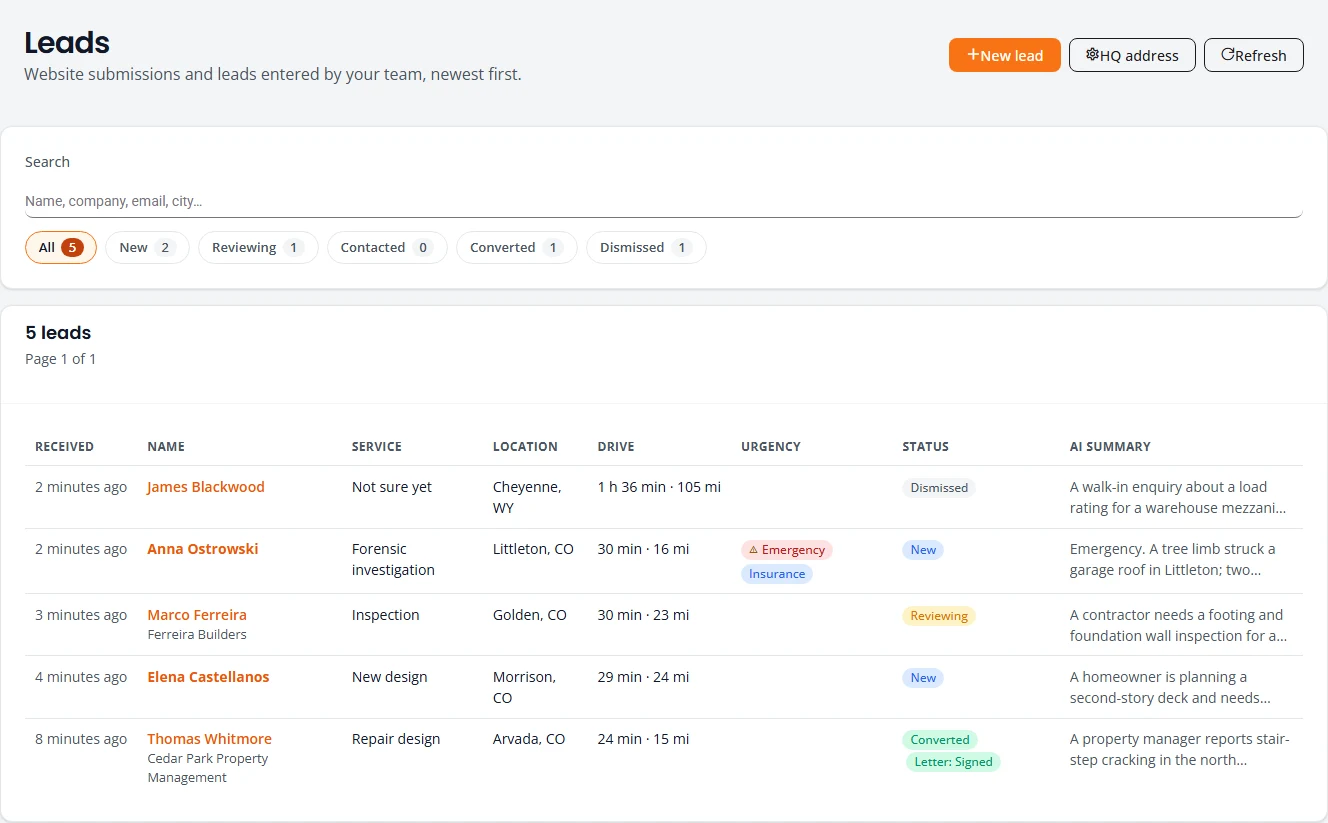
| Column | What it shows |
|---|---|
| Received | How long ago the lead came in. Hover for the exact time. |
| Name | The person, with their company under it. Select the name to open the lead. |
| Service | The kind of work asked for. |
| Location | City and state of the property. |
| Drive | Drive time and distance from your headquarters address. |
| Urgency | Emergency and Insurance tags, when they apply. |
| Status | The lead’s status, and the engagement letter’s status once one exists, such as Letter: Signed. |
| AI summary | The start of a short summary Structra writes from the request. |
Type in Search to find a lead by name, company, email or city. Select a status chip to show one status. The number on each chip is how many leads it holds.
Add a lead
The form asks the same questions as the website request form, so every lead reads the same way.
- On Leads, press New lead.
- Who it’s from. Fill in First name and Last name, and a Phone or an Email. One of the two is enough. Choose Caller is a: Contractor, Homeowner, Insurance / adjuster, Realtor / property manager or Other.
- The project. Choose Service needed and Structure type. Start typing the Property address and pick it from the list, or type it in full with City, State and ZIP. Choose a Timeline and describe the Scope or problem.
- Insurance. Answer Is this an insurance claim? If yes, the carrier, claim number and date of incident become required.
- Referral and call. Choose Lead came in by: Phone, Walk-in, Email, Referral or Other. Add Call notes if they help.
- Press Save lead.
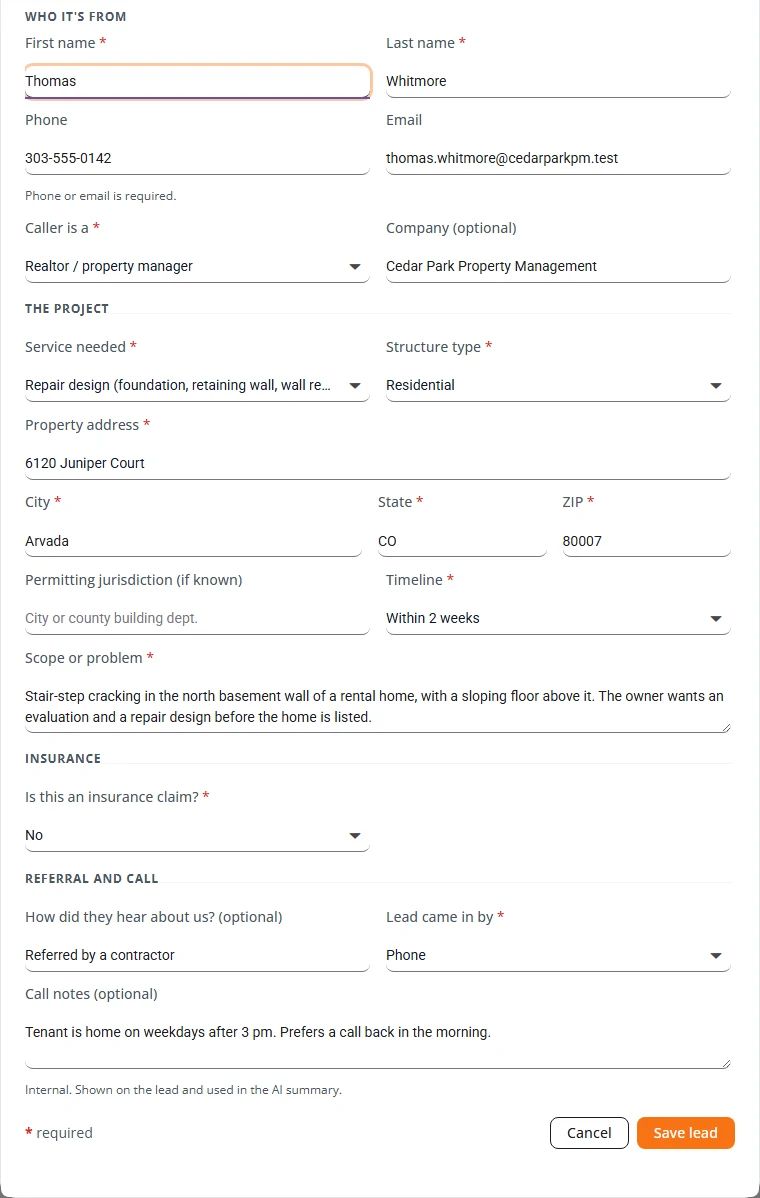
The lead opens straight away. Its summary and drive time fill in a few moments later.
Work a lead
Select a name on the list. The lead opens in a panel on the right.
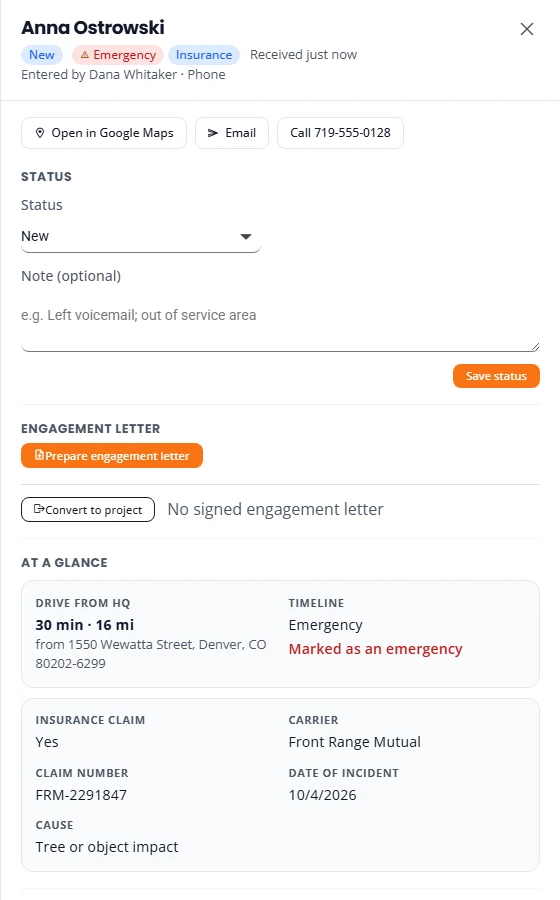
- Quick actions. Open in Google Maps, Email and Call at the top.
- Status. Choose a status, add a note if you want one, and press Save status.
- At a glance. Drive from HQ, the Timeline and any insurance details.
- AI summary. A short summary of the request. Press Refresh to write it again. It is machine-written, so check it against the request below it.
- Contact and Request. Everything that was submitted, including the full description and any call notes.
| Status | Use it when |
|---|---|
| New | Nobody has picked the lead up yet. Every lead starts here. |
| Reviewing | Someone is looking into it. |
| Contacted | You have replied. Sending an engagement letter sets this for you. |
| Converted | The lead became a project. Converting sets this for you. |
| Dismissed | You are not taking the work. Say why in the note. |
Set your headquarters address
Drive time and distance are measured from your office. Until an Organization Admin sets the address, the Drive column stays blank.
- On Leads, press HQ address.
- Start typing the address and pick it from the list.
- Press Save.
Leads that arrive from then on use the new address.
Set up your engagement letter
An engagement letter is the agreement a customer signs before you start. You write it once as a template. Only an Organization Admin can do this.
- Open Agreement Templates in the menu and press New template.
- Under Start from, choose Blank letter, or a copy of a template you already have. Type a Name and press Create.
- Letterhead. Press Upload logo if you want one, and type your firm’s name and address under Lines under the logo.
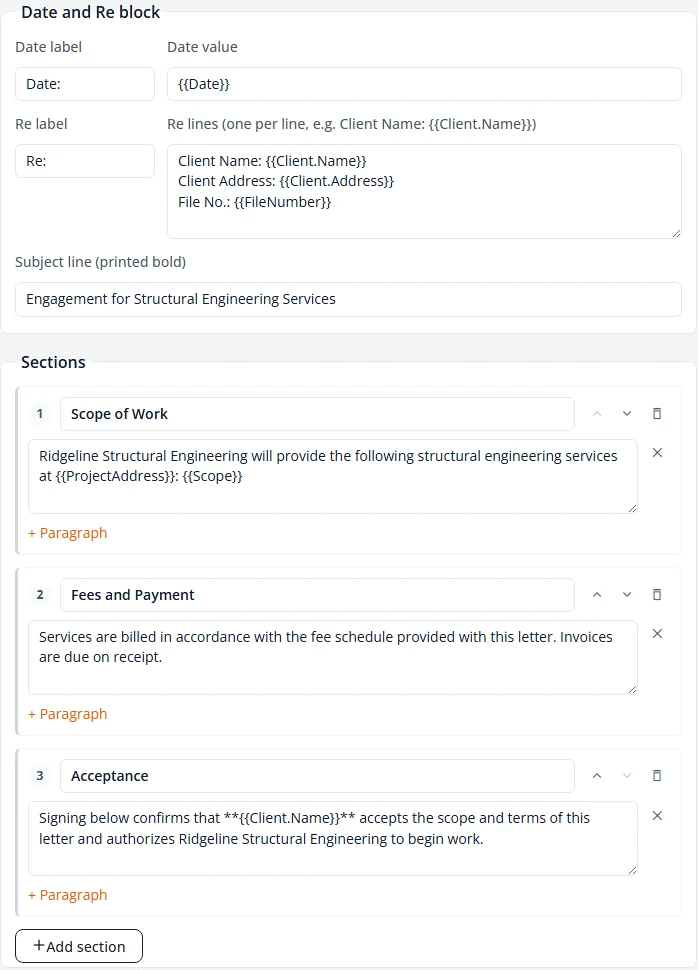
- Date and Re block. Set the lines that identify the customer, and the Subject line.
- Sections. Give each section a heading and one or more paragraphs. Use + Paragraph and Add section to add more, and the arrows to reorder.
- Closing and signer. Set the closing line and who signs for your firm. Tick Print the default engineer’s stored signature above the name to include it.
- Client acceptance. Set the heading and the lines the customer fills in.
- Press Save new version, say what changed, and press the Save version button.
Merge fields
A merge field is a placeholder such as {{Client.Name}}. Put the cursor in the text and select a field next to Insert field to add it. The Merge fields table at the bottom lists each one.
- System fields fill themselves in: today’s date, the customer’s name and address from the lead, the signer, and the file number. Add more under Add a system field.
- Your own fields are typed by staff each time a letter is prepared. Give a key and a label and press Add field.
- Tick Required for a field that must have a value before a letter can be sent.
Send an engagement letter
Any staff member who can open the lead can prepare and send a letter.
- Open the lead and press Prepare engagement letter. If you have more than one template, choose the Template first.
- Check Recipient name and Recipient email, and fill in every field marked with a star.
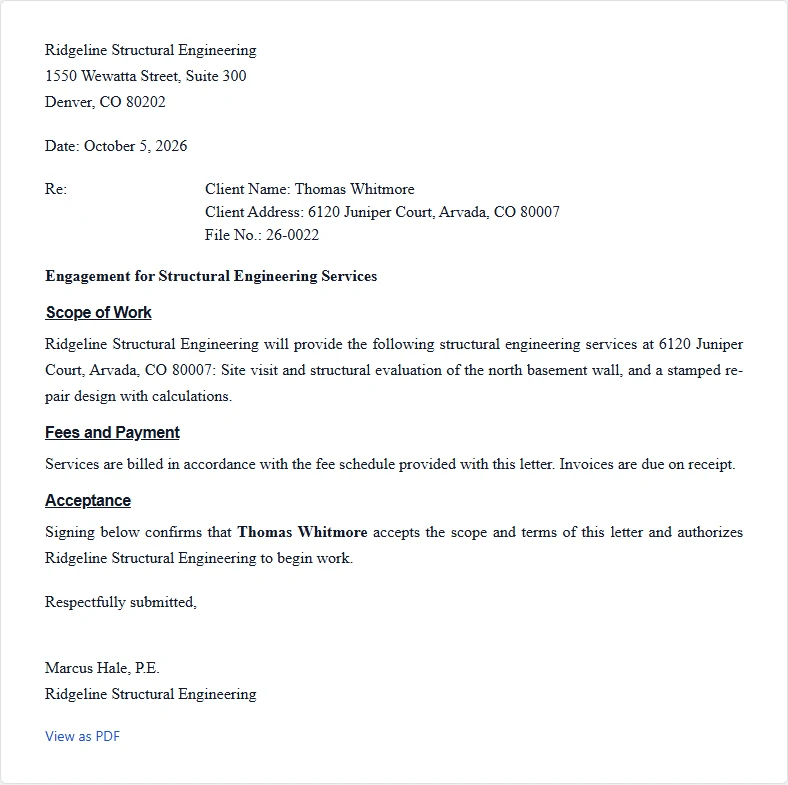
- Press Preview PDF to read the letter exactly as the customer will.
- Press Send to client.
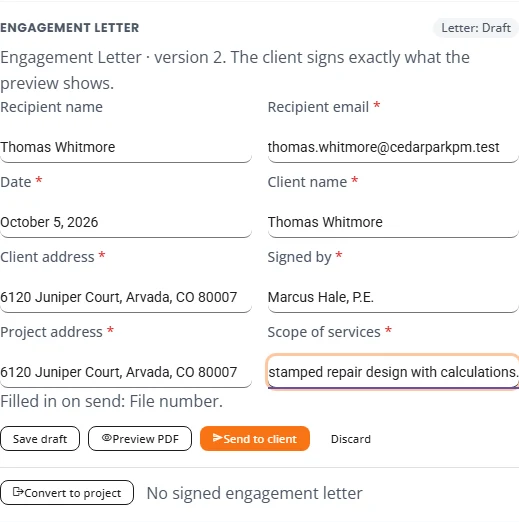
The customer gets an email with a link to review and sign. The letter’s status changes from Draft to Sent, and the lead moves to Contacted.
| Letter status | Meaning |
|---|---|
| Draft | Prepared, not sent. You can still edit it, or press Discard. |
| Sent | Emailed to the customer. The signing link is live. |
| Viewed | The customer opened the link. |
| Signed | The customer signed. |
| Declined | The customer declined. Their reason shows on the lead if they gave one. |
| Revoked | You withdrew the letter. The link no longer works. |
| Expired | The link ran out before the customer signed. |
- Send it again. Press Resend. The customer gets a new link and the old one stops working.
- Withdraw it. Press Revoke.
- Start over. After a letter is declined, revoked or expired, press Prepare a new letter.
What the customer sees
The customer opens the link on a phone or computer. They do not need an account. The page shows the letter in full, with a View as PDF link.
To accept, the customer:
- Checks their Printed name.
- Draws a Signature with a finger or mouse.
- Ticks the box to say they have read the letter and agree to sign electronically.
- Presses Sign engagement letter.
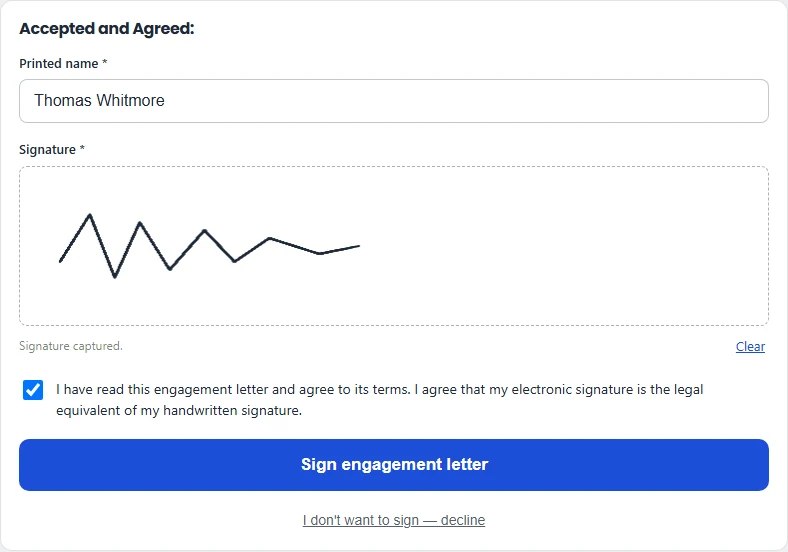
A customer who does not want to sign selects I don’t want to sign — decline and can give a reason.
When the customer signs
- The customer sees a thank-you page with a link to download the signed copy.
- The customer gets an email with their signed engagement letter.
- Your Organization Admin gets an email saying who signed, with the file number.
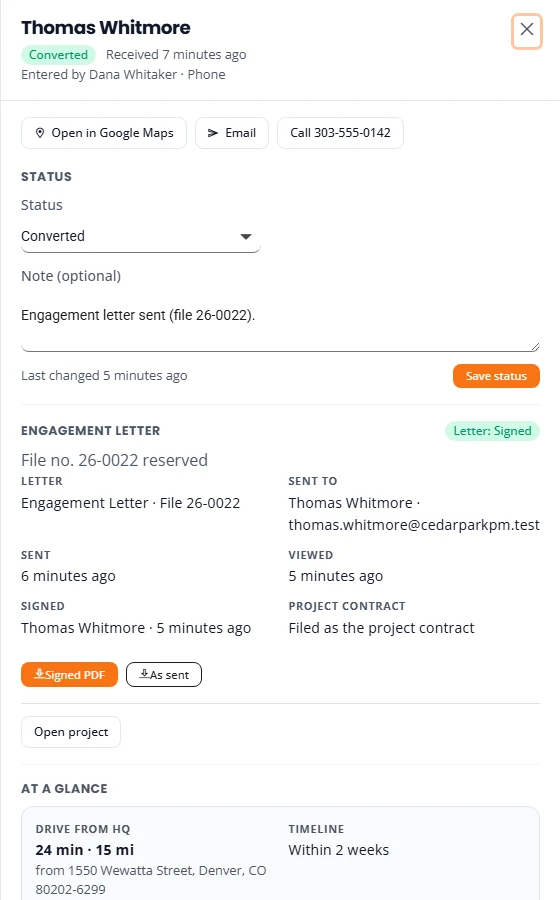
- On the lead, the letter shows Signed with the signer’s name. Signed PDF opens the signed copy, and As sent opens the letter as it was sent.
Convert a lead to a project
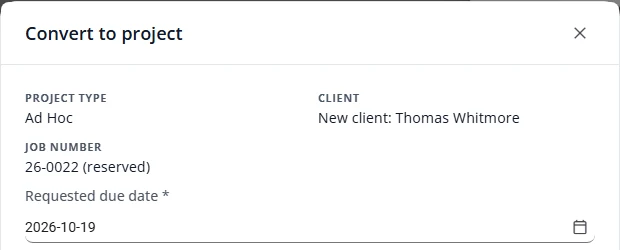
- Open the lead and press Convert to project.
- Check the Project type and the Client. When a letter has reserved a job number, the Job number shows here too.
- Choose a Requested due date.
- Review the Scope, and set the Fee basis: Hourly or Fixed fee.
- Press Create project.
Structra then:
- Creates an Ad Hoc project and opens it. It keeps the job number the letter reserved. Without a letter it takes the next job number.
- Starts the project on the Intake tab as Project Intake Initiated, ready for you to finish its intake and submit it.
- Uses an existing client if the lead’s email matches one. Otherwise it creates a new client named after the customer.
- Files the signed engagement letter on the project as its contract.
- Adds an internal note to the project saying where the lead came from, with its summary.
- Marks the lead Converted. The button on the lead becomes Open project.
The Ad Hoc project type
Ad Hoc is the project type for one-off engineering work, where the scope and fee are quoted for each job. Converted leads become Ad Hoc projects.
- Instead of foundation details, an Ad Hoc project has a Scope & Fee step: Scope description, Fee basis, then Quoted fee for a fixed fee, or Hourly rate and Estimated hours for hourly work, and an optional Retainer.
- Design cannot start until a signed engagement letter is on the project. Until then the triage review shows Signed engagement letter required, and pressing Approve and Close is refused with Not approved: no signed engagement letter.
- An Organization Admin can go ahead without one, for example when the customer signed on paper. After the refusal, type an Override reason and press Approve without signed letter. The reason is saved on the project as an internal note that starts “[Agreement override]”. Engineers and Designers are told to wait for the signature or ask an Organization Admin.
- Choose the Engineer in the triage review before you approve. On an Ad Hoc project the box starts empty. An Ad Hoc project has no drawing stage. Once approved it moves to the Design tab and waits at In Engineering Queue.
- Approved with no engineer chosen, the message reads “Project approved, but no engineer was chosen. It waits at Team Needs Assigned until an engineer is added under Manage Team.” Open the project, choose Manage Team in the menu at the top right, add the engineer and press Save Changes. The project moves on to In Engineering Queue by itself. See Assign or change the team.
From here the project follows the usual flow. See Intake and triage.
What is not here yet
- A lead cannot be edited after it is saved. Add what changed in the status note, or on the project after you convert.
- Files a visitor attaches to a website request are not stored on the lead. The lead lists their names under Attachments. The files themselves were emailed with the original submission.
- You cannot connect your website form yourself. Email support@structra.tech.
Stuck on something? Email support@structra.tech and tell us what you were trying to do.