AI sketch rubrics
A rubric is the scorecard the AI sketch check grades a sketch against. This page explains how a rubric is laid out, how its score is worked out, and how to change it safely.
What a rubric is
The sketch check grades each submitted sketch item by item. The rubric says what those items are, how many points each is worth, and which ones are critical.
- One rubric per kind of work. The rubric for push piers covers the scopes PP, PPF and PPS. It is the only rubric so far.
- Versions, never edits. A saved version cannot be changed. To change a rubric you save a new version and make it live.
- Every score keeps its version. Making a new version live changes the scores of sketches checked from then on. Scores already given keep the version they were made with.
Open AI Rubrics
Open AI Rubrics in the menu. It is there for Organization Admins and Engineers of engineering firms. Designers, client users and field inspectors do not have it. Anyone else who reaches the page sees “You don’t have access to this page”.
The page has three cards.
| Card | What it holds |
|---|---|
| Scope families | Each rubric, with its scopes, the version that is live (such as v3) and how many versions it has. Select one to show it. |
| The rubric’s name | History on the left lists every version, newest first. The items of the version you select are on the right, with the reference examples sent with it below them. |
| Reference examples | Every example sketch uploaded, with the versions that use it. |
Read a rubric
Each version in History shows its date, its total points, its number of critical items, its number of examples and its note. The live version is marked live. A version that has never been live is marked never live.
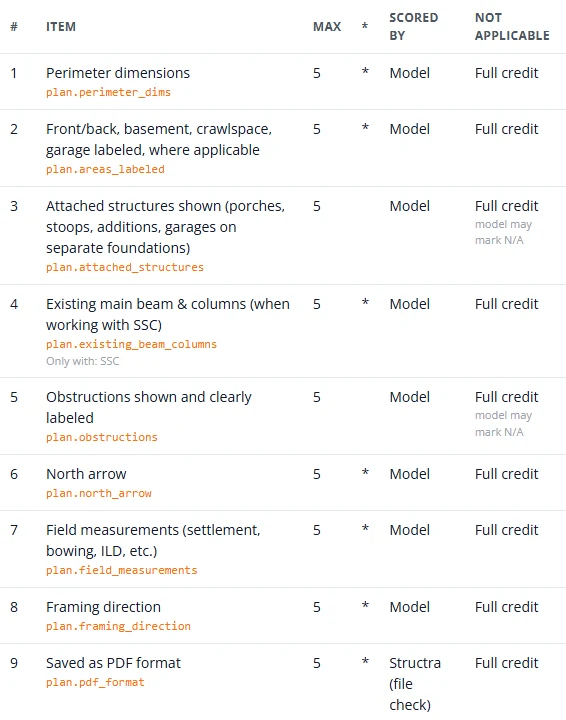
| Column | Meaning |
|---|---|
| # | The item’s number, the same on every version and in the triage review. |
| Item | What is checked. Only with: SSC means the item counts only when the job also includes that scope. |
| Max | The points the item is worth. |
| * | A critical item. A sketch passes only if every critical item gets its full points. |
| Scored by | Model means the AI judges it from the sketch. Structra (file check) means Structra decides from the file itself, with no AI. |
| Not applicable | How the item counts when it does not apply to the job: Full credit or Exclude + rescale. model may mark N/A means the AI is allowed to decide that it does not apply. See How a sketch is scored. |
How a sketch is scored
- Each item gets from 0 up to its maximum. The total is shown out of the points that apply, such as 93/100.
- Pass or fail comes from the critical items only. The sketch passes when every critical item that applies gets its full points. The total is a separate measure of quality: a sketch can score 95 and still fail.
- Needs review. When the AI is unsure about a critical item, the result is Needs review rather than a fail, and a person decides.
- A critical item that does not apply to the job counts as passed.
Items that do not apply
An item does not apply when the job lacks the scope it needs, such as an Only with: SSC item on a job without SSC, or when the AI marks it N/A where that is allowed. The item’s Not applicable setting decides how it counts.
| Setting | What happens | Example: a 5-point item on a 100-point rubric does not apply |
|---|---|---|
| Full credit | The item gets its full points and stays in the total. | It scores 5/5. The sketch is scored out of 100. |
| Exclude + rescale | The item is left out of both the score and the maximum. | The sketch is scored out of 95. |
Full credit is the setting on every item of the push-pier rubric as it stands. The scores show in the triage review. See The sketch check.
Make a new version
- Under History, select the live version. Then press New version in the rubric’s card. The window’s title gives the number it will save as, for example New PP rubric version — saves as v4.
- The window starts with the live version’s items and examples. For each item you can change:
- Max, its points (1 or more)
- *, whether it is critical
- Not applicable, Full credit or Exclude + rescale
- the guidance in the text box under its name, which tells the AI what to look for
- Under Examples for this version (send order), tick the reference examples to send with it. Use Up and Down to set their order. See Reference examples.
- Type a Version note saying why the version exists.
- Check the line at the bottom, for example “100 pts · 14 * items · 2 examples”.
- Press Save and activate to make it live straight away, or Save as inactive to keep it for later.
Make a version live or roll back
- Under History, find the version. A newer one has Activate. An older one has Roll back to this.
- Press it. Make v2 live? asks you to confirm: “Every new PP sketch score will use v2 and its examples. Scores already recorded keep the version they used.”
- Press Make it live.
Only one version is live at a time. Sketches already scored are not scored again. To score a project in triage with the new version, press Re-run on its sketch row.
Reference examples
A reference example is a sketch sent to the AI with every sketch it scores, to show it what good, or bad, looks like. Examples belong to a version: changing which examples are sent means saving a new version.
Upload an example
- On the Reference examples card, press Upload example.
- Choose the file under File (PDF, PNG or JPEG), up to 12 MB, and give it a Title.
- Choose its Kind:
- Good: a clean sketch that shows what good looks like.
- Annotated: a reviewer’s marked-up copy of a clean example. Choose that clean example under Annotates.
- CounterExample: a sketch that shows what to avoid.
- Under Scope codes, type the scopes it is for, separated by commas. Several codes mean an example for a job that combines them, such as PP,SSC.
- Under Notes sent to the model, say why the example is good or bad. The note is sent with the example every time.
- Press Upload.
The example is now in the list, but nothing uses it yet. Attach it to a new version, then make that version live.
The examples list
- Filter it with Scope code. Tick Show deactivated to see examples that are no longer offered.
- Used by says how many versions send the example. Press Preview to look at the file.
- Examples cannot be edited. To replace one, upload the new file and press Deactivate on the old one. A deactivated example is no longer offered for new versions. Versions that already send it keep sending it.
What is not here yet
- Rubrics for other scopes. Only push piers have one. New rubrics, including a firm’s first one, are set up by Structra, not from this page.
- Adding or removing items. The list of items is fixed for each rubric.
- Scores on this page. Scores show only in the triage review.
Stuck on something? Email support@structra.tech and tell us what you were trying to do.