Billing and QuickBooks
Structra builds an invoice for each client as work is delivered. You review it, finalize it and send it, and QuickBooks Online stays your accounting record. Billing is for Organization Admins.
How billing works
- Lines build up. When billable work on a project is delivered, such as the design, Structra adds a line to that client’s open invoice. Each client has one open invoice at a time.
- You review. Check the lines, fix anything that is wrong, and add anything that is missing.
- You finalize. Finalizing closes the invoice and creates it in QuickBooks Online.
- You send. QuickBooks emails the invoice to the client.
- The client pays. You record the payment in QuickBooks, as you do today.
You can do steps 2 to 4 by hand, or have Structra finalize and send on a schedule you set. See Invoice Settings.
The price on each line comes from your project type prices and any client overrides. See Client pricing.
The Invoice Dashboard
Open Billing in the menu and select Invoice Dashboard. All Invoices opens the same list.
| Column | What it shows |
|---|---|
| Invoice # | Structra’s number for the invoice. Select it to open the invoice. An S badge means Structra created it. |
| QB Doc # | The invoice’s number in QuickBooks, once it has one. |
| Client | Who is being billed. |
| Date and Due Date | When the invoice was started and when it is due. A past due date turns red until it is paid. |
| Amount | The total of the lines. |
| Status | See the table below. |
| Actions | The next step for that invoice. |
Use the status list and Search invoices... above the table to narrow it. Double-click a row to open the invoice.
| Status | Meaning |
|---|---|
| Open | Still collecting lines. You can edit it. |
| Closed | Finalized, not yet sent. |
| Sent | Emailed to the client. |
| Paid | Paid in full. |
| Partially Paid | Part of it has been paid. |
| Overdue | Past its due date. |
| Voided | Set aside in Structra. Voided invoices are hidden until you press Show voided. |
Review an invoice
Select an invoice number. The invoice page shows its Status, Invoice date, Due date, QuickBooks document and Total, with the Line items below.
Each line names what was delivered, the client, the client’s reference, the job number, and the customer and address, so the client can match it to a job.
While an invoice is Open you can change its lines:
- Add a line. Press Add line item. Fill in Description, Quantity and Unit price.
- Change a line. Press Edit on it.
- Remove a line. Press Delete on it and confirm.
Finalize and send
- On the Invoice Dashboard, press Finalize on an Open invoice. On the invoice page the button is Finalize Invoice.
- The invoice becomes Closed. Check it once more. Press Reopen if something is wrong.
- Press Send. On the invoice page the button is Send to Client.
The invoice becomes Sent. From then on you can View PDF, Download it, or press Resend to email it again.
Void an invoice
- On the invoice page, press Void invoice. On the dashboard, use the crossed-eye icon at the end of the row.
- Confirm with Void invoice.
To bring it back, press Show voided on the dashboard, open the invoice and press Un-void invoice.
Invoice Settings
Open Billing, then Invoice Settings. Press Save settings after any change.
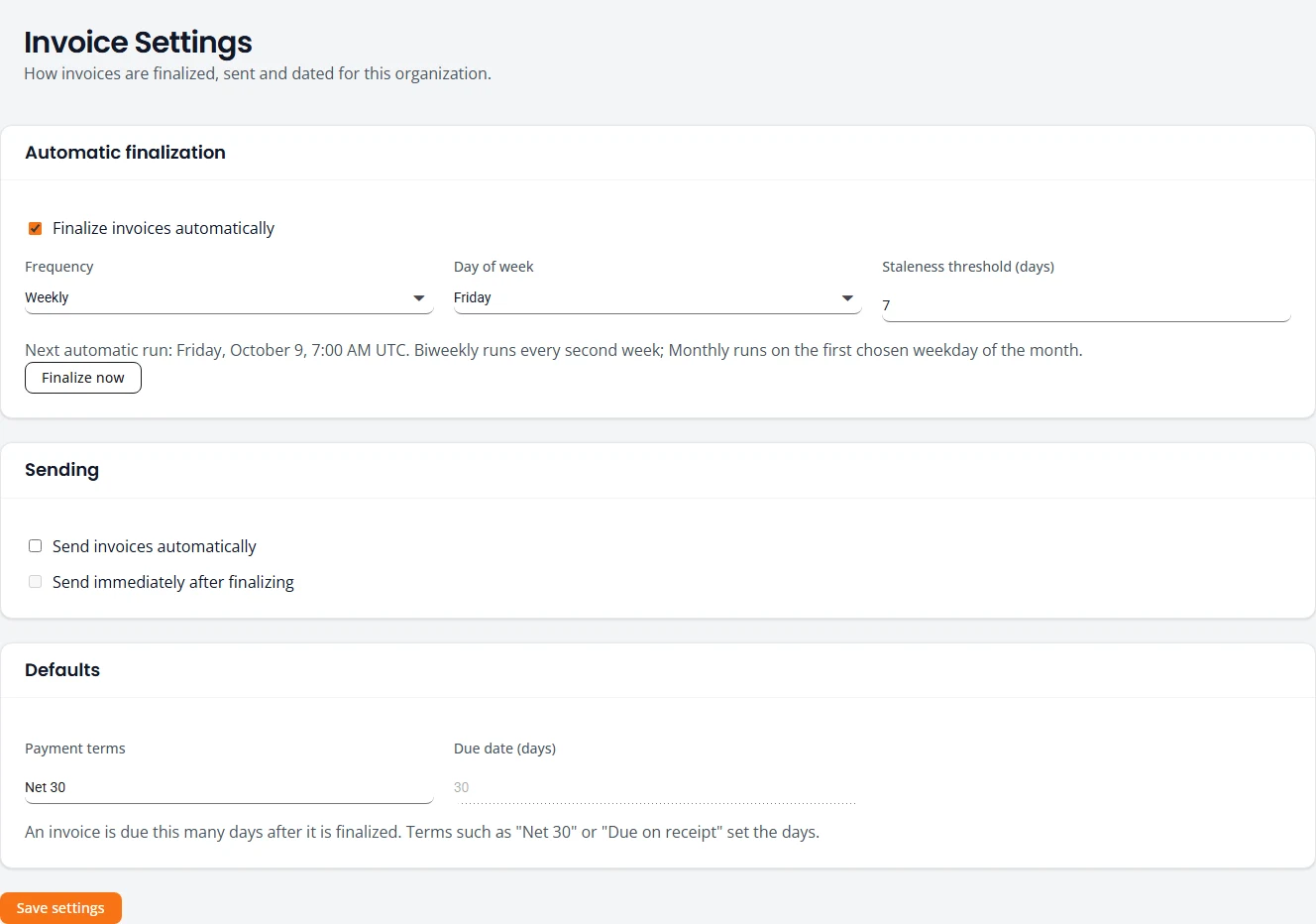
Automatic finalization
- Tick Finalize invoices automatically to have Structra finalize for you. The fields under it unlock.
- Frequency and Day of week set when the run happens. Weekly runs every week on the chosen day. Biweekly runs every second week. Monthly runs on the first chosen weekday of the month.
- After you save, the card shows the next run, for example “Next automatic run: Friday, October 9, 7:00 AM UTC”. The time is in UTC, so allow for your own time zone.
- Staleness threshold (days) decides which invoices are ready. An open invoice is finalized only when its newest line is older than this many days. That keeps an invoice open while a client is still sending work.
- Finalize now runs the same check straight away, whether or not the box is ticked.
Sending
- Tick Send invoices automatically to have Structra send every Closed invoice on the same days as the automatic run, an hour after it.
- Tick Send immediately after finalizing to send each invoice as soon as an automatic run finalizes it. This box unlocks once Send invoices automatically is ticked.
Defaults
- Payment terms sets when an invoice is due, counted from the day it is finalized. Type terms such as “Net 30”, “Net 15” or “Due on receipt”, and Due date (days) fills in to match.
- Due date (days) can be typed only when the terms do not name a number of days.
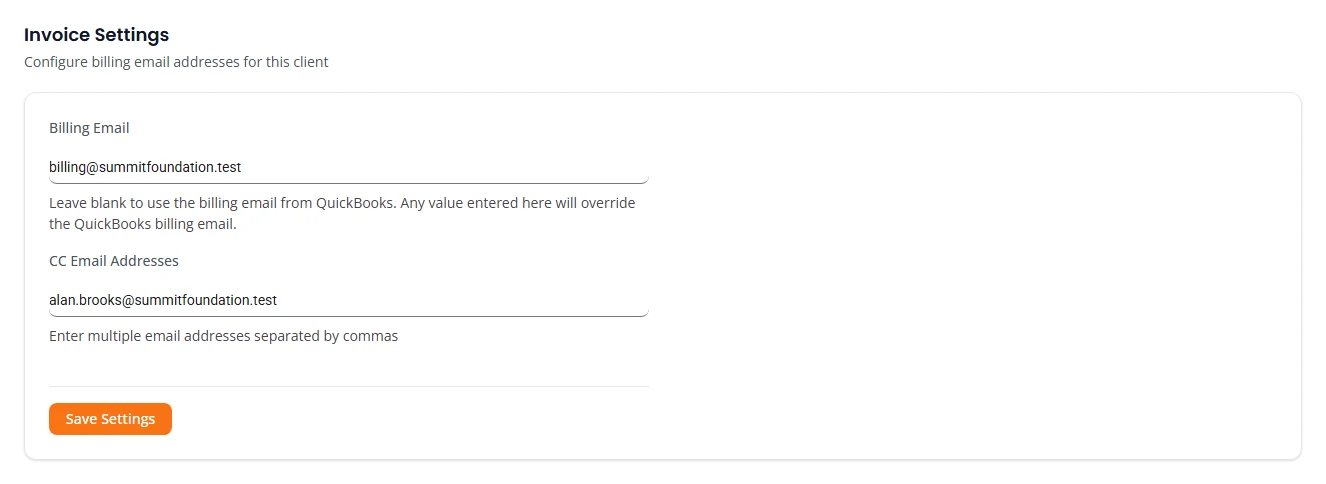
Where a client's invoices go
- Open the client page and select the Billing tab. See The client page.
- Type the Billing Email.
- Add anyone else who should get a copy under CC Email Addresses, separated by commas.
- Press Save Settings.
QuickBooks: what goes where
QuickBooks Online is the source of truth for your accounting. Structra prepares invoices and hands them over. It does not keep your books.
| What | Direction | When |
|---|---|---|
| Invoices | Structra creates the invoice in QuickBooks | When you finalize |
| Invoice email | Structra asks QuickBooks to email it | When you send or resend |
| Customers and items | Structra reads them from QuickBooks. It creates one only when you ask it to | On the mapping pages |
| Payments and paid status | Structra reads them from QuickBooks. It never records a payment there | When invoices sync |
| Voids | Nothing is sent to QuickBooks | Never |
The QuickBooks group in the menu has four pages: QB Invoices, Connection, Customer Mapping and Item Mapping.
Connect QuickBooks
- Open QuickBooks in the menu and select Connection.
- Press Connect to QuickBooks.
- Sign in to Intuit, choose your company and approve the connection. You are brought back to Structra.
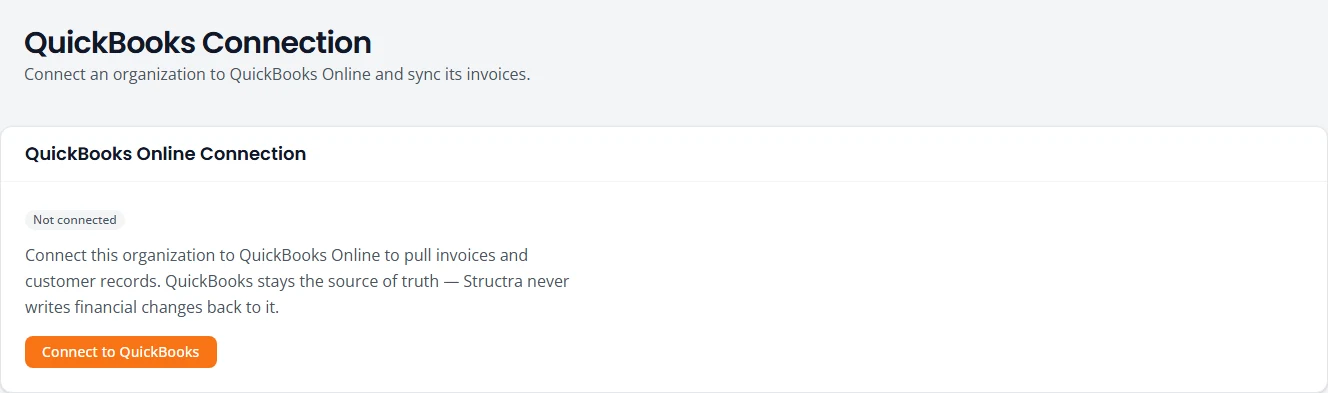
Once connected, the card shows a Connected badge with the Company, Connected on and Last sync, and three buttons:
- Sync invoices pulls the latest invoices and payment status from QuickBooks.
- Refresh token renews the connection. Use it if the card shows Token expired.
- Disconnect stops syncing until you connect again. Nothing is changed inside QuickBooks.
Map customers and items
Mapping tells Structra which QuickBooks record each of your clients and billable features belongs to. Both pages need a connection. Until then they say so and link to Connection.
Customer Mapping
The page is headed Client-Customer Mapping. Each row is one of your clients.
- Press Auto-match to have Structra pair clients with QuickBooks customers for you. Check the result.
- For the rest, choose the QuickBooks customer on the client’s row.
- If the customer does not exist in QuickBooks yet, use the create button on the row. The Create QuickBooks Customer window asks for a Display Name, and optionally a Company Name and Primary Email.
- The unlink button on a row removes the pairing.
Item Mapping
The page is headed Feature-Item Mapping. Each row is a billable feature of a project type, such as the design or the inspection report. Mapping it to a QuickBooks item puts the right product on each invoice line.
- Press Auto-match, then choose the QuickBooks item for any feature left over.
- Import QB Item brings an item that exists only in QuickBooks into Structra as a feature.
- Create Feature adds a feature in Structra. Tick Sync to QuickBooks to create the matching item there too.
QB Invoices
QB Invoices opens the QuickBooks Invoice Dashboard: your invoices as they exist in QuickBooks. It is read-only.
- Press Sync now to fetch the latest from QuickBooks.
- Filter by Time Period, a Date Range and Source.
- The tiles count Total Invoices, Paid, Open, Overdue and Structra Invoices.
- The table lists each invoice with its customer, dates, Amount, Balance and status. The icons on a row view or download the PDF, or open the matching Structra invoice.
Use it to check what a client owes without leaving Structra. Make changes in QuickBooks.
Stuck on something? Email support@structra.tech and tell us what you were trying to do.