Getting your report
When the engineer finishes, the sealed report is emailed to your Client Admins and kept on the project, where anyone in your office can download it again.
What is delivered
| Document | When | Who gets it |
|---|---|---|
| Design report | When the design is finished. It is the engineer’s sealed report as one PDF. | Every project. |
| Inspection report | After the firm has verified your inspection details. | Projects marked Engineer Inspection Required. See Inspection details. |
You do not have to ask for either one. Structra sends each report as soon as the firm finishes it.
The report by email
When the design is finished, Structra emails the report to your company’s Client Admins. The PDF is attached.
- The subject is “Project”, then your reference and the job number, then “Design Report”. The inspection report arrives the same way, ending in “Inspection Report”.
- The email says the final report is attached and is also available for download in Structra.
- If the project needs an inspection, a second email follows at once, asking for the inspection details.
Download it from the project
Everything the firm has delivered is listed at the top of the project’s Files tab.
- On Projects, select the job number to open the project.
- Open the Files tab.
- Under Delivered files, press Download beside the file.
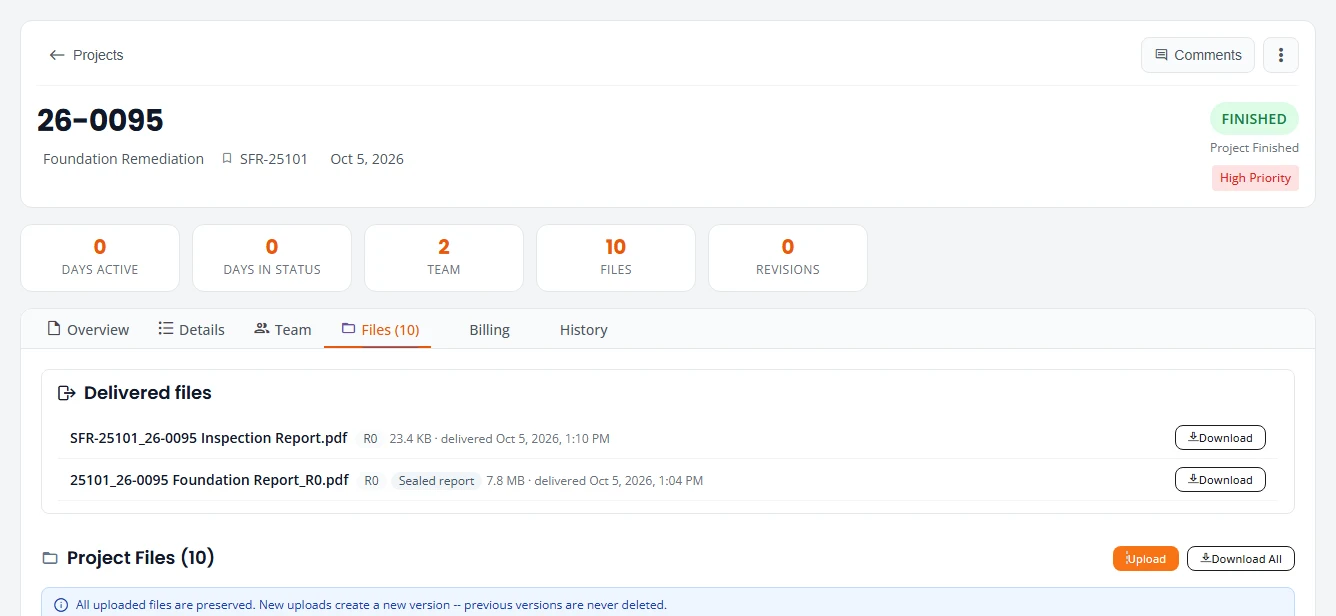
Each row shows:
- The file name.
- The revision, starting at R0 for the first issue.
- Sealed report, when the file is the engineer’s sealed report.
- The size, and the date and time it was delivered.
Until something has been sent, the section reads Nothing has been delivered on this project yet.
Download Documents
Download Documents is a shortcut from the project list. It gathers the report with the drawing and your sketch, so you can take them all at once.
- On Projects, open the three-dot menu on the row and choose Download Documents.
- Select the eye beside a file to look at it, or the arrow to download it.
- Press Download All Files to get everything in the list.
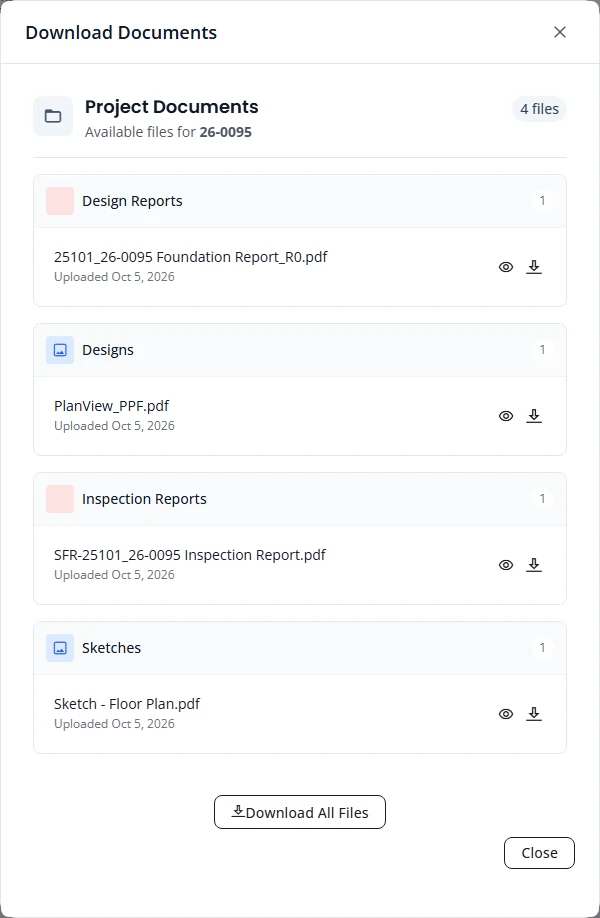
The files are grouped as Design Reports, Designs, Inspection Reports, Sketches and Revision Reports. A group shows only when it has a file.
Files the firm sends you directly
The engineering firm can also choose files on a project and email them to you itself, for example a preliminary layout to review. These emails are different from the automatic one.
- The subject starts with the firm’s name and includes your reference and the job number.
- The message is written by the person who sent it. A reply goes to that person.
- Small files are attached. Large files come as download links. A link stops working after a while, and the email gives the date.
- The firm chooses who receives it. Your company’s billing address and Client Admins are selected to start with.
Whatever is sent this way is also added to Delivered files on the project, so an expired link is not a problem. Download the file there.
Find a report later
- Open Projects and go to the Finished tab. Completed projects are listed under Completed, the most recently updated first.
- Or type the job number, your reference, the customer’s name or the address in the search box and pick the project from the list that drops down.
- Use Download Documents in the row menu, or open the project and go to Files.
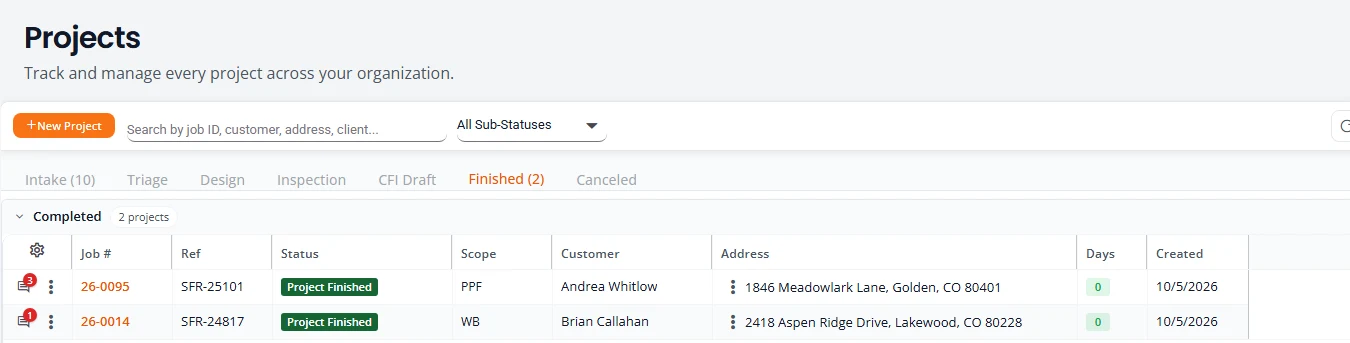
Reports stay on the project after it is finished. Anyone in your office with a sign-in can get them.
Other files on the project
Below Delivered files, Project Files lists the other files you can see on the project, grouped by kind.
- Your own files are always there. The contract, inspection form, sketch, site pictures and inspection photos your company uploaded are listed from the day they were uploaded.
- Each file names who uploaded it. The date and the person’s name are under the file, and in the Uploaded By column of All Files. That is a colleague for your own files and a member of the firm’s staff for delivered ones.
- The firm’s files appear once they are delivered. The drawing and the reports are listed after the firm has delivered them. Files the firm is still working on are not shown, here or on the project’s History tab.
- Select the eye beside a PDF or a picture to preview it, or the arrow beside it to download that one file.
- Press Download All to get every file in the list as one zip file, named with the job number.
- A file that has been replaced shows CURRENT on the newest version, with the earlier versions under it. Nothing you upload is deleted when you upload a newer one.
- All Files at the bottom is the same list as a table, with the type, version, upload date and uploader.
Add a file to the project
- Press Upload beside Project Files. The Upload files box opens.
- Choose the Document type: Additional file, Sketch / floor plan, Contract, Site pictures or Plans.
- Press Choose files and pick the file, then press Upload.
The file is added to the list. A new upload never replaces an earlier one. It is kept as the next version. To change what the firm is designing, use a change request instead. See Change a project after it is approved.
What is not here yet
- Reports for Office users by email. Only Client Admins are emailed automatically.
Stuck on something? Email support@structra.tech and tell us what you were trying to do.