Getting started
Sign in, learn where your projects are, and know what a Client Admin and an Office user can each see.
Sign in
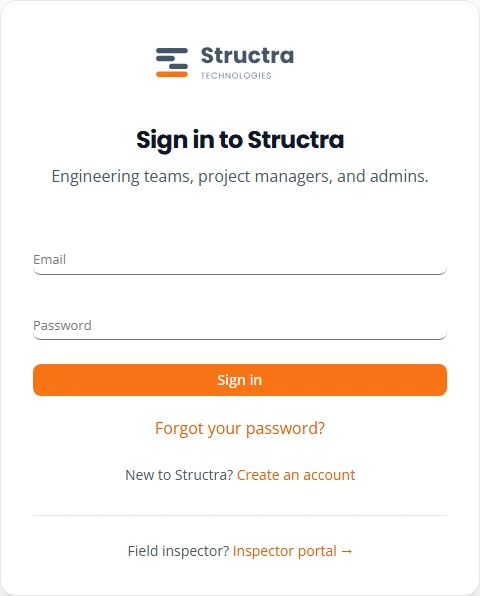
Office staff sign in with an email and password. Field inspectors do not use this page. They have their own inspector portal and sign in with an emailed code.
- Open the Structra sign-in page.
- Type your Email and Password and press Sign in.
- You land on Dashboard. Open Projects from the menu on the left to start work.
Set or reset your password
Your first sign-in
When someone adds you to Structra you get an email called “Welcome to Structra!”. Press Set Password in that email and choose a password. The link works for 72 hours.
If you forget it
- On the sign-in page, press Forgot your password?.
- Type your email address and press Send reset instructions.
- Open the email called “Reset Your Structra Password” and follow its link.
- Type a New password, type it again under Confirm new password, and press Reset password.
A password needs at least 8 characters, with an uppercase letter, a lowercase letter and a number.
What the menu shows
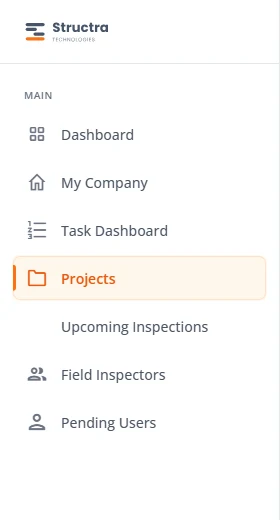
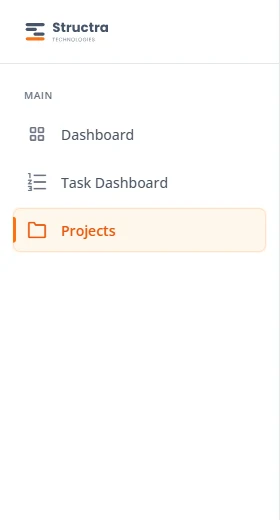
The menu depends on your role. A Client Admin sees seven items. An Office user sees three.
| Menu item | Client Admin | Office | What it is |
|---|---|---|---|
| Dashboard | Yes | Yes | The page you land on after signing in. |
| My Company | Yes | No | Your company’s page: its people, address and project types. See Your company and field inspectors. |
| Task Dashboard | Yes | Yes | Your open projects as cards, grouped by where they are. |
| Projects | Yes | Yes | Every project your company has sent, by stage. This is where you work. |
| Upcoming Inspections | Yes | No | Your projects with a construction date in the next two weeks, day by day. See Upcoming Inspections. |
| Field Inspectors | Yes | No | Your field inspectors, the code that lets new ones register, and requests waiting for you. |
| Pending Users | Yes | No | Registration requests waiting for your approval. |
Task Dashboard
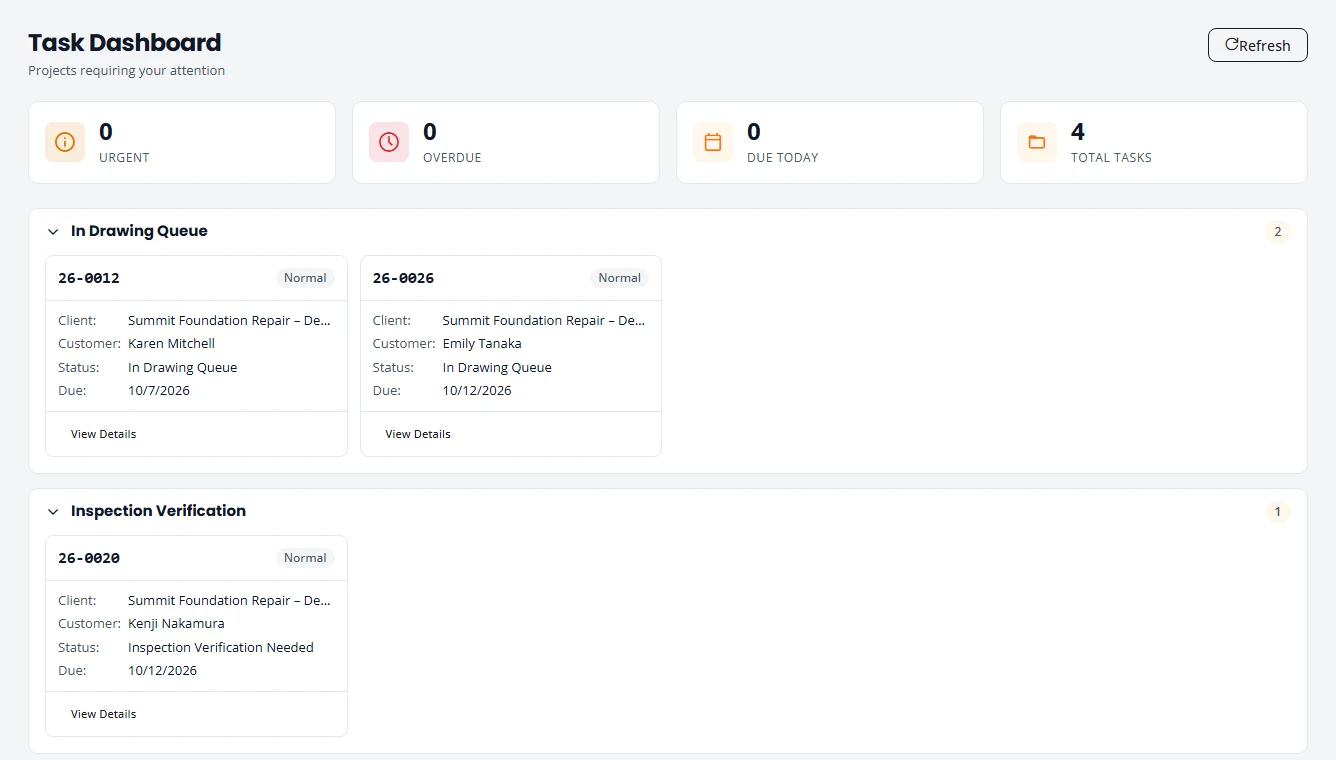
Task Dashboard shows your company’s open projects as cards with the job number, customer, status and due date. Projects the firm has sent back to you are under Issues / Waiting on Client. Press View Details on a card to open the project.
The Projects page
Projects lists every project your company has sent to the engineering firm. You see your own company’s projects only.
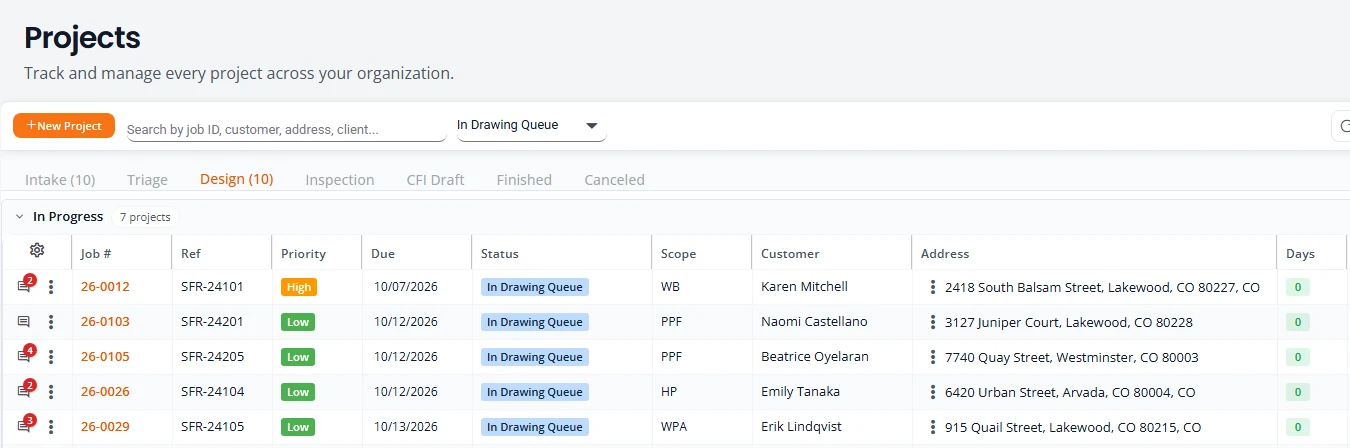
Tabs
| Tab | What is in it |
|---|---|
| Intake | Projects you have started but not submitted, and projects pushed back to you. |
| Triage | Submitted projects waiting for the firm’s review, and cancellation requests. |
| Design | Approved projects the firm is drawing and engineering. |
| Inspection | Projects with a delivered design that also need an inspection report. |
| CFI Draft | Intakes a field inspector has started in the inspector portal and not yet submitted. |
| Finished | Completed projects. |
| Canceled | Projects cancelled after the firm approved your request. See Ask to cancel a project. |
A tab shows its count once you have opened it. Inside a tab, projects are grouped: Action Needed first, then In Progress. On the Finished tab the group is called Completed, and on the Canceled tab it is called Canceled.
Columns
- Job # is the number Structra gives the project. Select it to open the project’s page.
- Ref is your own reference number.
- Priority and Due show the requested due date and how close it is.
- Status is where the project is right now. The labels are explained in After you submit.
- Scope shows the short codes of the work you selected, such as WB for Wall Brace.
- Days is the number of days the project has been in its current status.
Find a project
- Type in the search box to narrow the open tab. It matches the job number, your reference, the customer and the address.
- After two letters a list of matches from every tab drops down. Pick one and it opens in a Search Results tab. Press Clear Results to close that tab.
- Use All Sub-Statuses to show one status only. The choices change with the tab.
- Press the round arrow at the right to reload the tab.
Act on a project
Each row starts with two small buttons. The speech bubble opens the project’s comments, with a red count when there is something you have not read. The three dots open the row menu.
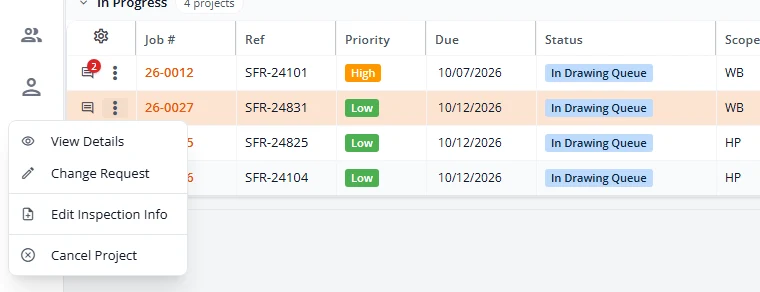
| Menu item | When you see it |
|---|---|
| View Details | Always. |
| Complete Project Intake | While the project is in Intake or Triage. Opens the intake wizard. |
| Change Request | Once the project has left Triage. Opens the wizard in Change Request Mode. |
| Download Documents | Once the design has been approved, and from then on. |
| Add Inspection Info / Edit Inspection Info | Until the project is finished. |
| Cancel Project | While the project is in Intake or Design. |
A project with a cancellation request waiting, and a cancelled project, offer View Details only.
A project's own page
Select a job number to open the project. The header shows the stage and status, and buttons for Comments and, when it applies, Add Inspection Info. The three dots hold the same actions as the row menu.
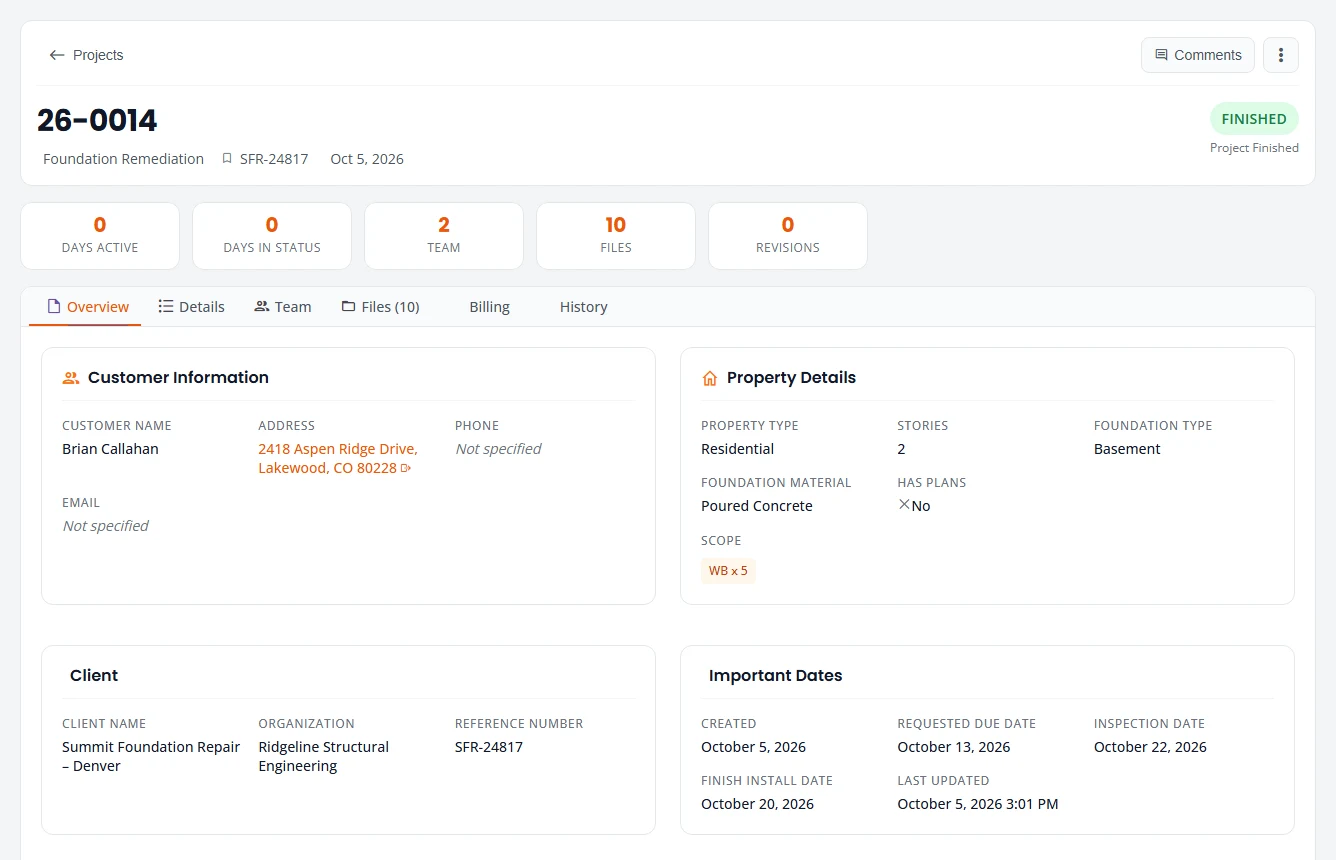
| Tab | What it shows |
|---|---|
| Overview | Customer, property, scope, dates and the latest comments. A push-back reason shows here. |
| Details | Permit and inspection dates, calculations, measurements, foundation issues and the scope table. |
| Team | The designer and engineer the firm assigned, and your project manager. |
| Files | Delivered files, then the files your company uploaded. See Getting your report. |
| Billing | What the firm has invoiced for this project. It is empty until the firm finalizes an invoice. |
| History | The 20 most recent events: status changes, uploads and comments, with who did each and how long ago. Who created the project is under Audit Information. |
What you can and cannot see
You can see
- Every project your own company has sent, at every stage.
- Each project’s status, history, and the names of the people the firm assigned.
- Comments the firm writes to you, and your own.
- Every file your own company uploaded to a project, from the day it was uploaded.
- The reports, drawings and other files the firm has delivered to you.
- The name of the person who created a project and of the person who uploaded each file, whether they work for your company or for the firm.
- What the firm has invoiced for a project, on that project’s Billing tab. Nothing shows there until the firm finalizes the invoice. Then the tab shows the amount for that project only.
You cannot see
- The firm’s internal notes. The engineering team can mark a comment as internal. Those comments are never shown to client users, in the app or by email.
- The firm’s working files. A drawing, calculation or report the firm is still working on is not shown to you. It appears on the project’s Files tab once it has been delivered. The History tab follows the same rule: it lists an upload only when you can see the file.
- Projects from other companies, including other branches of your own company.
- The firm’s other clients, its billing pages, or an invoice the firm has not finalized. A finalized invoice can cover several projects. You see your project’s amount, not the rest.
You cannot change
- A project’s status. Only the firm moves a project forward.
- Who is assigned. Manage Team on a project opens a read-only list for you.
If you have no New Project button
The engineering firm can turn project creation off for a client company. This is usual when all of your jobs start with a field inspector on site.
- With it off, nobody at your company sees New Project on Projects.
- Projects start in the inspector portal instead. When the inspector submits, the project appears on your Intake tab and you finish it with Complete Project Intake. See When a field inspector starts the project.
- To have the button turned back on, ask your engineering firm.
Your profile and settings
Select your picture at the top right to open your account menu.
- Profile shows your name, contact details and job title, with an Edit Profile button.
- Change Password sets a new password while you are signed in.
- Settings has two tabs. General switches Dark mode on and off. Notifications holds your email switches, covered in After you submit.
- Log Out signs you out.
What is not here yet
- Dashboard. The page you land on is a welcome screen. It has no figures or shortcuts yet. Use Projects or Task Dashboard.
Stuck on something? Email support@structra.tech and tell us what you were trying to do.