Complete an intake
Record an inspection on site, step by step: the customer, the structure, what is wrong, the proposed scope, your photos, sketch and contract. Then submit it to your office.
Before you start
You cannot submit without these, so have them ready:
- The customer’s name and the property address.
- Your company’s reference number for the job, or the customer’s phone number.
- Measurements of at least one foundation wall: thickness, height, and soil height.
- Your sketch, saved as a PDF.
- The signed contract, as a PDF.
Photos are optional in the form, but the checklist asks you to confirm you took them. Uploads need a connection. See Working with weak signal.
Start a project
- If you see a Branch: selector on your dashboard, check it first. See Choose your branch.
- Tap Submit New Project. The form opens on Customer Info.
Despite the button’s name, nothing is submitted yet. Tapping it creates a draft, and the draft stays in your Drafts list until you submit or delete it.
How the form works
The form has seven steps. An eighth, Footing Properties, appears only when the scope includes steel support columns. The top of the screen shows where you are, for example Step 2 of 7.
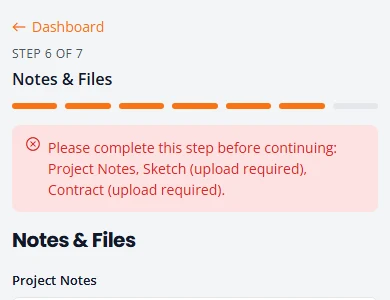
- Next checks the step you are on. If something is missing, a red box lists it and you stay on the step.
- Back never checks anything.
- The bar under the step name has one segment per step. Tap a segment to jump straight to that step.
- Dashboard, at the top left, saves and returns to your list.
- The form saves by itself. The label at the top right reads Saved, or Not saved with a Retry button when a save did not get through. See How a draft saves.
Customer Info
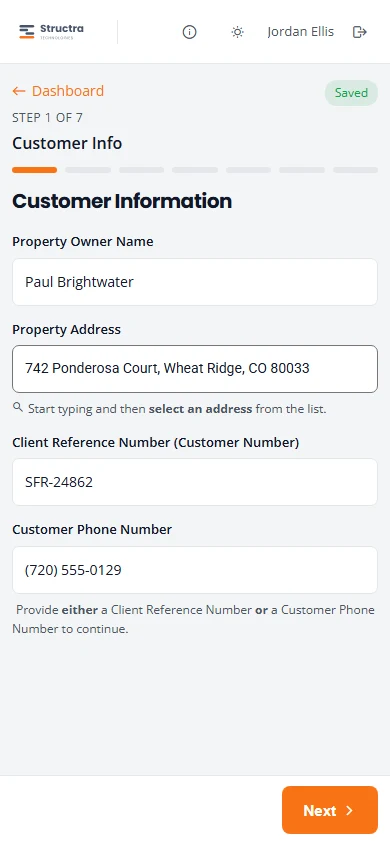
| Field | What to enter |
|---|---|
| Property Owner Name | The customer. Required. |
| Property Address | Required. Start typing and pick the address from the list that appears. If the list does not appear, type the full address yourself, with city, state and ZIP. |
| Client Reference Number (Customer Number) | Your company’s own number for this job. |
| Customer Phone Number | The customer’s phone. Type the digits; the brackets and dash are added for you. |
You need the reference number or the phone number. One is enough; both is better, because your office finds the job by the reference.
Structure & Foundation
This is the longest step. Everything on it is required except Wall 2.
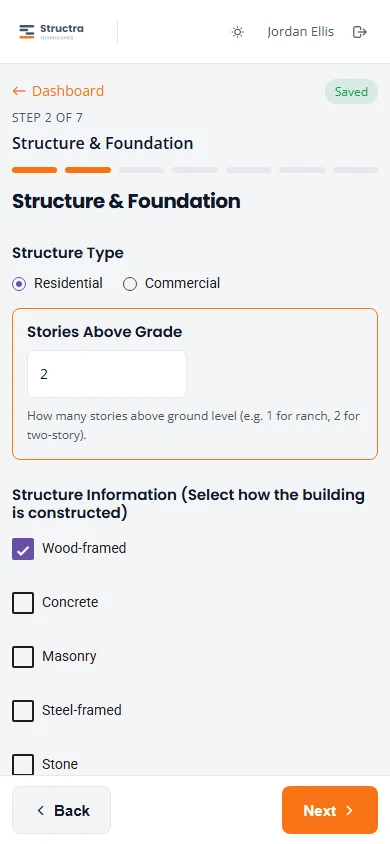
| Part | What to enter |
|---|---|
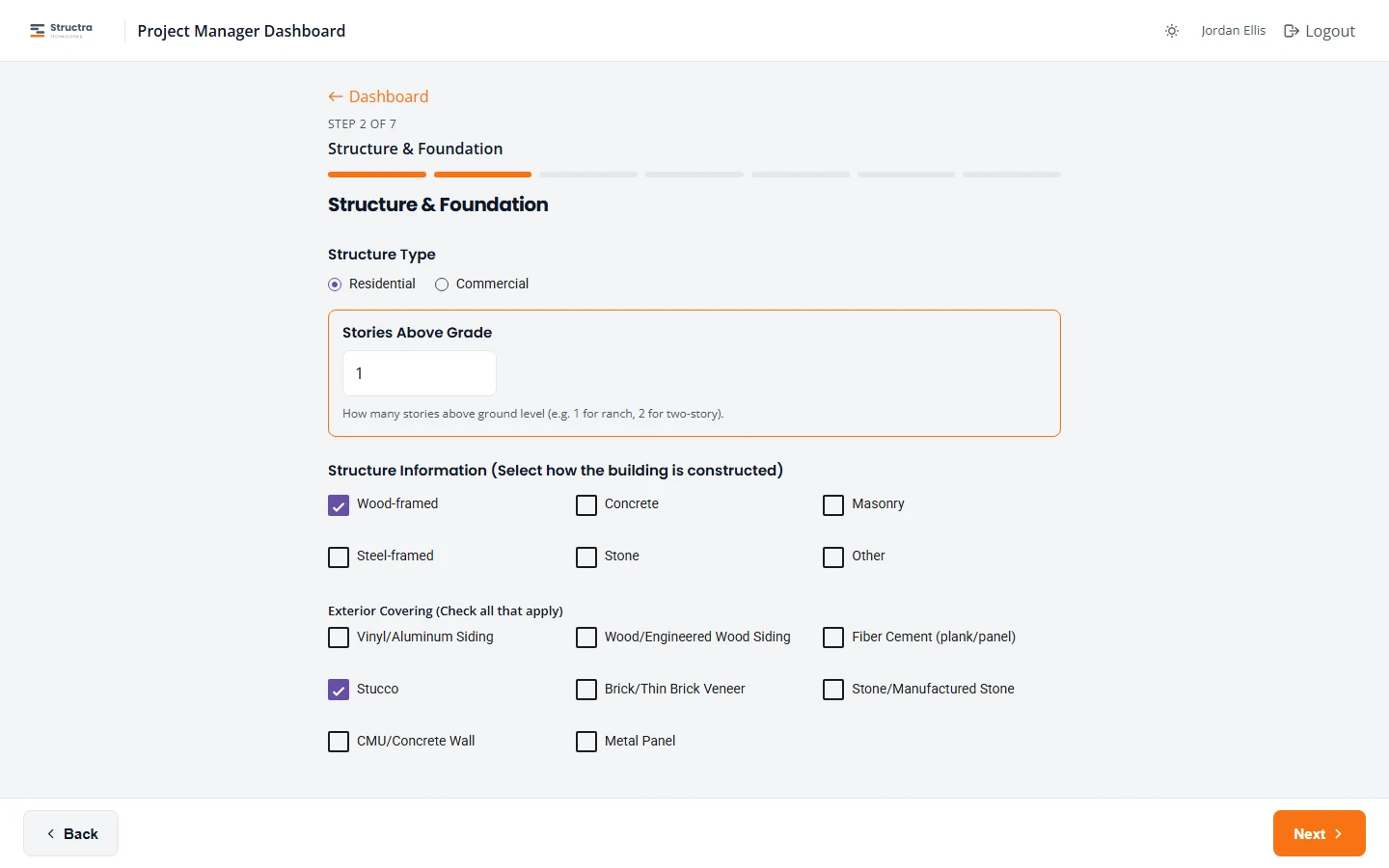
| Structure Type | Residential or Commercial. Choose one. |
| Stories Above Grade | How many stories are above ground level: 1 for a ranch, 2 for a two-story. |
| Structure Information | How the building is constructed: Wood-framed, Concrete, Masonry, Steel-framed, Stone or Other. Tick at least one. |
| Exterior Covering | What is on the outside walls. Tick all that apply, at least one. |
| Foundation Material | Poured Concrete, CMU Block, Stacked Stone, Wood or Other. Tick at least one. |
| Foundation Type | Basement, Crawl Space, Slab on Grade or Shallow Foundation. Tick at least one. |
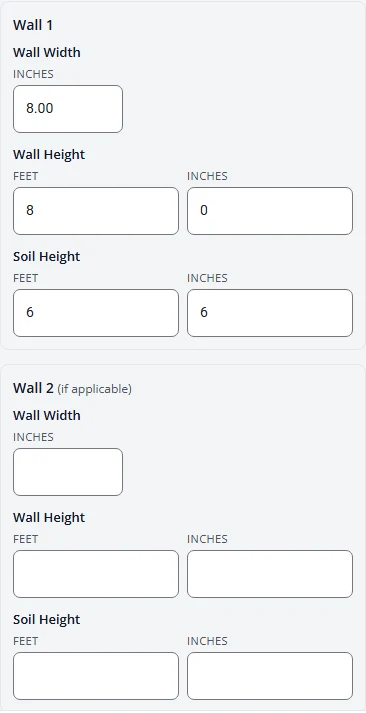
| Foundation Measurements | Wall 1 is required. Wall 2 is optional, for a second wall. |
Measurements and their units
| Field | What it is | Units |
|---|---|---|
| Wall Width | The thickness of the foundation wall. | Inches only. Decimals are allowed, for example 7.5. |
| Wall Height | The height of the foundation wall. | Feet and inches, in two boxes. Whole numbers; inches from 0 to 11. |
| Soil Height | How high the soil sits against the wall. | Feet and inches, the same way. |
Commercial projects
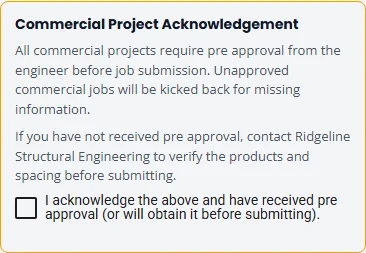
Choosing Commercial opens a Commercial Project Acknowledgement. It says commercial projects need the engineer’s pre-approval before submission, and names the engineering firm to contact for it. If the firm has put a phone number in its settings, the number is shown too. Tick the acknowledgement to continue. Without it, Next lists Commercial Acknowledgement as missing.
Foundation Issues
Tick what you see at the property. At least one is required. The choices are Settling, Sagging, Leaning/Wall Rotation, Vertical Cracks, Horizontal Cracks, Spalling, Bowing Walls, Diagonal Cracks, Erosion, Stair-Step Cracking and Rotation.
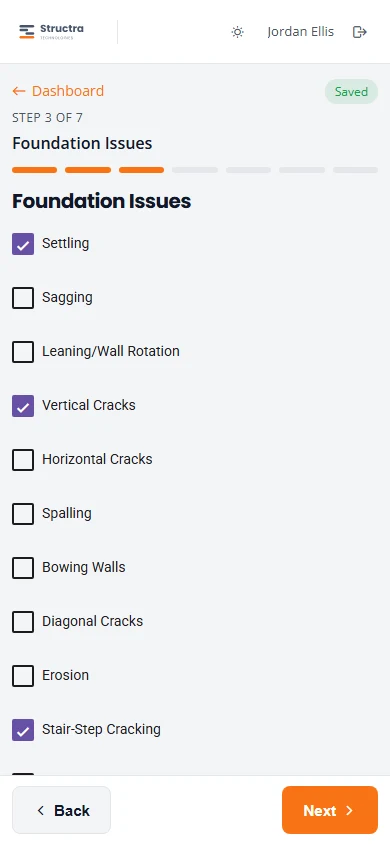
Use Project Notes later to say where each issue is.
Scope of Work
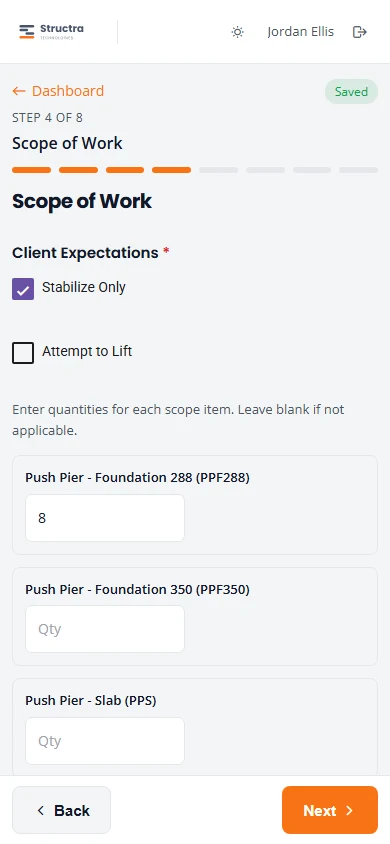
- Under Client Expectations, tick Stabilize Only or Attempt to Lift.
- Type a quantity next to each product in the proposed repair. Leave the others blank. At least one quantity above zero is required.
The products, as the form names them:
- Push Pier - Foundation 288 (PPF288)
- Push Pier - Foundation 350 (PPF350)
- Push Pier - Slab (PPS)
- Helical Pile (HP)
- Wall Brace (WB)
- Steel Support Column (SSC)
- Wall Plate Anchors (WPA)
- Wall Channel Anchors (WCA)
- FRP (Fiber Reinforced Polymer)
- N-Decking (ND): enter the number of wall braces.
Steel support columns
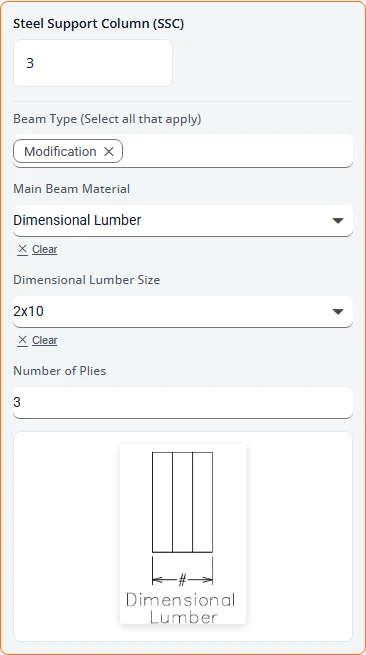
When you type a quantity for Steel Support Column (SSC), the box opens to ask about the beam the columns will carry.
- Beam Type (Select all that apply): Modification, Replacement or Supplemental.
- For a modification or a replacement, choose the Main Beam Material: Dimensional Lumber, Steel or Heavy Timber.
- Enter the beam’s size. For dimensional lumber: Dimensional Lumber Size and Number of Plies. For heavy timber: B (Width) and D (Depth). For steel: B (Flange Width), D (Beam Depth) and tf (Flange Thickness). A small drawing shows which dimension is which.
Beam Type is required, and so is the material for a modification or a replacement. If one is missing, Next names it in the red box, for example SSC: Beam Type.
Footing Properties
This step appears only when the scope includes steel support columns. Under Footing Information, tick the footing the columns will sit on:
- Compacted Aggregate Footing (For use on supplemental beams only)
- Cast-in-place Concrete Footing (Required under all main beams)
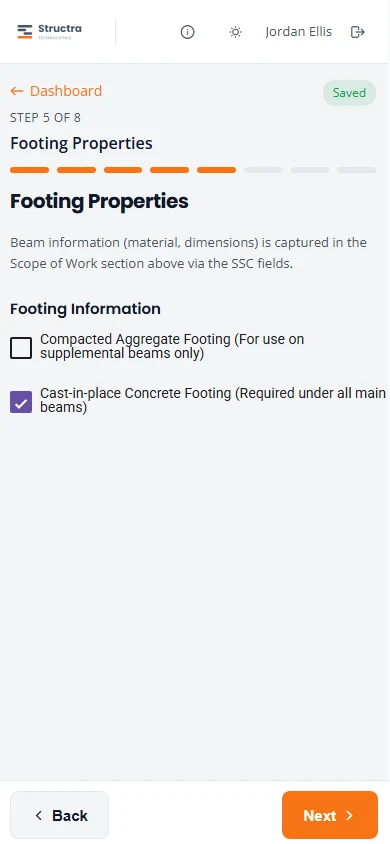
The labels say which footing suits which beam. Next checks your choice against the Beam Type you picked on Scope of Work:
| Beam Type | Footing you must tick |
|---|---|
| Modification | Cast-in-place Concrete Footing. Ticking only the compacted aggregate footing is not enough. |
| Supplemental | At least one of the two footings. |
| Replacement | The form does not check this one. Tick the footing the columns will sit on. |
If the footing does not match, you stay on the step and the red box says what is needed, for example Cast-in-place Concrete Footing (required for Main Beam Modification) or Footing Type (Compacted Aggregate or Cast-in-place).
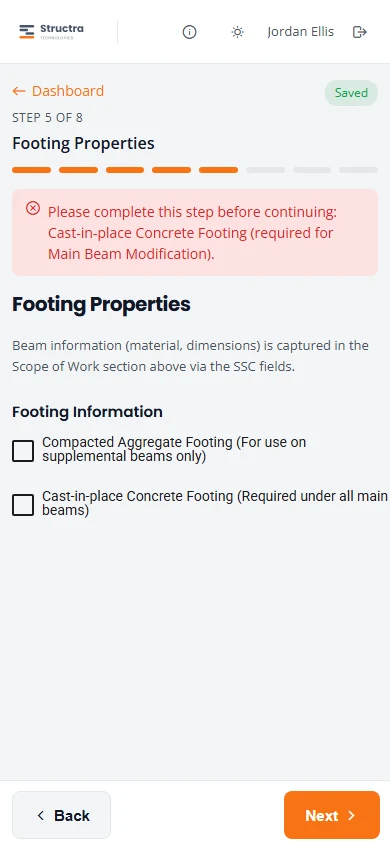
Photo & Plan Checklists
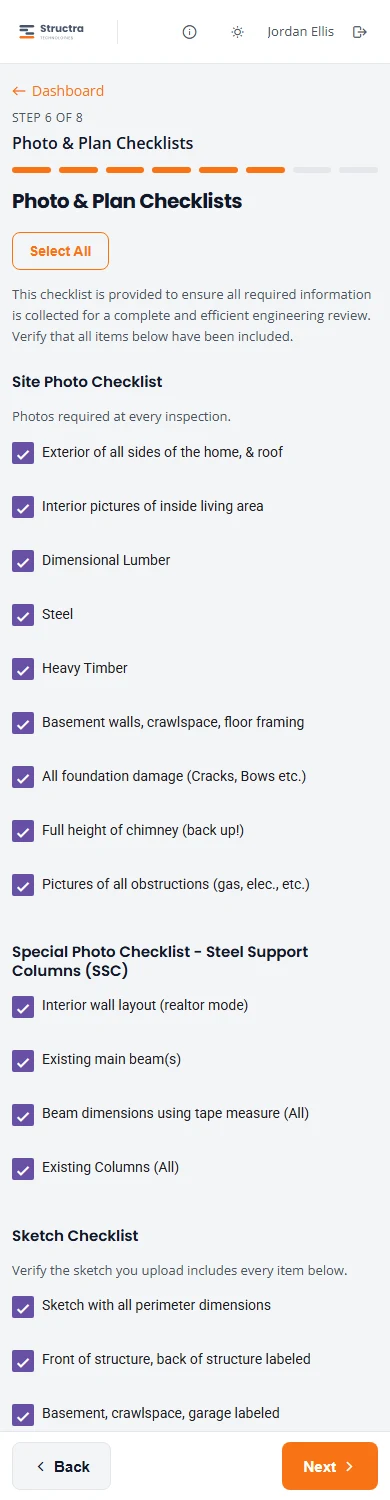
Here you confirm that you took the photos and that your sketch shows what the engineer needs. You are ticking boxes, not uploading. Uploads come in the next step.
| Checklist | When it appears |
|---|---|
| Site Photo Checklist | Always. Photos required at every inspection. |
| Special Photo Checklist - Steel Support Columns (SSC) | When the scope includes steel support columns. |
| Special Photo Checklist - Wall Plate Anchors (WPA) and Wall Channel Anchors (WCA) | When the scope includes either kind of wall anchor. |
| Special Photo Checklist - Wall Brace (WB), N-Decking (ND), Fiber Reinforced Polymer (FRP) | When the scope includes any of those three. |
| Sketch Checklist | Always. What the sketch you upload must show, including that it is saved as a PDF. |
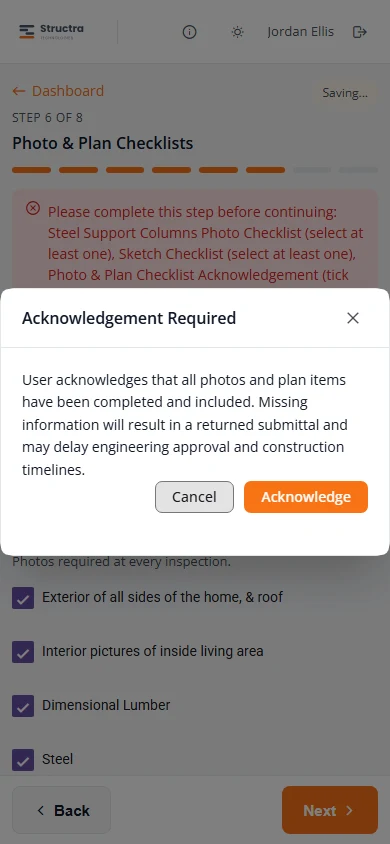
- Go down the lists and tick each item you have done. Select All at the top ticks everything at once.
- When the last box is ticked, Acknowledgement Required opens. Read it and tap Acknowledge.
- The bottom of the step now shows Acknowledgement captured. Tap Next.
Notes & Files
Project Notes
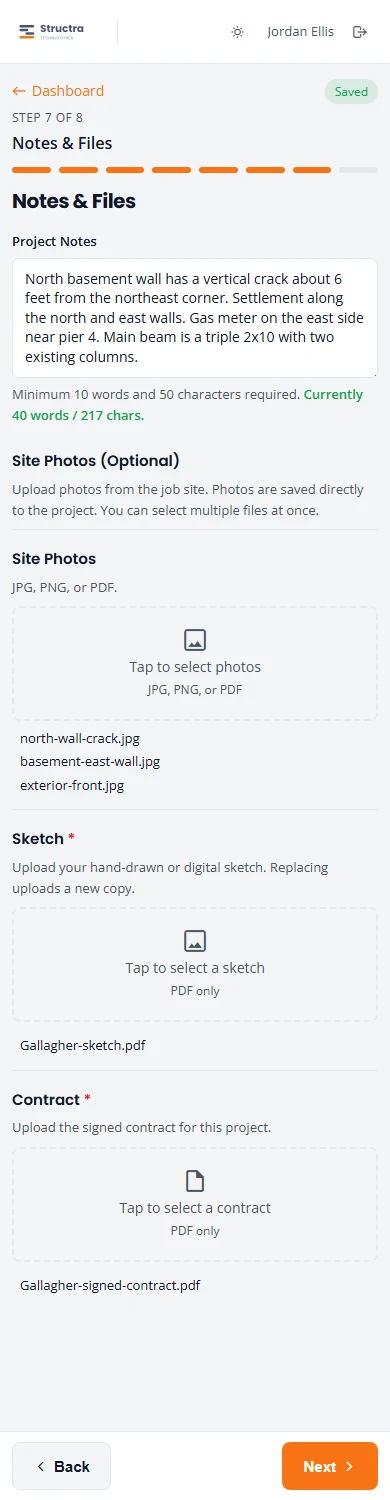
Required: at least 10 words and 50 characters. The counter under the box turns green when you have enough. Write what the checkboxes cannot say: where the damage is, what is in the way, anything unusual about the house.
Files
| Upload | Required | File type | How many |
|---|---|---|---|
| Site Photos | No | JPG, PNG or PDF | As many as you like. You can pick several at once. |
| Sketch | Yes | PDF only | One. Uploading again replaces it. |
| Contract | Yes | PDF only | One: the signed contract. Uploading again replaces it. |
- Tap Tap to select photos, Tap to select a sketch or Tap to select a contract and choose the file.
- Wait for Uploading... to finish. The file name appears under the box with a green tick, and a message says File uploaded.
Review & Submit
The last step lists what you entered. Project Manager is you. Anything still missing is shown in red.
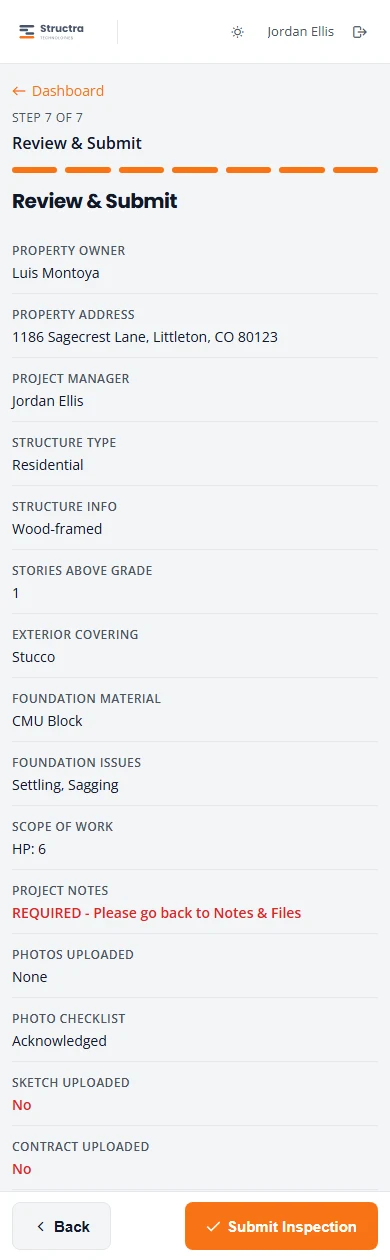
- Read down the list. Use the bar at the top, or Back, to fix anything.
- Tap Submit Inspection.
- If a step is incomplete, the form takes you to it and the red box says what to fix. Fix it, come back and submit again.
When it goes through you see Inspection submitted.
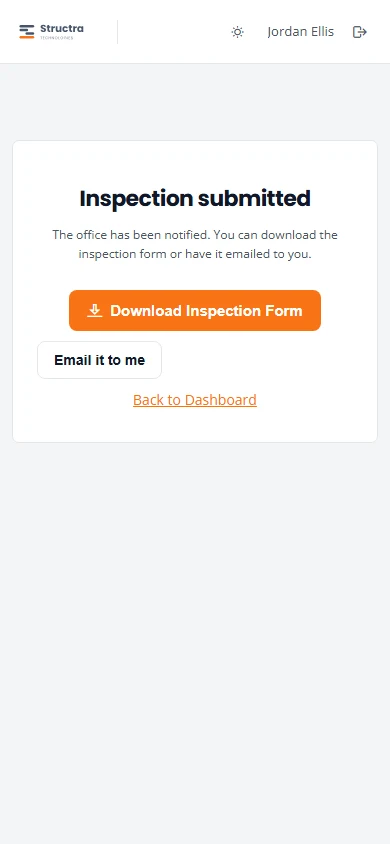
- Download Inspection Form saves a PDF of your answers to your phone.
- Email it to me sends the same PDF to the email you sign in with. The button changes to Email sent.
- Back to Dashboard returns to your list. The project is now under Submitted Projects.
Where your submission goes
Your submission goes to your own company’s office first.
- It becomes a project under your company, or under the branch you chose, with its own job number.
- Its status is Project Intake Initiated, in the Intake stage.
- Each Client Admin at your company gets an email saying a new inspection was submitted, with the customer, the address and the job number.
- You are recorded on the project as its project manager.
- Your answers, notes, photos, sketch, contract and the generated inspection form are all on the project.
Your office reviews the project and completes the intake for the engineering firm. That part is described in the client admin guide: Submit a new project and After you submit. What the firm does with it is in Intake and triage.
You can follow the status from your dashboard. See Open a submitted project.
Stuck on something? Email support@structra.tech and tell us what you were trying to do.