Open files on your computer
Open a project's PDF or DWG on your Windows PC or Mac, straight from the copy already synced to your computer by Dropbox. On Windows, PDFs open in Bluebeam. This page is for office staff, and for the person who looks after your computers.
Why this exists
A web browser cannot open a file on your computer by itself. Without help, the only way to get a project file into Bluebeam is to download it, which leaves a second copy in your Downloads folder. Mark-ups saved to that copy are not in the project folder.
Your project files already live in Dropbox, and the Dropbox desktop app keeps a copy of them on your computer. The Structra desktop opener is a small script you install once. It lets the Files tab open the synced Dropbox copy directly, in the app your computer uses for that file type: Bluebeam for PDFs on Windows, your default PDF app on a Mac. No duplicate is made.
Open a file
- Open the project and select the Files tab.
- Under Project Files, find the PDF or DWG. Beside its download arrow is an open button. Hover over it to see Open on Windows or Open on Mac, depending on your computer. The same button is on earlier versions and in the All Files table.
- Press it. The file opens on your computer.
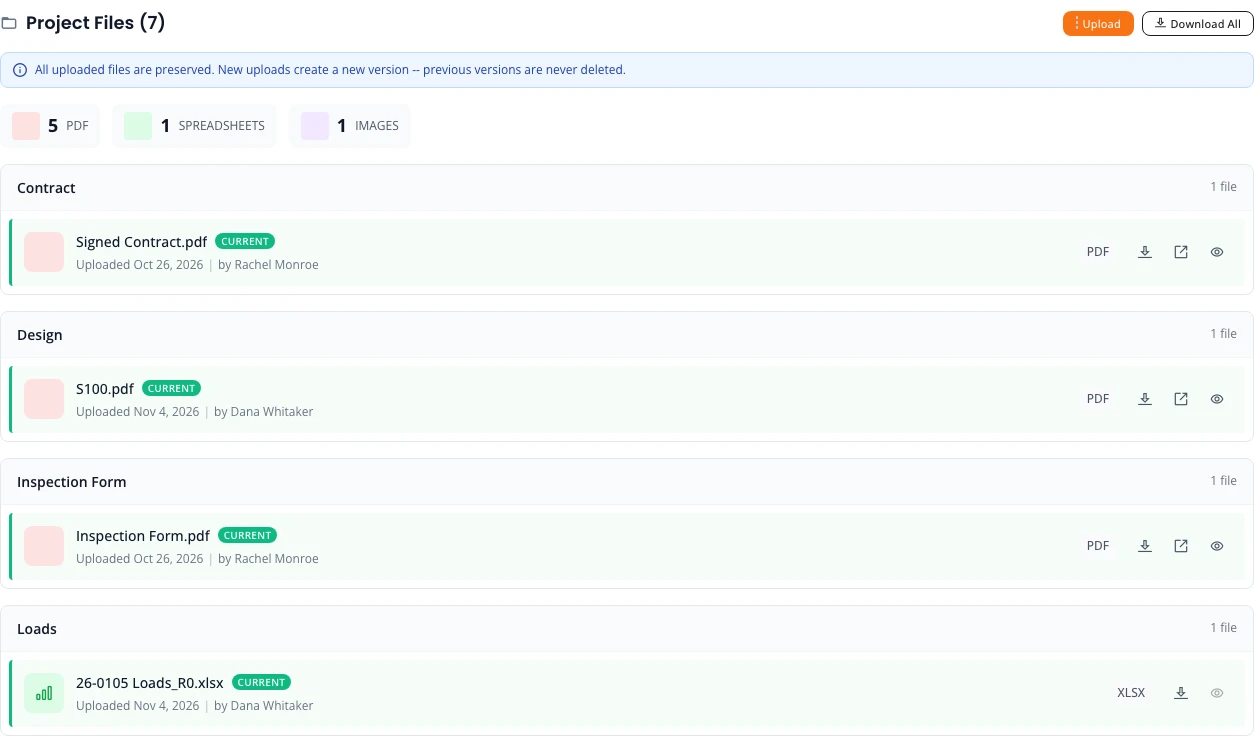
The button is shown only:
- to your own staff, not to client users;
- on a Windows PC or a Mac, not on a phone or tablet;
- on PDF and DWG files;
- on files stored in a project folder in Dropbox.
Nothing opened?
The browser cannot tell whether the opener is installed. If no app opens within about three seconds, a box titled Nothing opened? appears at the top of Project Files. It usually means the opener is not set up on this computer yet. It has two buttons:
- Set up opens the setup instructions. See One-time setup.
- Copy file path copies where the file sits inside the Structra folder in your Dropbox, for example
prod\organizations\Org_1654-rse\Projects\2026\26-0105\4_Final_Report\1_Parts\S100.pdf(with/instead of\on a Mac). Structra says “Path copied. It is inside the Structra folder in your Dropbox.” Open that folder in File Explorer or Finder and follow the path. This works without the opener.
If the opener is installed but cannot open the file, it shows a Structra message saying why instead. See Messages from the opener.
One-time setup on Windows
Do this once on each Windows computer, signed in as the person who will use it. You do not need administrator rights.
- On the Files tab, press an open button. When Nothing opened? appears, press Set up. The Set up Open on Windows window opens.
- Select Download the Structra desktop opener. The file
StructraOpener.ps1is saved to your Downloads folder. - In your Downloads folder, right-click
StructraOpener.ps1and choose Run with PowerShell. - A Structra message says The Structra desktop opener is installed. It also shows the Dropbox folder it found, for example “Dropbox found at: C:\Users\dana\Dropbox (Ridgeline)”. If it says Dropbox was not found, install the Dropbox desktop app and sign in before you open files.
- Go back to Structra and press the open button again. The first time, the browser may ask whether to open the Structra desktop opener. Tick Always allow and choose Open.
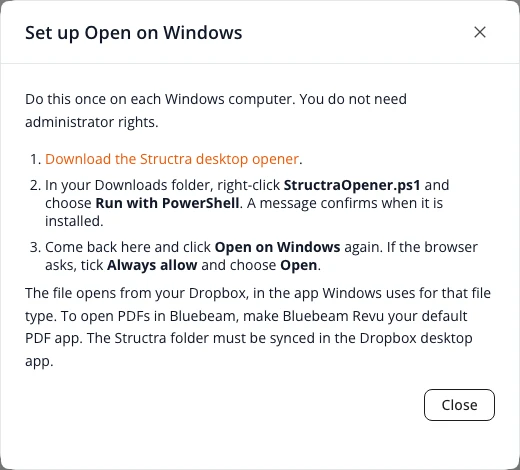
The opener is installed for that Windows user only. Someone else who signs in to the same computer sets it up for themselves. You can delete the downloaded file afterwards: the opener keeps its own copy.
One-time setup on a Mac
Do this once on each Mac, signed in as the person who will use it. You do not need an administrator password.
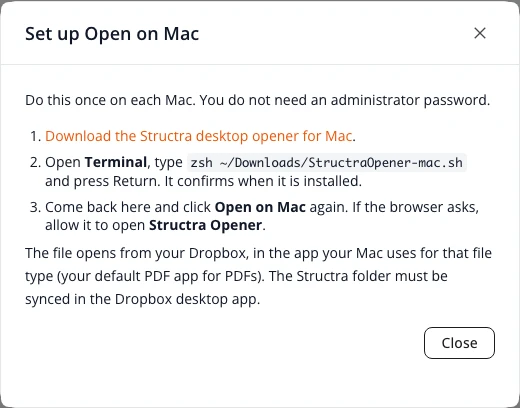
- On the Files tab, press an open button. When Nothing opened? appears, press Set up. The Set up Open on Mac window opens.
- Select Download the Structra desktop opener for Mac. The file
StructraOpener-mac.shis saved to your Downloads folder. - Open Terminal (in Applications, Utilities), type
zsh ~/Downloads/StructraOpener-mac.shand press Return. - Terminal says Structra Opener is installed and shows the Dropbox folder it found. If it says Dropbox was not found, install the Dropbox desktop app and sign in before you open files.
- Go back to Structra and press Open on Mac again. The first time, the browser may ask whether to open Structra Opener. Allow it.
Files open in the app your Mac uses for that file type. To change the PDF app, select any PDF in Finder, choose Get Info, pick the app under Open with and press Change All. Bluebeam Revu is not made for the Mac.
What the opener does
When you install it
- It copies itself to
%LOCALAPPDATA%\Structra\DesktopOpenerin your own Windows profile (on a Mac,~/Library/Application Support/Structra/DesktopOpener). - It registers a link type named
structra-openfor the current Windows user, under the registry keyHKCU\Software\Classes\structra-open. On a Mac it builds a small app,~/Applications/Structra Opener.app, that receives the link: macOS only lets an app do that. This is what lets the browser hand a Structra link to the opener. - It looks for Dropbox and tells you which folder it found.
When you press an open button
- Structra builds a
structra-openlink holding the file’s path inside the Structra folder in Dropbox. The browser passes it to the opener. Nothing is downloaded. - The opener checks the path. See What it will not do.
- It reads Dropbox’s own settings file,
info.json, to find your Dropbox folders on this computer: the business (team) Dropbox and the personal one, whichever exist. On a Mac it also looks in~/Library/CloudStorage/Dropboxand~/Dropbox. - It looks for the file under
Apps\Structrain each Dropbox folder, and in any extra folder your IT person added with-AppFolder. The first place that holds the file is used. - It opens the file with your computer’s default app for that file type. A file that Dropbox keeps online-only is downloaded by Dropbox as it opens.
Messages from the opener
| The message says | What to do |
|---|---|
| Structra can only open drawings (PDF or DWG) from a project folder. | The link was not a project PDF or DWG, so nothing was opened. Use the button on the Files tab. |
| Dropbox is not set up on this computer | Install the Dropbox desktop app, sign in, and try again. |
| This file is not in Dropbox on this computer yet | The message shows the file’s path. Check that the Structra folder is synced in Dropbox, wait for syncing to finish, and try again. |
| Windows could not open the file. (On a Mac: macOS could not open the file.) | No app is set up for that file type. Install a PDF app (Bluebeam Revu on Windows), or the app for DWG files. |
What it will not do
- It opens only PDF and DWG files. It will not open or run any other kind of file.
- It opens only files in a project folder inside the Structra folder in Dropbox. It refuses any other path: a drive letter such as
C:, a path that climbs out with.., a path that starts at the root, or one with characters Windows does not allow in a file name. After finding the file it checks again that it is still inside the Structra folder. - It checks every link itself. Structra checks the same rules before it builds the link, but the opener does not rely on that. A link typed or sent by anyone else gets the same checks.
- It does not upload, change, move or delete files. It only asks Windows or macOS to open one.
- It sends nothing anywhere. It makes no internet connection and reports nothing to Structra.
- It needs no password. It does not sign in to Dropbox or Structra. It uses the files Dropbox has already synced.
Notes for IT
| Topic | Detail |
|---|---|
| What is installed | One PowerShell script, copied to %LOCALAPPDATA%\Structra\DesktopOpener\StructraOpener.ps1, and, if -AppFolder was used, a config.json beside it. Nothing is installed for other users or in Program Files. |
| Registry | A per-user link handler at HKCU\Software\Classes\structra-open. Its open command runs powershell.exe -NoProfile -NonInteractive -ExecutionPolicy Bypass -WindowStyle Hidden -File "%LOCALAPPDATA%\Structra\DesktopOpener\StructraOpener.ps1" "%1" using the Windows PowerShell in System32. No admin rights and no HKLM keys. |
| Execution policy | The handler runs with -ExecutionPolicy Bypass. The script is not code-signed, so a Group Policy that forces AllSigned overrides this and the opener will not run. Allow the script, or users can fall back to Copy file path. |
| Browser prompt | The browser may ask “Open this app?” the first time it hands a structra-open link to the opener. Users can tick Always allow so it does not ask again. |
| Dropbox location | Read from %LOCALAPPDATA%\Dropbox\info.json, or %APPDATA%\Dropbox\info.json. The business path is tried before the personal path. |
| Structra folder in Dropbox | Apps\Structra by default. If your Structra files sync to a different folder, install with -AppFolder, giving the folder relative to the Dropbox folder. For <Dropbox>\Structra, run powershell -ExecutionPolicy Bypass -File .\StructraOpener.ps1 -AppFolder 'Structra'. Apps\Structra is still tried first. |
| Uninstall | Run powershell -ExecutionPolicy Bypass -File "%LOCALAPPDATA%\Structra\DesktopOpener\StructraOpener.ps1" -Uninstall. It removes the registry key and the DesktopOpener folder, and confirms with “The Structra desktop opener was removed.” |
| Mac | One zsh script, copied to ~/Library/Application Support/Structra/DesktopOpener/StructraOpener-mac.sh, and an app built on the Mac at ~/Applications/Structra Opener.app (compiled with osacompile, signed for that Mac only, registered with Launch Services). The app’s only job is to pass the structra-open link to the script. Extra folders: zsh StructraOpener-mac.sh --app-folder Structra. Uninstall: zsh "$HOME/Library/Application Support/Structra/DesktopOpener/StructraOpener-mac.sh" --uninstall. No administrator password and nothing outside the user’s home folder. |
| Updates | The installed copy does not update itself. To update, download the script again from the Set up window and run it. It replaces the installed copy. |
Requirements
- Windows with the Windows PowerShell that comes with it, or a Mac.
- The Dropbox desktop app, signed in and syncing the Structra folder.
- A default PDF app (Bluebeam Revu on Windows), and an app set for DWG files if you open drawings.
On a computer without Dropbox, use Copy file path or download the file. For more on the Files tab, see Files.
Stuck on something? Email support@structra.tech and tell us what you were trying to do.