Tree care
These screens and fields only appear if tree care is one of your kinds of work. They let an estimate account for the things that make one tree job harder than another.
Site conditions
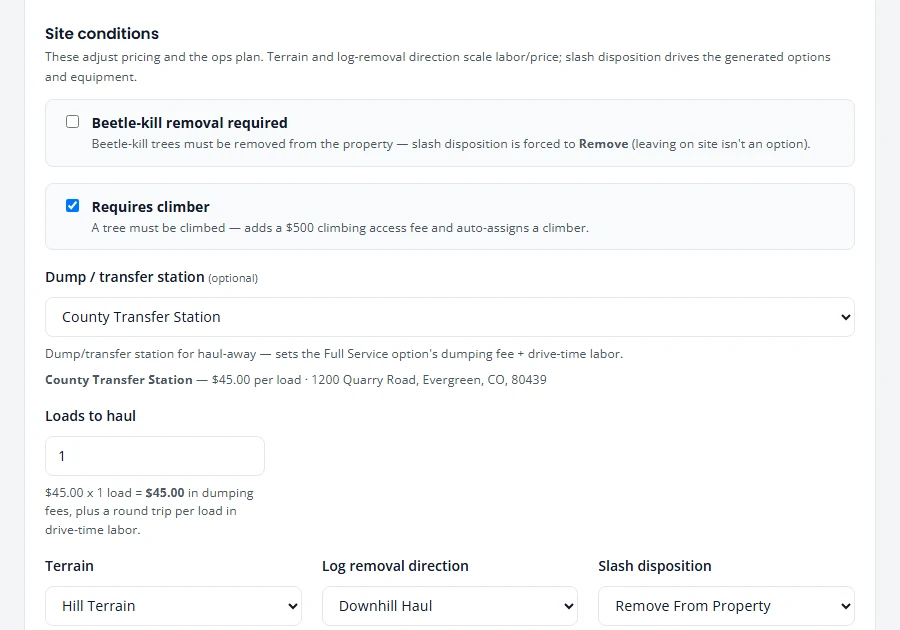
On a tree care estimate, the Site & Scope step has a Site conditions section below your services. What you choose there adjusts the price and the labor.
| Field | Choices |
|---|---|
| Terrain | Flat, hill or mixed. |
| Log removal direction | Flat, downhill or uphill haul. |
| Slash disposition | Remove from property, leave on property, or chip on site. |
| Beetle-kill removal required | Tick it when the trees must leave the property. Slash is then set to remove. |
How much each choice adds is yours to set. Open Service Catalog, then the Modifiers tab. Each choice has a price multiplier and a labor multiplier. For example, a price multiplier of 1.2 adds 20%.
Jobs that need a climber
- On the Site & Scope step, tick Requires climber.
- Build the estimate. Your climbing fee is added to the price, and each option says so.
Set the fee under Service Catalog, Pricing tab, Climber surcharge. On the same tab, Climbing fee under a discount decides whether a discount also comes off the climbing fee.
Mark who can climb by ticking Certified climber on their crew record. They show a Climber tag wherever you assign crew.
Dump sites and haul-away
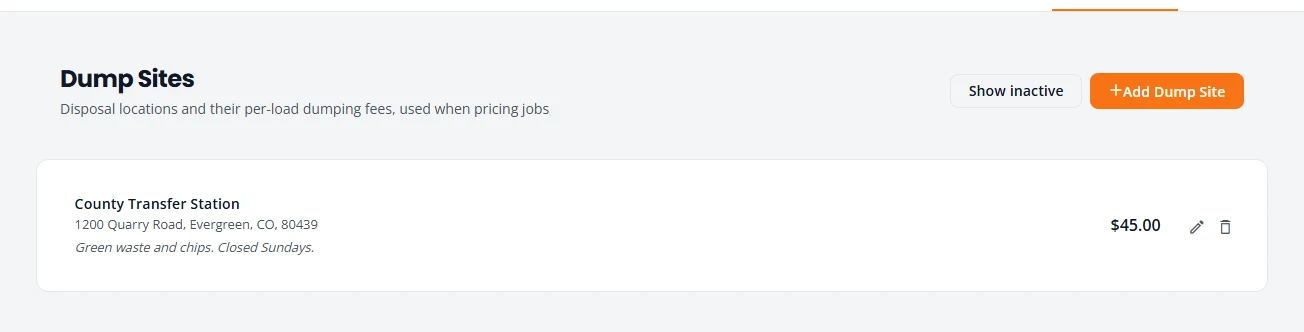
A dump site is anywhere you take debris. Saving your sites with their fees lets an estimate include the real cost of hauling away.
Add a dump site
- Open Dump Sites and press Add Dump Site.
- Type a Label, such as the name of the transfer station, and its address.
- Type the Dumping fee per load (USD). Add Notes such as opening hours. Press Save.
Use it on an estimate
- On the Site & Scope step, choose the site under Dump / transfer station.
- Set Loads to haul. The screen shows the dumping fees for that many loads.
- Build the estimate.
The options your customer chooses from
When you build a tree removal estimate, PropertyWorks writes up to three options from the same scope, each with its own price. The customer picks one when they sign.
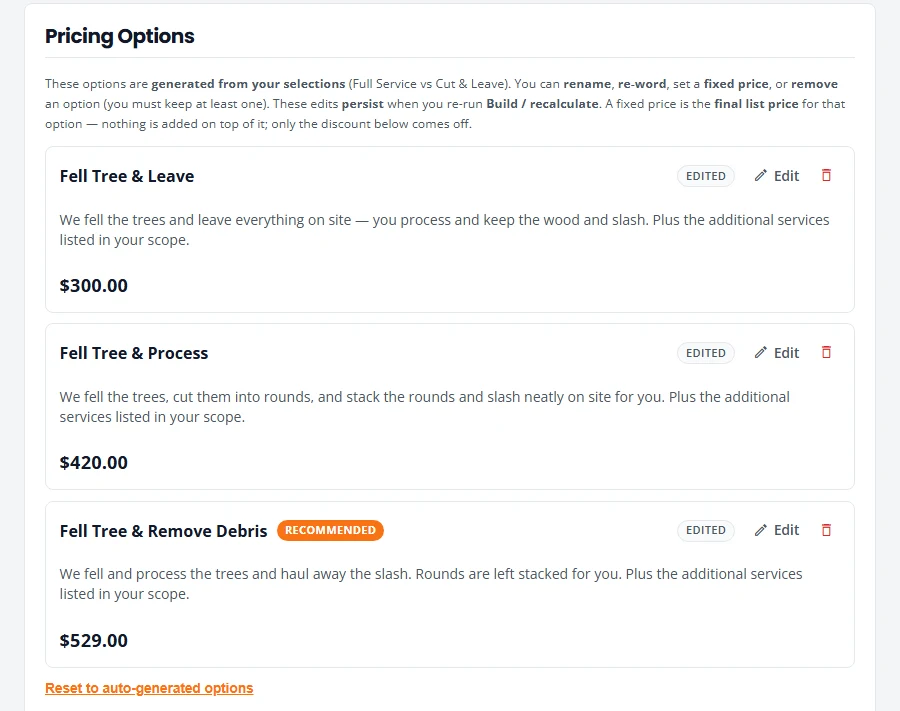
- Press Edit on an option to change its title, its description, or to set a fixed price.
- Remove an option you do not want to offer. You must keep at least one.
- Press Reset to auto-generated options to undo your edits.
More on pricing in Estimates.
Equipment
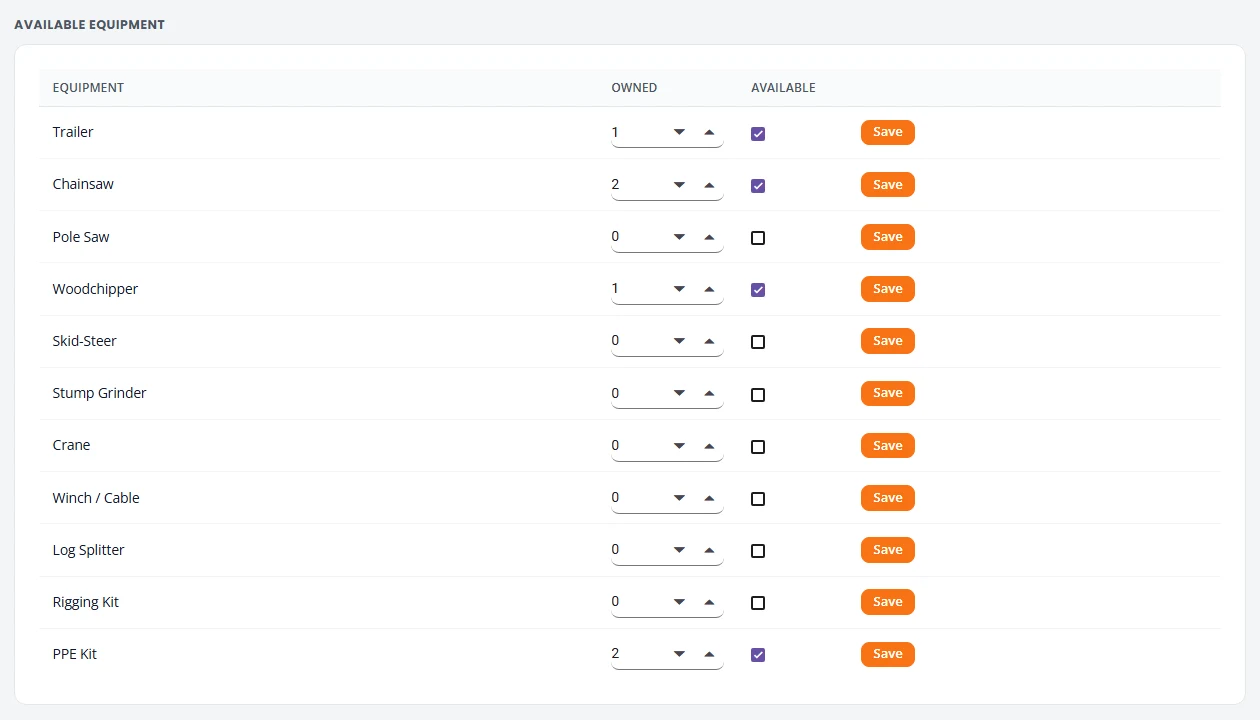
The top of Equipment & Crew lists equipment. For each item, set how many you own under Owned, tick Available if you can send it out, and press Save on that row. The ops plan compares what a job needs with what you have here.
The ops plan
Every job has an ops plan: the man-hours, the crew size, the equipment the job needs against what you own, and the access and site notes. Use it to brief the crew.
- Open Pipeline.
- Press Ops plan on the job’s row.
The crew size and equipment come from the Rules tab of your Service Catalog. It comes set up with working rules, and you can leave it alone.
Stuck on something? Email support@structra.tech and tell us what you were trying to do.