Your settings
Settings hold the choices that apply to your whole company: the kinds of work you do, your deposit, your terms, how your email looks, and your plan.
Where settings are
Settings are not in the portal menu. Sign in with your email and password, select your picture or initials at the top right, and choose Settings. Only the company admin can change them. The steps are in Open your settings.
Add or remove a kind of work
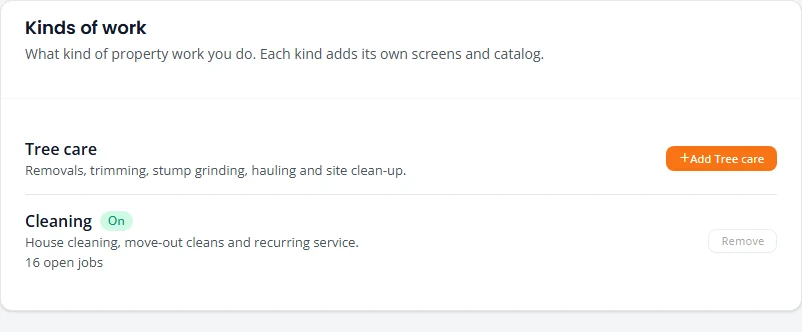
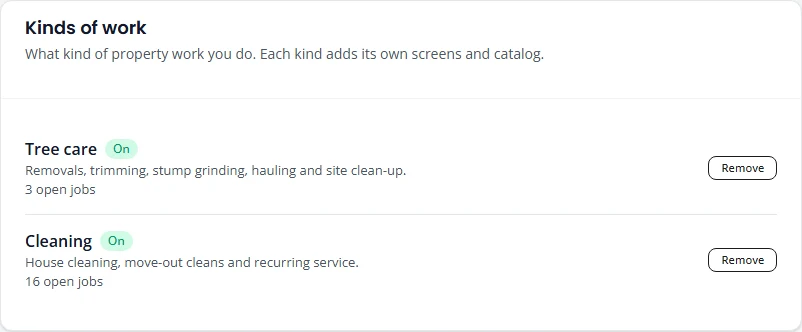
Your kinds of work decide which screens you see and which services you can quote. They are at the top of the PropertyWorks tab.
Add a kind
- Under Kinds of work, find the kind you want.
- Press Add Tree care or Add Cleaning.
Its screens appear in the portal menu, and it gets its own catalog to price.
Remove a kind
- Press Remove beside the kind.
- Read the message and press Remove to confirm.
Deposit and estimate defaults
On the PropertyWorks tab, under Deposit & payment:
| Setting | What it does |
|---|---|
| Do you take a deposit? | Yes, or no deposit with payment in full when the work is done. |
| Deposit amount | A percent of the total, or a fixed dollar amount. A blank percent means 50%. |
| When is it due? | Before the job is scheduled, when the estimate is accepted, or on the day of service. |
| What customers are told after they sign | The next step shown on the thank-you page and in the signed-copy email. |
| Estimates are valid for (days) | How long a customer has to accept. Blank means 30 days. |
| Job number prefix | The letters at the start of new job numbers. Existing numbers do not change. |
| Time zone | Sets the times in crew reminders and what counts as tomorrow in your Action Queue. |
Press Save deposit & defaults when you are done. The deposit percent and the valid-for days are starting points. You can change both on any single estimate.
Your terms
Your terms print on the estimate and show on the page where the customer signs. They are on the PropertyWorks tab, under Estimate terms.
- To start from our wording, pick General, Tree service or Cleaning under Start from a template and press Use template.
- Under Masthead, check your company name and add a tagline if you want one.
- Under Terms & Conditions, edit each clause. Use the buttons beside a clause to move it up or down or to remove it, and Add clause to write your own.
- Check the Signature page wording.
- Press Save terms.
Branding
The Branding tab holds your logo, your two colors, and the business details printed in the footer of customer emails. The steps are in Add your logo and colors.
- To swap your logo, press Replace logo. To go back to no logo, press Remove.
- To go back to the standard colors, press Use default beside a color.
The Email tab controls how email to your customers is addressed.
- Customers currently see shows the From and Reply-To on your email right now.
- From name. The name customers see. Blank uses your company name.
- Reply-To. Where customer replies go. Set this to an inbox you read.
- Send test email. Sends a sample to your own address.
- Recent sends lists what has gone out. Suppressed addresses lists addresses that bounced or marked your email as spam. We do not send to those.
Send from your own domain
To start with, email goes out as “Your Company via Structra”. To send from your own address instead:
- Under Sending domain, type your domain and press Add domain. A subdomain such as mail.yourcompany.com keeps this apart from your everyday email.
- Add the DNS records shown to your domain. Whoever set up your website or email can do this for you.
- Press Verify now. DNS changes can take a few minutes to show.
Subscription and billing
The Subscription tab shows your Current plan, how many days are left in your trial, and how many users you have out of the number your plan allows.
- Under Choose a plan, switch between Monthly and Annual to compare.
- Press the button on the plan you want.
- Enter your card on Stripe’s secure checkout page.
Once you have subscribed, use Manage billing to manage your payment details. Plans and prices are on the pricing page.
Stuck on something? Email support@structra.tech and tell us what you were trying to do.