Getting started
Create your account, sign in, and set the few things every estimate depends on: your deposit, your terms, your time zone and your logo. Plan on about twenty minutes.
Sign up
Signing up creates your company and starts a 14-day free trial. You do not need a card to start.
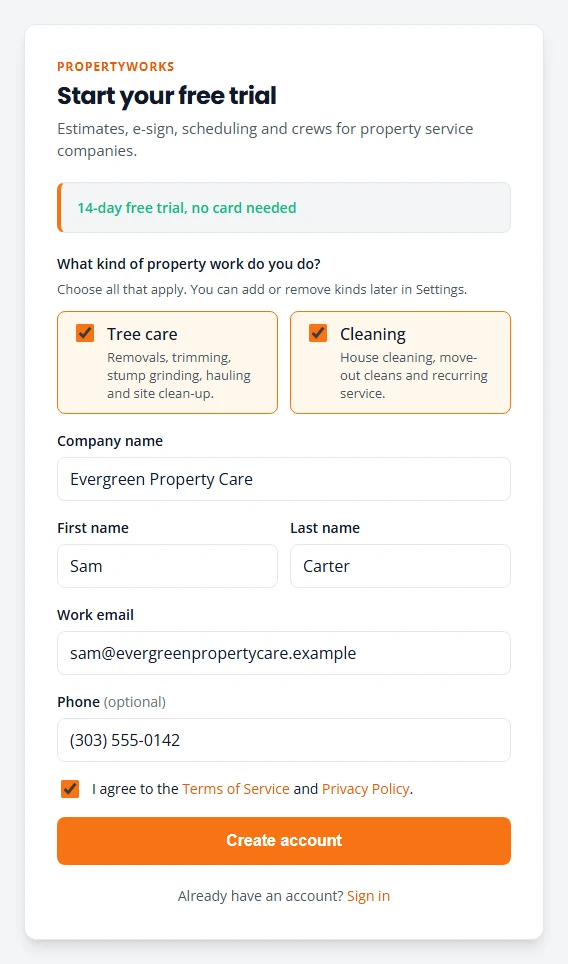
- Open the PropertyWorks sign-up page.
- Under What kind of property work do you do?, tick Tree care, Cleaning, or both.
- Fill in Company name, your first and last name, and your Work email. Phone is optional.
- Tick the box to agree to the Terms of Service and Privacy Policy, then press Create account.
- You will see Check your email. Open the email from us and press Confirm email and set password.
- Choose a password of at least 10 characters and press Create account and sign in.
You land on your Subscription page with a welcome message. Your trial has started.
Sign in each day
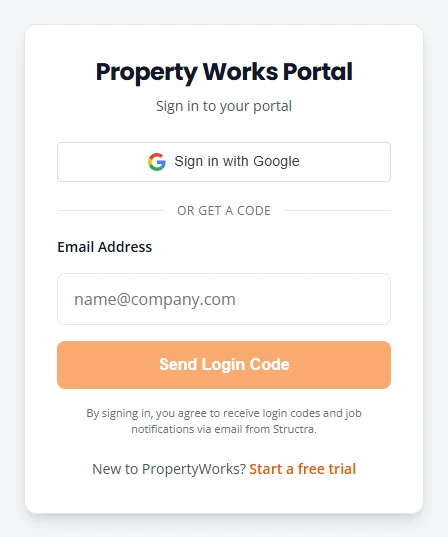
Day to day you work in the PropertyWorks portal. You sign in with a code we email you, so there is no password to remember.
- Go to the PropertyWorks sign-in page. Save it to your phone’s home screen or your bookmarks.
- Type your email under Email Address and press Send Login Code.
- Open the email called “Your Property Works Login Code”. Type the 6-digit code and press Verify Code.
You land on Pipeline. If you see Sign in with Google, you can use that instead, as long as the Google account uses the same email as your PropertyWorks account.
Open your settings
Settings are kept apart from the day-to-day portal, and only the company admin can change them. The person who signed up is the admin.
- Go to the account sign-in page and sign in with your email and the password you chose when you signed up. Use Forgot your password? if you need to reset it.
- Select your picture or initials at the top right, then Settings.
- Use the tabs across the top: General, Notifications, Subscription, Email, Branding and PropertyWorks.
Confirm your setup
The PropertyWorks tab decides what every customer sees on an estimate and after they sign. Go through it once, top to bottom.
- Kinds of work. Check that the kinds you do are On.
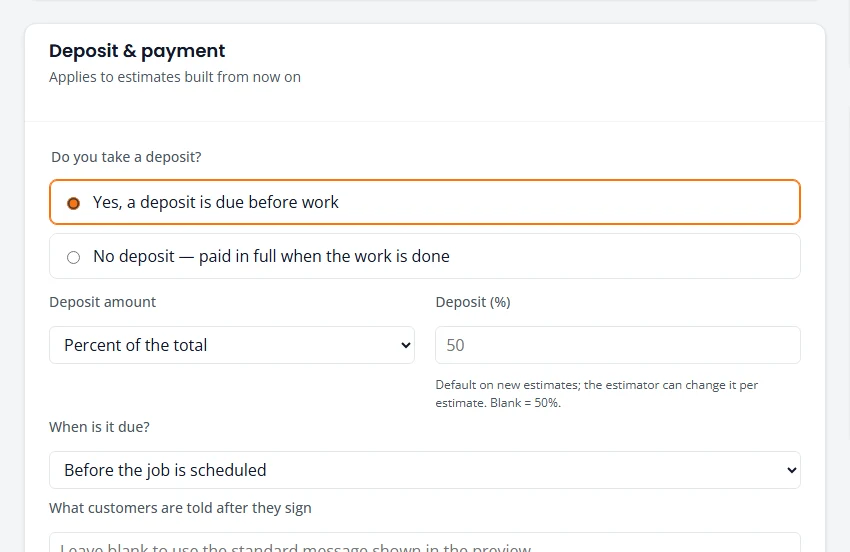
- Deposit & payment. Under Do you take a deposit?, choose Yes, a deposit is due before work or No deposit — paid in full when the work is done. If you take one, set the amount (Percent of the total or Fixed dollar amount) and When is it due?
- What customers are told after they sign. A short next step, such as when you will call to book. Leave it blank to use the standard message.
- Estimates are valid for (days). How long a customer has to accept. Blank means 30 days.
- Job number prefix. The letters at the start of your job numbers. Blank uses the standard prefix for each kind of work, such as TS for tree care and CL for cleaning.
- Time zone. Pick yours. It sets the times in crew reminders and what counts as “tomorrow” in your Action Queue.
- Press Save deposit & defaults.
- Estimate terms. Under Start from a template, pick General, Tree service or Cleaning and press Use template. Edit the wording to fit how you work, then press Save terms.
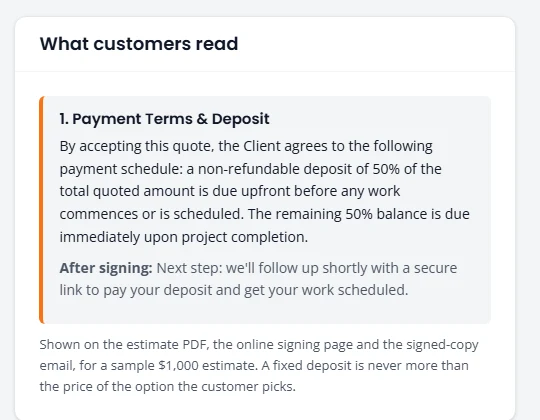
- Read What customers read on the right. It shows your payment terms the way a customer will see them.
- Press Confirm setup at the bottom.
Add your logo and colors
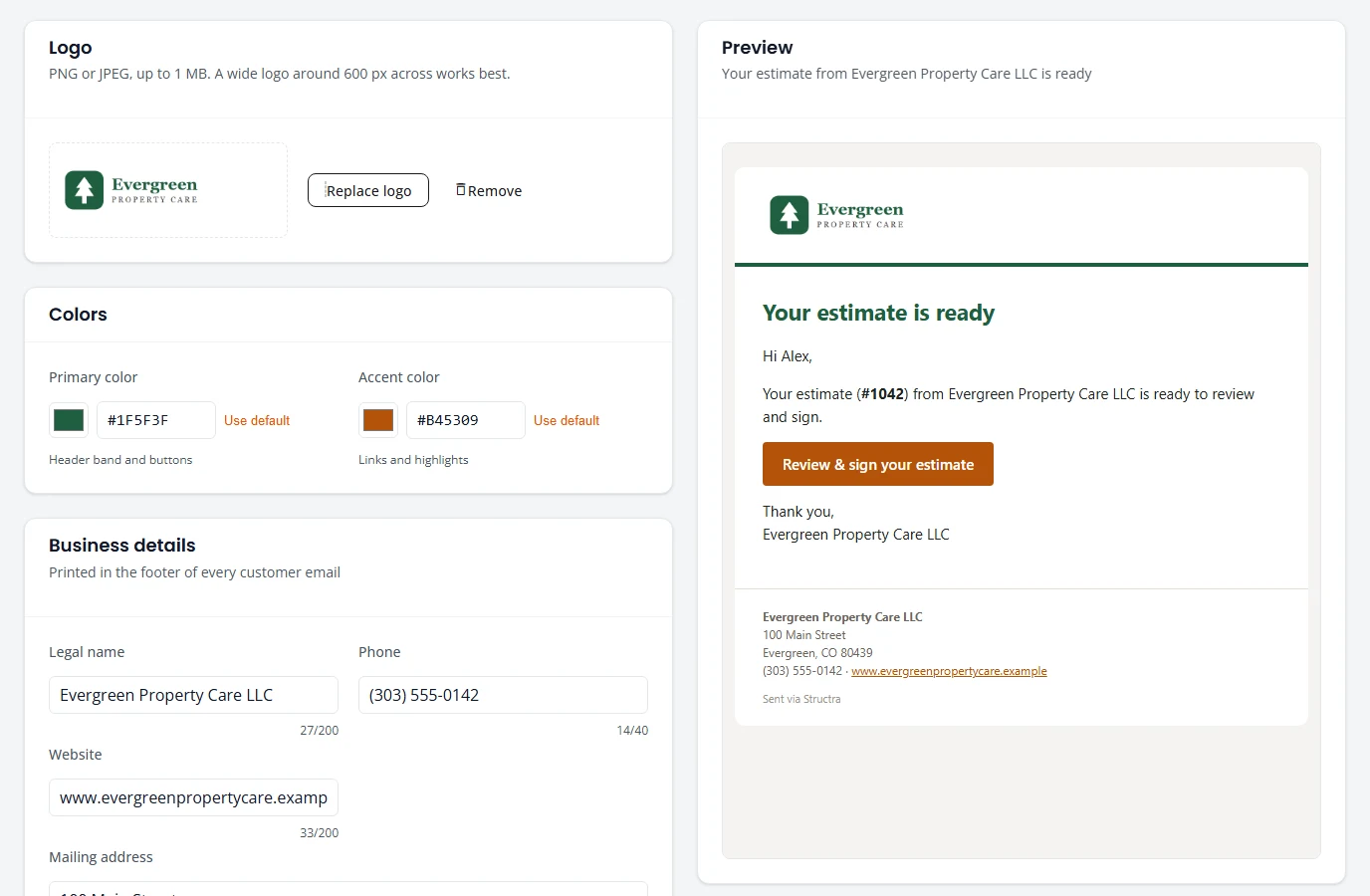
Your logo and colors go on the estimate, the page where customers sign, and the emails they get.
- Open the Branding tab.
- Press Upload logo. Use a PNG or JPEG up to 1 MB. A wide logo about 600 pixels across works best.
- Set your Primary color (the header band and buttons) and Accent color (links and highlights).
- Fill in Legal name, Phone, Website and Mailing address. These print in the footer of every customer email.
- Check the Preview on the right, then press Save.
Set where replies go
When a customer replies to an estimate email, the reply should reach you.
- Open the Email tab.
- Under Sender, type your email address in Reply-To and press Save.
- Press Send test email. The test goes to your own address, so you can see what customers see.
To start with, your email goes out as “Your Company via Structra”. You can send from your own domain later. See Your settings.
What to do next
- Set your prices. Estimates are built from them.
- Add your crew.
- Build your first estimate. Send one to yourself first.
- Choose a plan before your trial ends. See Your settings.
Stuck on something? Email support@structra.tech and tell us what you were trying to do.