The menu
The menu runs across the top of the portal. Most of it is the same for everyone. A few screens only appear for tree care or for cleaning, so you never see screens you do not use.
What everyone sees
| Menu | What it is for |
|---|---|
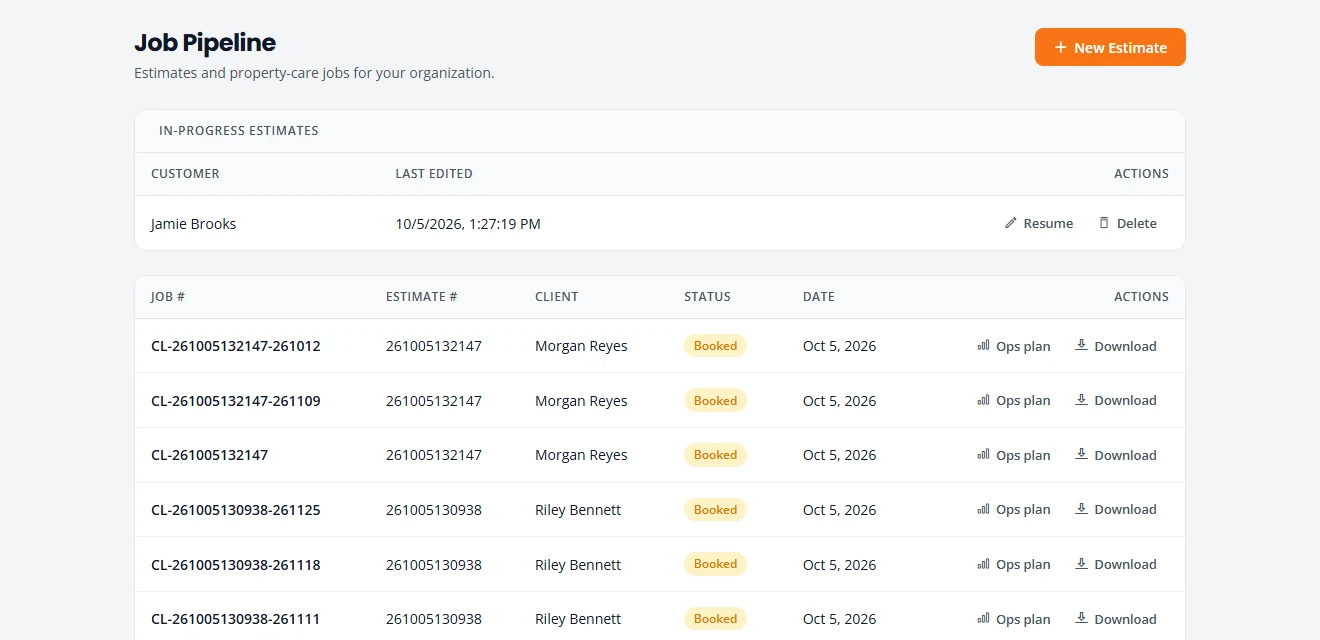
| Pipeline | Where you start an estimate (New Estimate). Also lists estimates you have not finished, and every job with a button to download its estimate. |
| Projects | Every job, grouped by where it stands: Leads, Estimating, Booking, Scheduled, In Progress, Completed & Billing and Closed. This is where you schedule, assign crew and move a job along. |
| Action Queue | What needs you today, most urgent first. A good place to start the morning. |
| Schedule | The week ahead as a list or a calendar: who is where, and when. |
| Recurring | Your repeat customers and their upcoming visits. |
| Service Catalog | Your services and prices. Estimates are built from it. |
What changes with your kind of work
You chose your kinds of work when you signed up. Each kind adds its own screens. If you do both, you see both.
| Menu | Tree care | Cleaning | What it is for |
|---|---|---|---|
| Equipment & Crew | Yes | Shows as Crew | Your crew list. Tree care also lists the equipment you own. A cleaning-only company sees just Crew. |
| Dump Sites | Yes | No | Where you haul debris, and what each load costs you. |
| Products & Supplies | No | Yes | The cleaning products you use, by product line. |



More on each: Tree care and Cleaning. To add or remove a kind of work, see Your settings.
The top bar

- Help opens this guide in a new tab.
- The sun or moon button switches between light and dark.
- Sign out signs you out of the portal.
Stuck on something? Email support@structra.tech and tell us what you were trying to do.