Recurring service
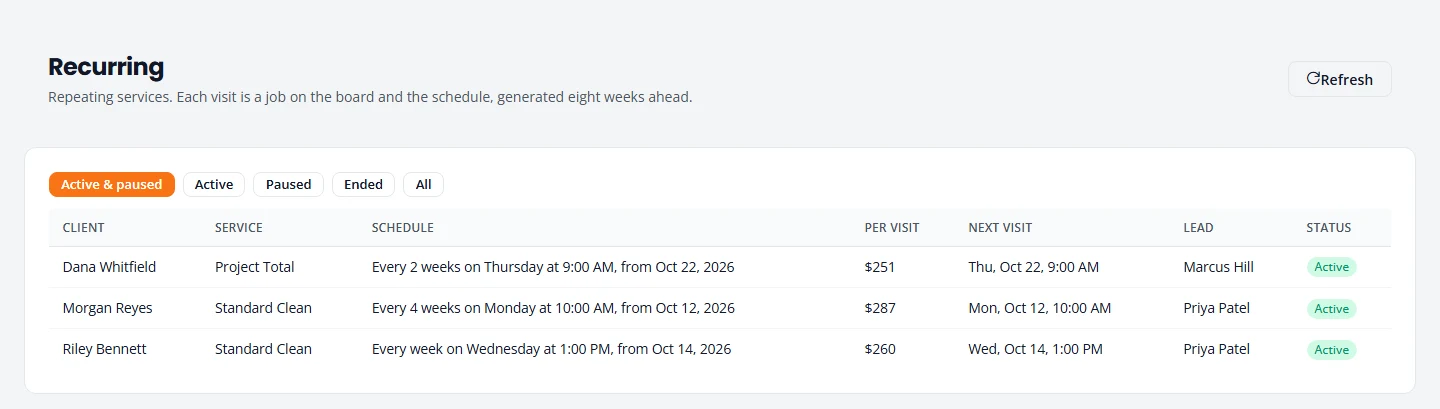
For customers on a regular schedule, set the visits up once. PropertyWorks puts each visit on your calendar and keeps adding more, so you never rebuild the same job.
How recurring service works
- The customer signs one estimate. It covers every visit.
- Each visit is its own job on Projects and Schedule, already marked Scheduled.
- Visits are added eight weeks ahead, and topped up as time passes.
- On Projects, a visit carries a Repeats tag. The original signed job carries Recurring series.
Quote it as recurring
Tell the customer how often and the price per visit before they sign.
- Build the estimate as usual. See Estimates.
- On the Pricing step, under How often, set Service frequency to Weekly, Every 2 weeks, Every 4 weeks or Monthly.
- Create and send the estimate.
The customer sees a line such as “Standard Clean every week — $260 per visit”, and the terms gain a recurring-service clause.
Make a job recurring
Do this once the customer has signed.
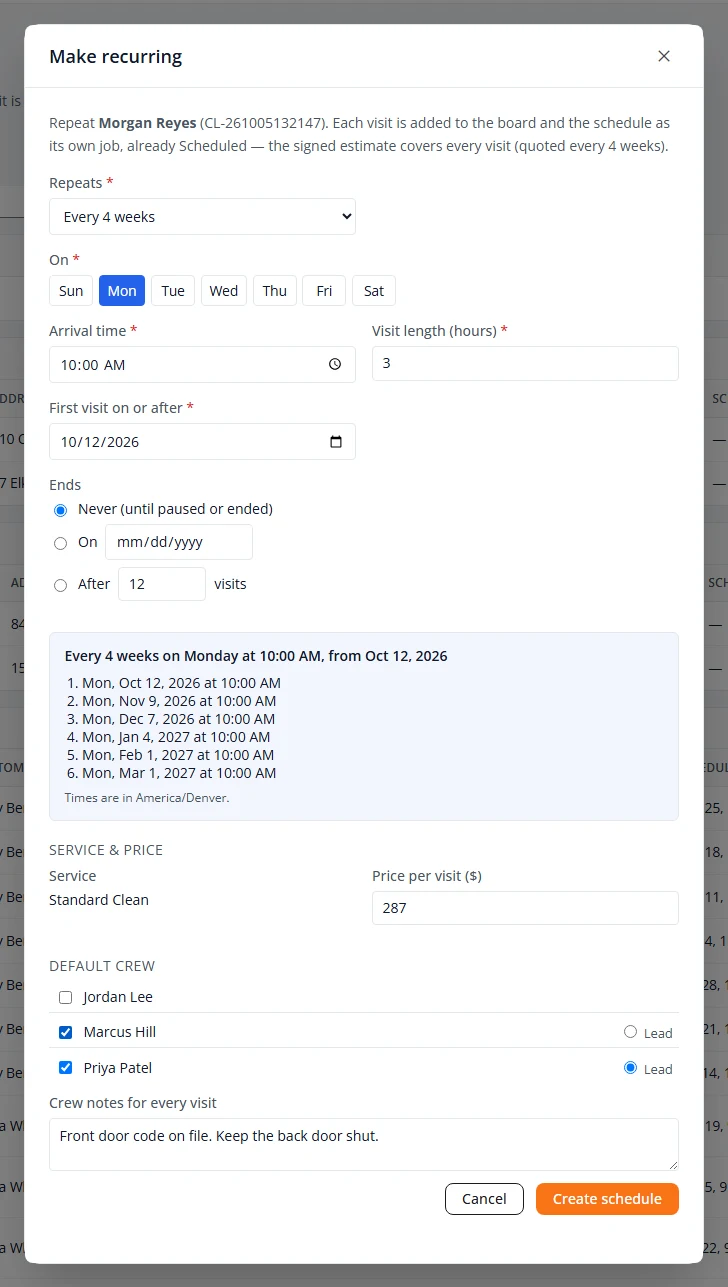
- On Projects, open the signed job’s row menu (the three dots) and choose Make recurring.
- Under Repeats, choose how often: Every week, Every 2 weeks, Every 4 weeks, Every … weeks, Monthly on a date or Monthly on a weekday.
- Under On, select the day. Set the Arrival time and Visit length (hours).
- Set First visit on or after.
- Under Ends, choose Never (until paused or ended), a date, or a number of visits.
- Check the list of the next six visits. It updates as you change the settings.
- Check the Price per visit ($), tick the Default crew, and choose who is Lead.
- Press Create schedule.
Move or skip one visit
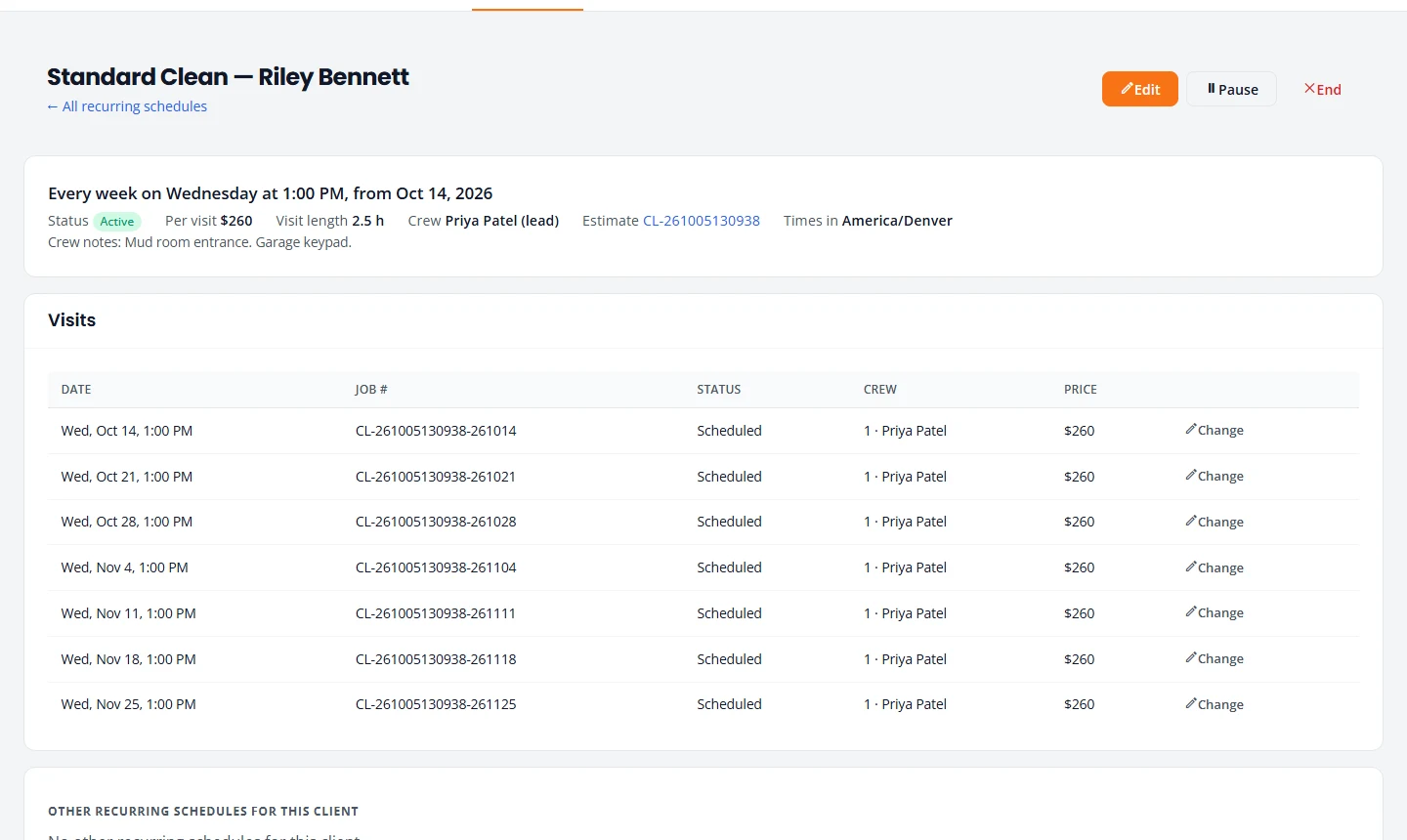
- Open Recurring and select the customer’s schedule.
- Under Visits, press Change beside the visit.
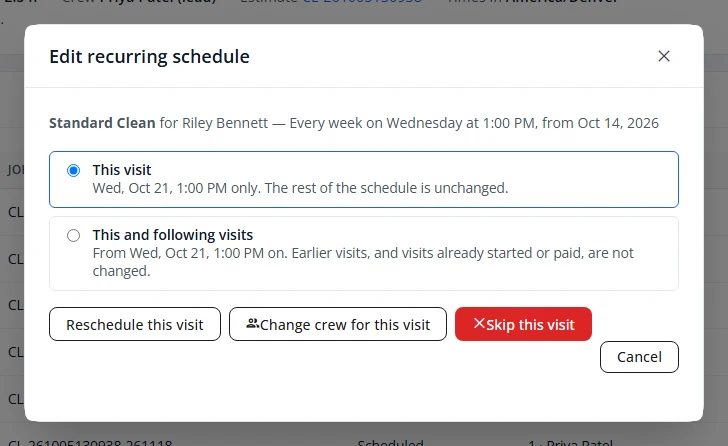
- Leave This visit selected, then choose Reschedule this visit, Change crew for this visit or Skip this visit.
Only that visit changes. The rest of the schedule carries on. A skipped visit stays skipped.
Change this and following visits
Use this when the day, time, crew or length changes from a certain visit onward.
- On the schedule, press Change beside the first visit that should be different.
- Select This and following visits.
- Change what you need and press Save changes.
To change the whole schedule from a date, press Edit at the top of the schedule and set Apply from.
Change the price
- On the schedule, press Edit.
- Set Apply from to the date the new price starts.
- Change Price per visit ($).
- To change visits that are already on the calendar from that date, tick Also re-price visits already on the schedule. Leave it unticked to change only visits added later. The box shows when the price is the only thing you changed.
- Press Save changes.
Visits that have already started or been paid keep the old price.
Pause a schedule
For a customer who is away for a while.
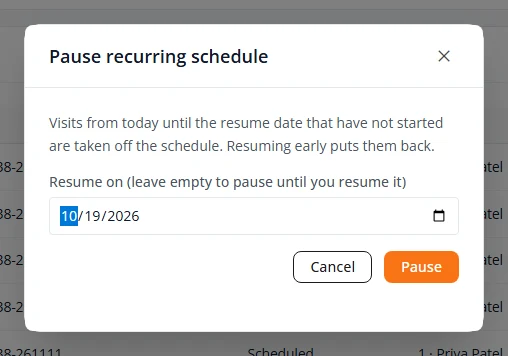
- On the schedule, press Pause.
- Set Resume on to the date service starts again. Leave it empty to pause until you resume it yourself.
- Press Pause.
Visits before the resume date that have not started come off the calendar. If you resume early, they go back on.
End a schedule
- On the schedule, press End.
- Set the Last visit date.
- Press End schedule.
Visits after that date that have not started are removed. Visits up to that date, and anything already started or paid, stay.
Stuck on something? Email support@structra.tech and tell us what you were trying to do.