Scheduling and crew
Once a customer has signed, give the job a date and a crew. Everyone can then see who is where, and when.
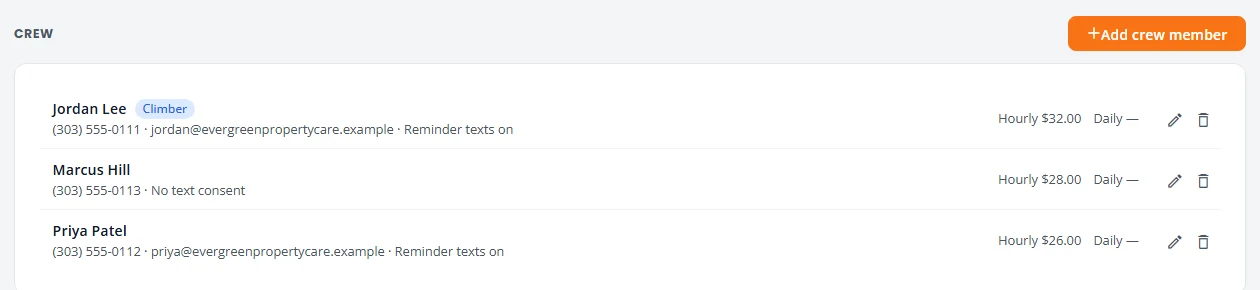
Add your crew
Add each person once. After that you can assign them to any job.
- Open Equipment & Crew. A cleaning-only company sees it as Crew.
- Press Add crew member.
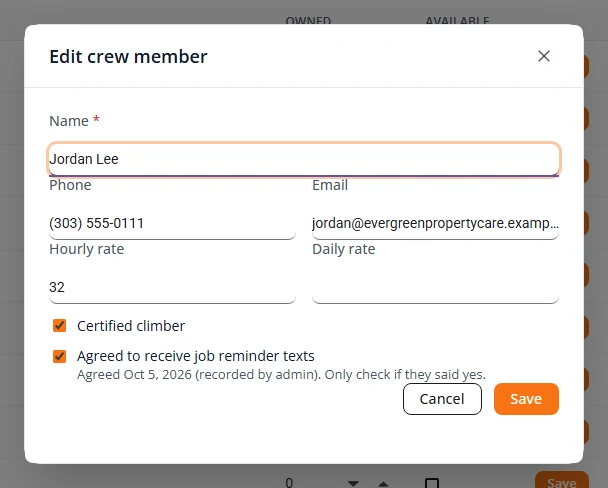
- Type their Name, Phone and Email. Add an Hourly rate or Daily rate if you track one.
- For tree work, tick Certified climber if they climb.
- Tick Agreed to receive job reminder texts only if they told you yes. Press Save.
Put a job on the calendar
- Open Projects and find the signed job under Booking.
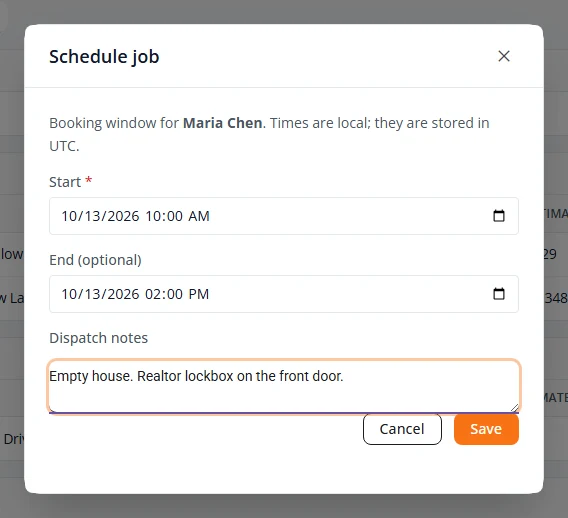
- Open the menu at the end of its row (the three dots) and choose Schedule.
- Set the Start date and time. End is optional.
- Use Dispatch notes for anything the crew should know, such as a gate code. Press Save.
The job now shows on Schedule. To move it later, open the same menu and choose Reschedule.
Assign crew to a job
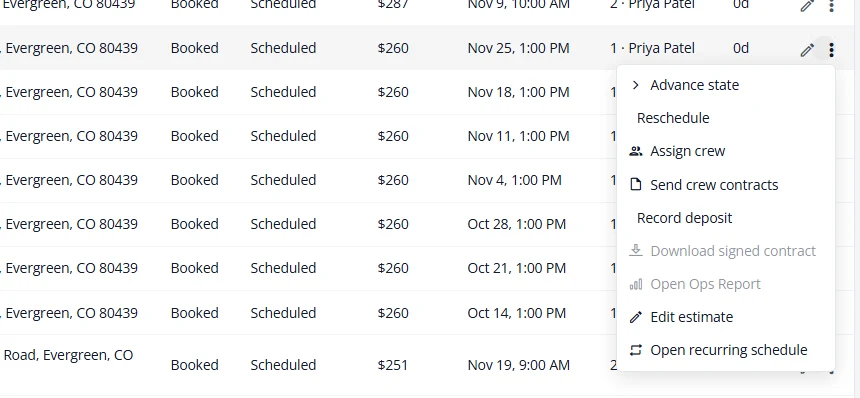
- On Projects, open the job’s row menu and choose Advance state. Pick Scheduled and press Advance.
- Open the row menu again and choose Assign crew.
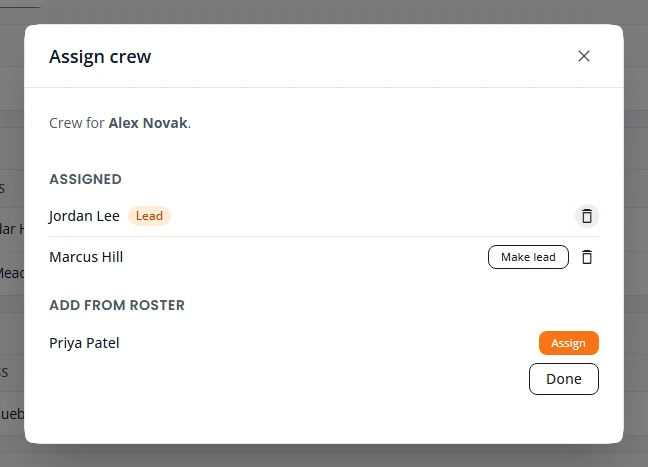
- Under Add from roster, press Assign beside each person who is going.
- Press Make lead beside the person in charge. Press Done.
See your week
Open Schedule. List shows the week day by day. Calendar shows it as a grid by week, by month, or as an agenda. Use Previous, This week and Next to move around.
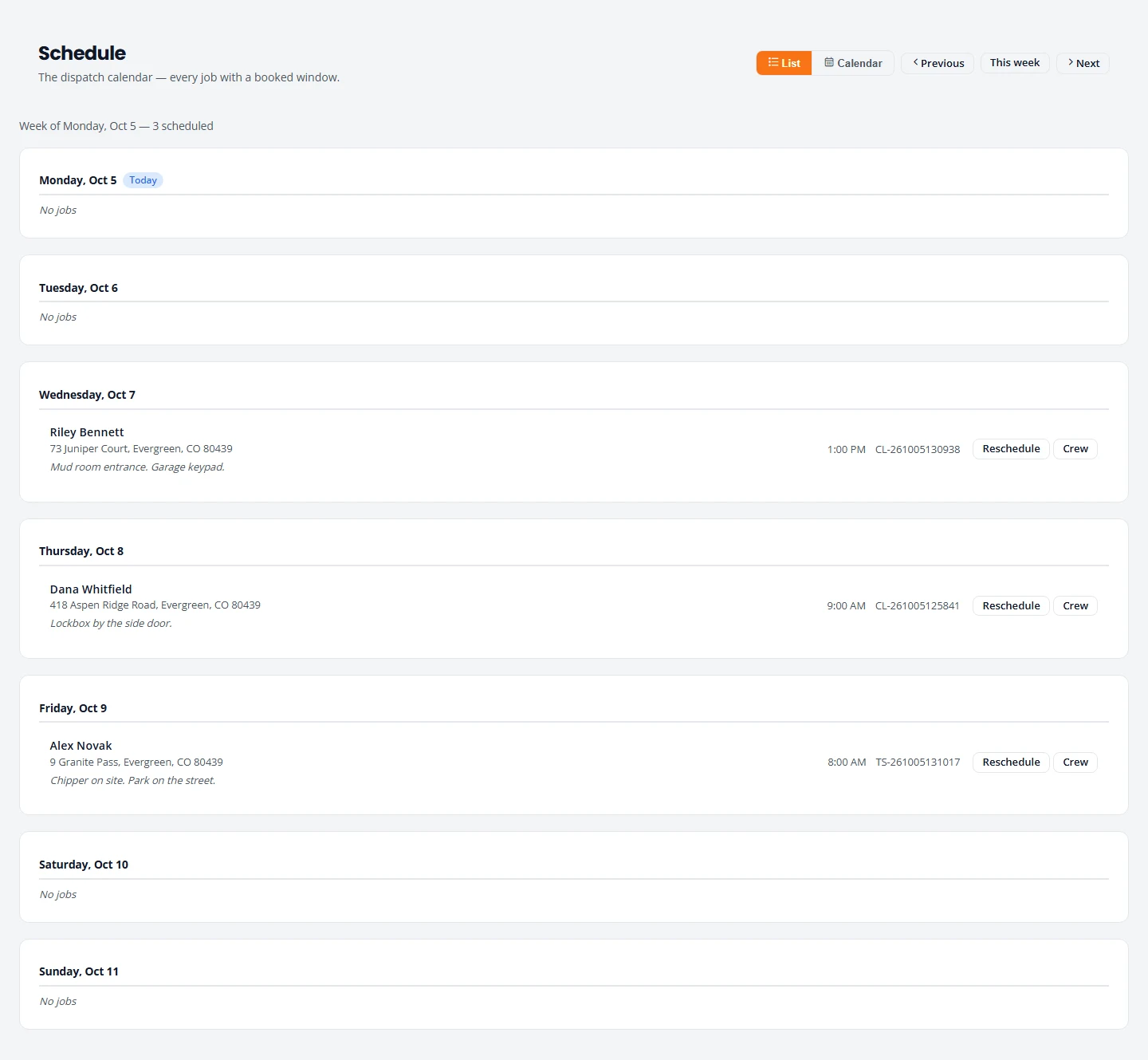
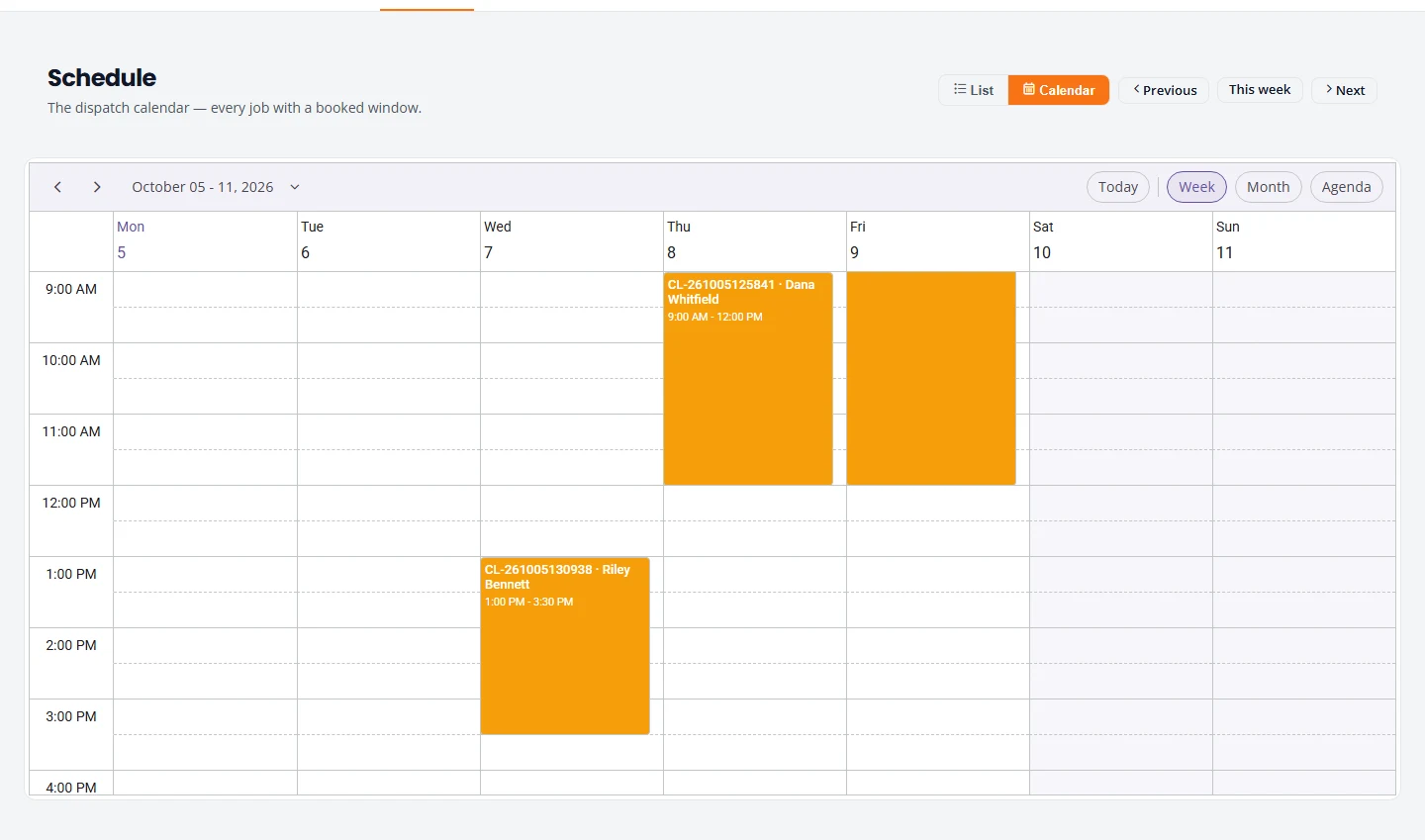
Check your Action Queue each afternoon. Tomorrow — needs crew lists any job scheduled for tomorrow that has nobody assigned.
Move a job along
Every job has a state that says where it stands. Projects groups jobs by it. Some changes happen for you: sending an estimate, the customer signing, an estimate expiring. The rest you set yourself with Advance state in the row menu.
| Set the state to | When | Where the job shows |
|---|---|---|
| Awaiting Deposit | The customer signed and owes a deposit. | Booking, and Deposit owed in the Action Queue |
| Ready to Schedule | The job is clear to book. | Booking, and Accepted — unscheduled in the Action Queue until it has a date |
| Scheduled | It has a date. | Scheduled |
| Crew Assigned | It has a date and a crew. | Scheduled |
| On Site / Working | The crew has started. | In Progress |
| Completed | The work is done. | Completed & Billing, and Completed — not invoiced in the Action Queue |
| Invoiced | You have billed the customer. | Completed & Billing |
| Paid / Closed | You have been paid. | Closed |
Reminders and text consent
PropertyWorks can text each assigned crew member the day before a job with the time and address. Reminders by text are rolling out now. We will tell you when they are on for your company.
Texts only go to people who agreed to them. That rule does not bend:
- Crew. A crew member gets reminders only if Agreed to receive job reminder texts is ticked on their record. Tick it only after they have said yes. The list shows Reminder texts on or No text consent for each person.
- Customers. On the Customer step of an estimate, tick Customer agreed to receive text updates about their quote and job only if the customer said yes. Agreeing is never required to get a quote or book a job. A customer who agreed before October 13, 2026 agreed to appointment texts only: their estimate link is not texted until they agree to the new wording, which you record with Customer agreed to this wording under the box.
- Stopping. Anyone can reply STOP to a text and the texts stop. Only their own START reply turns them back on.
Stuck on something? Email support@structra.tech and tell us what you were trying to do.