Estimates
An estimate is the price you send a customer. You build it in four steps from your Service Catalog, send it by email, and the customer accepts it online.
Build an estimate
- Open Pipeline and press New Estimate.
- Customer. Type the customer’s name, address, phone and email. For someone you have worked for before, pick them under Use an existing client. Press Next.
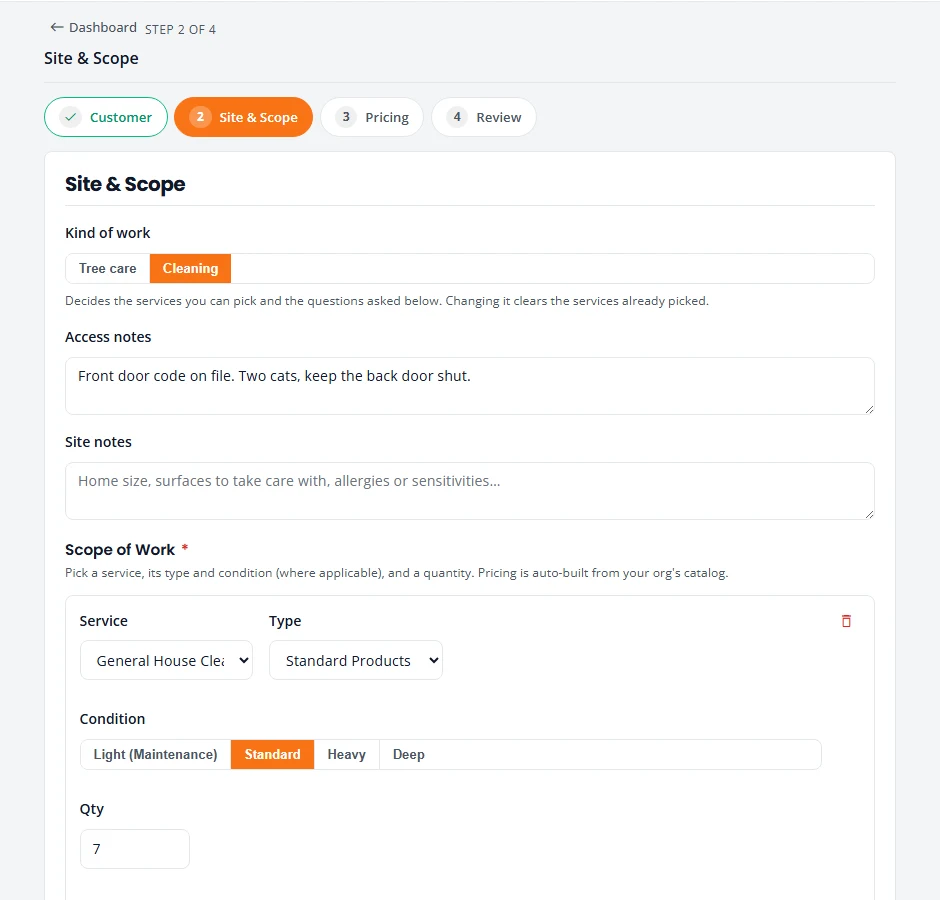
- Site & Scope. If you do more than one kind of work, choose the Kind of work first. Add Access notes and Site notes for your crew.
- Press Add service. Choose the Service, its Type and difficulty or condition where it asks, and the Qty. Add a line for each service.
- For anything that is not in your catalog, press Add custom line and type a description, quantity and price.
- Press Build / recalculate estimate. PropertyWorks prices the work from your catalog and takes you to Pricing.
Check the price
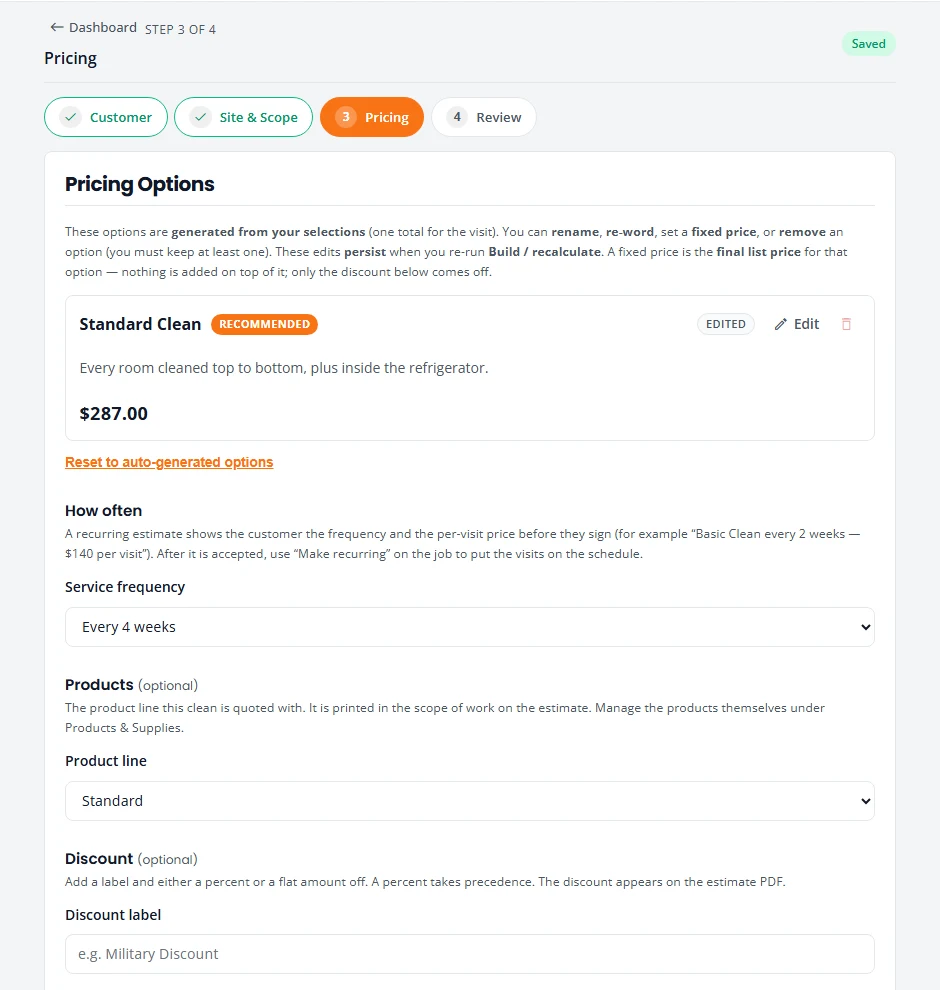
The Pricing step shows what the customer will be offered. Tree care estimates can offer more than one option, and the customer picks one when they sign.
- Reword or reprice an option. Press Edit on it to change its title or description. Tick Set a fixed price to type the final price yourself. Press Done.
- How often. For a repeat customer, set Service frequency to Weekly, Every 2 weeks, Every 4 weeks or Monthly. The customer then sees the price per visit.
- Discount. Type a Discount label and either a percent or a flat dollar amount. If you fill in both, the percent is used.
- Estimate details. Valid for (days) and Deposit (%) start from your settings. Change them here for this one estimate.
Press Next to reach Review. Read it through, then press Create Estimate.
Send it
- On the Estimate created screen, press Send to customer.
- Press Send.
The customer gets an email with your logo and a button to review and sign. They do not need an account. Replies to that email go to the Reply-To address in your settings.
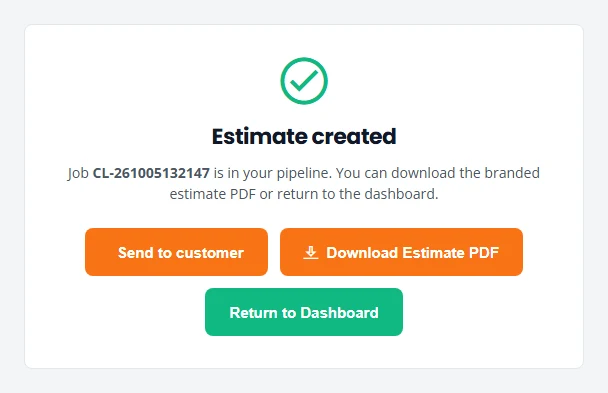
Press Download Estimate PDF if you would rather print it or attach it yourself.
What the customer sees
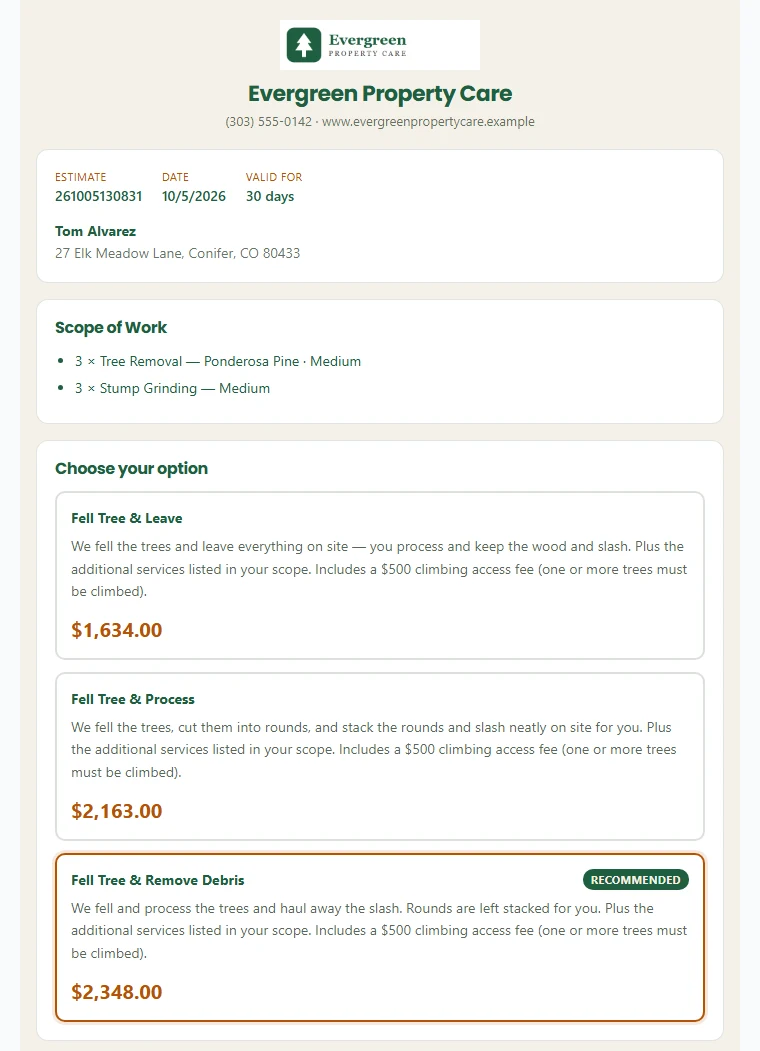
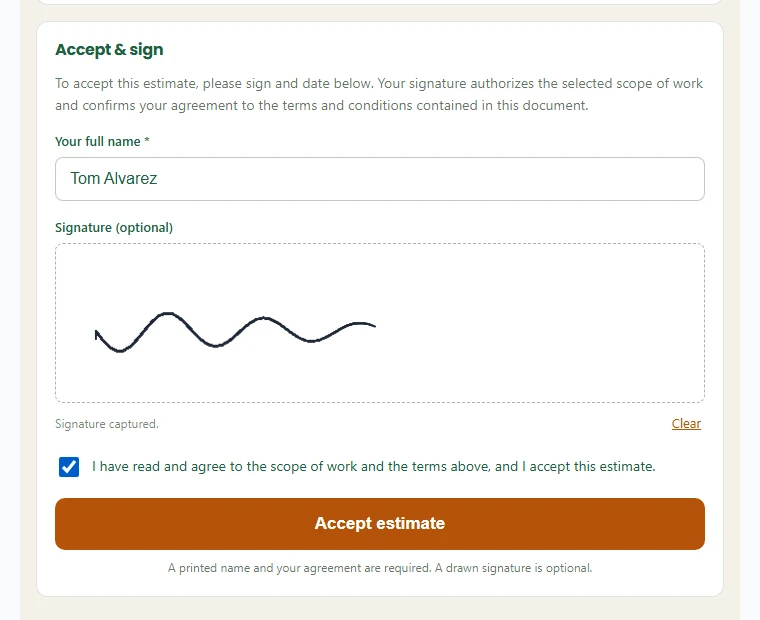
The customer opens the link on their phone or computer. The page shows your logo and colors, the scope of work, the price, and your terms.
To accept, the customer:
- Picks an option, if you offered more than one.
- Reads the terms.
- Types their name under Your full name.
- Draws a signature with a finger or mouse if they want to. It is optional.
- Ticks the box to agree and presses Accept estimate.
When the customer signs
- The customer sees a thank-you page with the next step you wrote in your settings.
- The customer gets an email with the signed estimate attached as a PDF.
- Your company admin gets an email saying who signed, with the same PDF.
- The job moves to Booking on Projects, marked Contract Signed.
Next, put it on the calendar. See Scheduling and crew. For a repeat customer, see Recurring service.
Deposits
Whether you take a deposit, how much, and when it is due all come from your settings. The estimate and the signing page state those terms for you.
When the customer pays the deposit, record it:
- On Projects, open the menu at the end of the job’s row (the three dots).
- Choose Record deposit, then press Record deposit again to confirm.
Once a job is marked Work Complete, Record final payment appears in the same menu. Use it when the customer has paid in full.
Change an estimate
- On Projects, select the job number, or the pencil at the end of the row.
- Use Back and Next to reach the step you need. Make your changes.
- If you changed services or quantities, press Build / recalculate estimate again.
- On Review, press Save changes.
- Press Send to customer so the customer sees the new figures.
Follow up and expiry
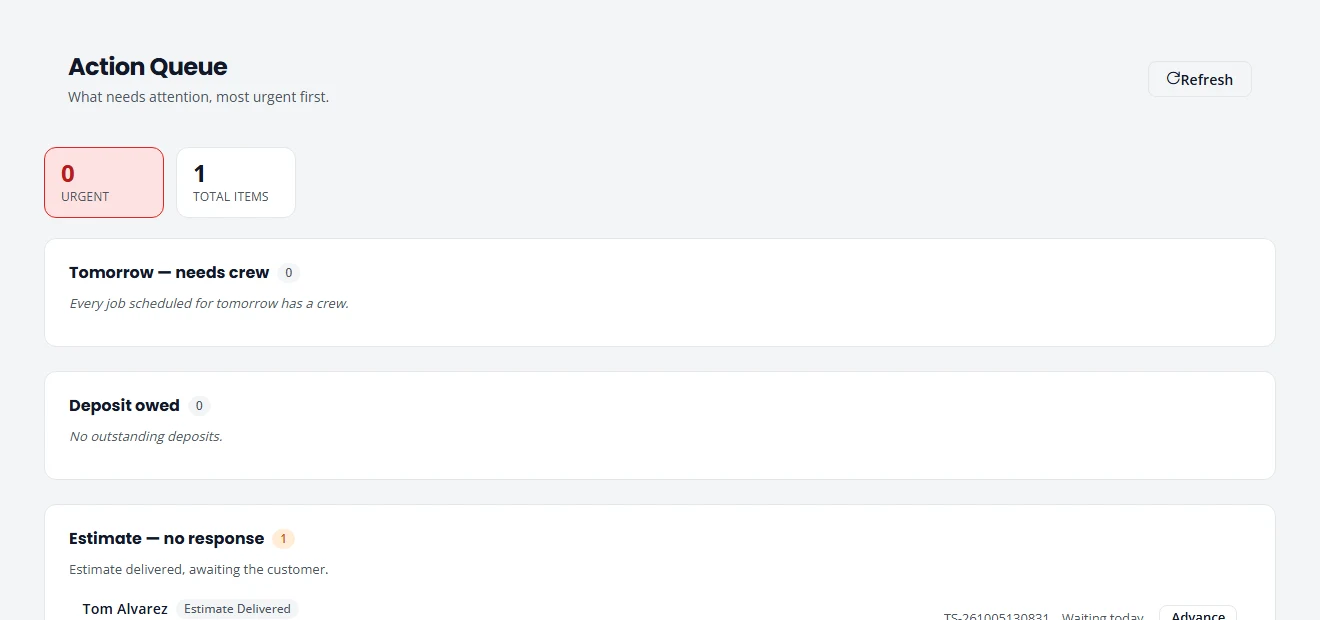
- No answer yet. A sent estimate shows in your Action Queue under Estimate — no response, with how long it has been waiting.
- Send it again. On Projects, open the row menu and choose Send for signature.
- A reminder goes out for you. A few days before an estimate expires, the customer gets a reminder email with a fresh link.
- It expired. The job moves to Graveyard — Dead estimates at the bottom of Projects. To bring it back, open the row menu and choose Resurrect estimate. The customer gets a new link.
- The customer said no. Open the row menu on the sent estimate and choose Decline estimate.
Stuck on something? Email support@structra.tech and tell us what you were trying to do.