PropertyWorks user guide
How to run your day in PropertyWorks, from a customer’s first call to a signed estimate, a job on the calendar and a repeat visit. Written for owners and office staff of tree care and cleaning companies.
How a job flows
- A request comes in. From your website or a phone call. See Leads and requests.
- You build the price. Pick services from your catalog and PropertyWorks adds it up. See Estimates.
- The customer signs online. They get an email, read the estimate and accept it. No account, no app.
- You put it on the calendar. Set the date and assign your crew. See Scheduling and crew.
- Repeat customers repeat themselves. Set the visits up once. See Recurring service.
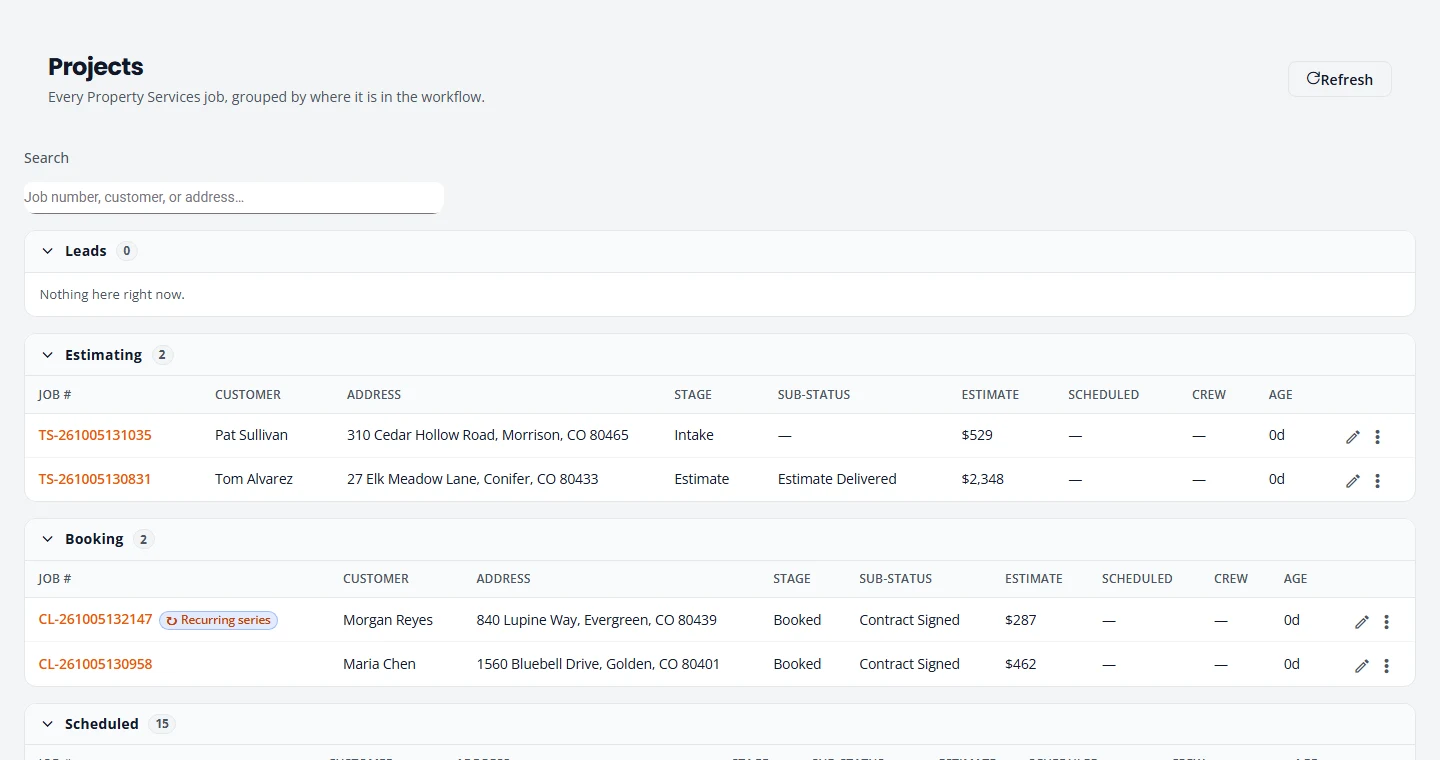
Select any picture in this guide to open it full size.
Topics
- Getting startedSign up, sign in, and set your deposit, terms, logo and reply-to address.
- The menuWhat each screen is for, and what changes for tree care and cleaning.
- Leads and requestsCatch website requests and phone calls in one place.
- EstimatesBuild a price, send it, and get it signed online.
- Scheduling and crewPut jobs on the calendar, assign your crew, and keep jobs moving.
- Recurring serviceSet up repeat visits, then move, skip, pause or end them.
- Service CatalogSet your prices and your minimum charge.
- Your settingsKinds of work, terms, branding, email and your subscription.
- Tree careDump sites, haul-away, site conditions, climbing and equipment.
- CleaningProducts & Supplies, product lines and pricing by condition.
- FAQ and helpCommon questions, what is not here yet, and how to reach us.
New here? Do these four things first
- Finish your setup: deposit, terms, time zone, logo and reply-to address.
- Set your prices in the Service Catalog.
- Add your crew.
- Send yourself a test estimate and sign it, so you see what your customers see.
Can’t find what you need? Email support@structra.tech and tell us what you were trying to do.