Service Catalog
The Service Catalog holds your services and what you charge for each. Every estimate is priced from it, so set it up before you quote. You can add your own services, change them, and stop offering them.
What is in the catalog
Open Service Catalog. If you do more than one kind of work, pick the kind from the list at the top right. Each kind has its own catalog.
| Tab | What it holds |
|---|---|
| Features | The list of services you can put on an estimate, with what each is priced by (each, per room, per window, per square foot or per hour). This is where you add, change and remove services, and set your difficulty tiers. |
| Pricing & Labor | Your price and your labor hours for each service. This is the tab you will use most. |
| Pricing | Rules that apply across every estimate, such as your minimum charge. |
| Simulator | Try out a few services and see the total, without creating a job. |
Tree care catalogs have two more tabs, Modifiers and Rules. See Tree care.
Add your own service
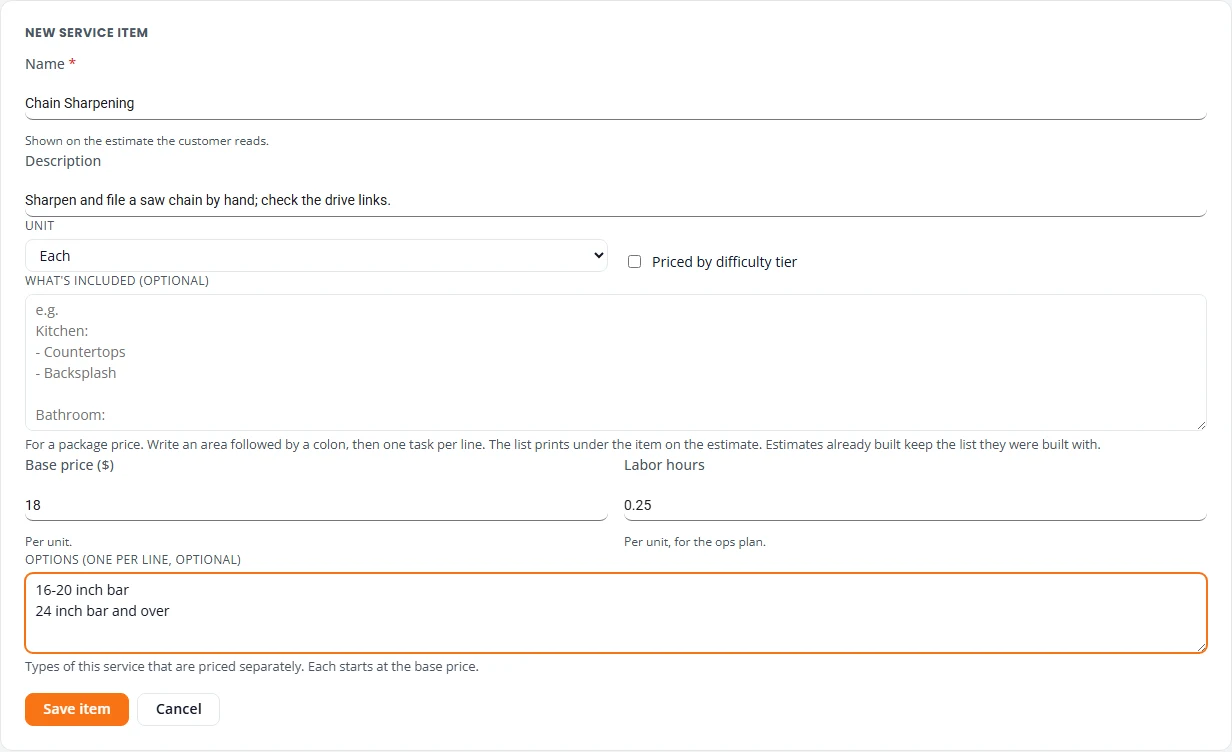
- Open the Features tab and press Add item.
- Type the Name. The customer sees it on the estimate, so use the words you would say to them. Add a Description if it helps whoever builds the estimate.
- Choose the Unit it is priced by, such as each or per hour.
- Tick Priced by difficulty tier if the price goes up for harder jobs. A cleaning catalog says condition instead of difficulty.
- Type the Base price ($) for one unit, and the Labor hours if you track them. You can leave both blank and set them on Pricing & Labor later.
- If the service comes in types you price differently, type one per line under Options. For example, a tune-up for a chainsaw, a snowblower and a generator.
- Press Save item.
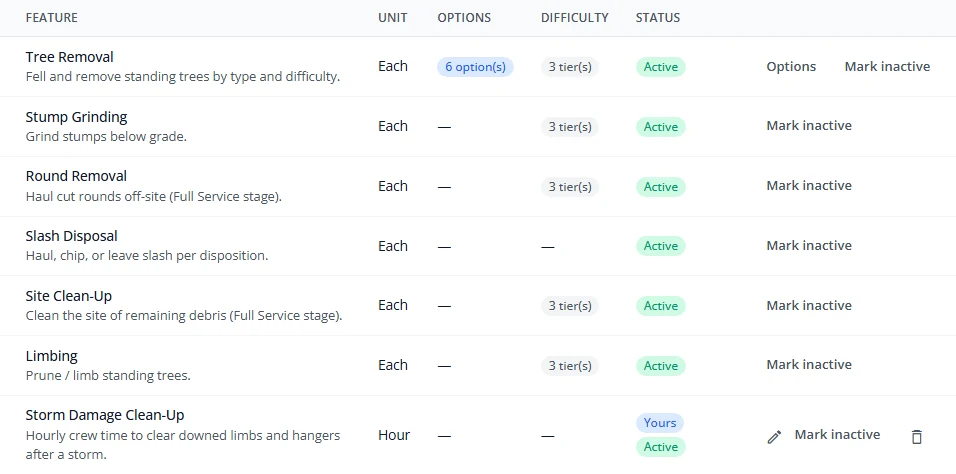
Your own services are marked Yours in the list. They can be picked on new estimates straight away.
Edit, stop offering or delete a service
Each row on the Features tab has its own buttons at the end.
| To | Press | Which services |
|---|---|---|
| Change the name, unit, description or options | The pencil | Your own services. Change prices on Pricing & Labor. |
| Add your own types to a starter service | Options | Starter services that come in types, such as tree removal. |
| Stop offering it | Mark inactive | Any service. It no longer appears on new estimates. Press Activate to offer it again. |
| Remove it for good | The bin, then Delete item | Your own services that are not on any estimate. |
When a service is already on an estimate
A service that is on an estimate cannot be deleted, because that estimate still lists it. You see how many estimate lines use it. Press Mark inactive instead. The estimates you already have keep the service and its price. New estimates no longer offer it.
Starter services that come with your catalog cannot be edited or deleted. Mark them inactive if you do not sell them, and add your own version if you need a different name.
Set your prices
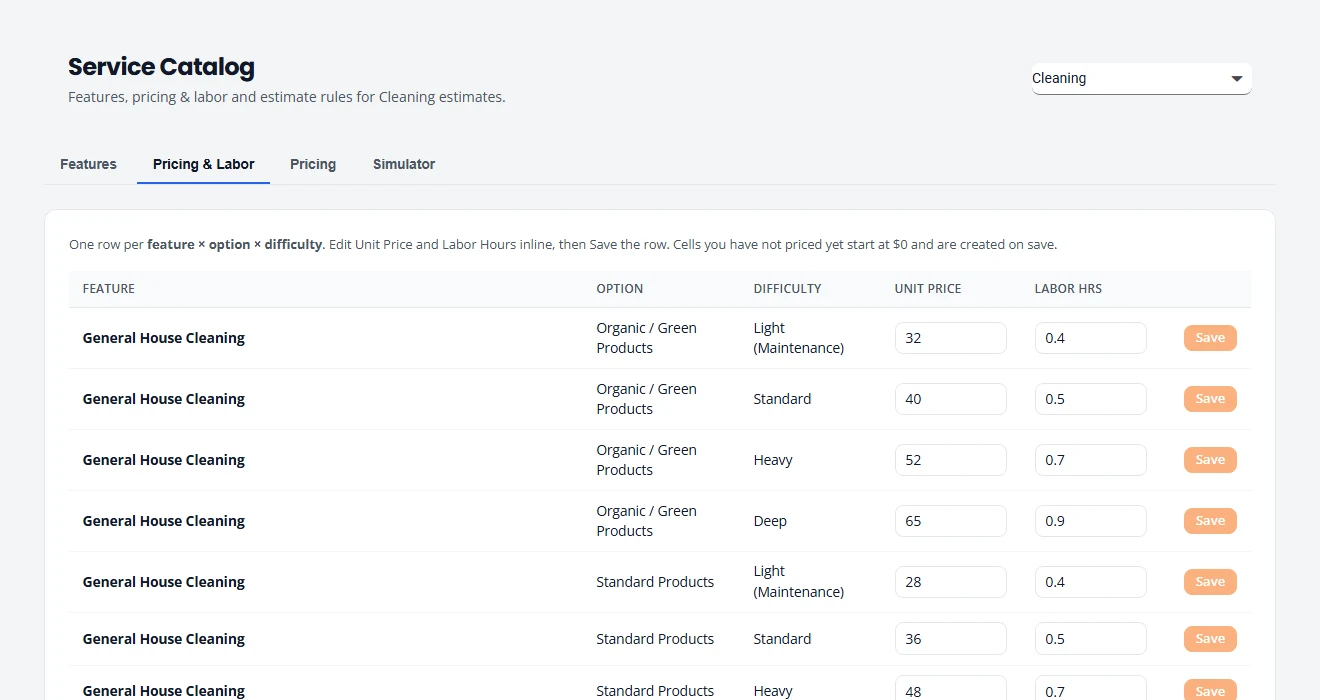
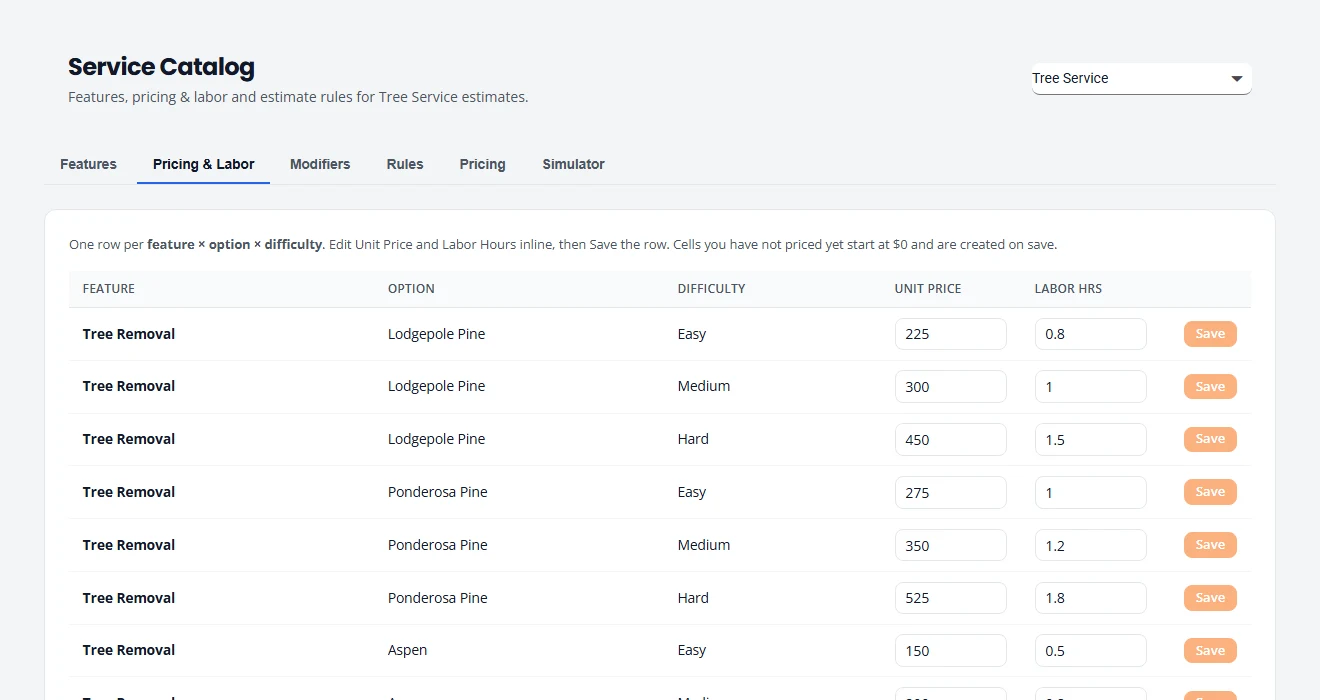
- Open the Pricing & Labor tab. There is one row for each service, type and difficulty or condition.
- In Unit Price, type what you charge for one unit: one tree, one room, one window, one square foot or one hour.
- In Labor Hrs, type roughly how long one unit takes. This is used to plan crew time.
- Press Save at the end of that row.
Difficulty tiers
Many services have more than one price, because the same job is not always the same amount of work. You set the levels, called tiers, for each kind of work, and choose the level when you build the estimate.
- Tree care uses difficulty: Easy, Medium and Hard. A tree in the open is not the same job as one leaning over a roof.
- Cleaning uses condition: Light (Maintenance), Standard, Heavy and Deep. A home you clean every week is not the same job as a first visit.
- Snow removal uses driveway size: Small (1-car), Standard (2-car) and Large, long or steep.
- Yard care uses lot size: Small lot (under 1/4 acre), Medium lot (1/4 to 1/2 acre) and Large lot (over 1/2 acre).
- Engine repair, junk removal and handyman start with none. Add tiers if some jobs take longer than others.
Set up your tiers
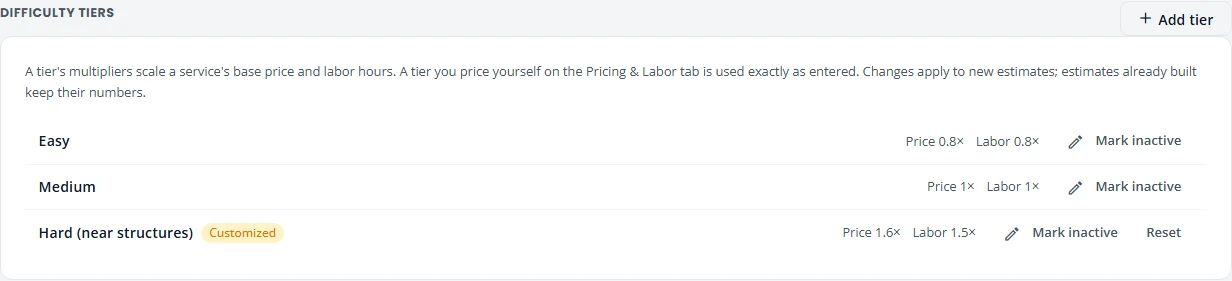
The tiers for the kind of work you picked are listed under the services on the Features tab. Each tier has two numbers:
- Price multiplier. How much the tier multiplies a service’s base price. 1.5 means half as much again.
- Labor multiplier. The same for the labor hours, used to plan crew time.
- Press Add tier. If the kind of work has no tiers yet, you can press Add Easy / Medium / Hard to start with the standard three.
- Type the Name, the Price multiplier and the Labor multiplier, and save.
- To change a tier, press the pencil. To stop offering it, press Mark inactive.
A tier you added yourself can be deleted. A standard tier you have changed shows Customized. Press Reset to put back its standard name and multipliers.
Some services also have a Type. For tree removal it is the kind of tree. For general house cleaning it is the product line. Each type and level has its own row.
Set a minimum charge
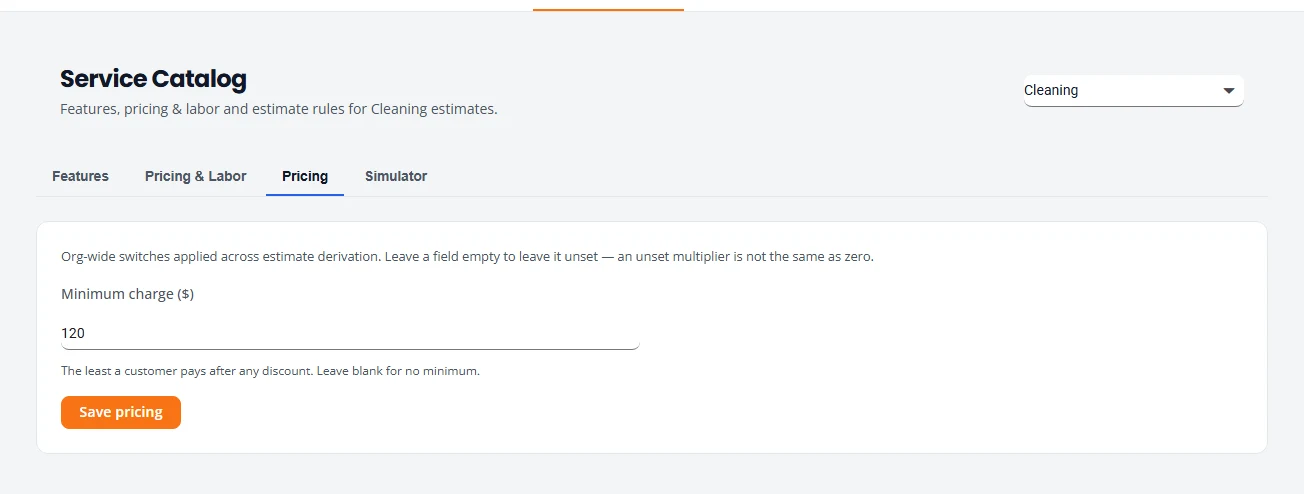
A minimum charge is the least you will take a job for.
- Open the Pricing tab.
- Type the amount in Minimum charge ($). Leave it blank for no minimum.
- Press Save pricing.
Test a price
Before you quote a customer, check that your prices add up the way you expect. Open the Simulator tab, press Add selection for each service, then press Preview. It shows the total and the hours. Nothing is saved and no job is created.
What changing the catalog affects
| What | Does a new price change it? |
|---|---|
| New estimates | Yes. They use the price at the moment you build them. |
| Estimates you already created | No. They keep the prices they were quoted at, even if you open and save them again. |
| A service you mark inactive | Estimates that already have it keep it. New estimates do not offer it. |
| Recurring visits | No. A recurring schedule has its own price per visit. Change it on the schedule. See Change the price. |
Stuck on something? Email support@structra.tech and tell us what you were trying to do.