Customers and reviews
Every customer you quote is kept on the Customers screen, with their contact details and every job you have done for them. From there you keep them informed and ask happy customers for a Google review.
Find a customer
Customers are added for you when you start an estimate. You do not add them separately.
- Open Customers.
- Under Search customers, type part of a name, phone number, email or address.
- Select the customer. Their details and job history open on the right.
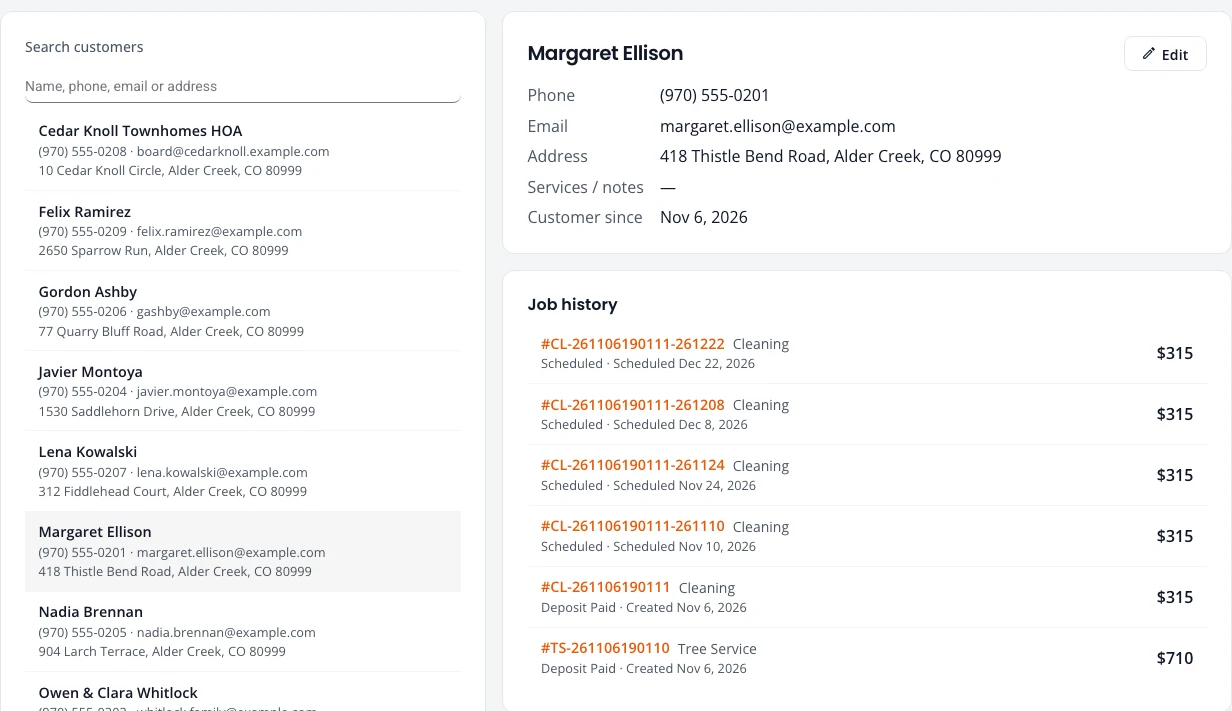
Beside the phone number you may see Texts OK, when the customer agreed to texts, or Replied STOP, when they have asked for no more texts.
Change their details
- Select the customer and press Edit.
- Change the name, phone, email, address or Services / notes, then press Save.
Keep customers informed
Northfork Trades can email customers when a visit is booked or moved, the evening before, and when the crew is on the way. Customers who agreed to texts can get the same by text. An admin turns each one on under Customer notices.
For text consent and how customers stop texts, see Reminders and text consent.
Tell them you are on the way
- Open the job on Schedule or on the board.
- Press On my way. Allow your phone to share its location once, so Northfork Trades can work out an arrival time.
The job moves to en route. If Crew is on the way is turned on, the customer gets an email with your name and photo, the expected arrival, and a View job status button. That button opens a page that shows whether the crew is scheduled, on the way, on site or done. The page stops working 14 days after the appointment.
Ask for reviews
Ask for Reviews emails past customers a link to review your business on Google. Each email has an unsubscribe link, and nobody is asked twice in 6 months unless you choose to. Only admins can send them.
Set it up once
- Open Settings, Estimates & payments, and find Customer notices.
- Paste Your Google review link. To get it, open your Google Business Profile, choose “Ask for reviews” and copy the link.
- Turn on Allow review request emails.
- To ask every customer for you, turn on Ask automatically after each job and set Days after the job is finished. These go out between 9 AM and 6 PM.
Ask by hand
- Open Ask for Reviews.
- Under Your customers, tick the customers to ask. The list shows customers with at least one finished job, and when each was last asked. Customers who unsubscribed cannot be ticked.
- To ask people who are not in Northfork Trades yet, paste their email addresses under Other past customers and press Check the list.
- Read Before you send. It shows who will be asked and who is skipped, and why. Then press the send button, such as Send 3 review requests.
The Sent list shows each request, whether it went out automatically or by hand, and whether the customer clicked the link.
Stuck on something? Email support@structra.tech and tell us what you were trying to do.