Online payments
Let customers pay their deposit and their final invoice online, by card or bank transfer. The money goes to your own Stripe account, and Northfork Trades keeps track of what was paid, sends the receipts and reminders, and can add it to QuickBooks.
How online payments work
- You connect your own Stripe account. Payments go to it and then to your bank.
- Stripe charges its standard processing fee to your account.
- After signing, the customer can pay the deposit online. When the work is done, you send a final invoice for the balance.
- Receipts, reminders and refund notices go to the customer from your business, in your branding.
Connect Stripe
- Open Settings. On the Estimates & payments tab, find Payments.
- Press Connect with Stripe. Stripe asks for your business details and the bank account for payouts.
- When you come back, the card shows Ready to take payments. If it shows Stripe setup is not finished, it lists what is still needed. Press Finish setup in Stripe, then Check again.
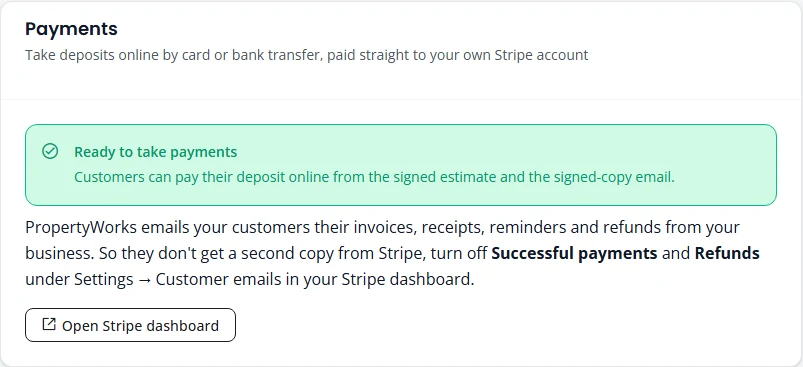
Then do what the card asks: press Open Stripe dashboard and, under Settings → Customer emails, turn off Successful payments and Refunds. Otherwise customers get a second receipt from Stripe.
Deposits online
Once the customer signs an estimate that asks for a deposit, a Pay deposit button appears on the signed estimate and in the signed-copy email. It opens a secure Stripe page where they pay by card or bank transfer.
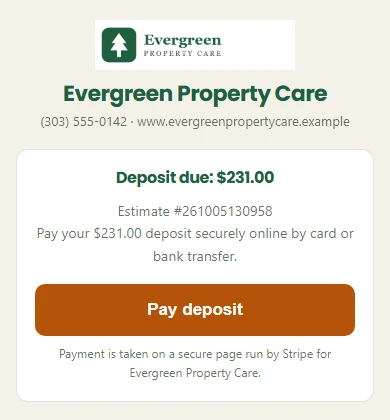
When the payment goes through:
- The job moves to Deposit Paid on its own. You do not need to use Record deposit.
- The customer gets a confirmation email from your business.
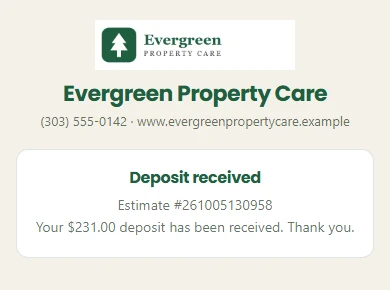
- The page now says the deposit has been received.
Reminders and pay links
If the deposit is still unpaid, the customer gets a reminder 3 days and 7 days after signing. You do not need to do anything.
To nudge a customer yourself, or send them the link another way:
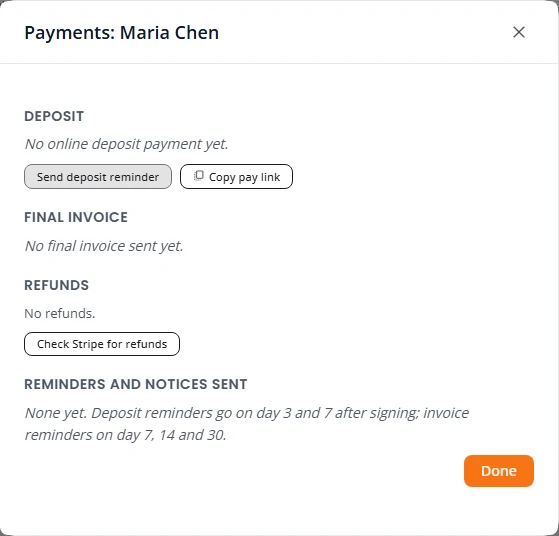
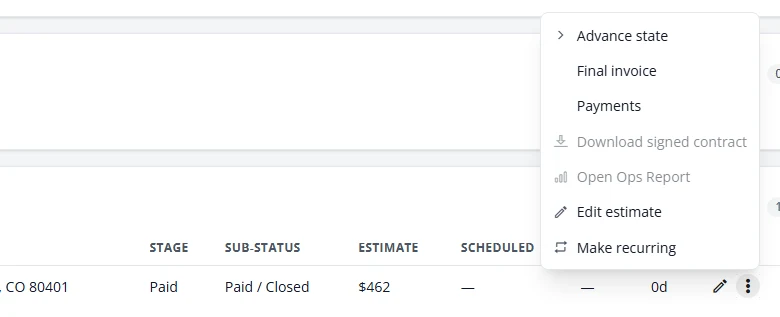
- On Projects, open the job’s row menu (the three dots) and choose Payments.
- Press Send deposit reminder to email them now, or Copy pay link to paste the link into a text or your own email. A copied link works for 30 days.
Send the final invoice
When the work is done, bill the balance. The invoice credits the deposit the customer already paid online.
- Mark the job Work Complete with Advance state. See Move a job along.
- On Projects, open the job’s row menu and choose Final invoice.
- Check the lines. Leave Total blank to bill the estimate total.
- If the job came out different, type the new total. It can move within your estimate’s range, shown under the box. Say Why the total changed; the customer sees it on the invoice.
- Press Send invoice.
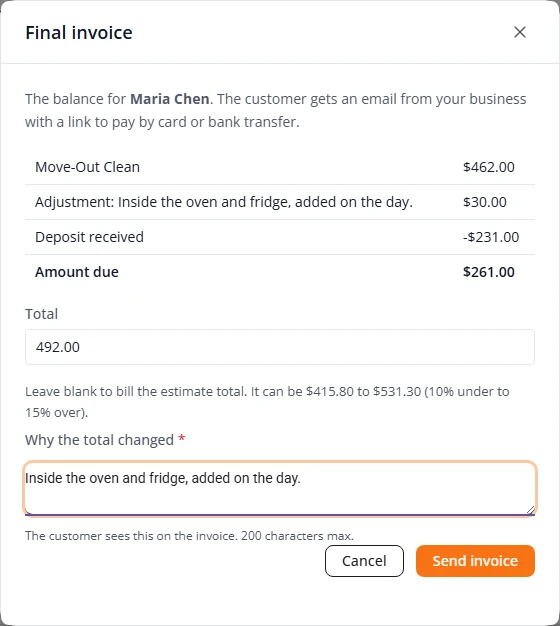
The customer gets an email from your business with a link to pay. The box then shows where the invoice stands and the payment page link.
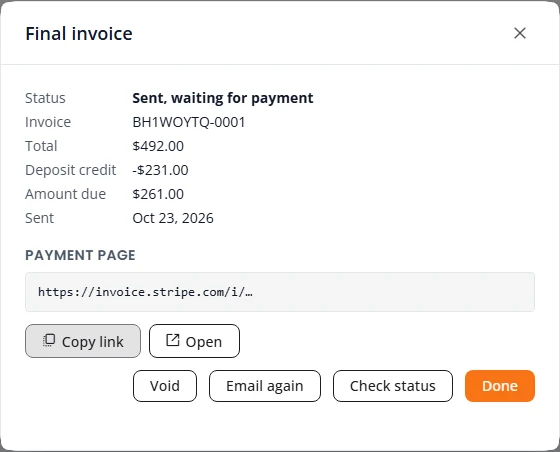
- Email again sends the link to the customer again.
- Copy link copies it, to send another way.
- Void cancels the invoice so the customer can no longer pay it. Then you can send a corrected one.
- Check status asks Stripe for the latest. You rarely need it; payments show up on their own.
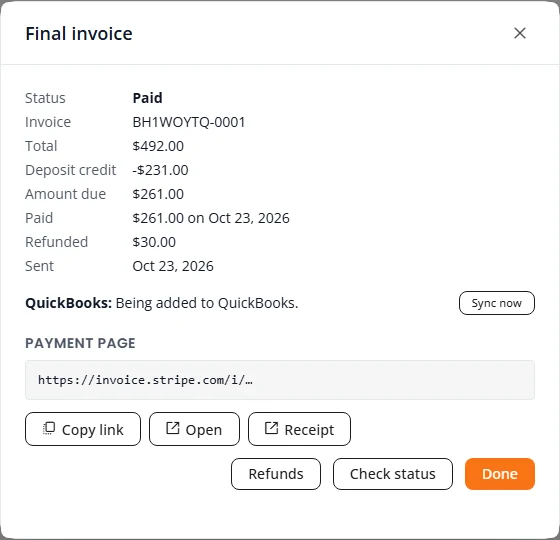
If the invoice is unpaid, the customer gets a reminder 7, 14 and 30 days after it was sent. After 30 days it shows as overdue. When it is paid, the customer gets a receipt and the job moves to Paid / Closed.
When the deposit covers the total
If the deposit the customer paid already covers the whole price, there is nothing left to invoice.
- Mark the job Work Complete.
- Open the job’s row menu and choose Final invoice. The box says “The deposit already covers the total. There is nothing left to invoice: close the job as paid instead.”
- Press Close as paid.
The job moves to Paid / Closed, and no invoice is sent to the customer. If QuickBooks is connected, the sale and the deposit are added to it.
See a job's payments
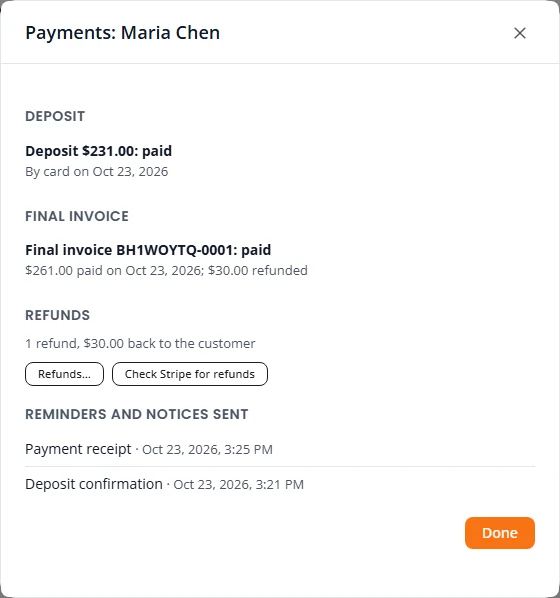
The Payments choice in a job’s row menu shows everything about the money on one job: the deposit, the final invoice, any refunds, and every reminder and notice the customer was sent.
Refunds
- Open the job’s Payments and press Refunds…. (A paid final invoice also has a Refunds button.)
- Under Refund from, choose the deposit or the final invoice.
- Leave Amount blank to refund all of it, or type part of it.
- Write the Reason. It is kept with the refund. Tick Include the reason in the customer’s email if you want the customer to see it.
- Press Refund…, check the amount, and confirm.
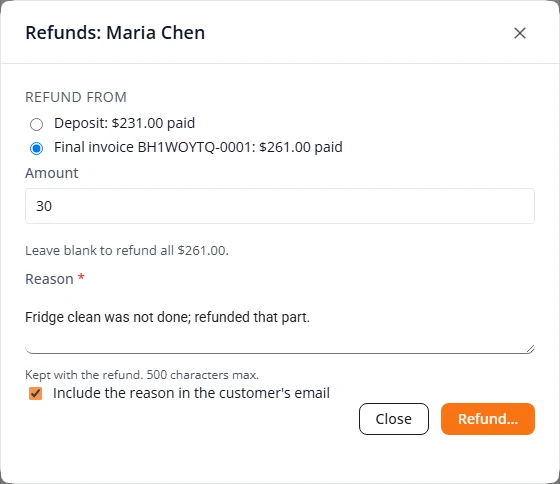
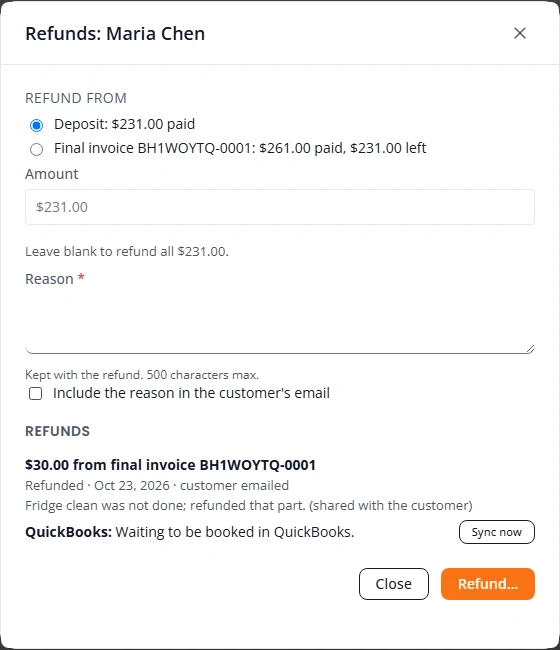
The money goes back to the card or bank account the customer paid with. The customer gets an email from your business. The job’s status does not change.
Sales tax
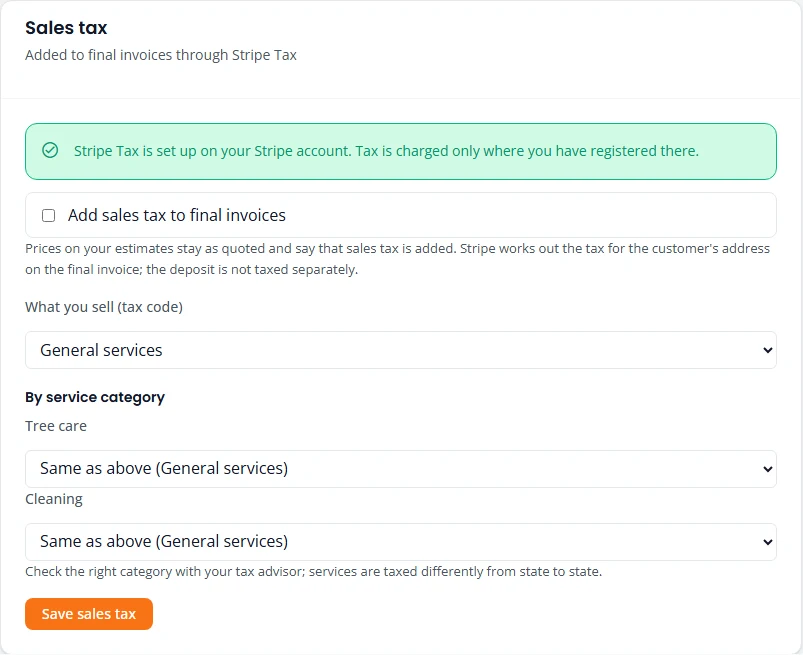
If you charge sales tax, Stripe Tax can add it to your final invoices, worked out for the customer’s address. Turn on Stripe Tax and register where you collect tax in your Stripe dashboard first.
- In Settings, Estimates & payments, find Sales tax.
- Tick Add sales tax to final invoices.
- Under What you sell (tax code), choose what fits your work. Under By service category, choose a different one for a kind of work that is taxed differently.
- Press Save sales tax.
- Prices on your estimates stay as quoted, and the estimate says sales tax is added.
- The deposit is not taxed separately. The tax is on the final invoice.
- The final invoice shows the estimated tax before you send it, and the exact tax once it is created.
QuickBooks
With QuickBooks connected, paid final invoices and refunds are added to your books for you. So are jobs closed without a final invoice: one closed as paid because the deposit covered it, or one whose final payment you recorded by hand with Record final payment. To connect it, an admin opens Settings, the QuickBooks tab, and presses Connect QuickBooks.

- Sales tax collected through Stripe is its own line, on an item called Sales tax (Stripe). It posts to a liability account, Sales tax collected (Stripe). Both are created for you.
- A refund is added as a refund receipt.
- For a job closed without a final invoice, the sale is added at the estimate total, with the deposit and any balance as payments. No sales tax is added, because none went through Stripe.
- If adding one fails, the invoice or refund says why and offers Sync now to try again. For a job closed without a final invoice, open Final invoice on the job to see its QuickBooks line and Sync now.
A refund on a job closed without a final invoice is not added to QuickBooks. Record it there yourself.
Stuck on something? Email support@structra.tech and tell us what you were trying to do.